
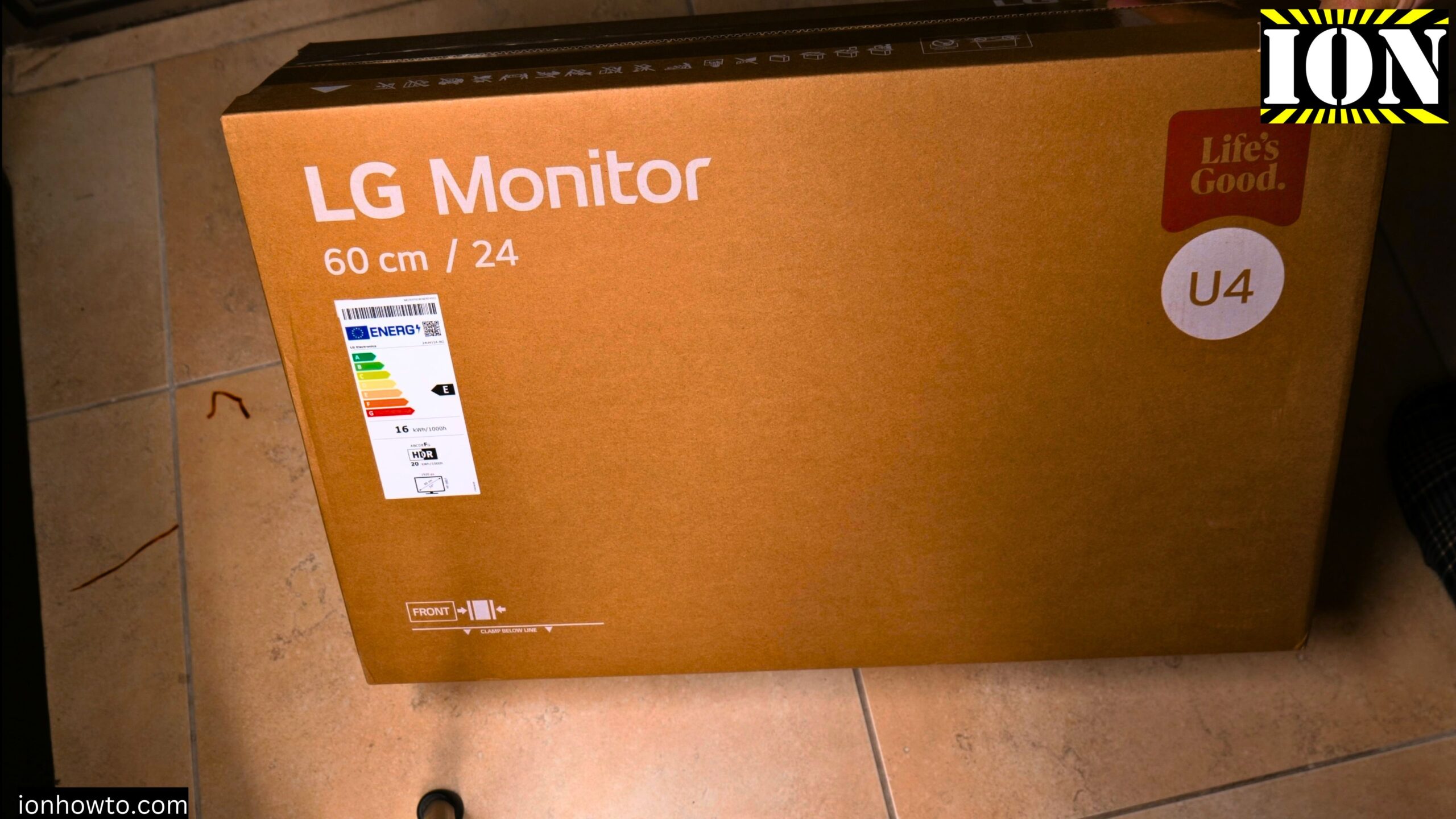
LG 24U411A-B 24 Inch Monitor Assembly and Power On Test.
Learn how to assemble the LG 24U411A-B 24 inch monitor and test that it powers on correctly. I show you the steps to attach the stand, secure the screws, and connect the power. This guide helps you avoid common mistakes during setup.
What You Need Before Starting
Before you begin, gather a few things. You need the monitor screen, the stand neck, the stand base, the two sets of screws from the box, a Phillips head screwdriver, the power adapter, and a clean soft surface to lay the monitor on. A towel or the foam from the box works well.
How to Attach the Stand Correctly
There is a right way and a wrong way to attach the stand. I show you the correct order so you do not have to undo your work.
Step 1: Lay the screen face down
Place the monitor face down on a soft surface. This protects the screen from scratches while you work on the back.
Step 2: Attach the stand neck to the monitor
Take the stand neck piece. Line it up with the mounting area on the back of the monitor. The neck should click or slide into place.
Step 3: Screw in the first set of screws
Take the two screws with the flatter shape. These go into the holes where the neck meets the monitor. Use your Phillips head screwdriver to tighten them. Make sure the screws go in straight. Tighten until they are flush with the surface. Do not over tighten.
Step 4: Attach the base plate
Take the flat base plate. Slide or click it onto the bottom of the stand neck. The base plate helps keep the monitor stable on your desk.
Step 5: Screw in the second set of screws
Flip the assembly over so you can see the bottom of the base plate. You will find two holes there. Take the second set of screws. These have a different shape than the first set. Screw them into the two holes on the bottom of the base plate. Tighten them well.
Step 6: Stand the monitor up
Once all screws are tight, carefully flip the monitor back over. It should now stand on its own on the base. The stand may have a small amount of adjustment for tilt.
Common Assembly Mistake to Avoid
One common mistake is trying to attach the base plate to the stand neck before attaching the neck to the monitor. This makes it much harder to line everything up. The easier order is to attach the neck to the monitor first, then attach the base plate, then add the bottom screws.
If you start the wrong way, just remove the screws and follow the steps above. It only takes a minute to fix.
How to Connect Power
The monitor uses an external power adapter. Here is how to connect it.
Take the LG power adapter. It is the boxy piece with a cable on each side. Plug the barrel connector with the pin inside into the back of the monitor. Look for the port labeled power. Push it in until it clicks or sits firmly.
Plug the other end of the power adapter into a wall outlet. The adapter accepts 100 to 240 volts, so it works in any country.
How to Turn the Monitor On
The monitor has only one button. It is located on the bottom edge of the screen. It works as a power button and also as a joystick for controlling the on-screen menu.
Press and hold the button for a second or two. The monitor should power on. You might see a small status light appear. If the screen is black, look for a light near the bottom edge.
What to Expect When You First Power On
When the monitor first turns on, you will likely see a message on the screen. In this test, the screen showed a message saying No Signal. That is completely normal. The monitor is working fine. It just does not have a computer or other device connected to it yet.
The No Signal message means the monitor is powered on and functioning. It is waiting for a video signal through the HDMI or VGA port.
How to Connect a Computer
To get rid of the No Signal message and see your computer screen, you need to connect a video cable.
Connect the included HDMI cable from the monitor’s HDMI port to your computer’s HDMI port. Or use a VGA cable if your computer is older.
Once the cable is connected, the monitor should automatically detect the signal and show your computer screen. If it does not, you may need to press the joystick button to open the menu and select the correct input source.
Important Cleaning Note
If you need to clean the monitor, be very careful. Do not spray or pour any liquid directly onto the screen. The bottom edge of the monitor has openings and contacts inside. Liquid can get into these openings and ruin the screen.
Instead, turn the monitor off and unplug it. Use a slightly damp microfiber cloth. Wipe gently. Do not let any moisture drip down toward the bottom edge.
Quick Summary of Assembly Steps
Here is everything in one simple list.
Lay the monitor screen face down on a soft surface.
Attach the stand neck to the back of the monitor.
Screw in the two flat-shaped screws to secure the neck.
Attach the base plate to the bottom of the stand neck.
Flip the monitor over to access the bottom of the base plate.
Screw the second set of screws into the two holes on the base plate.
Stand the monitor upright on your desk.
Connect the power adapter barrel plug to the back of the monitor.
Plug the power adapter into a wall outlet.
Press and hold the power button on the bottom edge of the screen.
Look for the power light or the No Signal message.
Final Thoughts
Assembling this LG monitor is straightforward once you know the correct order of steps. The key is to attach the stand neck to the monitor first, then add the base plate. Use the two different sets of screws in their correct locations.
The monitor powers on easily with a single button press. Seeing a No Signal message is good. It means the monitor works. You just need to connect your computer.
If your monitor does not show any light or message when you press the power button, check that the power adapter is fully plugged into both the monitor and the wall outlet. Try a different wall outlet if needed.
If you have questions about connecting a specific computer or laptop to this monitor, let me know. I can show you those steps too.


Leave a Reply