

Learn how to add a photo to your phone contacts on Android so you can instantly recognize callers on your screen. Adding custom profile pictures makes your address book easier to browse and helps you spot calls from friends and family members at a glance.
In this guide, I show you the steps to set, crop, adjust, and update contact pictures on any modern Android smartphone. If you want to master your phone, you can also learn how to edit contacts on Android, how to remove a contact photo, or check out more helpful Android tips.
Why Adding Photos to Contacts Is So Helpful
When you have dozens or hundreds of phone numbers saved in your address book, reading through small text names can take extra time. When you assign clear portraits to your favorite contacts:
- Your phone displays a large, colorful caller image whenever someone calls your number.
- Contact search results show instant visual face badges next to names.
- It prevents confusing friends who share similar first names.
- It helps seniors and children quickly tap the correct person without squinting.
Step 1: Open Contacts and Select the Person
Start by opening the Contacts application on your phone (or open your Phone dialer app and tap the Contacts tab at the bottom). Scroll through your list or type the name into the top search bar, then tap on the contact card to open their profile details.
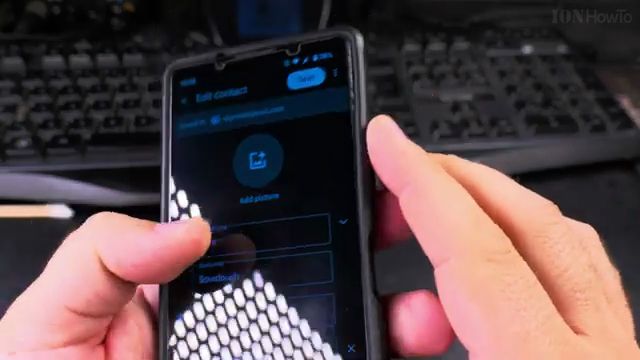
On the contact profile screen, tap either on the large circular avatar at the top or tap the pencil icon (Edit contact) located at the top or bottom of your screen.
Step 2: Choose the Photo Source (Gallery or Camera)
When you tap the camera or picture icon on the contact avatar, Android brings up a menu asking where you want to choose the photo from:
- Device Photos / Gallery: Choose an existing picture saved in your phone photo albums.
- Google Photos: Pick photos backed up to your cloud storage.
- Camera: Take a brand-new live portrait immediately if the person is standing right next to you.
- Google Illustrations: Select a decorative cartoon avatar if you do not have a photo.
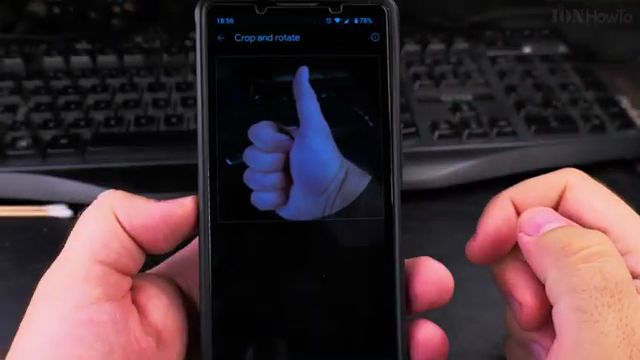
Step 3: Crop, Position, and Rotate the Picture
Once you select a picture, Android displays a circular framing guide on your screen. You can pinch with two fingers to zoom in or zoom out, drag the picture with your finger to center the face, or tap the rotate button if the picture was taken sideways.
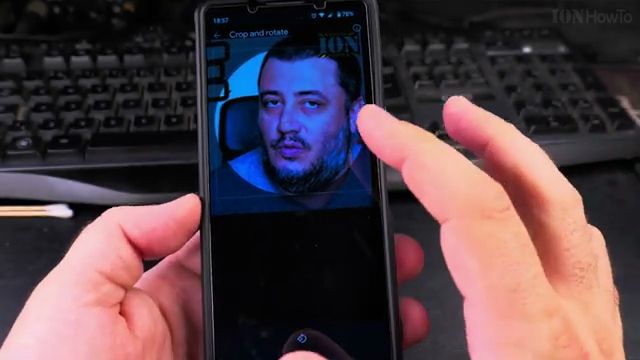
When the face looks centered and clear within the circle, tap the Choose, Done, or checkmark button in the bottom right corner of your screen.
Step 4: Save Changes and Confirm Display
After adjusting the picture, do not exit immediately. Make sure to tap the blue or black Save button at the top right or bottom corner of the contact editor screen to lock in your changes.
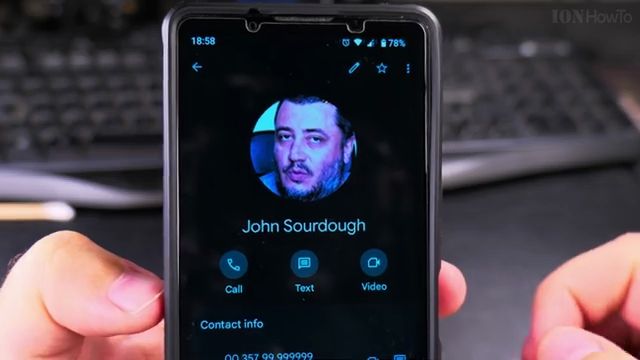
Once saved, the new picture will immediately appear beside the contact name. Next time you answer phone calls on Android from this contact, their picture will be displayed prominently across your phone screen.


Leave a Reply