

Amazon links
As an Amazon Associate I earn from qualifying purchases:
- iPhone Accessories
- iPhone Charger
- iPhone Cases
- iPhone Screen protector
- iPhone Magsafe
- iPhone Wallet
- iPhone Usb c cable
Learn how to add descriptions to your iPhone photos and make them easily searchable. I’ll show you how to find photos by their text descriptions, edit existing captions, and keep your photo library organized.
How to Add Captions to iPhone Photos.
Quick Steps and Scenarios Overview
| What You Need to Do | Quick Jump |
|---|---|
| How to Add Captions to Photos | Jump to Step 1 |
| How to Search Photos by Caption | Jump to Step 2 |
| How to Edit or Delete Captions | Jump to Step 3 |
| Tips for Organizing Photos with Captions | Jump to Step 4 |
Demonstrated on iOS 18.4.1 with iPhone 16 Pro Max Titanium Black 256GB (Global model A3296 – MYWV3ZD/A)
Why Add Captions to Photos?
Adding captions helps you remember important details about your photos. It also makes searching for specific pictures much easier later. If you’re organizing family memories or travel photos, captions help keep everything in order.
How to Add Captions to Photos
Here’s how to add text descriptions to your iPhone photos:

- Open the Photos app on your iPhone.
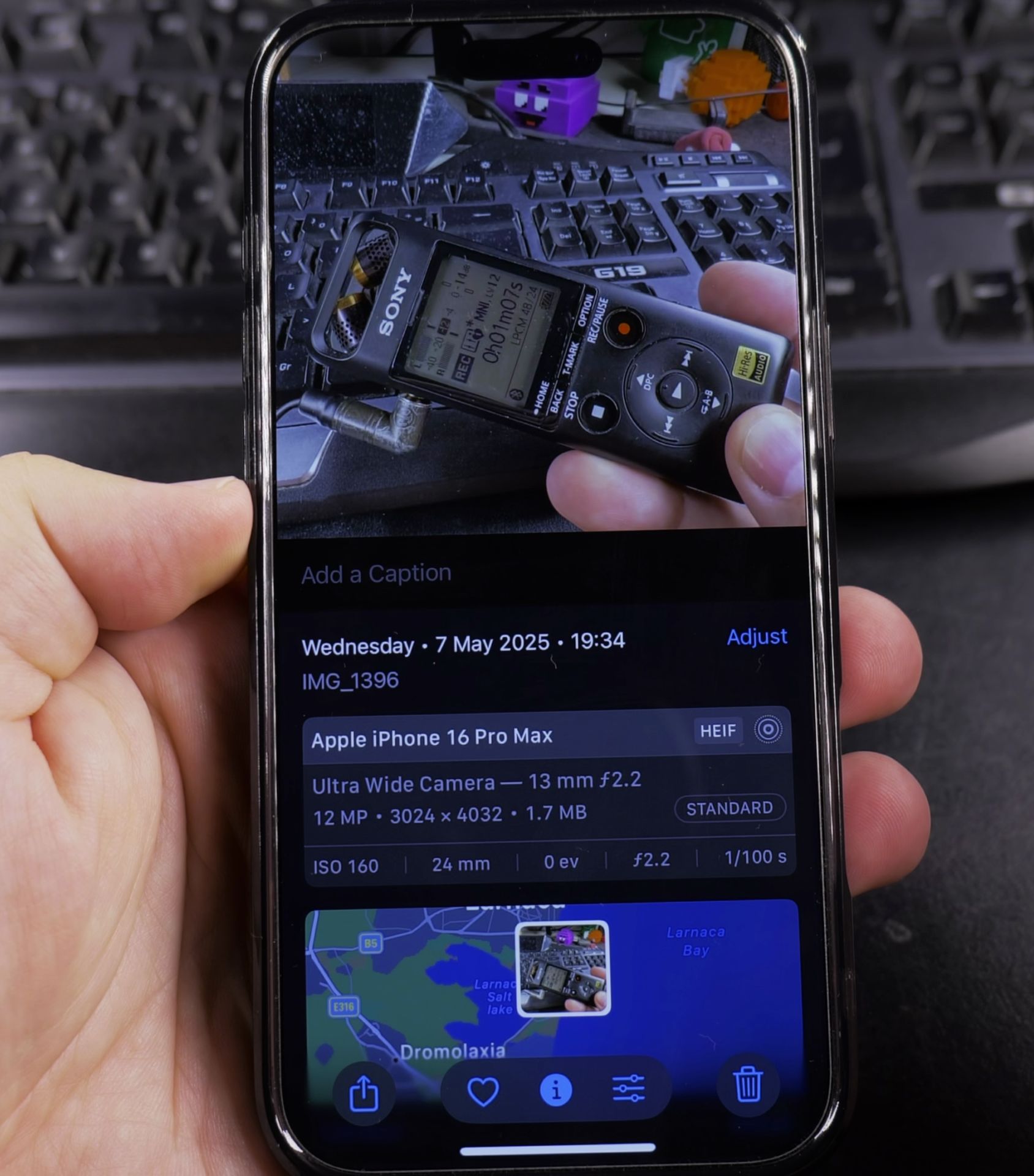
- Select the photo you want to caption.
- Swipe up on the photo or tap the info button (ⓘ) in the toolbar.
- Tap “Add a Caption” below the photo.
- Type your description (e.g., “Beach 2025”).
- Tap Done to save.
Now your caption is saved and searchable in your photo library.
How to Search Photos by Caption
Once you’ve added captions, you can quickly find photos by searching:
- Open the Photos app.
- Tap the search bar at the bottom.
- Type a keyword from your caption (e.g., “beach”).
- All matching photos will appear in the results.
This makes it easy to Find specific memories without scrolling endlessly.
How to Edit or Delete Captions
If you need to change or remove a caption:

- Open the photo in the Photos app.
- Swipe up or tap the info button (ⓘ).
- Tap the existing caption to edit it.
- Make your changes or delete the text completely.
- Tap Done to save.
Tips for Organizing Photos with Captions
- Be descriptive, Use details like names, places, and dates.
- Keep it short, A few words are often enough for easy searching.
- Use keywords, Think about how you’ll search for the photo later.
By adding captions, you’ll save time and keep your photo library neatly organized. Try it out and see how much easier it is to find your favorite memories!
Got any questions? Drop them in the comments below!
Helpful Tips
Take your time and check the screen carefully after each tap so you can confirm the setting changed as expected. If an option appears in a slightly different spot on your device, watch the embedded video above for a closer look.
Related Guides
- iPhone How-To Guides – Browse more tutorials and practical guides in this section.


Leave a Reply