
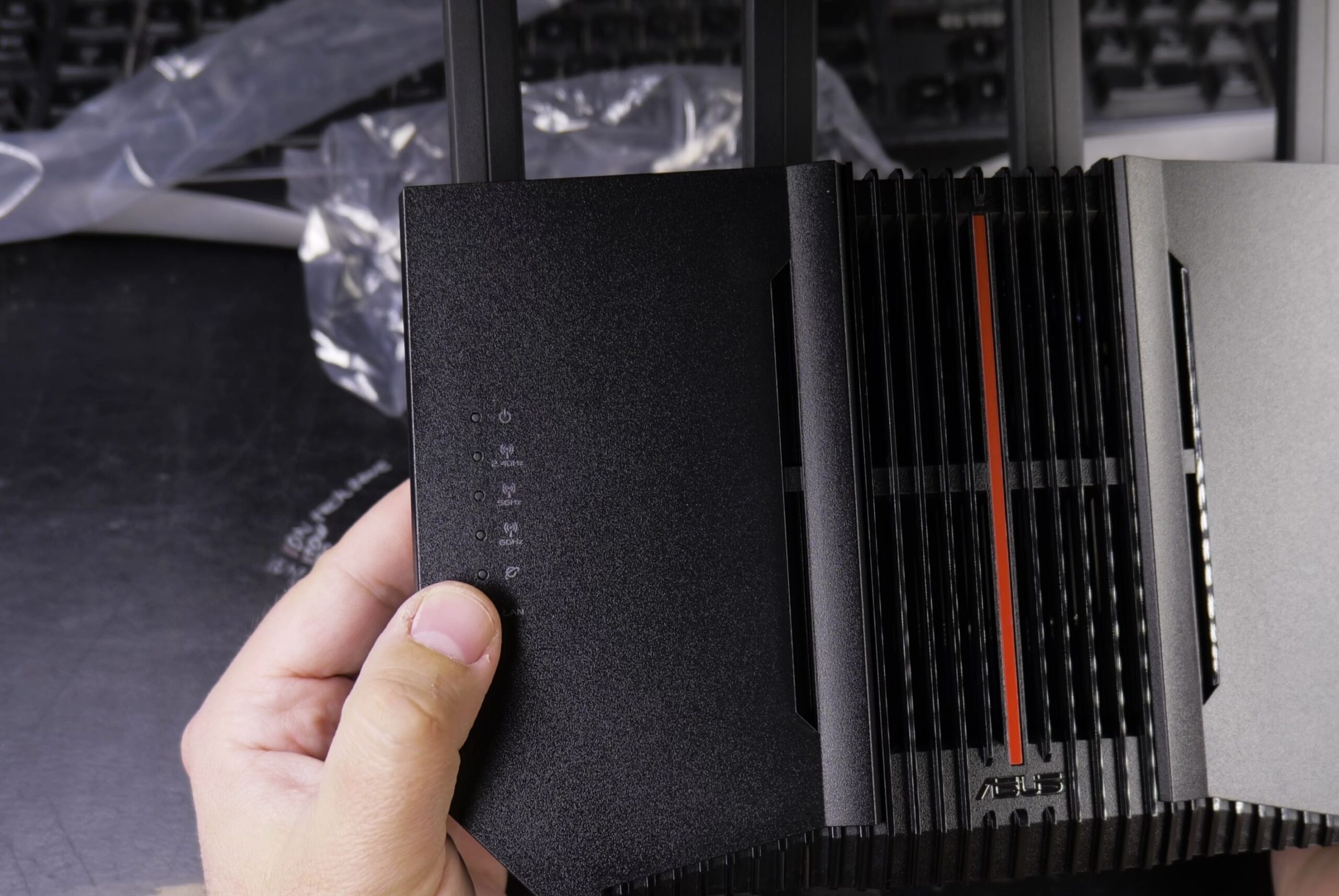
If you want multi-gigabit wireless speeds and dedicated high-bandwidth ethernet ports for home networking, Wi-Fi 7 brings massive upgrades. I’ll show you what comes inside the box of the ASUS RT-BE92U router and highlight all hardware ports and accessories.
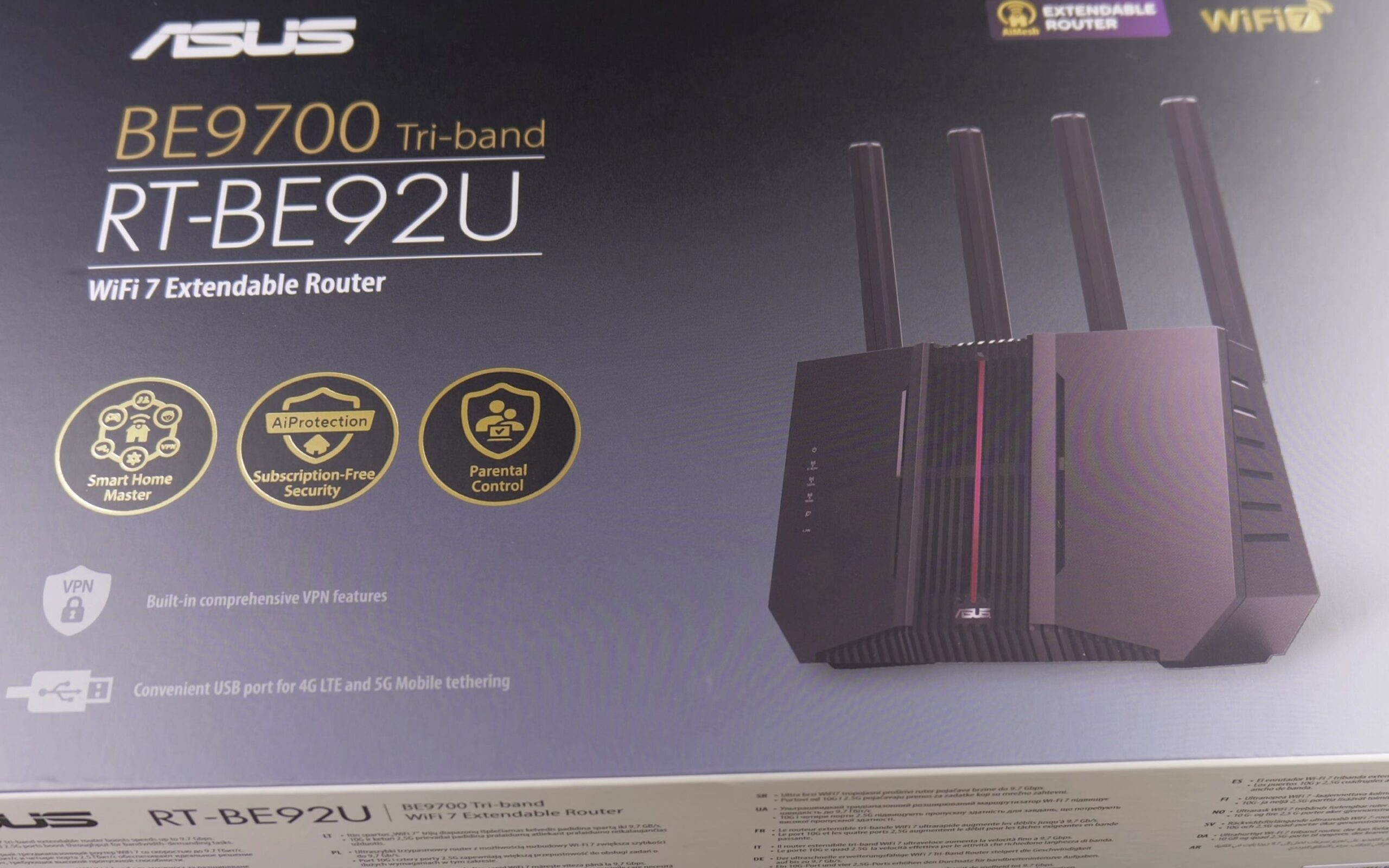
1. Examine Retail Packaging and Hardware Specifications
Open the outer shipping box to view the RT-BE92U retail packaging.
The front and side panels highlight BE9700 tri-band speeds across 2.4 GHz, 5 GHz, and 6 GHz channels.
Key specifications include 1 GB of DDR4 RAM, 256 MB flash storage, and full support for AiMesh whole-home coverage.
2. Unpack Included Accessories and Power Adapter
Lift the internal cardboard shelf to reveal the accessories compartment.
Inside you will find a rigid wall-mount bracket, mounting screws, and a shielded 1.5-meter Cat 6 ethernet patch cable.
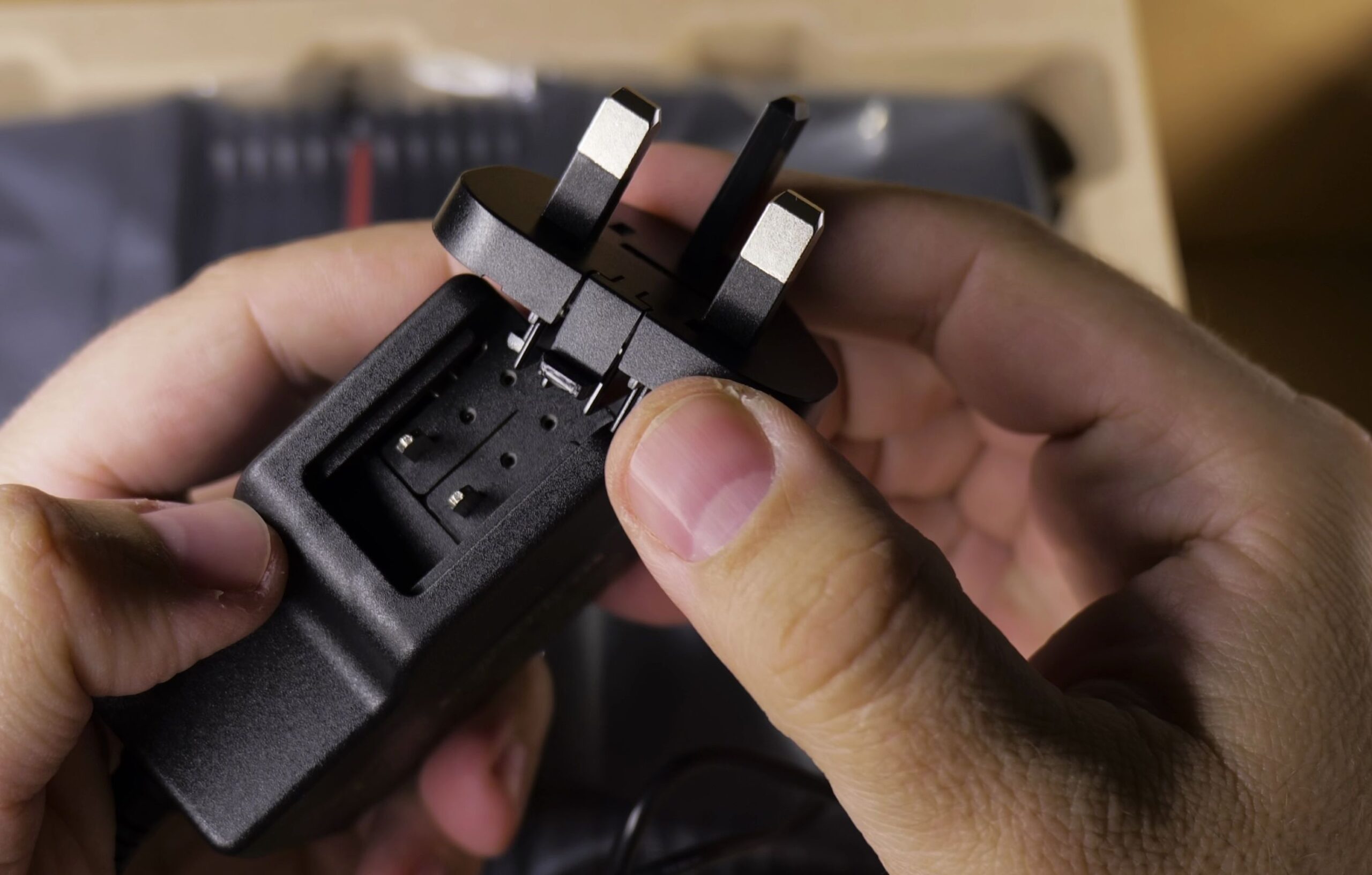
The included 36W power adapter outputs 12 volts at 3 amps and comes with interchangeable regional plug heads.
Snap your preferred wall plug onto the power brick until it clicks firmly into place.
3. Rotate and Unfold the Four External Antennas
Take the router out of its protective cloth sleeve and place it upright on your desk.
Notice the four attached external antennas folded neatly alongside the casing.
Do not pull the antennas straight forward, as forcing them forward will damage the plastic hinges.
Rotate the two antennas on the right side counter-clockwise, and rotate the two antennas on the left side clockwise.
Once twisted outward, lift them up into their vertical operating positions.
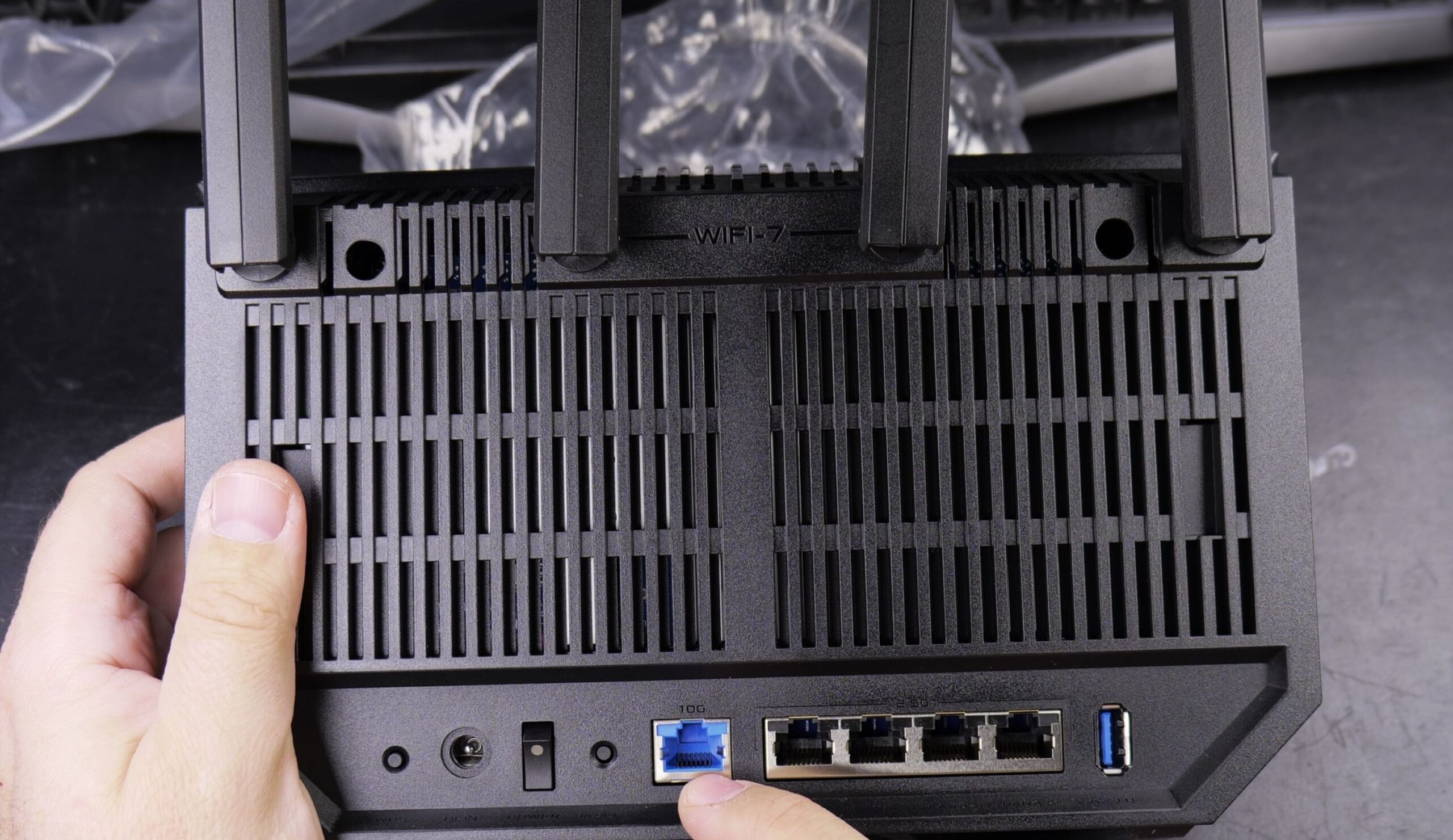
4. Inspect Rear Ports and Control Buttons
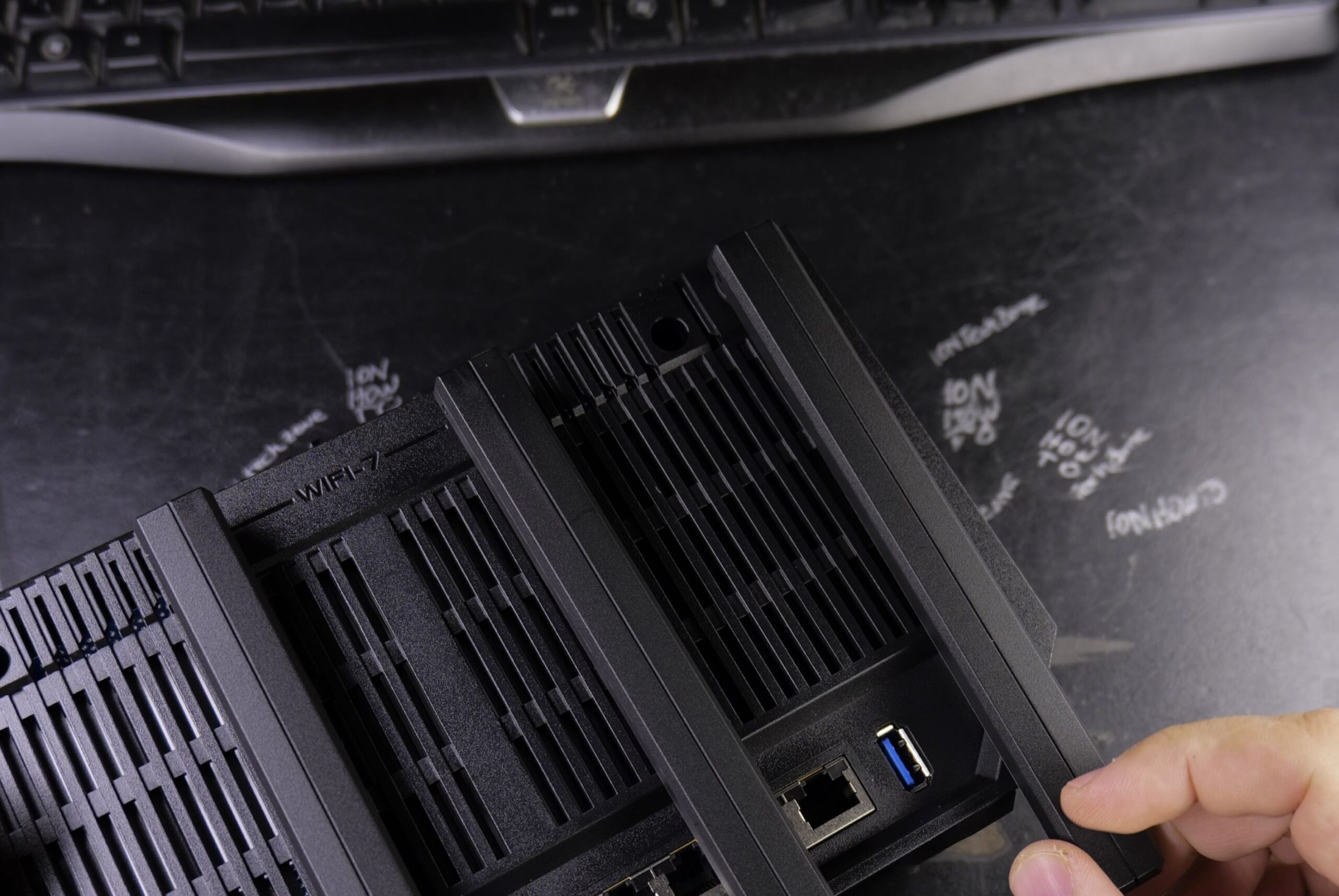
Look at the rear connection panel running along the back of the unit.
The top port is a high-speed 10 Gigabit ethernet port that functions as either a dedicated WAN input or ultra-fast LAN connection.
Directly below it are four 2.5 Gigabit ethernet ports: one dedicated 2.5G WAN port and three 2.5G LAN ports.
At the bottom, you have a fast USB 3.2 Gen 1 port for storage or mobile backup internet, a physical power toggle switch, a WPS button, and a recessed reset button.
Helpful Tips
The RT-BE92U is designed exclusively for vertical orientation. Keep the ventilation grilles on the front and rear unobstructed so passive airflow cools internal chips efficiently.
Ready to install? Follow our walkthrough on Asus Router RTBE92U setup install with iPhone. If you plan to run third-party software, learn how to install Asus Merlin firmware and check out our Asus Merlin firmware review. Explore more guides in our Wi-Fi Routers category.


Leave a Reply