
Category: Android Tips
Everyday Android tips and settings walkthroughs to help you customize your screen, manage notifications, and speed up your phone.

Make the Clock Bigger on Samsung Lock Screen
Learn how to make the clock bigger on your Samsung lock screen with One UI 7 and Android 15. If you want a larger, more visible lock screen clock for easier time checks, I’ll show you exactly how to adjust it.
Make the Clock Smaller on Samsung Lock Screen
Learn how to make the clock smaller on your Samsung lock screen with One UI 7 and Android 15. If you prefer a more compact clock display to see more of your wallpaper or notifications clearly, I’ll show you how to adjust it.
Make Clock Bigger on Samsung Home Screen
Learn how to make the clock bigger on your Samsung phone running One UI 7 with Android 15. If you want a larger clock on your home screen for better visibility, I’ll show you how to adjust it easily.
Make Space for Widgets on Samsung Home Screen
Learn how to make space for widgets on your Samsung home screen. If you want to add a clock widget, weather widget, or any other widget but don’t have enough room, I’ll show you how to rearrange apps and create space.
Why I Don’t Like Samsung Bixby
Learn why many users find Samsung Bixby frustrating. A simple command like asking for the weather often leads to unnecessary steps, like asking for permission to share location data. Even when you tell Bixby your city name, it sometimes confuses it with a.
How to Remove Widget from Stack on Samsung
Learn how to clean up your widget stacks by removing individual widgets while keeping the rest of your stack intact. I’ll show you how to delete or reorganize widgets in stacks on your Samsung Galaxy phone.
Remove Clock Widget from Home Screen on Samsung
Learn how to remove the clock widget from your Samsung home screen to free up space or customize your layout. I’ll show you the steps to delete default widgets while keeping your other icons and widgets intact.
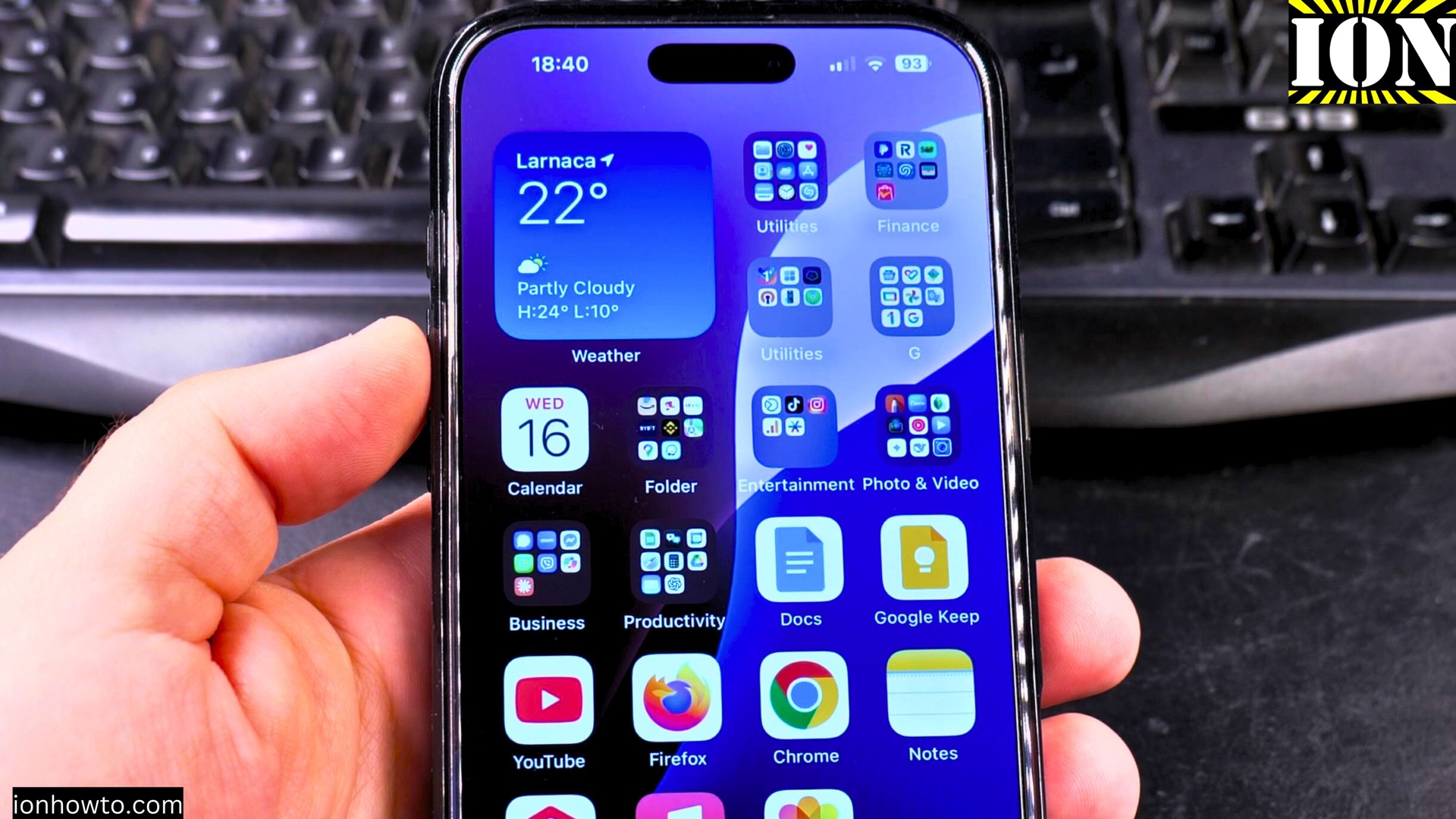
Change Weather Widget Location on Samsung
Learn how to update the location shown on your Samsung weather widget in just a few taps. I’ll show you how to fix incorrect locations or add multiple cities to track different weather forecasts.
Remove Seconds from Clock Widget on Samsung
Learn how to remove the seconds display from your Samsung clock widget on One UI 7 with Android 15. If you prefer a cleaner look with just hours and minutes, I’ll show you how to replace your current clock widget with a simpler version.
Stack Widgets on Samsung One UI 7
Learn how to organize your Samsung Galaxy home screen by stacking widgets together. This handy feature helps save space while keeping your favorite widgets accessible with just a swipe.