

Learn how to make the clock smaller on your Samsung lock screen with One UI 7 and Android 15. If you prefer a more compact clock display to see more of your wallpaper or notifications clearly, I’ll show you how to adjust it.
Amazon links
As an Amazon Associate I earn from qualifying purchases:
- Phone Cases
- Mobile Tripods
- Usb-c charger
- Usb-c cable
- Docking stations
- Wireless car chargers
- Wireless charger stand
- SIM card removal tool
- SIM card holder
How to Make the Clock Smaller on Samsung Lock Screen.
Quick Steps and Scenarios Overview
| What You Need to Do | Quick Jump |
|---|---|
| Steps to Reduce Lock Screen Clock Size | Jump to Step 1 |
| How to Make Always On Display Clock Smaller | Jump to Step 2 |
| Tips for a Cleaner Lock Screen | Jump to Step 3 |
Showing you on Samsung S23 Ultra Android 15, OneUI 7.0
Steps to Reduce Lock Screen Clock Size
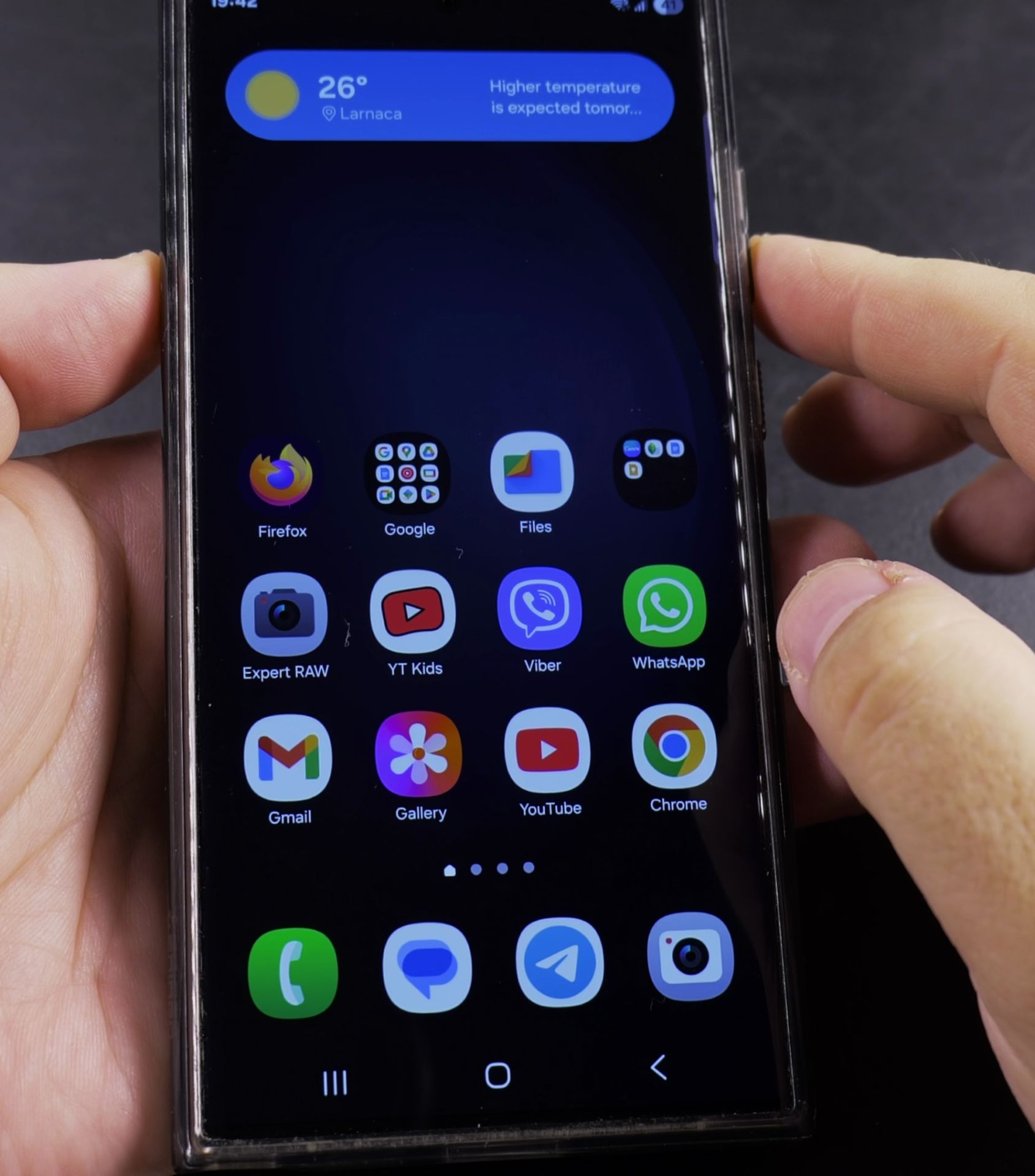
1. Open Lock Screen Settings
- Go to Settings on your Samsung phone
- Tap Lock Screen
- Select Clock Style
2. Choose a Smaller Clock Design
- Browse through the available clock styles
- Look for compact or minimal designs (these typically take up less space)
- Tap your preferred smaller clock style
3. Adjust Clock Size (If Available)
- Some clock styles let you adjust size – look for a size slider
- Drag the slider left to make the clock smaller
- Tap Apply when finished
How to Make Always On Display Clock Smaller
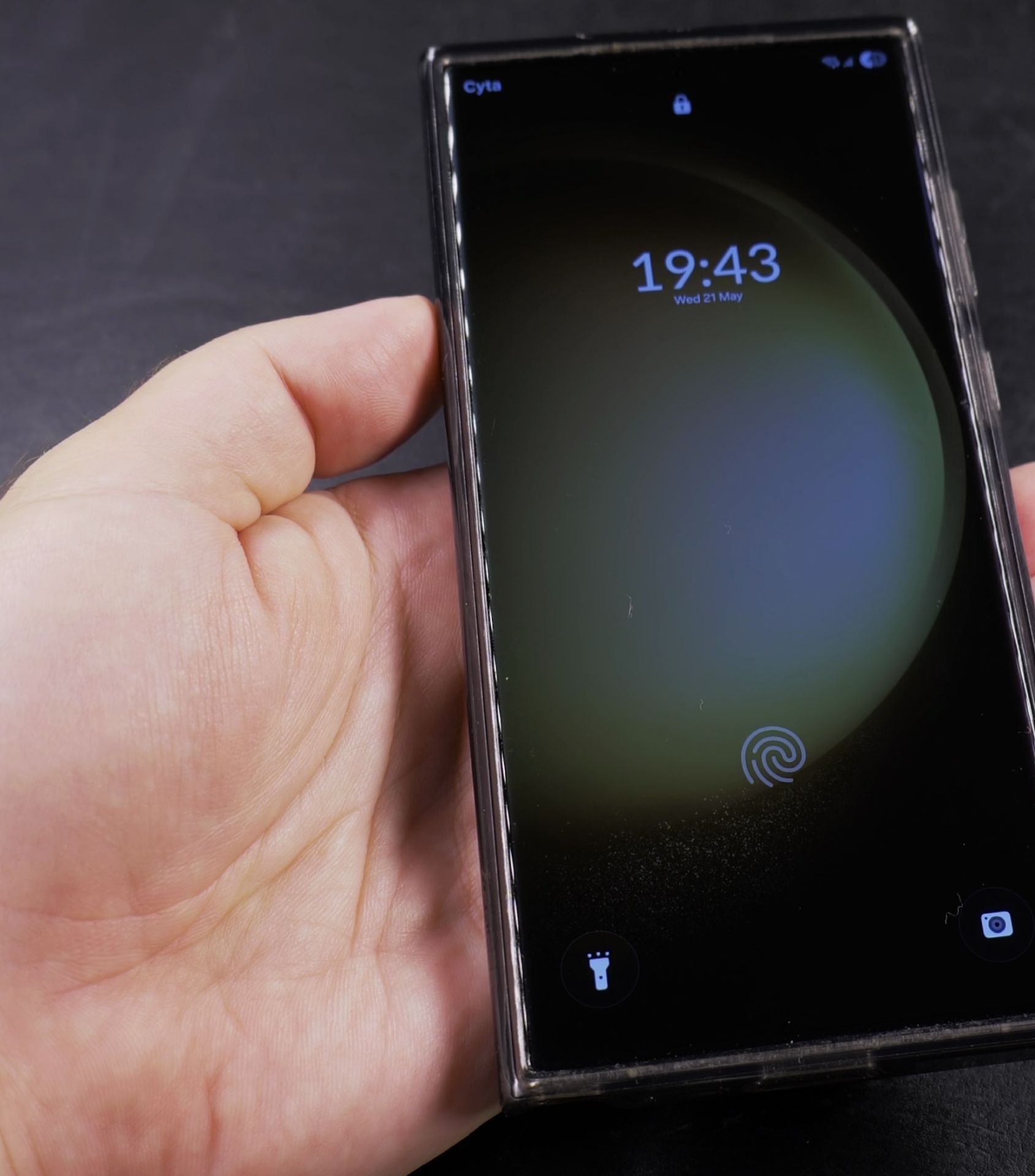
1. Open Always On Display Settings
- Go to Settings
- Tap Lock Screen
- Select Always On Display
2. Select a Compact Clock Style
- Choose Clock Style
- Pick a minimal or digital clock option
- Some styles offer size adjustment – make it smaller if available
Tips for a Cleaner Lock Screen
- Double-tap the clock to temporarily hide it and see your full wallpaper
- Try different clock styles to find the most compact option
- Disable Lock Screen notifications if you want maximum visibility
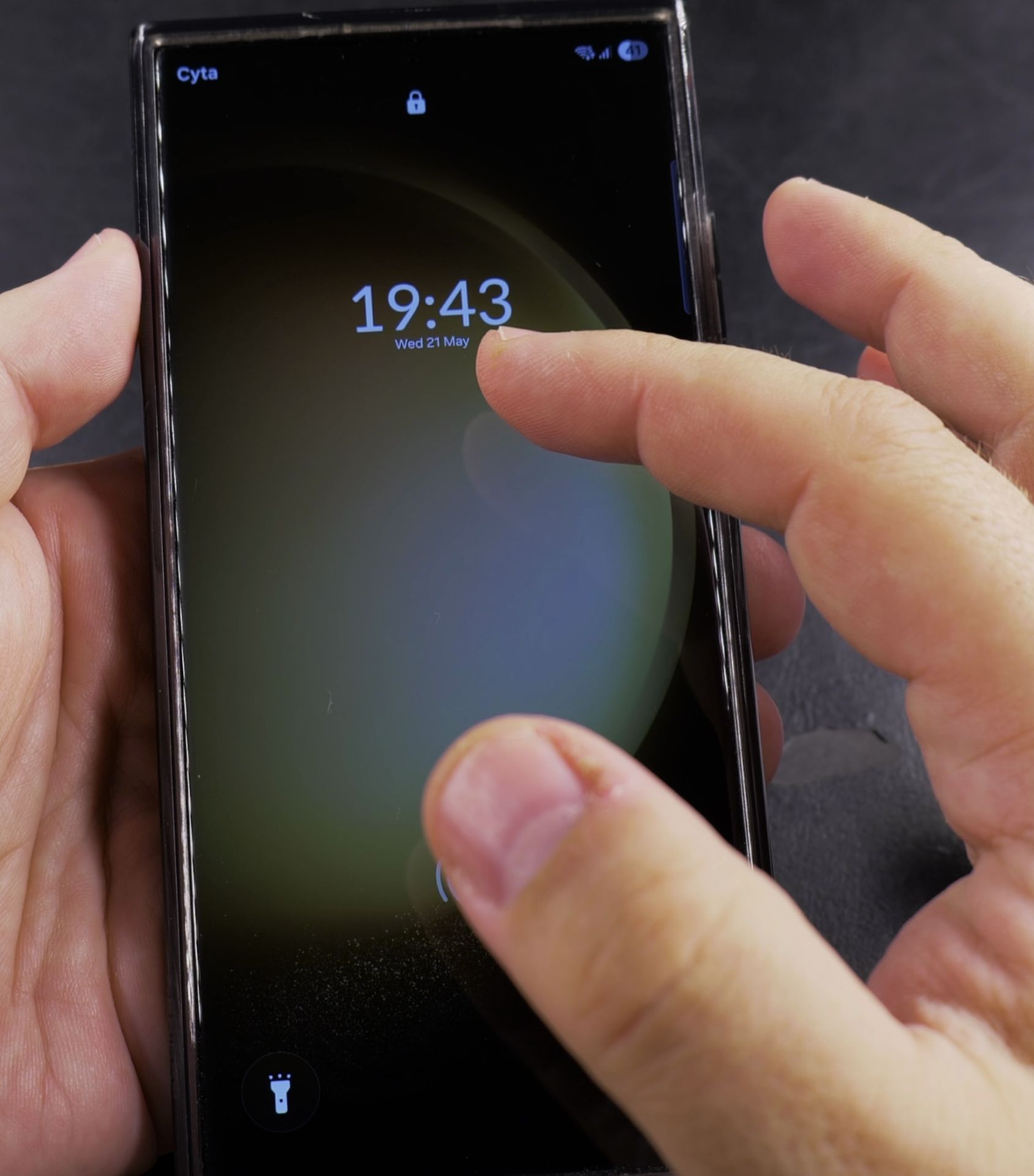
That’s all you need to make your Samsung lock screen clock smaller and less obtrusive. If these steps helped you, consider sharing this guide with other Samsung users who might want the same customization.
Helpful Tips
Take your time and check the screen carefully after each tap so you can confirm the setting changed as expected. If an option appears in a slightly different spot on your device, watch the embedded video above for a closer look.
Related Guides
- Change Lock Screen Clock Size and Font Style in iOS 26 – How to Change Lock Screen Clock Size and Font Style in iOS 26.
- Add Widgets to Lock Screen on Samsung – How to Add Widgets to Lock Screen on Samsung One UI 7 Android 15.
- Make Clock Bigger on Samsung Home Screen – Learn how to make the clock bigger on your Samsung phone running One UI 7 with Android 15.
- Samsung Android Guides – Browse more tutorials and practical guides in this section.


Leave a Reply