
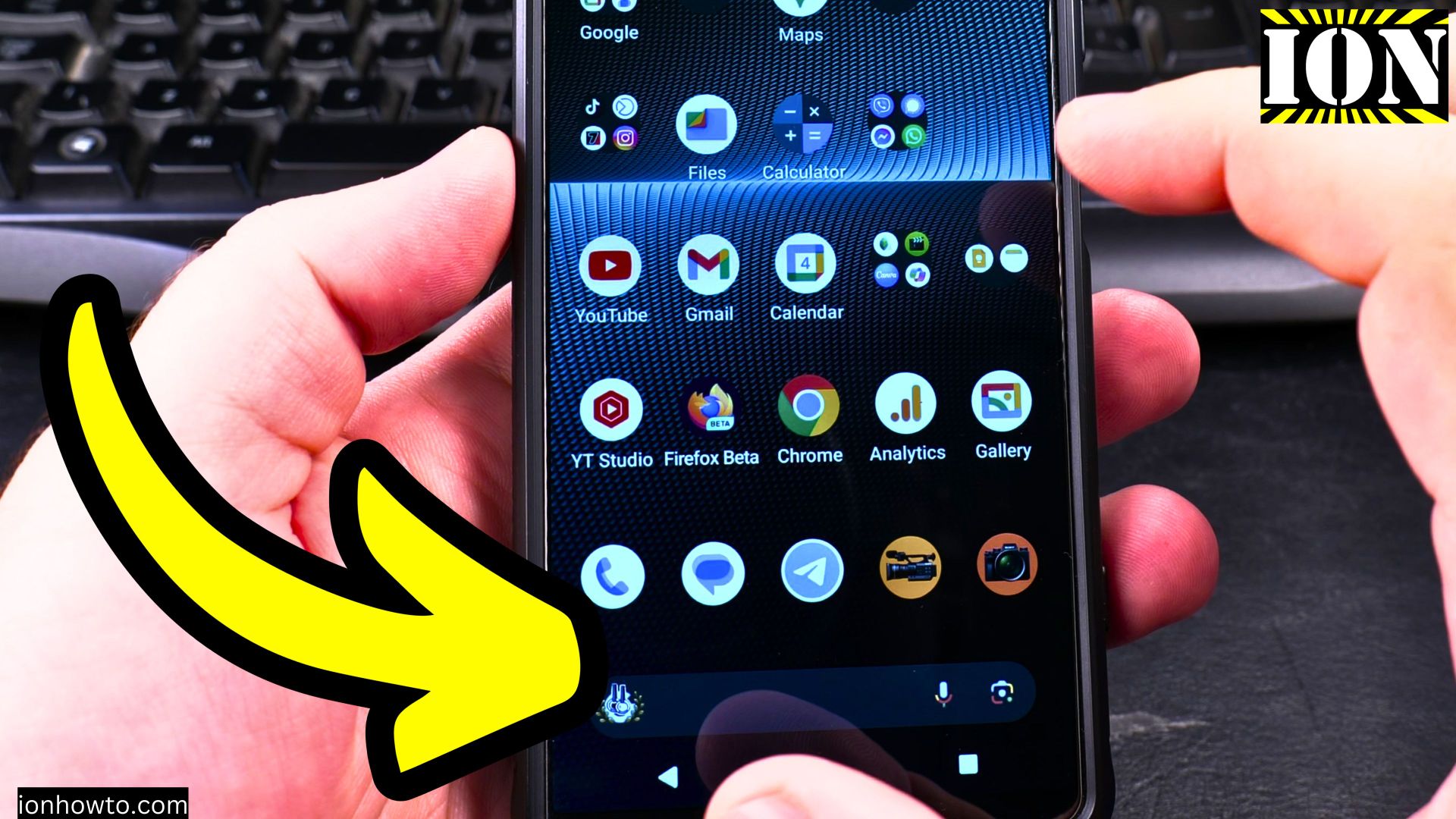
How to Change Keyboard Size and Resize Gboard on Android Devices.
Learn how to adjust your keyboard size for more comfortable typing on your Android phone or tablet. I’ll show you how to resize Gboard (Google Keyboard) to better fit your needs.
Amazon links
As an Amazon Associate I earn from qualifying purchases:
- Phone Accessories
- Screen protectors
- Phone Cases
- Mobile Tripods
- Usb-c charger
- Usb-c cable
- Docking stations
- Wireless car chargers
- Wireless charger stand
- SIM card removal tool
- SIM card holder
Video Guide
Demonstrated on Sony Xperia 1V running Android 15
Why Adjust Your Keyboard Size?
Changing your keyboard size can help with:
- More accurate typing
- Better comfort during long typing sessions
- Easier one-handed use
- Improved visibility of keys
How to Resize Gboard
Step 1: Open Gboard Settings
- Open any app that uses the keyboard (like Messages or Notes)
- Tap where you would type to bring up the keyboard
- Tap the three-dot menu at the top of the keyboard
- Select Settings (gear icon)
Alternative method:
- Press and hold the comma (,) key
- Slide to the gear icon that appears
Step 2: Adjust Keyboard Size
- In Gboard settings, tap Preferences
- Select Keyboard height
- Choose from five size options:
- Extra short
- Short
- Normal (default)
- Tall
- Extra tall
Step 3: Confirm Changes
- Exit settings
- Open the keyboard to see your new size
- Repeat adjustment if needed
How to Use One-Handed Mode
- With keyboard open, tap and hold the comma (,) key
- Select the one-handed mode icon (keyboard with arrow)
- Choose left or right-handed layout
- To exit, tap the arrow at the side of the keyboard
Additional Customization Options
You can also adjust:
- Theme: Change keyboard colors
- Key borders: Make keys more visible
- Sound/vibration: Modify typing feedback
- Glide typing: Enable/disable swipe typing
Troubleshooting Tips
If size changes aren’t applying:
- Restart your phone
- Check for Gboard updates in Play Store
- Clear Gboard cache in app settings
- Make sure Gboard is your default keyboard
Final Thoughts
Finding the right keyboard size makes typing on Android much more comfortable. Don’t be afraid to experiment with different sizes until you find what works best for you.
One-handed mode is especially useful for larger phones when you need to type with a single hand.
Have questions about customizing your Android keyboard? Let me know in the comments!


Leave a Reply