
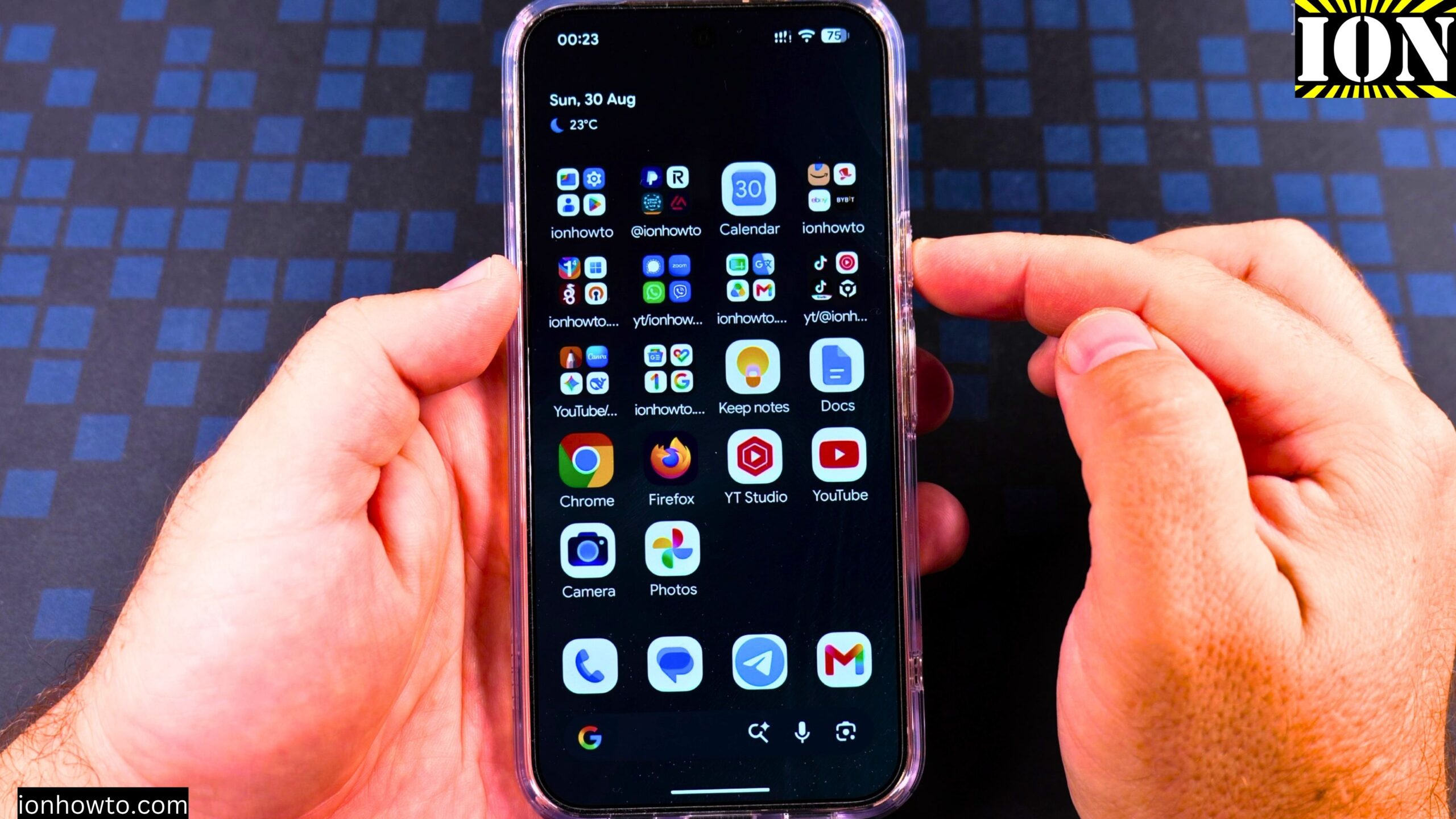
How to Enable Google Gemini AI Assistant on Google Pixel 11 Pro XL.
What This Guide Covers
Learn how to turn on the Google Gemini AI assistant on your Android phone when you have no digital assistant active. I show you how to do this on a Google Pixel 11 Pro XL running Android 17. The steps are the same or similar on most Android phones.
Before You Start
You need to know that if Gemini is off, even if you try to open the app, it will not work. It will not start. So you have to enable it first.
You also need to change the power menu settings. This is part of the setup.
How to Enable and Get Google Gemini AI Assistant on Android 17 Google Pixel 11 Pro XL Video
Step 1: Open Settings
Go to the settings app on your Android phone.
Step 2: Go to System
Look for System and tap on it.
Step 3: Go to Gestures
Look for Gestures and tap on it.
Step 4: Change the Power Button Setting
Tap on Press and Hold Power Button.
Here you will see a setting. Change it from Power Menu to Digital Assistant.
You can also change the duration, but it is not necessary.
Step 5: Enable Gemini
Now Gemini is still off, but you will see an option to turn it on. Press the power button and you will get a prompt. Tap on the button to enable Gemini.
Step 6: Test It
Now when you press the power button, Gemini opens. You can ask it something like “What is the weather today in your town?” and it will answer.
What If You Do Not Want Gemini on the Power Button
If you do not want to use Gemini on the power menu, you can leave the power button as a power menu. You can also use the power button and volume up to show the power menu instead.
Final Thoughts
That is all you need to do. Once Gemini is active, you can use it as normal. Thanks for watching.
Related Guides and Helpful Resources
If you found this guide helpful, check out these related step-by-step tutorials and category resources on ION HowTo:
- How to Add a Picture to a Contact on Android: Personalize your contacts with custom profile photos for caller identification.
- How to Disable 2G on Android: Enhance network privacy and prevent insecure 2G connections.
- Turn Off Automatic Updates on Samsung Android: Manage app and firmware updates to save battery and mobile data.
- Android Tips and Tricks: Explore our full collection of tutorials and step-by-step articles in this category.


Leave a Reply