
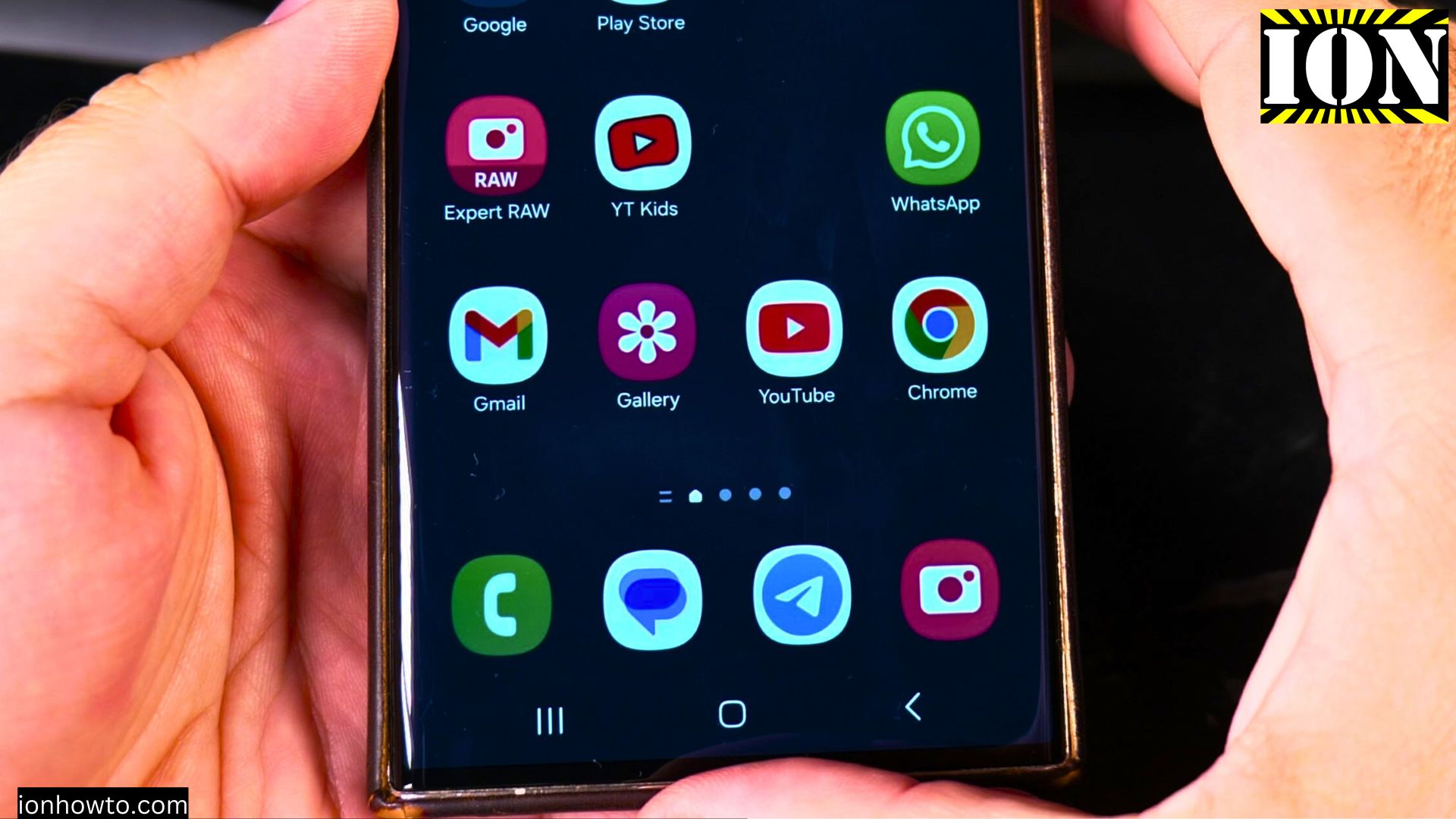
A song you’ve heard is stuck in your head but you can’t remember the song’s name or lyrics.
Amazon links
As an Amazon Associate I earn from qualifying purchases:
- Phone Accessories
- Screen protectors
- Phone Cases
- Mobile Tripods
- Usb-c charger
- Usb-c cable
- Docking stations
- Wireless car chargers
- Wireless charger stand
- SIM card removal tool
- SIM card holder
If you own a Samsung Galaxy phone (like the S23 Ultra or any Android 14/ 15 /OneUI 6.1/ 7 device), you can easily identify songs by humming, singing, or whistling.
Method 1: Use Google Assistant to Find Songs by Humming
Google Assistant has a built-in music recognition feature that works even if you hum or sing the melody. This is how to use it:
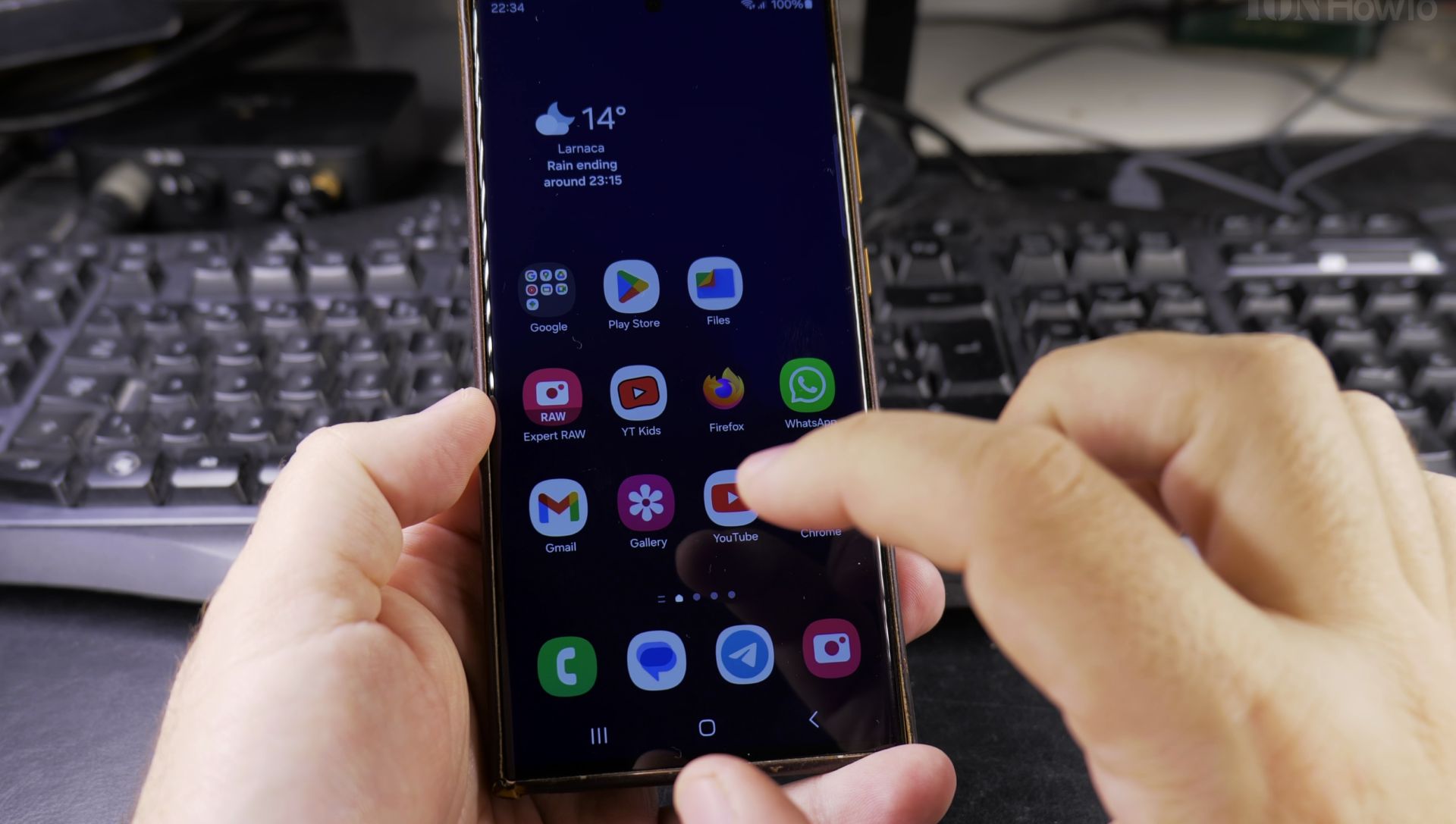
- Wake Up Google Assistant
- Say, “Hey Google” or press and hold the home button (or swipe up from the bottom corner of your screen).
- Ask, “What’s this song or What song is this?”
- Wait for Google Assistant to say, “Sing, hum, or whistle the tune.”
- Hum, Sing, or Whistle
- Get as close to the melody as you can. Even 10-15 seconds of humming should work.
- Wait for Results
- Google will analyze the audio and show matching songs. If it finds a match, you’ll see the song title, artist, and links to streaming services.
Tip: Hum clearly and avoid background noise for better results.
Method 2: Use a Music Recognition App
If Google Assistant doesn’t recognize the tune, try a third-party app like SoundHound, which specializes in identifying songs by humming.
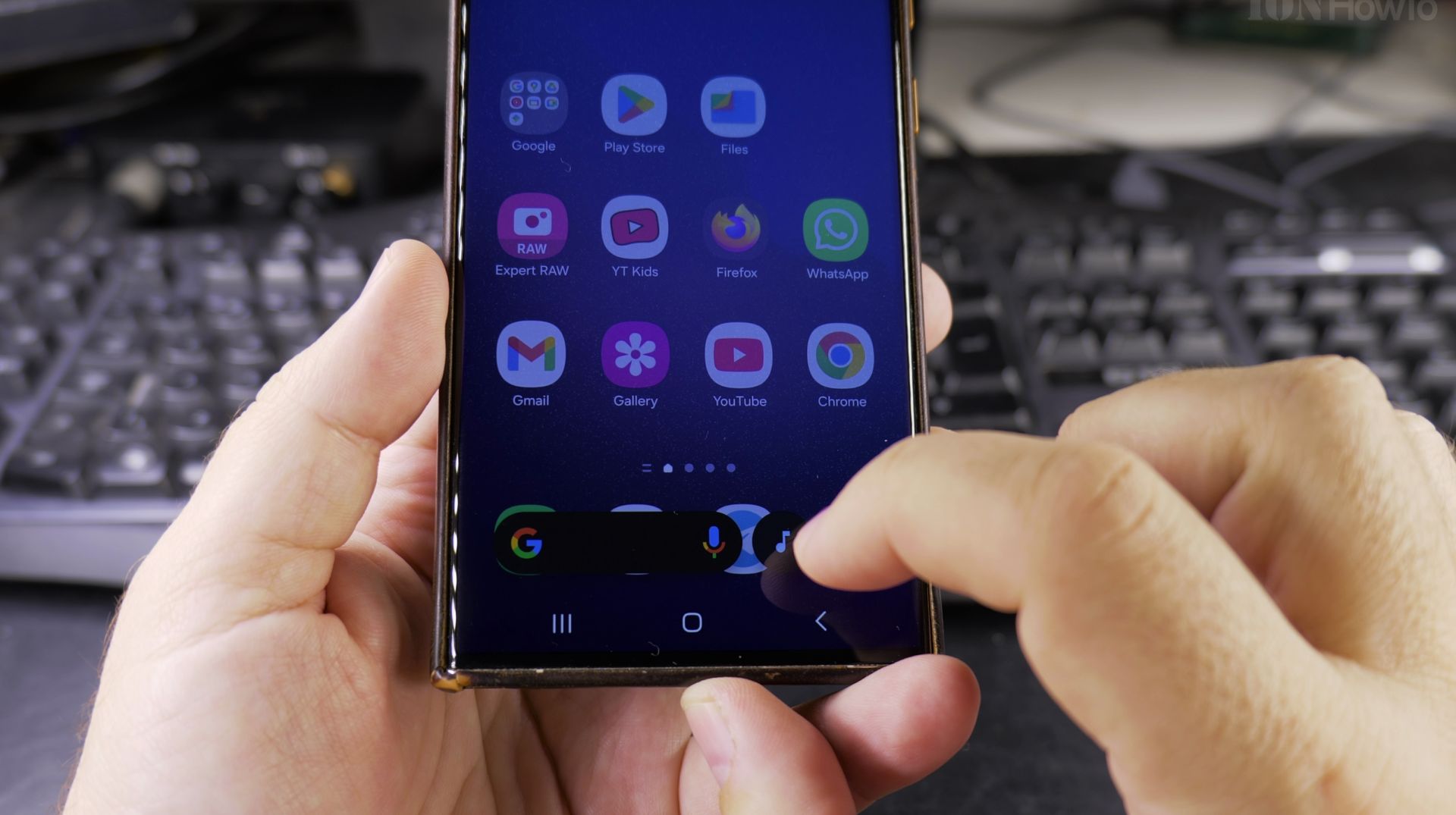
Steps for SoundHound:
- Download SoundHound
- Install SoundHound from the Google Play Store.
- Open the App and Tap the Mic Icon
- Grant microphone access when prompted.
- Hum or Sing the Tune
- Hold your phone close and hum the melody for 10-20 seconds.
- Check Results
- SoundHound will display possible matches, including lyrics and streaming links.
Other apps to try:
- Shazam: While it’s better for recognizing recorded music, it’s worth trying if you’re near a speaker.
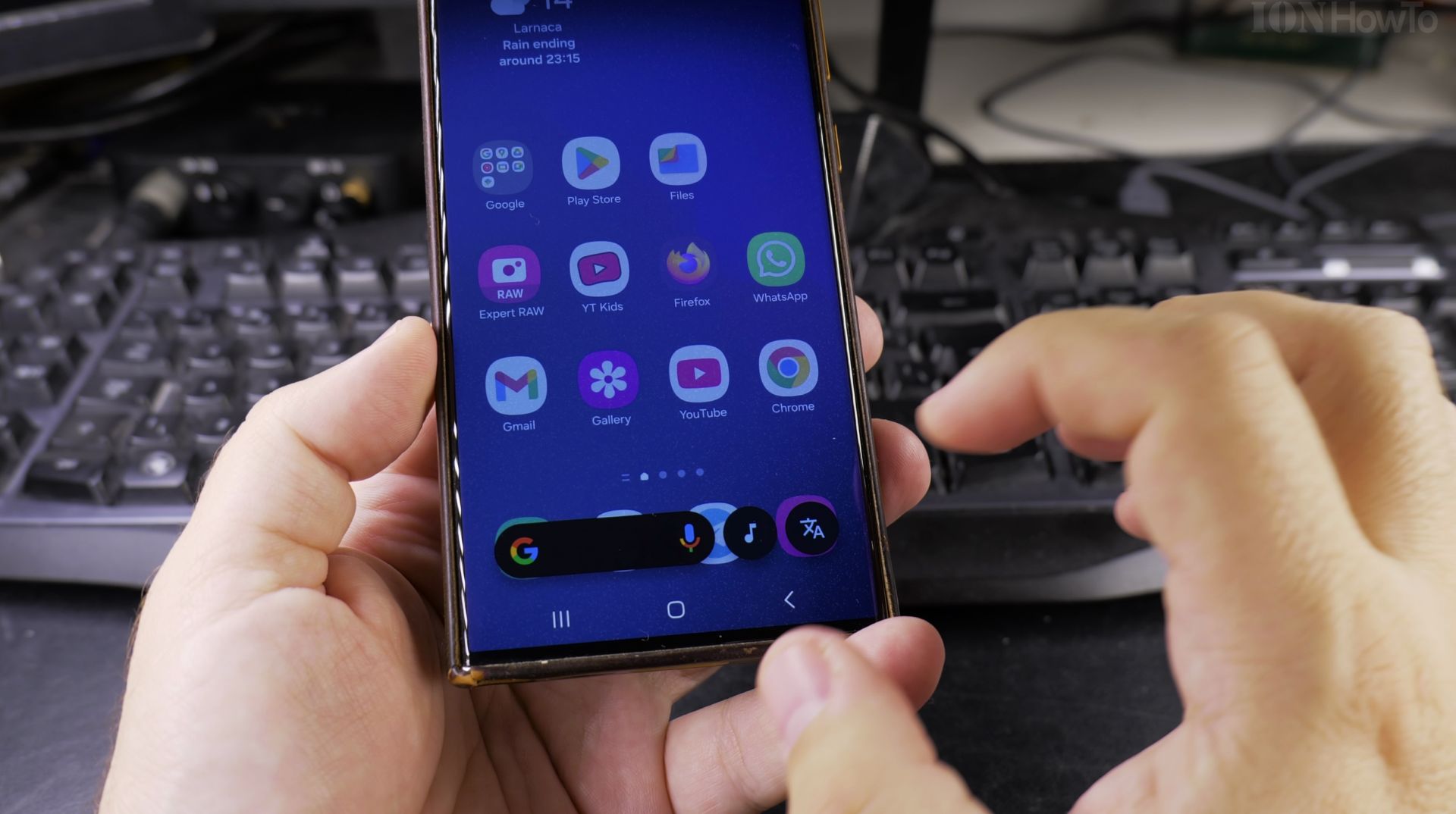
- Google App: Tap the microphone icon in the search bar and say, “Search a song,” then hum.
Why This Works
Both Google Assistant and apps like SoundHound use audio fingerprinting and machine learning aka. AI to match your hum or whistle to a song’s unique melody. No lyrics needed.
If the song is popular enough it will find it really fast. Some less popular songs might not be recognized.
Tips
- No match? Try humming a longer or more accurate or try a different part of the song that is more unique.
- Check your internet connection: Music recognition requires data.
- Update your apps: Ensure Google Assistant or SoundHound is up-to-date.
Conclusion
Any time you can grab your Samsung Galaxy phone and let Google Assistant or a music app do the searching.
Helpful Tips
Take your time and check the screen carefully after each tap so you can confirm the setting changed as expected. If an option appears in a slightly different spot on your device, watch the embedded video above for a closer look.
Related Guides
- Find a Song by Humming or Singing on Android Devices – How to Find a Song by Humming or Singing on Android Devices Using Gemini AI or Google Assistant.
- Remove Apps from Samsung Android Home Screen – How to Remove Apps from Home Screen on Samsung Android.
- Add Apps to Samsung Android Home Screen – How to Add Apps to Home Screen on Samsung Android.
- Samsung Android Guides – Browse more tutorials and practical guides in this section.


Leave a Reply