
How to Fix Error E17 in Canon Inkjet Printers
Learn how to fix your Canon printer when it shows an E17 error and refuses to print anything. This is a common and usually easy-to-fix problem. I’ll show you the steps to clear the error and get your printer working again in just a minute.
What Does Error E17 Mean?
The E17 error code on Canon printers typically means the printer thinks the paper feed tray (the tray at the front where you load paper) is closed when it shouldn’t be, or is not in the correct position.
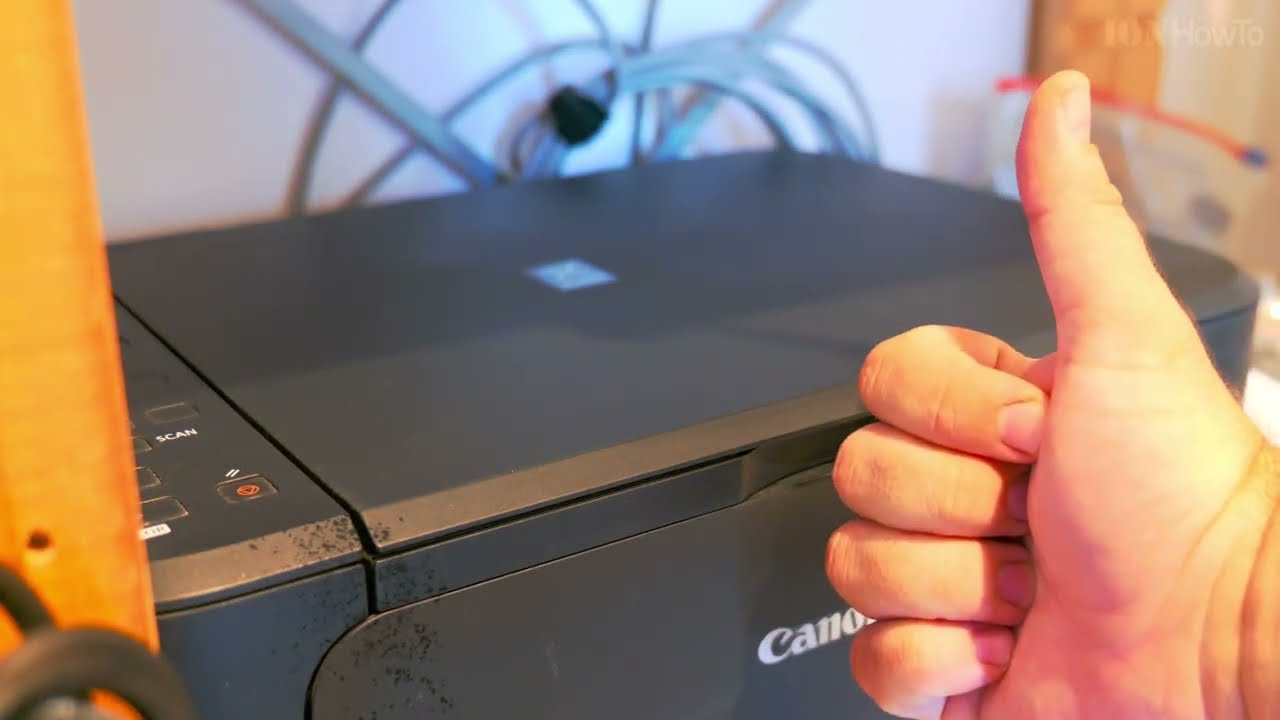
If you see “E17,” “E1-7,” or “E-17” flashing on your printer’s display, the first thing to check is the paper tray. The printer shown here is a Canon Pixma MG2250, but this fix works for many Canon inkjet models, especially those with combined print heads and ink tanks.
The Quick Fix: Reset the Paper Tray
This simple process solves the E17 error in most cases.
Follow these steps:
- Open the front cover. Open the main front cover of your printer. On many models, this is the cover that gives you access to the print head and also acts as the paper output tray.
- Check the paper feed tray. Look at the lower paper input tray at the very front of the printer. Make sure it is pulled out completely and fully extended. Sometimes it can be only halfway open.
- Close the tray firmly. Push the paper feed tray back in until it clicks into its closed position.
- Re-open the tray. Pull the paper feed tray out again to its fully open position. Make sure it clicks or feels secure.
- Close the front cover. Close the main printer cover firmly.
- Restart the printer. Turn the printer off using the power button, wait a few seconds, and then turn it back on.
After the printer restarts, the E17 error should be cleared. Try to print a test page to confirm it’s working.
If the Error Comes Back
If you’ve followed the steps above and the E17 error returns or the printer still won’t print, try these additional checks:
- Inspect for paper jams: Carefully look inside the printer for any small scraps of torn paper or an actual paper jam. Even a tiny piece of paper can block the sensors.
- Check the paper guides: On the paper feed tray, make sure the adjustable paper guides are snug (but not tight) against the sides of your paper stack. Misaligned guides can cause feed problems.
- Power cycle your printer: Unplug the power cord from the back of the printer for 60 seconds. This can reset the printer’s internal memory more thoroughly than just using the power button.
When to Seek More Help
If none of the above steps work, there may be a mechanical issue with the tray sensor or another internal part.
- Consult your printer’s manual for specific troubleshooting for the E17 code.
- Learn how to fix another common issue with our guide: How to Fix Error E05 in Canon Inkjet Printers.
- For persistent hardware problems, you may need to contact Canon support or a local repair technician.


Leave a Reply