
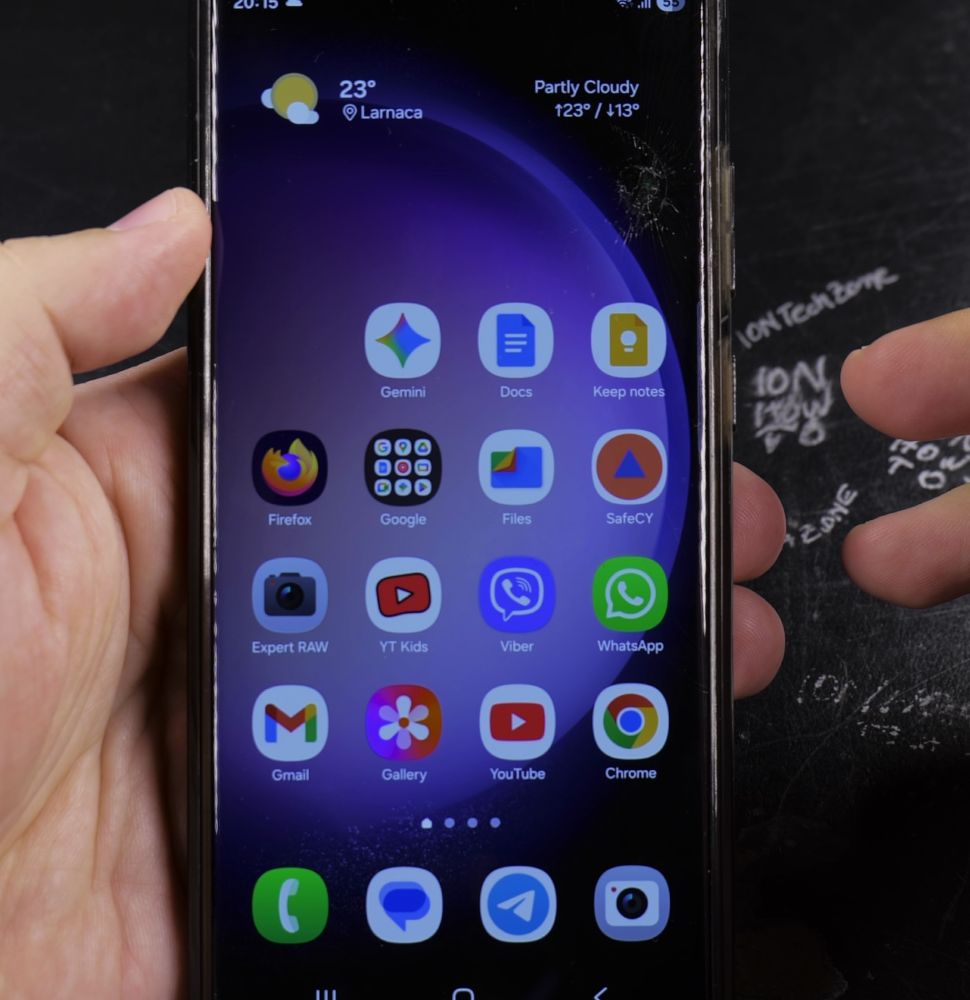
If you have movies, photos, or documents on your home computer or network drive, you can open them right from your phone. I’ll show you how to use Samsung’s My Files app to connect to SMB network shares in minutes.
1. Open My Files on Your Samsung Phone
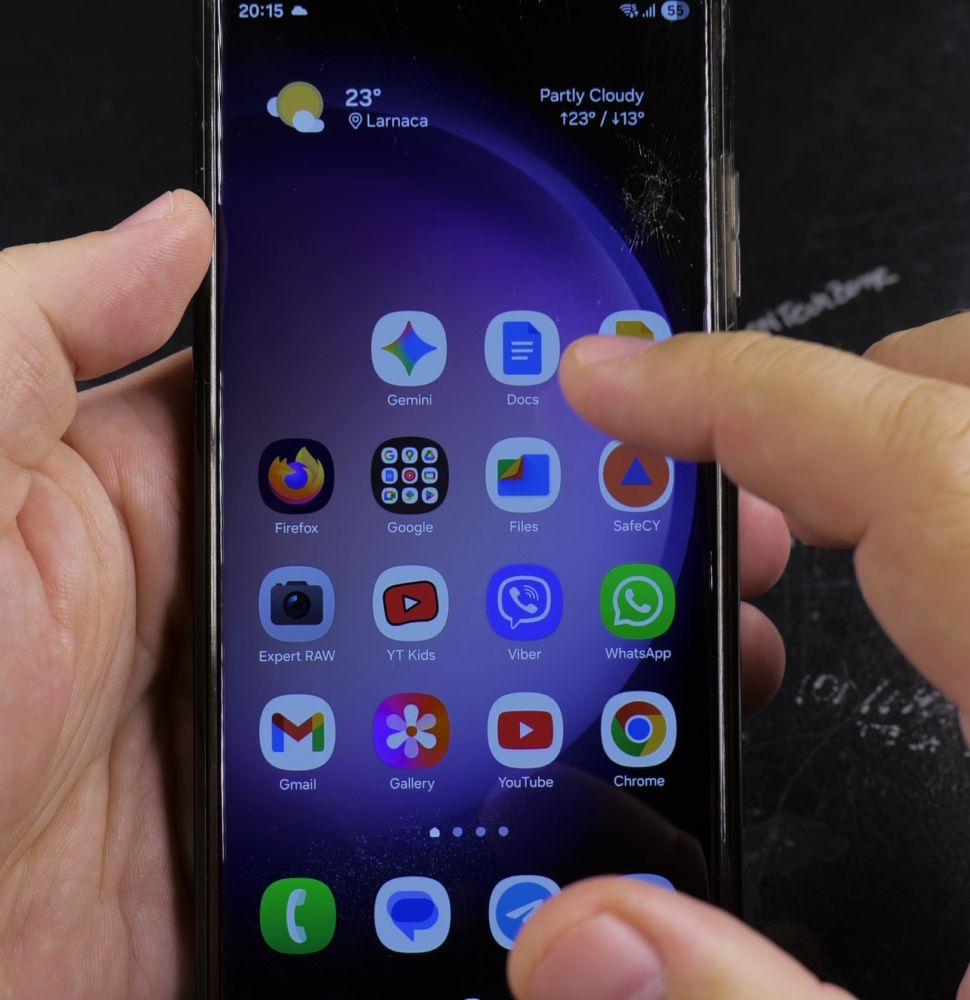
Open your app drawer and tap the yellow **My Files** app icon.
2. Scroll Down to Network Storage
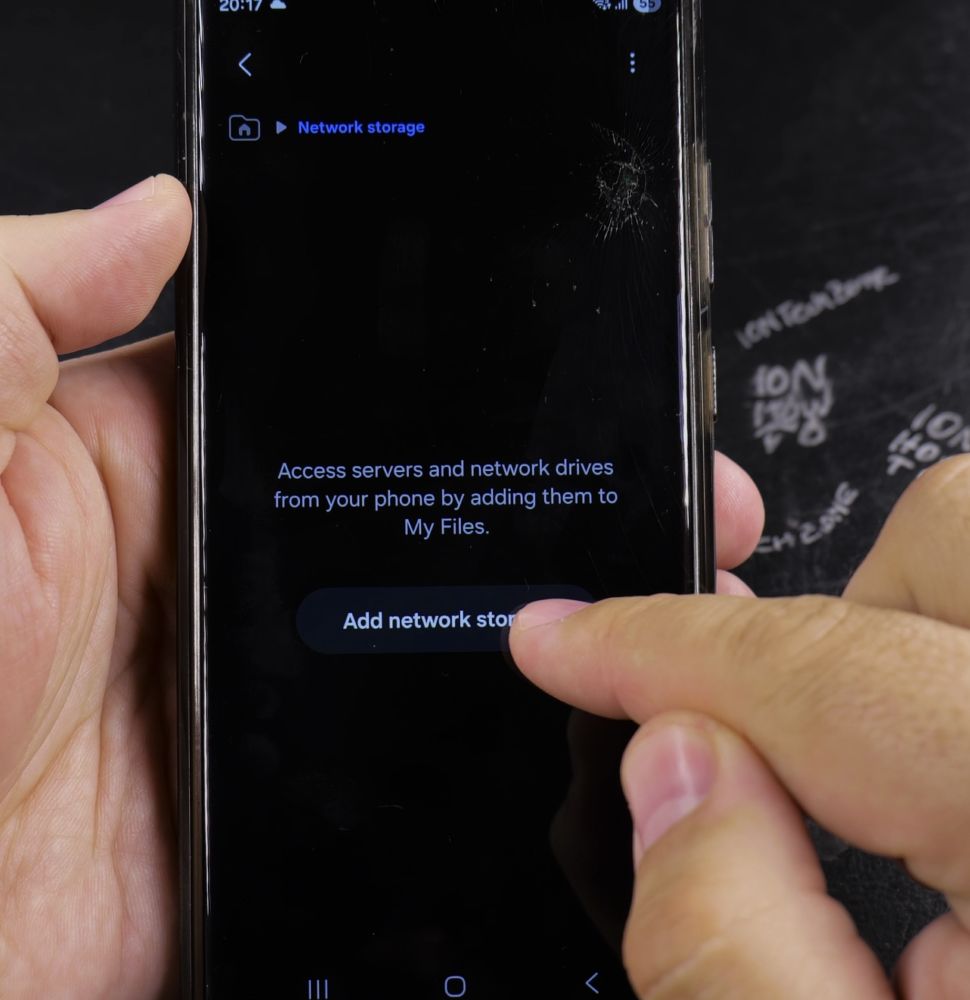
Scroll past internal storage and SD card to tap **Network storage**.
3. Add Network Drive (SMB)
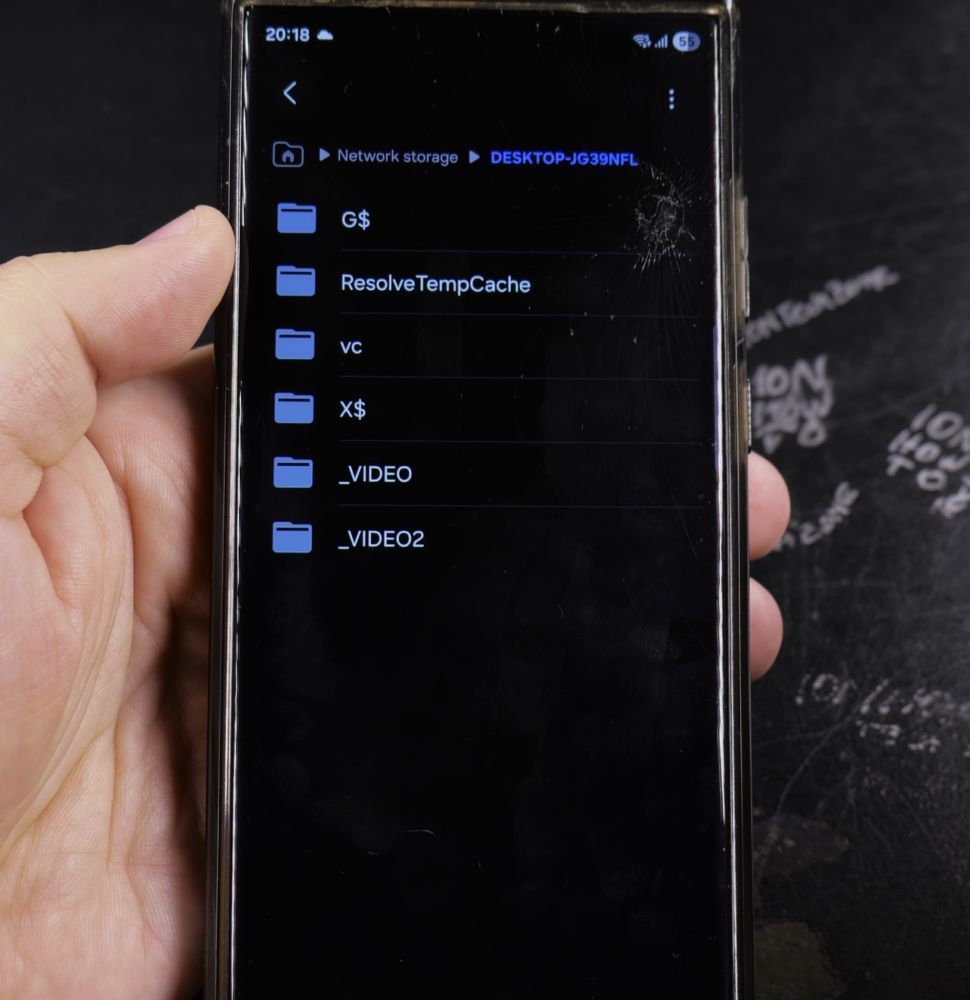
Tap the plus **+** icon in the top-right corner and select **Network drive (SMB)**.
4. Connect and Browse Shared Files
Select your computer or NAS from the scanned list, enter your username and password, then tap **Add** to start browsing.
Helpful Tips
Make sure your Samsung phone is connected to the same Wi-Fi network as your network drive. For more storage tricks, read our guide on Disconnecting Network Shares on Samsung or browse our Samsung Galaxy hub.


Leave a Reply