
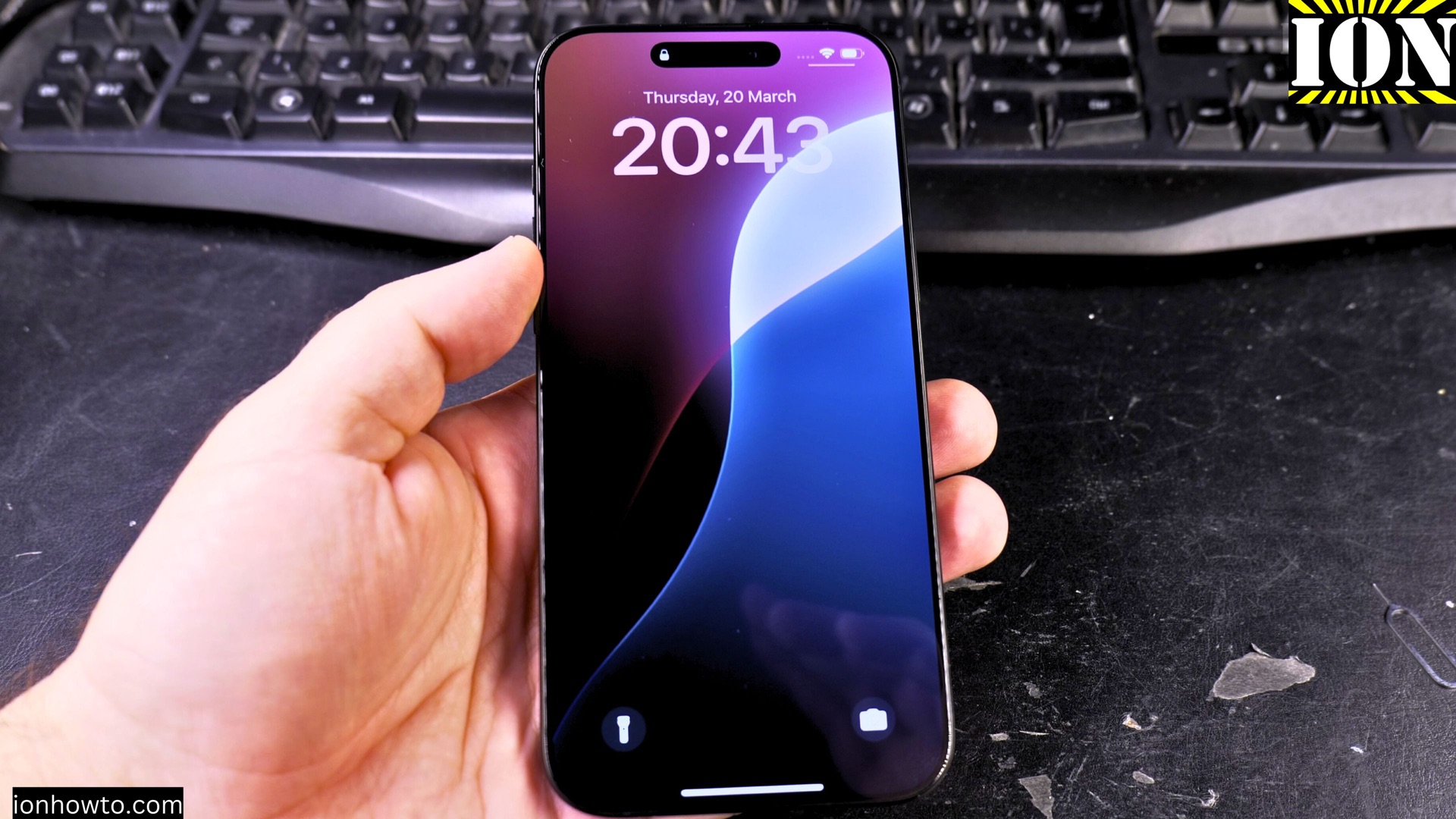
How to Allow Siri and Apple Intelligence on iPhone Lock Screen.
Learn how to allow Siri and Apple Intelligence to work from your iPhone’s lock screen. This is useful if you find that Siri isn’t responding when your phone is locked. Learn how to fix Siri on lock screen and how to enable Siri when iPhone is locked.
I’m showing you on iOS 26.1 on an iPhone 16 Pro Max. But these steps work on most modern iPhones running recent versions of iOS.
Why Won’t Siri Work When My Phone Is Locked?
By default, your iPhone keeps Siri locked down for privacy. If you try to use a voice command while the screen is locked, nothing happens until you unlock with Face ID or your passcode. This is a security feature, but it can be annoying – especially if you want to make a call using headphones while your phone is in your pocket or bag.
The Main Setting You Need to Change
There’s one simple switch that controls all of this. Here’s how to find it:
Step 1: Open Settings
Tap the Settings app on your iPhone home screen.
Step 2: Find Apple Intelligence & Siri
Scroll down until you see “Apple Intelligence & Siri.” Tap on it.
Step 3: Look for “Allow Siri When Locked”
Scroll through the options until you see this setting. It does exactly what it sounds like.
Step 4: Turn it on
Tap the switch to enable it. Your iPhone will ask you to enter your passcode. This is just a safety check to make sure it’s really you making the change.
What Happens After You Enable It?
Once you turn on “Allow Siri When Locked,” here’s what changes:
- You can press and hold the side button on a locked iPhone and Siri will respond
- You can use voice commands through headphones without taking your phone out of your pocket
- You can make phone calls using Siri while the phone is locked
- You can ask for the time, weather, or other information without unlocking
What You Can Do With Siri on the Lock Screen
Here are some examples of voice commands that work once you enable this setting:
- “Call [contact name]”
- “What’s the weather today?”
- “What time is it?”
- “Set a timer for 10 minutes”
- “Play some music”
A Note About Privacy
Allowing Siri on the lock screen does mean someone else could theoretically use voice commands on your phone if they pick it up. Your phone stays locked for things like opening apps or looking at your photos, but Siri can still respond to requests. It’s up to you to decide if the convenience is worth it.
If you often wear headphones and want to use voice commands without digging your phone out of your pocket or bag, this setting is a real time-saver.
Quick Setup Summary
| Step | Action |
|---|---|
| 1 | Open Settings |
| 2 | Tap Apple Intelligence & Siri |
| 3 | Find “Allow Siri When Locked” |
| 4 | Turn it on and enter your passcode |
| 5 | Try it by pressing the side button on a locked screen |
Testing It Out
Once you’ve turned the setting on, lock your phone and try it. Press and hold the side button and ask a simple question like “What’s the time now?” Siri should respond even though your screen is locked.
Learn how to use Siri without unlocking your phone. This setup helps you use Siri easily without having to unlock your device every time you need to make a phone call or use a quick voice command.


Leave a Reply