
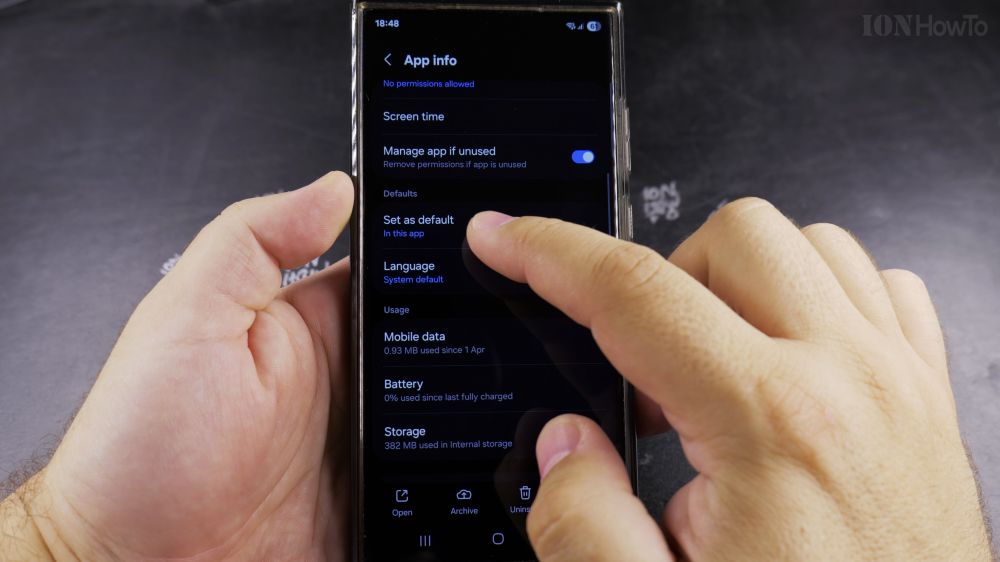
When your Samsung phone keeps opening links or PDF files in an app you don’t like, clearing its default status fixes the problem. I’ll show you how to change default apps or reset app preferences on Samsung Galaxy.
1. Open Settings
Open the **Settings** app on your Samsung phone.
2. Tap Apps
Scroll down and tap **Apps**.
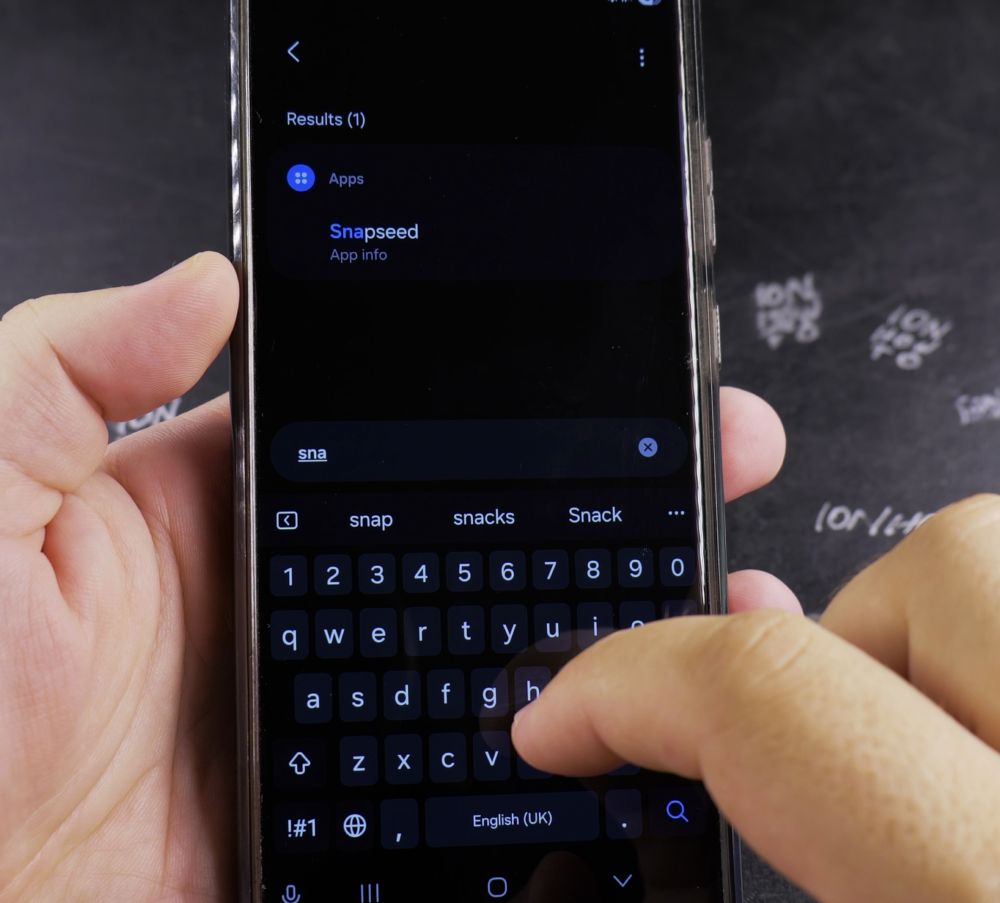
3. Tap Choose Default Apps
At the very top of the list, tap **Choose default apps**.
4. Pick Your Preferred Apps
Tap **Browser app**, **Phone app**, or **SMS app** and choose the service you prefer (like Google Chrome or Samsung Internet).
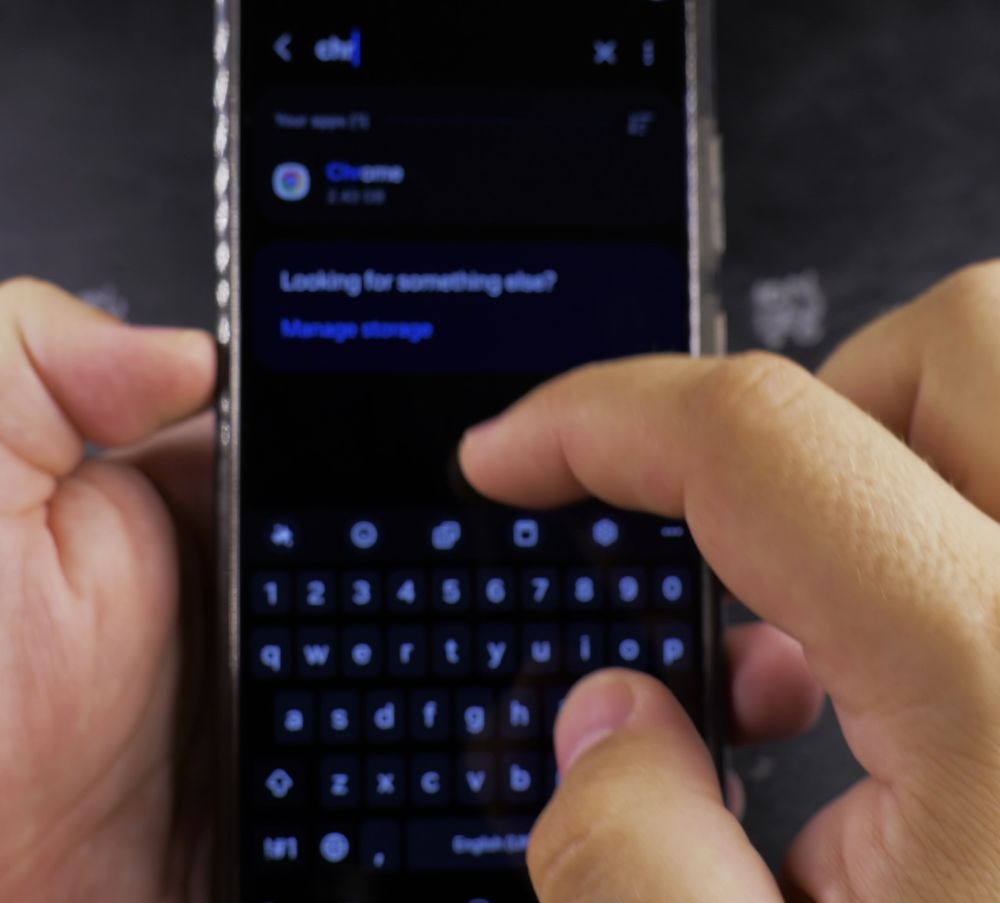
5. Clear a Stuck Default
To stop an app from auto-opening files, go back to the Apps list, tap the specific app, tap **Set as default**, and tap **Clear defaults**.
Helpful Tips
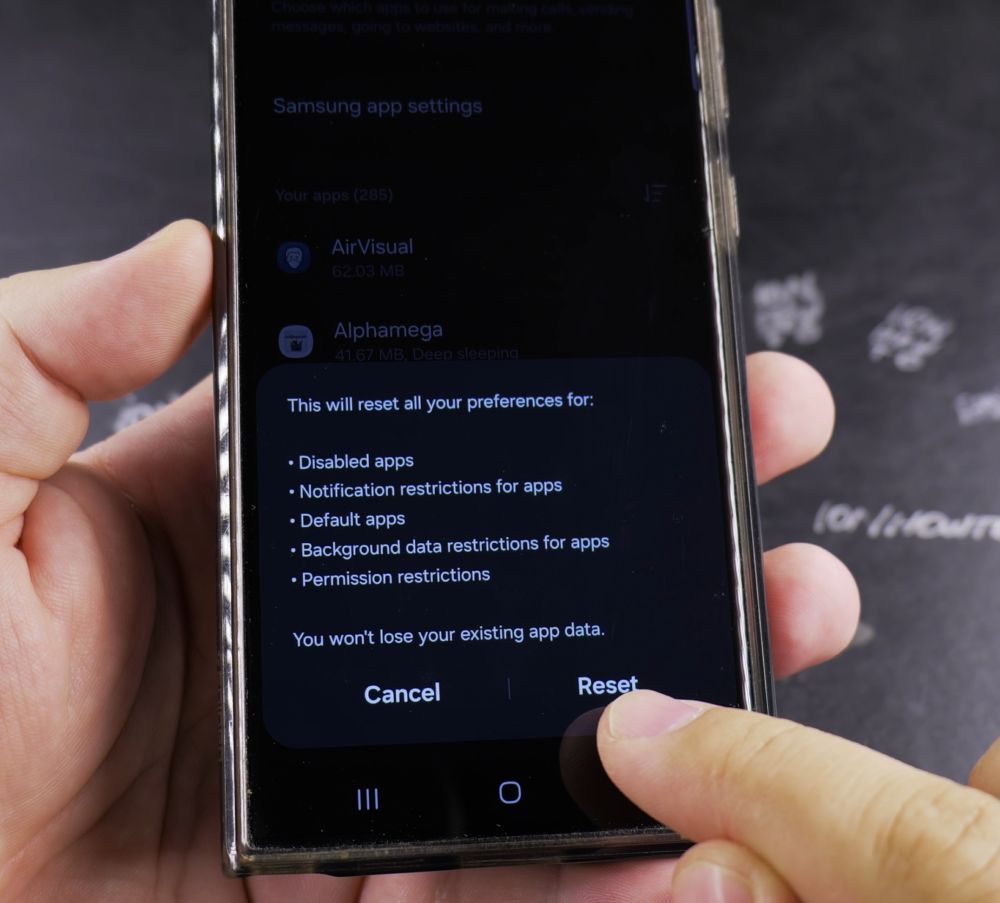
If multiple apps are misbehaving, tap the three dots in the top-right corner of the Apps screen and select Reset app preferences to restore all defaults at once. For more Samsung help, visit our Samsung Guides hub.


Leave a Reply