
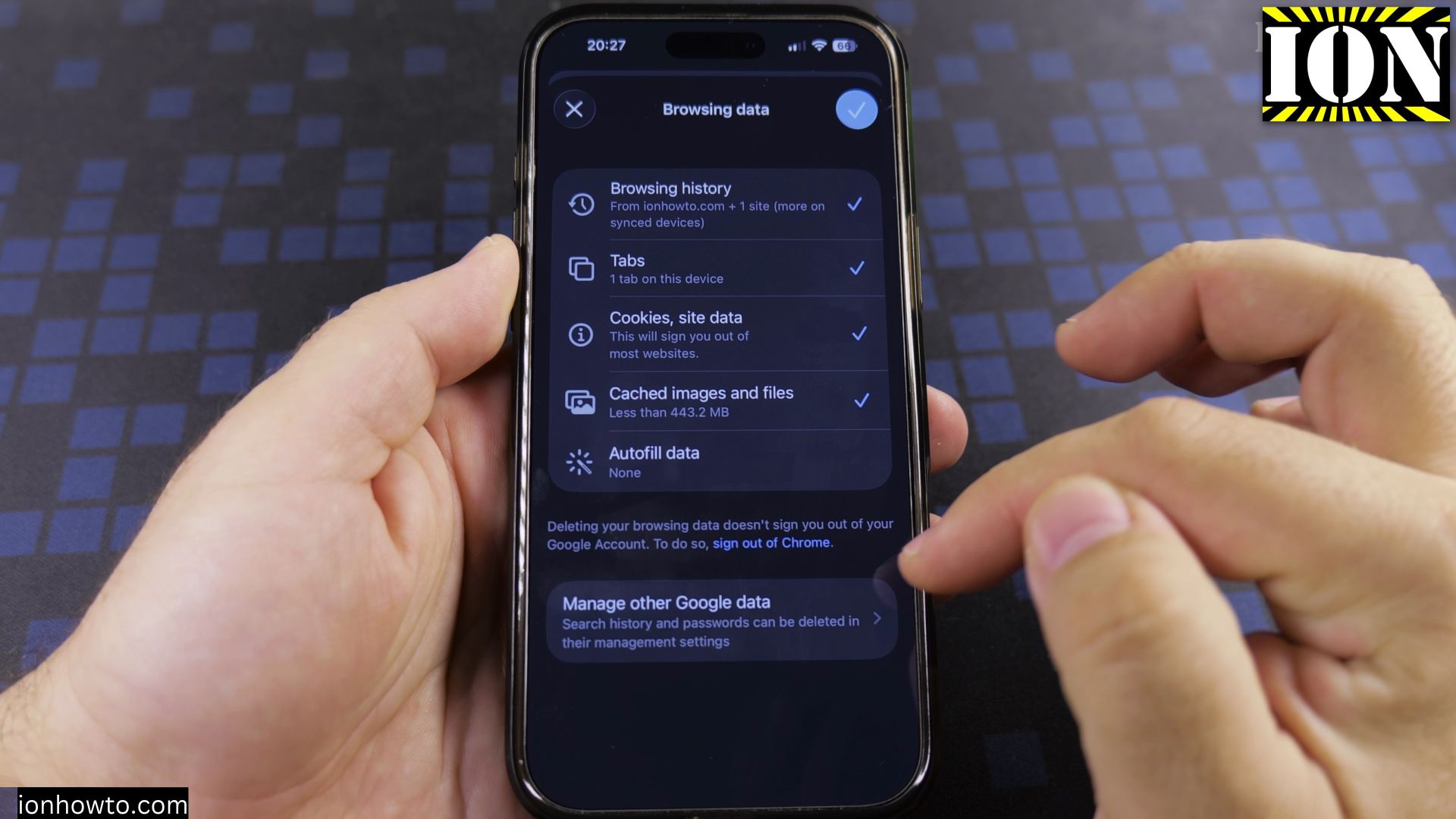
Temporary files inside Google Chrome on iPhone can build up over time and cause pages to show outdated buttons or slow loads. In this short tutorial, I show you the quick menu shortcut to wipe Cached Images and Files by time range while keeping Cookies deselected when you want to remain logged in.
What you will do
- Tap the Three-Dot Menu Inside Chrome on iPhone
- Tap Delete Browsing Data
- Set the Time Range From 15 Minutes Up to All Time
- Check Cached Images and Files and Tap Clear
Recommended Amazon Gear and Accessories
Disclosure: This article contains Amazon affiliate links. As an Amazon Associate, we earn from qualifying purchases at no extra cost to you.
- iPhone Accessories
- iPhone Charger
- iPhone USB-C Cable
- iPhone MagSafe Accessories
- iPhone Case
- iPhone Screen Protector
1. Tap the Three-Dot Menu Inside Chrome on iPhone
Open the Google Chrome app on your iPhone and tap the three-dot menu icon at the bottom or top depending on your address bar layout.
2. Tap Delete Browsing Data
Select Delete Browsing Data right from the main popup menu (or via Chrome Settings) to open Chrome’s cleanup screen.
3. Set the Time Range From 15 Minutes Up to All Time
Tap the Time Range selector at the top and choose Last 15 Minutes, Last Hour, or All Time based on when the website trouble started.
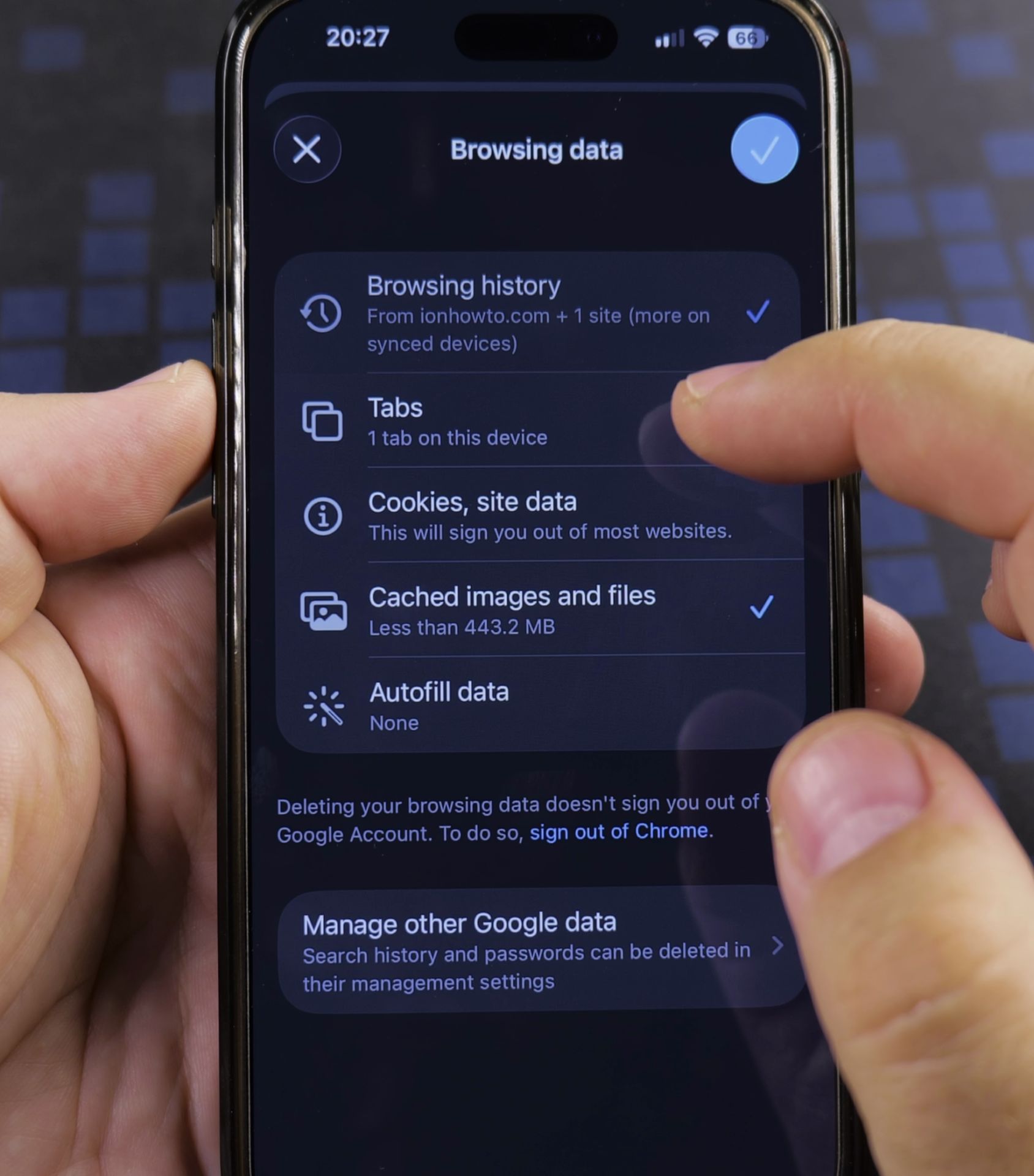
4. Check Cached Images and Files and Tap Clear
Leave Cached Images and Files checked, uncheck Cookies and Site Data if you prefer not to sign back in, and tap Clear Data to complete the cleanup.
Helpful Tips
- Try Last Hour with only Cached Images and Files checked first before wiping All Time cookies.
- Include Cookies and Site Data only if a login loop persists after clearing image cache.
Related Guides
- How to Clear Browsing History on iPhone Safari Browser: Quick Privacy Guide – Over time, your web browser accumulates megabytes of tracking cookies, temporary scripts, and search records.
- How to Clear Browsing History in iPhone Safari – How to Clear Browsing History in iPhone Safari Browser.
- iPhone How to Show App Labels Customize Home Screen – If the names beneath your iPhone app icons disappeared after updating, your icons were switched to the large view.
- iPhone How-To Guides – Browse more tutorials and practical guides in this section.


Leave a Reply