
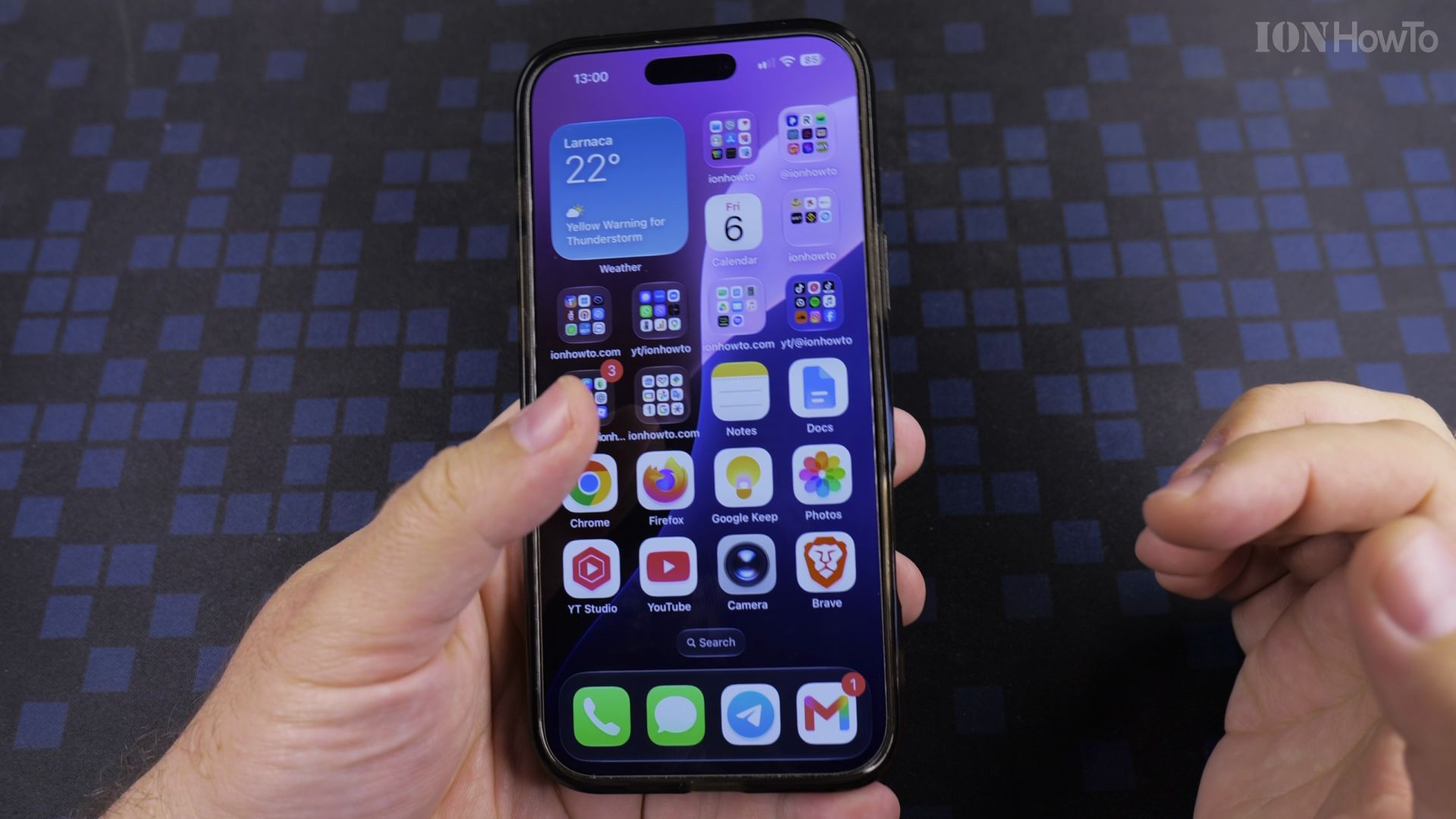
Big iPhones are great until you cannot reach the top of the screen with one hand. Reachability slides everything down to where your thumb is.
In a hurry? Start here
Recommended Amazon Gear and Accessories
Disclosure: This article contains Amazon affiliate links. As an Amazon Associate, we earn from qualifying purchases at no extra cost to you.
- iPhone Accessories
- iPhone Charger
- iPhone USB-C Cable
- iPhone MagSafe Accessories
- iPhone Case
- iPhone Screen Protector
1. Open Accessibility
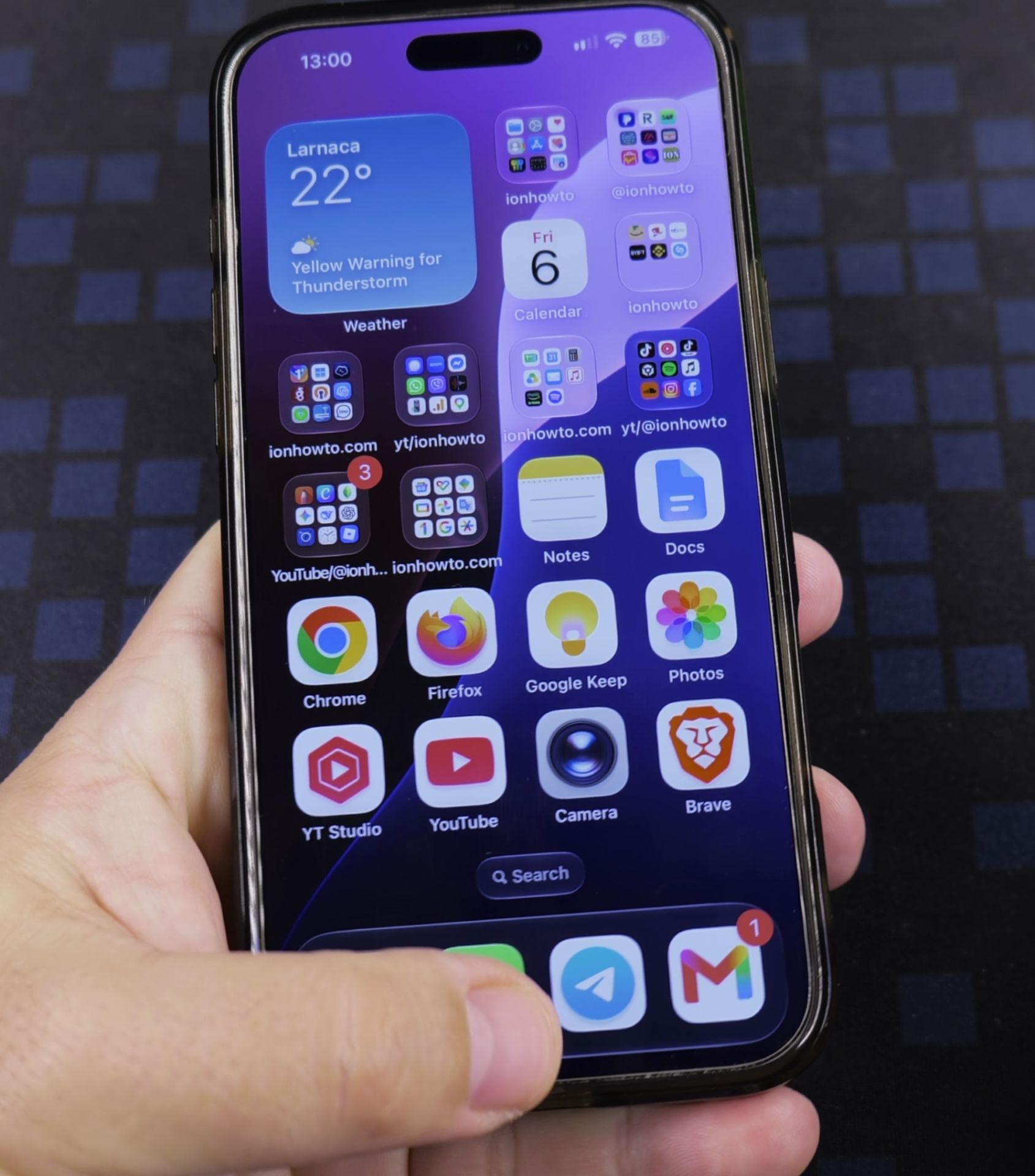
Open **Settings** and tap **Accessibility**.
2. Go into Touch
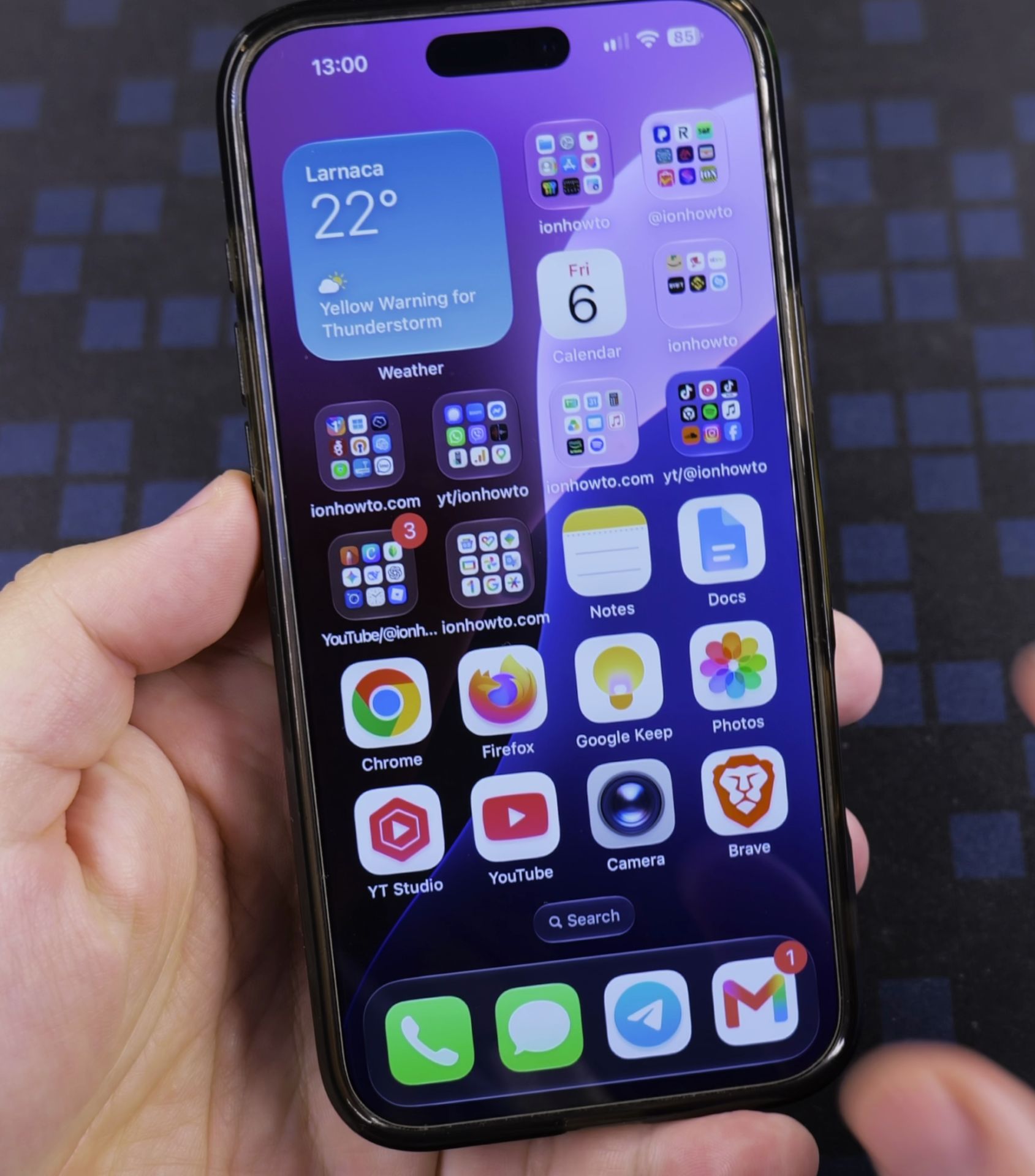
Tap **Touch**, near the top of the Physical and Motor list.
3. Turn on Reachability
Switch **Reachability** on so the toggle turns green.
4. Swipe down on the bottom edge
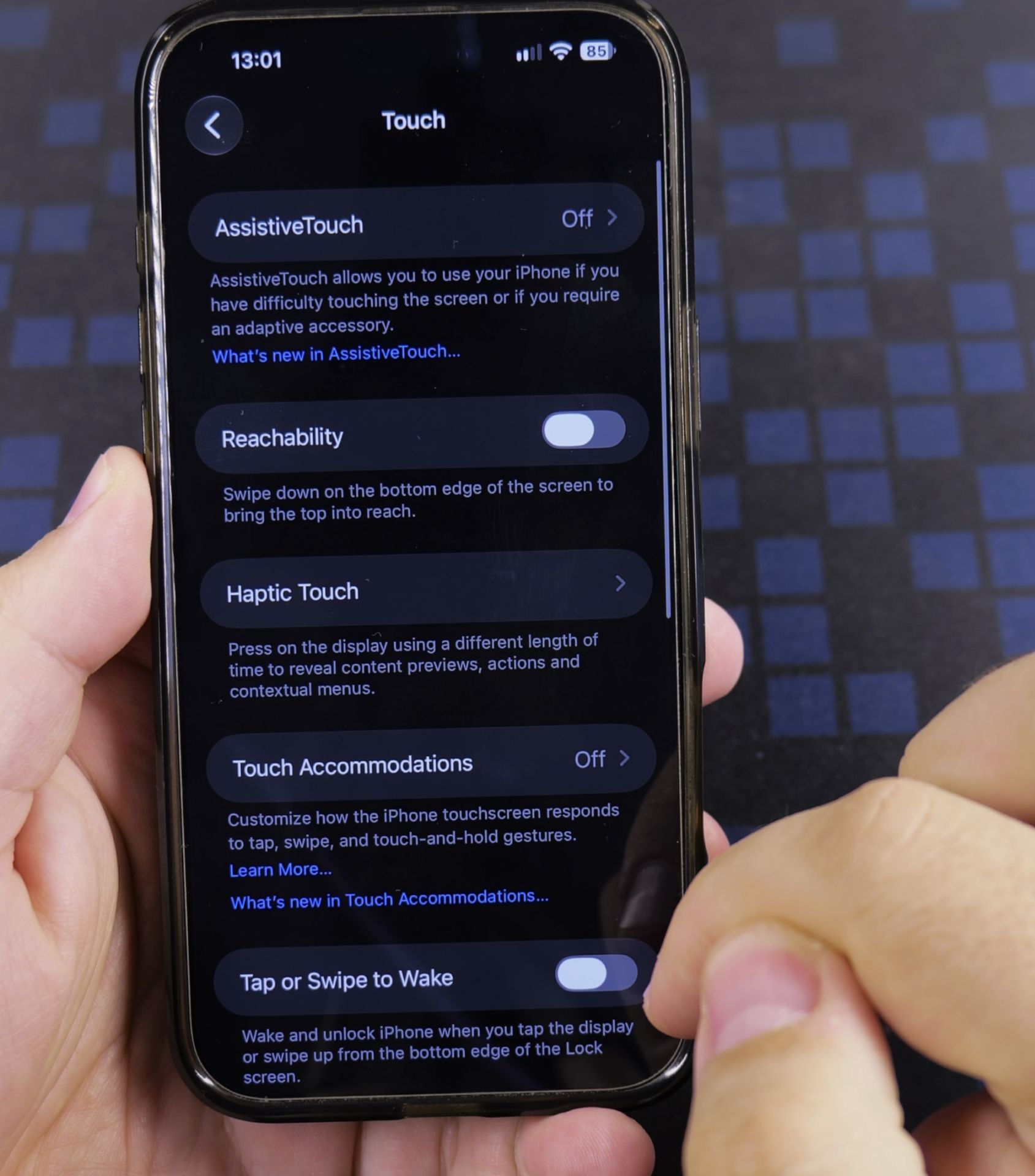
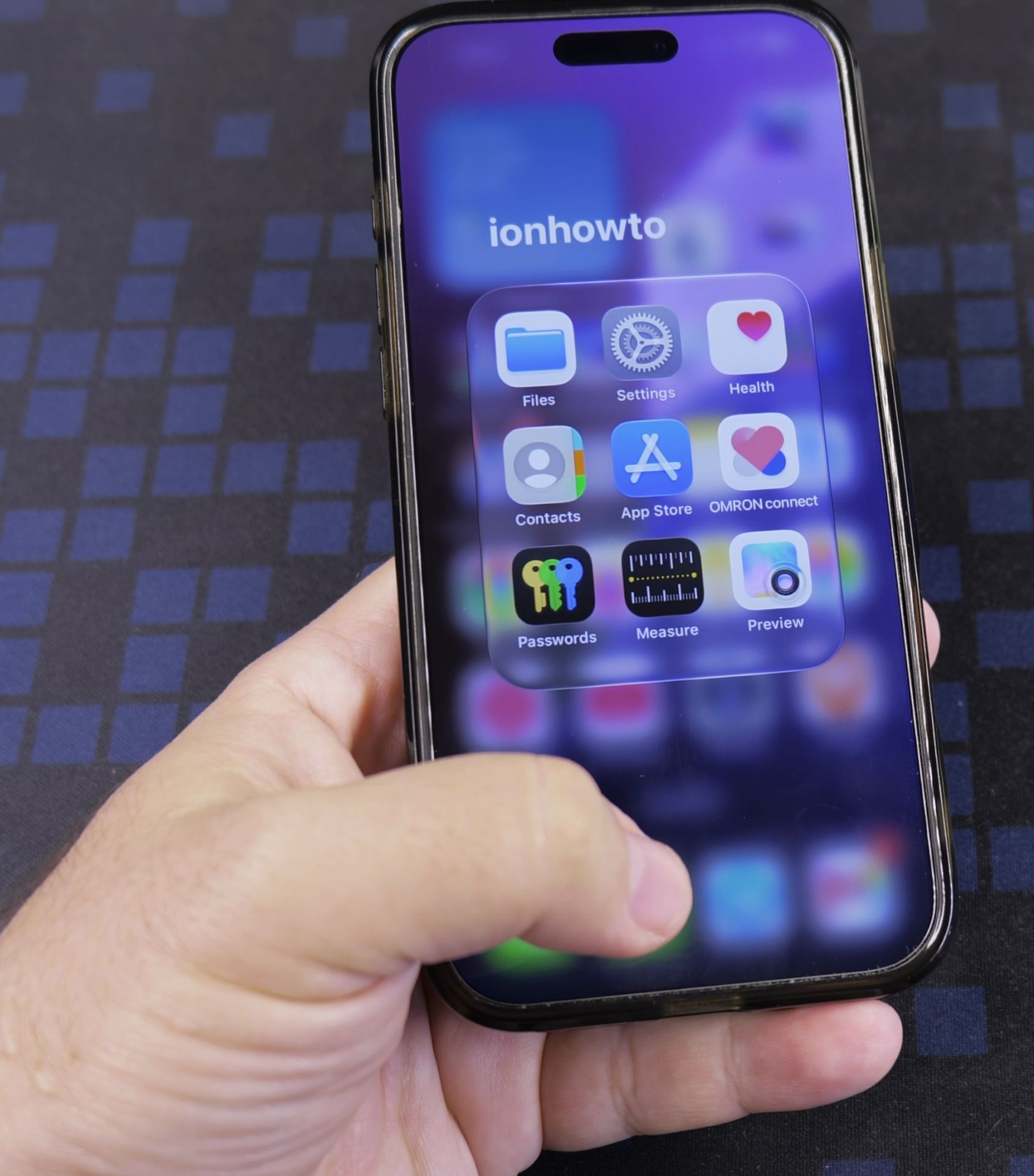
Place your thumb at the very bottom of the screen and swipe down. The top half slides down within reach.
Helpful Tips
- Swipe from the thin bar at the bottom, not from the middle of the screen.
- The screen drops back on its own after a few seconds.
Related Guides
- iPhone How to Show App Labels Customize Home Screen – If the names beneath your iPhone app icons disappeared after updating, your icons were switched to the large view.
- How to Add Flashlight Button to iPhone Lock Screen – If your iPhone lock screen is missing the flashlight button in the bottom corner, you can put it back in seconds.
- How to Add an App Icon Back to the Home Screen on iPhone – If an application icon disappeared from your iPhone Home Screen even though the app is still installed on your device, it is…
- iPhone How-To Guides – Browse more tutorials and practical guides in this section.


Leave a Reply