
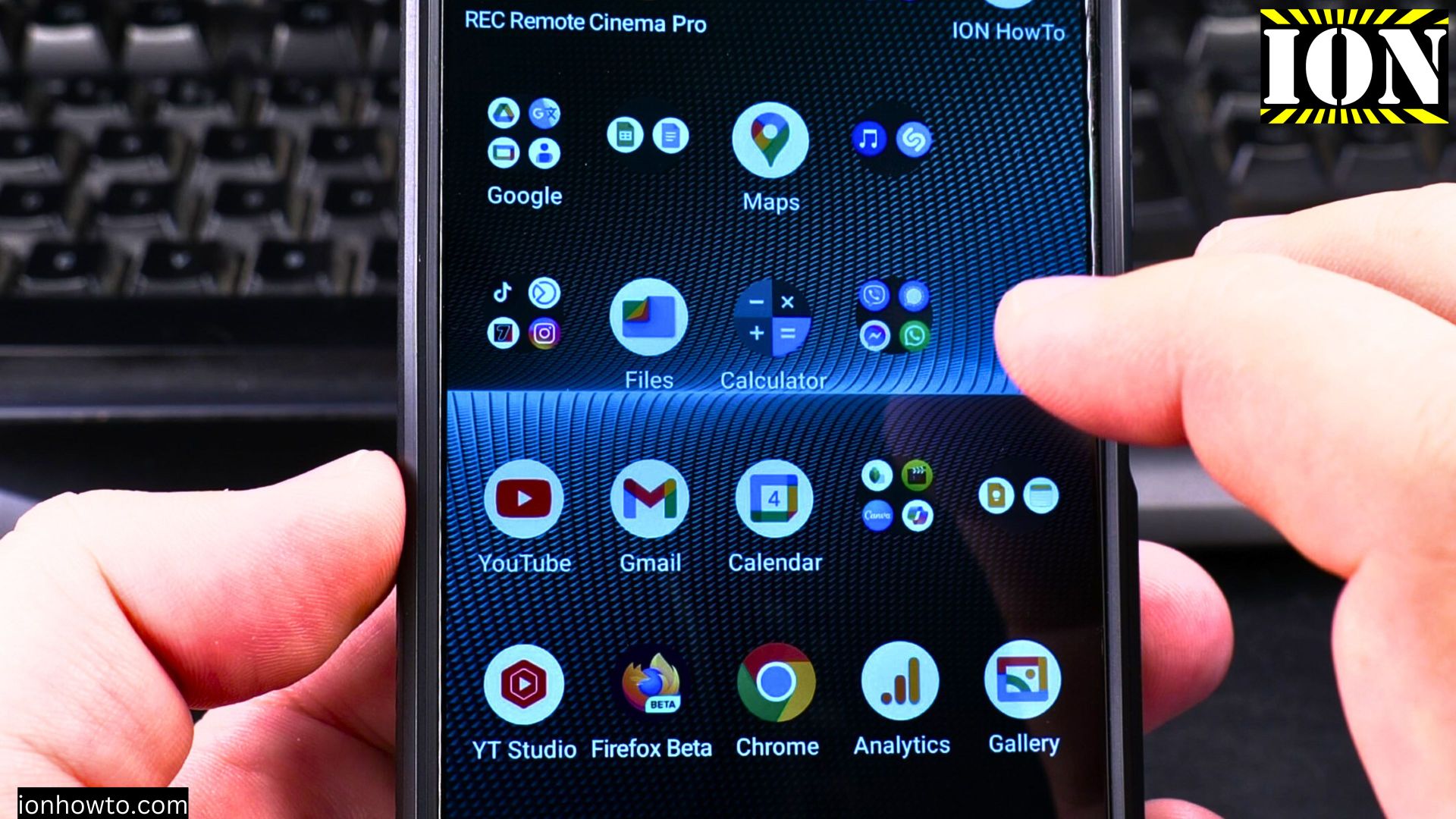
Learn how to troubleshoot and fix common Wi-Fi and mobile data connection issues on your Android device. I show you practical solutions for when your internet stops working, if you’re using Wi-Fi or cellular data.
Amazon links
As an Amazon Associate I earn from qualifying purchases:
- Phone Cases
- Mobile Tripods
- Usb-c charger
- Usb-c cable
- Docking stations
- Wireless car chargers
- Wireless charger stand
- SIM card removal tool
- SIM card holder
How to Fix Wi-Fi and Mobile Data Problems on Android Devices video.
Quick Steps and Scenarios Overview
| What You Need to Do | Quick Jump |
|---|---|
| Fixing Wi-Fi Connection Problems | Jump to Step 1 |
| Fixing Mobile Data Issues | Jump to Step 2 |
| When to Contact Your Provider | Jump to Step 3 |
Basic Troubleshooting Steps
Try these quick fixes first:
- Toggle Airplane Mode:
- Swipe down to open quick settings
- Tap Airplane mode to enable it
- Wait 10 seconds
- Tap again to disable it
- Restart your device:
- Hold the power button
- Select “Restart”
- Wait for your phone to reboot
- Check for service outages:
- Visit your carrier’s website
- Look for reported network issues
Fixing Wi-Fi Connection Problems
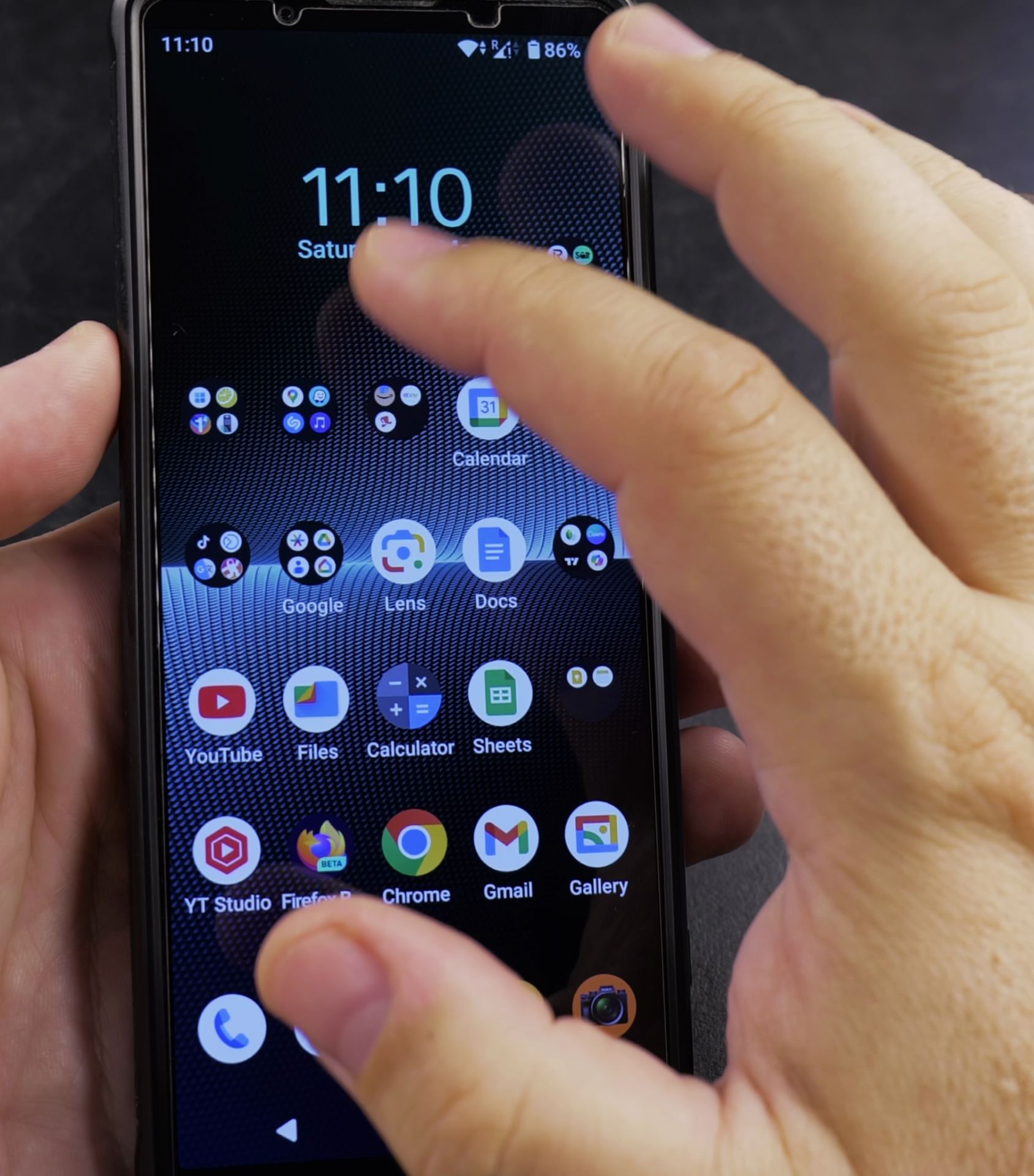
If you can’t connect to Wi-Fi:
- Forget and reconnect to the network:
- Go to Settings > Wi-Fi
- Tap the network name
- Select “Forget”
- Try reconnecting
- Restart your router:
- Unplug the power cable
- Wait 30 seconds
- Plug it back in
- Check Wi-Fi password:
- Make sure you’re using the correct password
- Ask for the current password if it’s changed
If Wi-Fi is connected but no internet:
- Check other devices:
- See if other devices have internet
- If they don’t, the problem is with your router
- Reset network settings:
- Go to Settings > System > Reset
- Tap “Reset Wi-Fi, mobile & Bluetooth”
- Confirm the reset
Fixing Mobile Data Issues
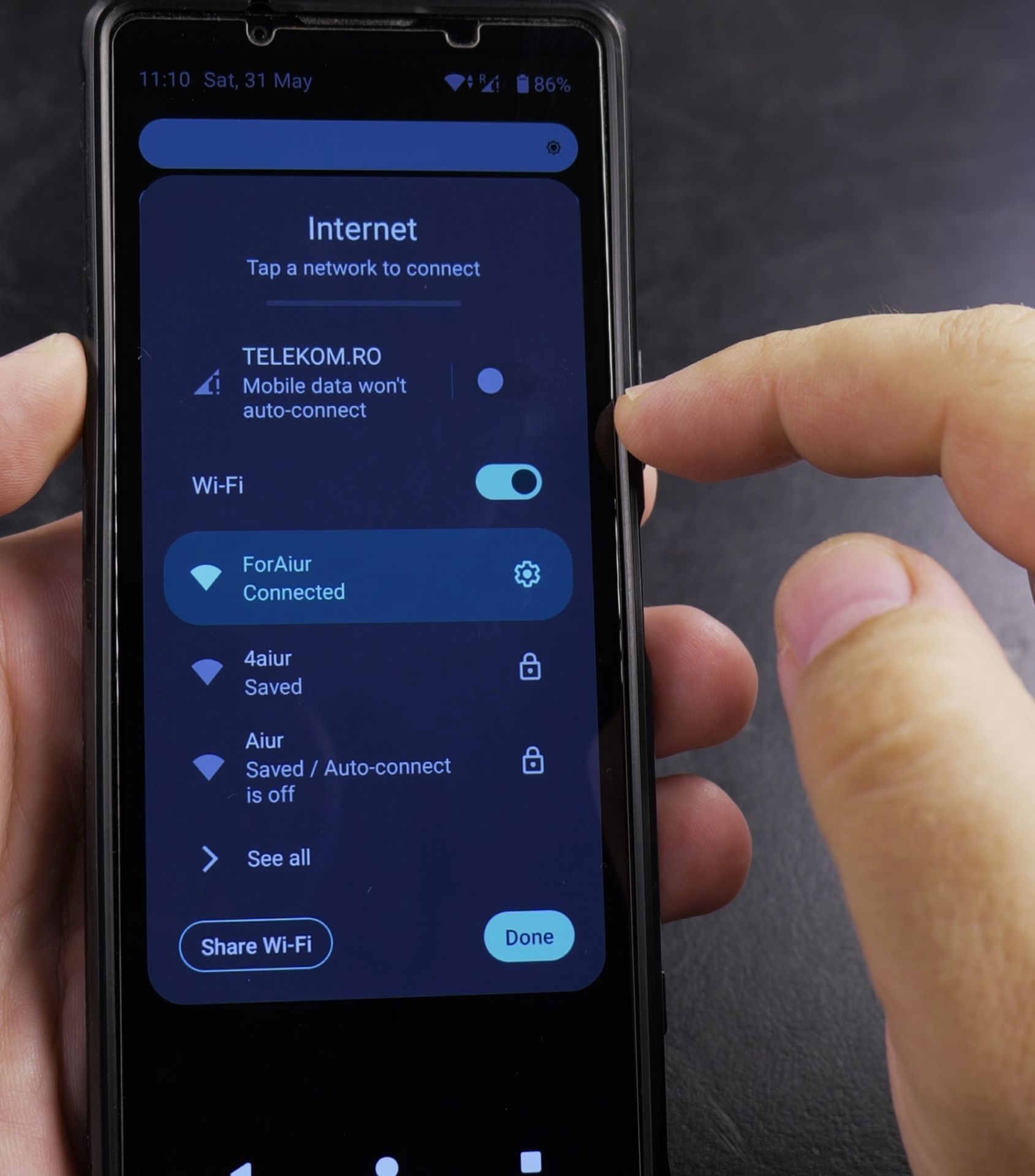
If mobile data isn’t working:
- Check mobile data is enabled:
- Swipe down to quick settings
- Verify mobile data is turned on
- Verify APN settings:
- Go to Settings > Network & internet > Mobile network
- Tap “Access Point Names”
- Select the correct APN for your carrier
- Check data limit:
- Go to Settings > Network & internet > Data usage
- Make sure you haven’t exceeded your limit
If you have slow mobile data:
- Check network mode:
- Go to Settings > Network & internet > Mobile network
- Tap “Preferred network type”
- Try switching between 4G/5G
- Test in different locations:
- Move to an area with better coverage
- Check if speed improves
Advanced Troubleshooting
If basic steps don’t work:
- Check for Android updates:
- Go to Settings > System > System update
- Try a different SIM card:
- Borrow a friend’s SIM to test
- If it works, your SIM may be faulty
- Factory reset (last resort):
- Backup your data first
- Go to Settings > System > Reset > Factory reset
When to Contact Your Provider
Contact your carrier or ISP if:
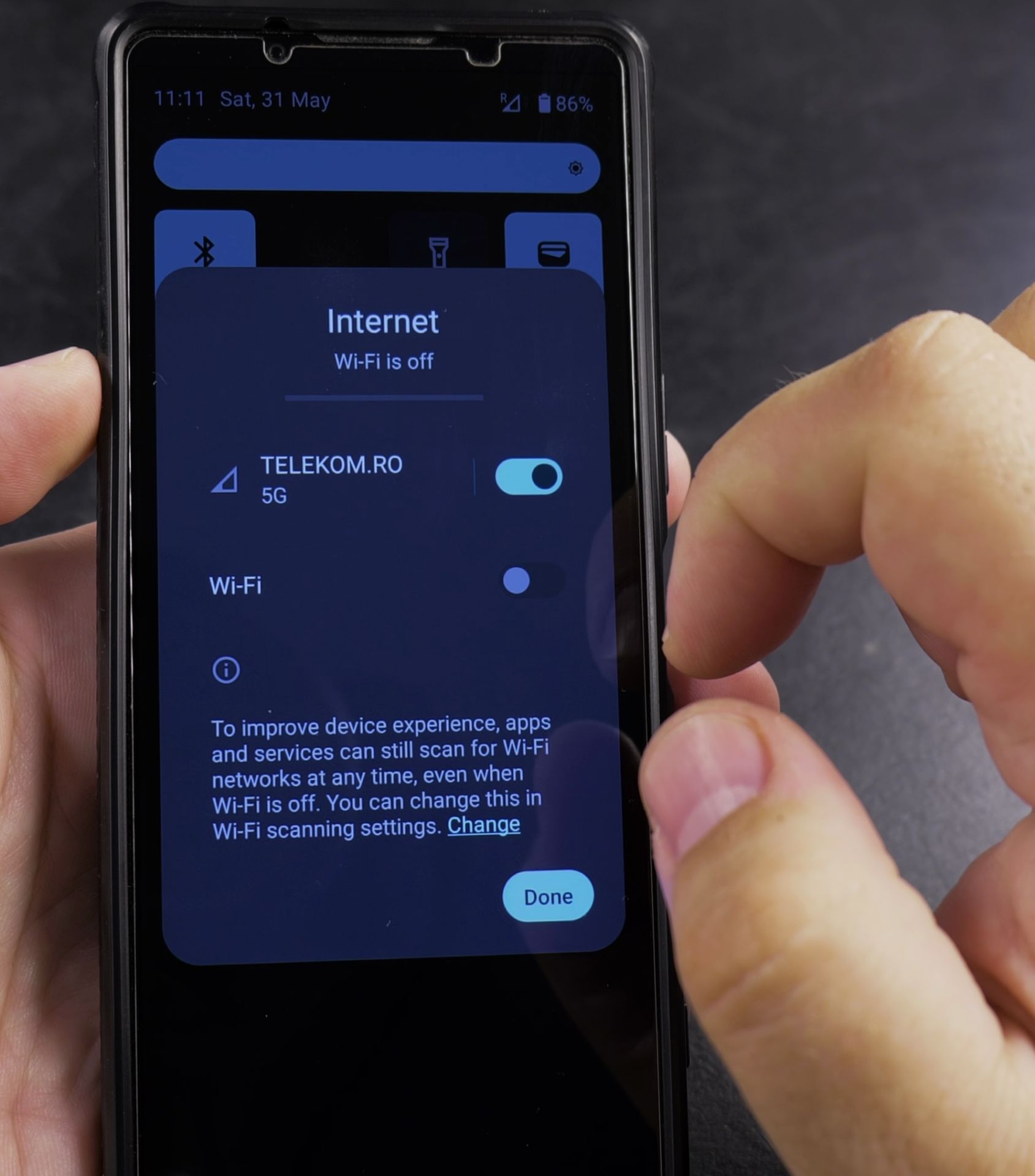
- No devices can connect to your Wi-Fi
- Mobile data never works in any location
- You see “Invalid SIM” errors
- All troubleshooting steps fail
This guide works for most Android phones including Samsung, Google Pixel, and other brands. The exact menu names might vary slightly depending on your device model.
Helpful Tips
Take your time and check the screen carefully after each tap so you can confirm the setting changed as expected. If an option appears in a slightly different spot on your device, watch the embedded video above for a closer look.
Related Guides
- Fix WiFi Problems No Internet Access Connected to Wi-Fi – How to Fix WiFi Problems: No Internet Access Even When Connected to Wi-Fi.
- Wi-Fi and 5G Samsung Galaxy fix Wi-Fi Problems – Samsung Galaxy Android Toggle Disable Wi-Fi and Use 5G Mobile Data to Fix Wi-Fi Connected but No Internet Problem.
- Change Wi-Fi Settings from Static IP to DHCP on Android – How to Change Wi-Fi Settings from Static IP to DHCP on Android Devices.
- Android & Mobile Guides – Browse more tutorials and practical guides in this section.


Leave a Reply