
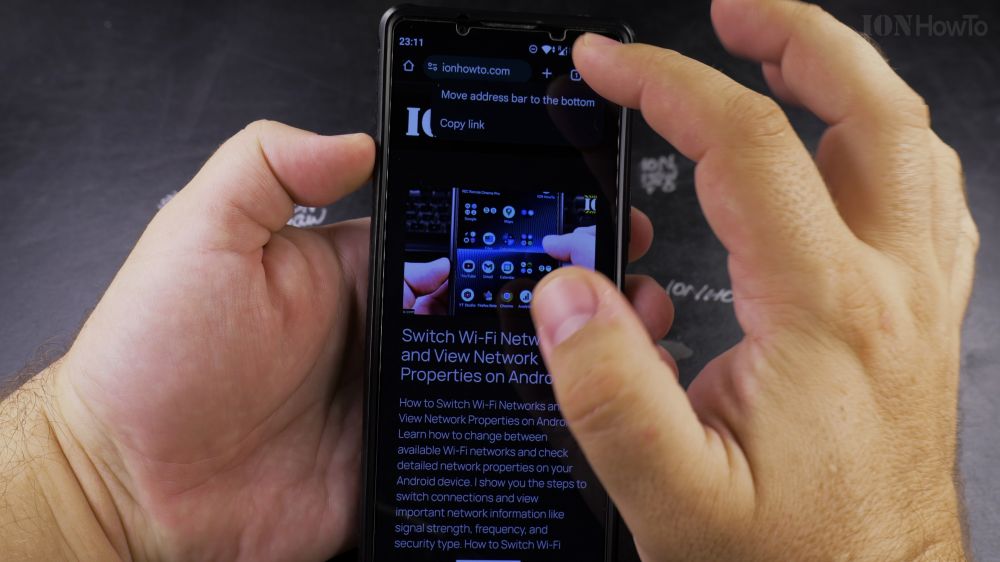
Reaching your thumb all the way to the top of tall modern smartphones can strain your hand while web browsing. I’ll show you how to move the Google Chrome address bar to the bottom of the screen in two easy ways.
1. Open Google Chrome
Tap the **Chrome** app icon on your phone to open the browser.
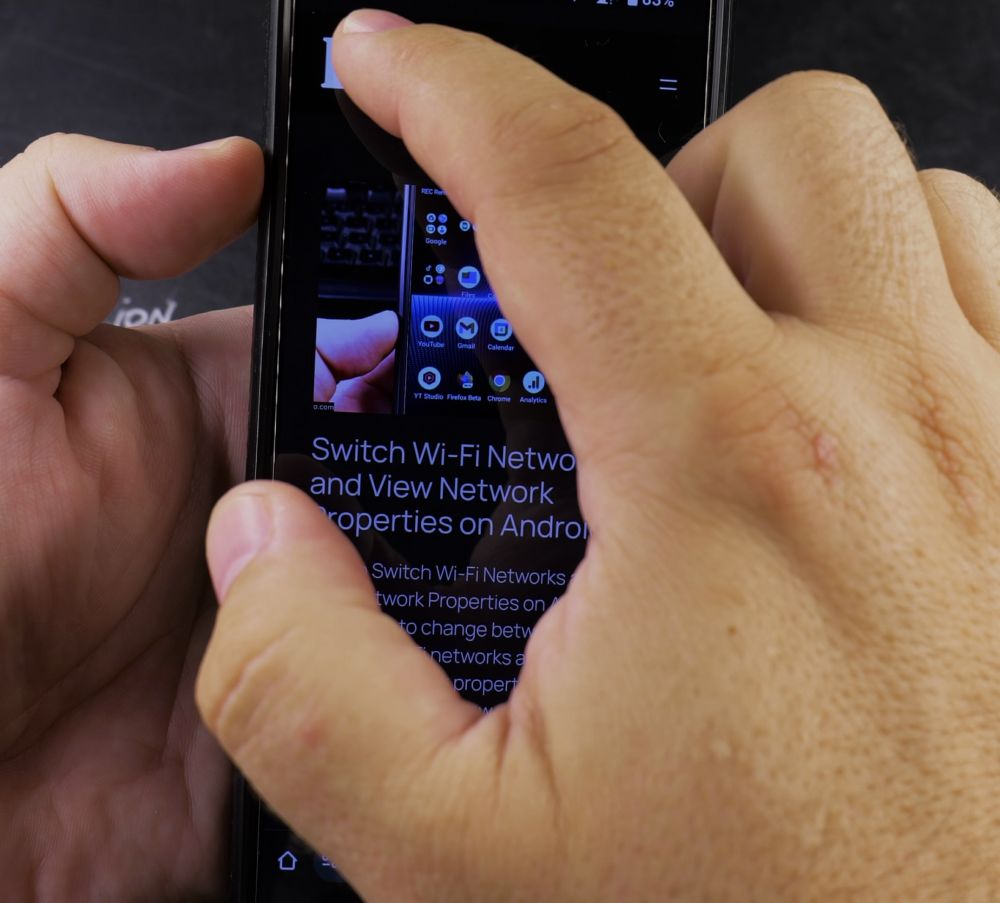
2. Long-Press the Address Bar
Press and hold your finger directly on the top URL address bar for one second.
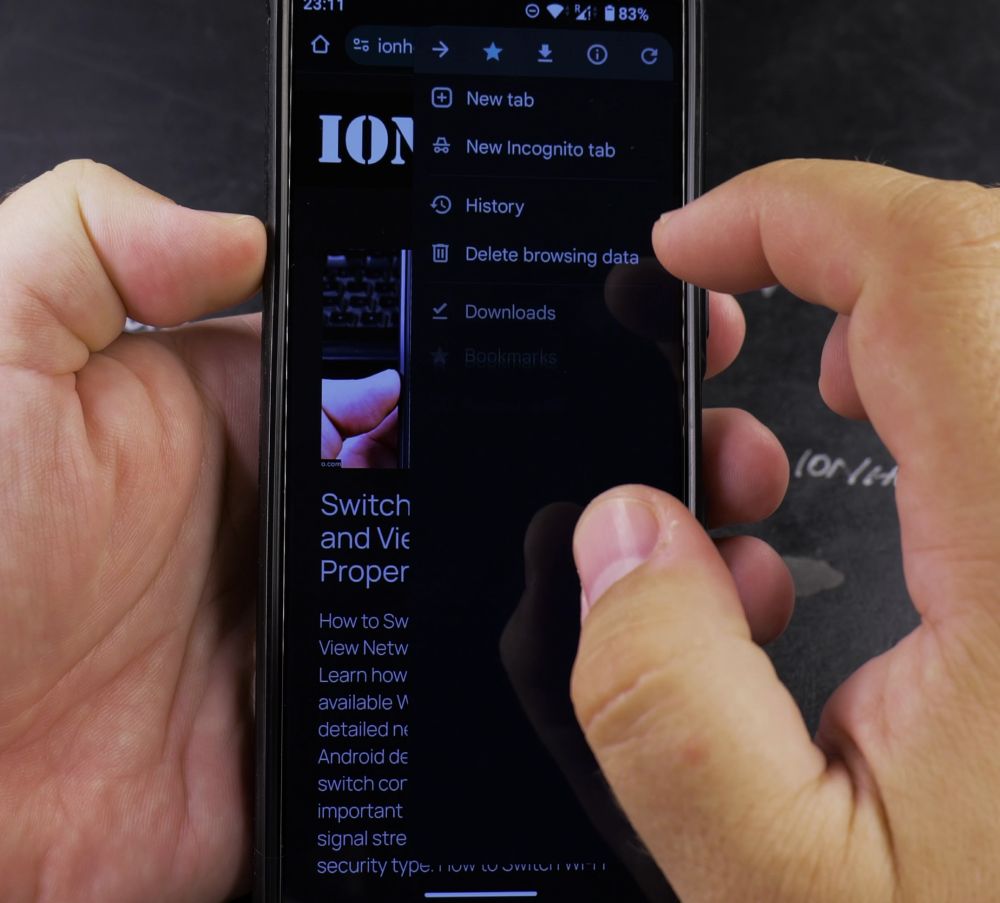
3. Tap Move to Bottom
In the popup menu that appears, tap **Move address bar to bottom**.
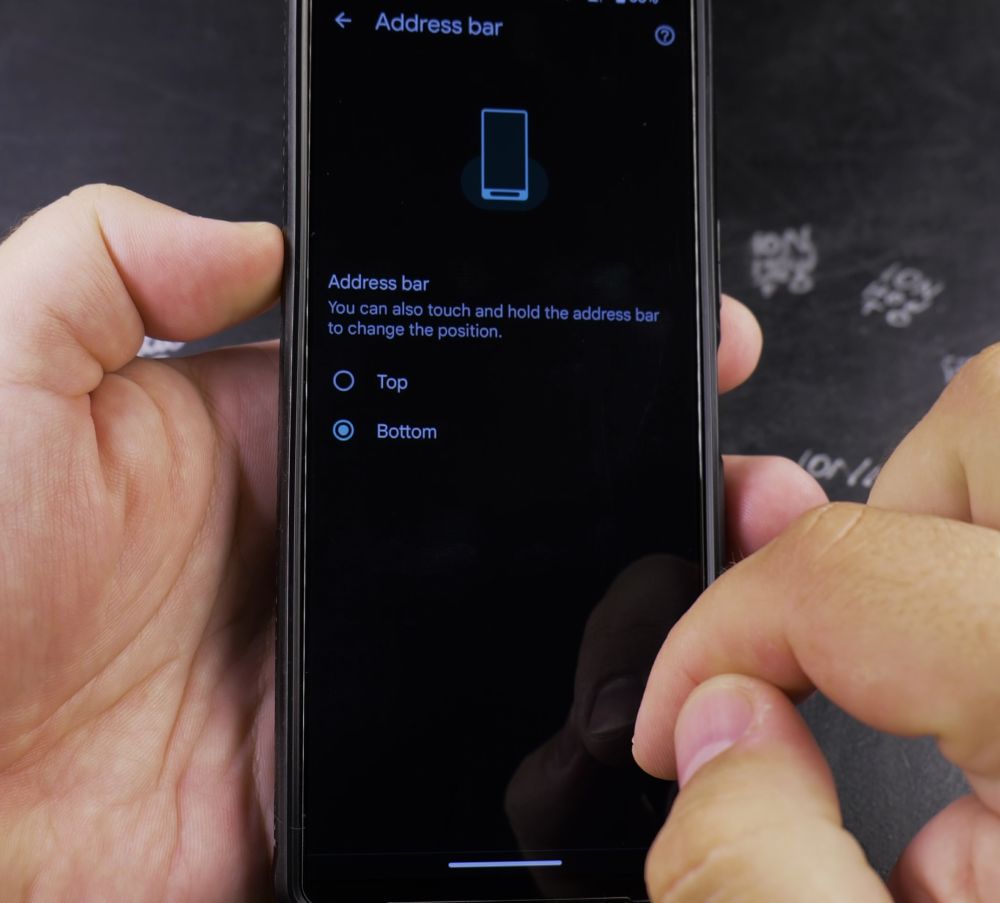
4. Alternative Settings Method
You can also tap the **three dots** in the top-right corner, select **Settings**, tap **Address bar**, and choose **Bottom**.
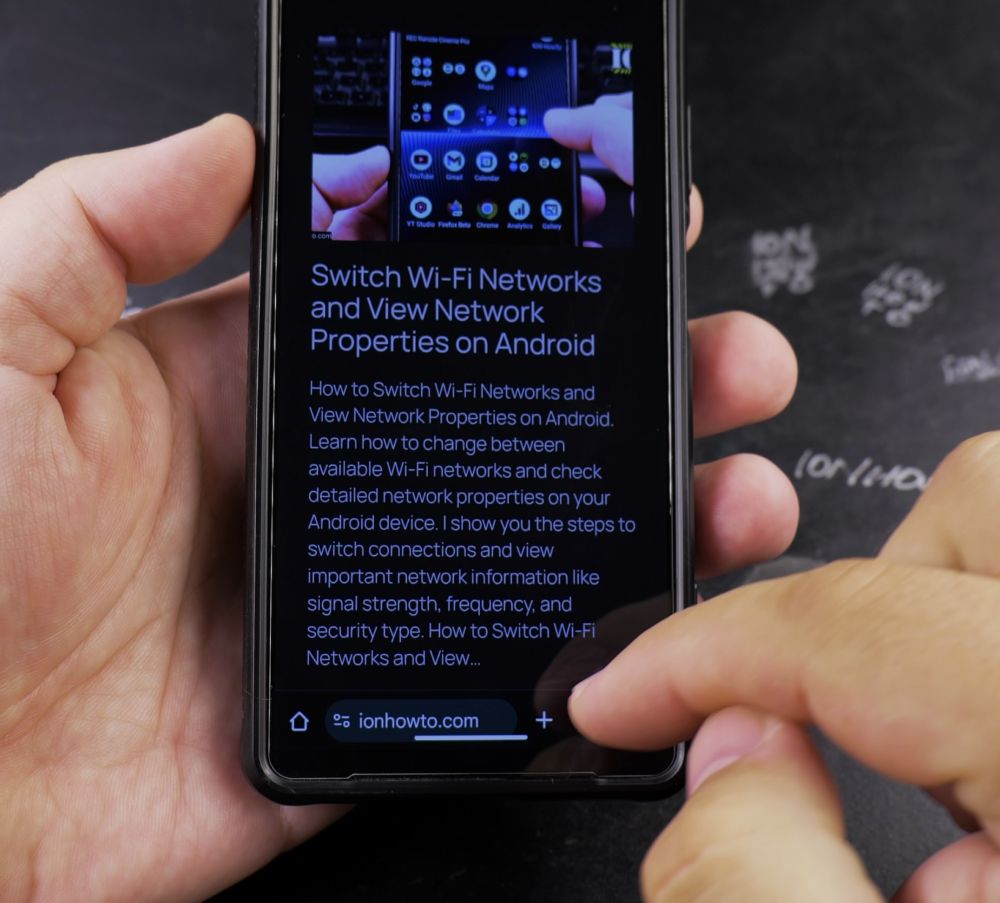
5. Enjoy One-Handed Surfing
The address bar now sits right above your phone’s bottom edge, making typing and switching tabs effortless.
Helpful Tips
If you ever want to return the address bar back to the top, simply long-press the bottom address bar again and tap ‘Move address bar to top’. For more browsing tips, check out our Android Guides hub.


Leave a Reply