
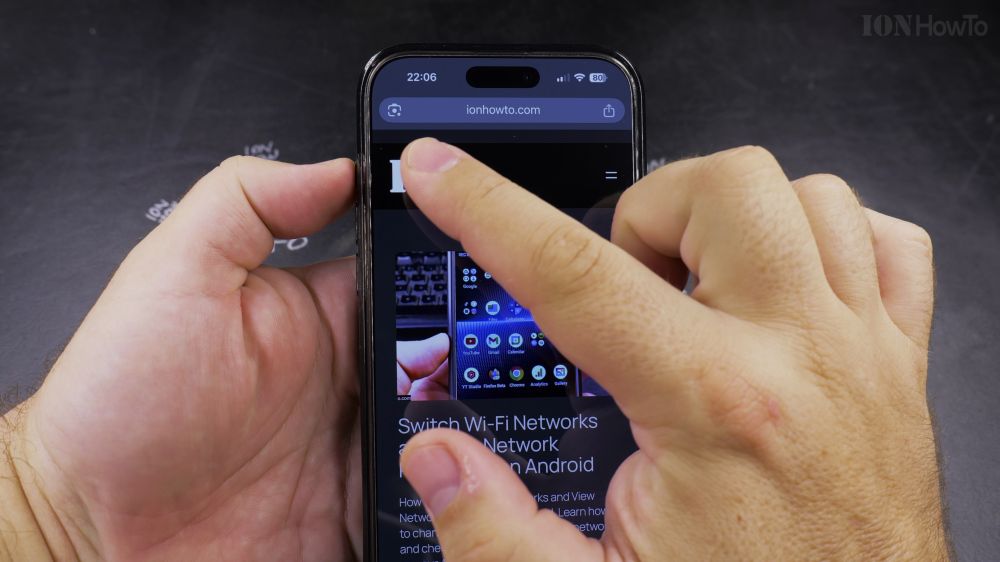
If you are used to Apple Safari’s bottom toolbar, having Chrome’s address bar at the top of your iPhone feels awkward. I’ll show you how to move Chrome’s navigation bar to the bottom for seamless one-handed browsing.
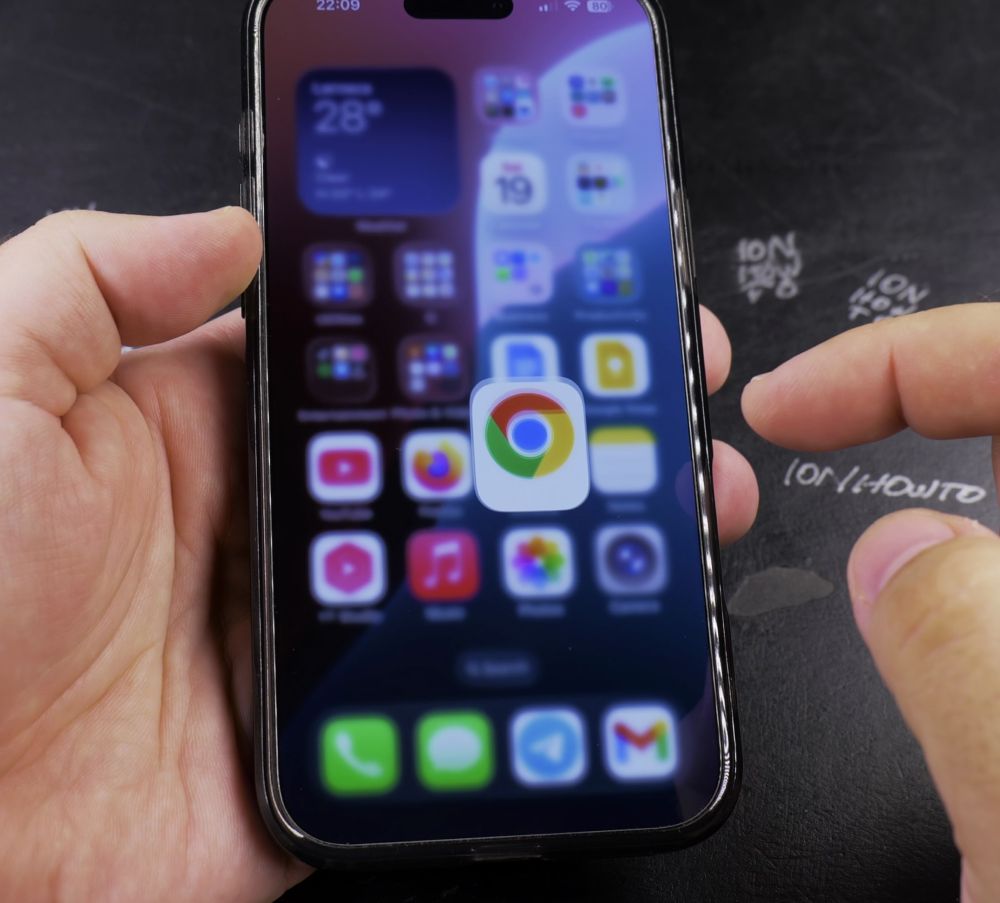
1. Open Chrome
Tap the **Chrome** app icon on your iPhone home screen.
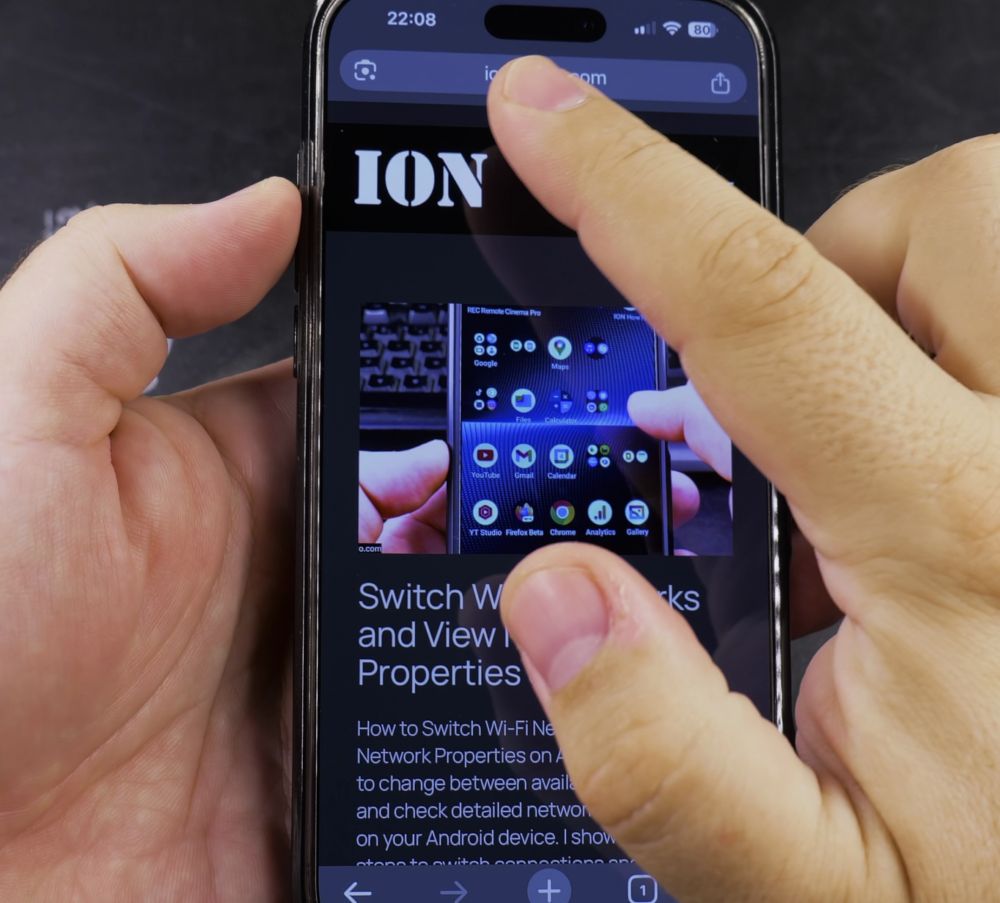
2. Press and Hold the Bar
Press and hold your finger directly on the top URL address bar until a menu slides up.
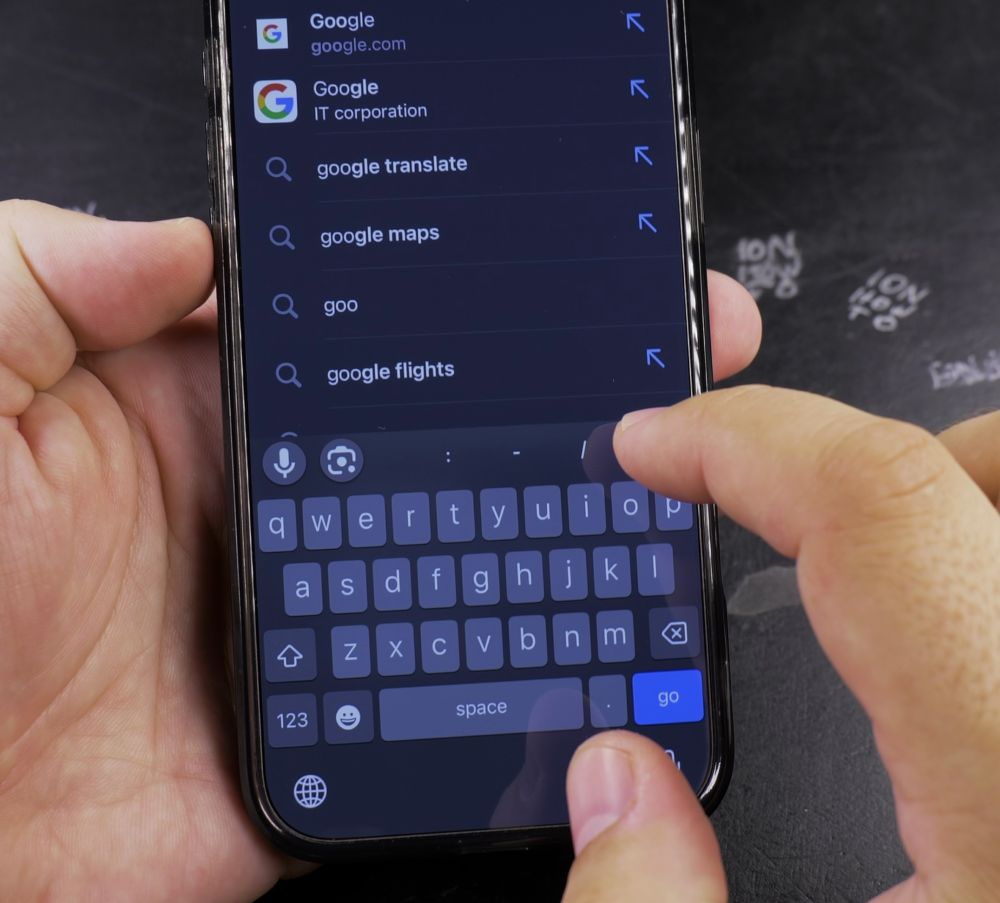
3. Tap Move to Bottom
Tap **Move Address Bar to Bottom** in the popup options.
4. Settings Alternative
You can also tap the **three dots (…)** in the bottom-right corner, tap **Settings**, select **Address Bar**, and tap **Bottom**.
5. Navigate Comfortably
Your back and forward arrows, URL search field, and tab switcher now sit comfortably within thumb reach.
Helpful Tips
Moving Chrome’s navigation bar to the bottom makes your browsing experience identical to Safari while keeping all your Google bookmarks and history synced. For more iPhone tricks, explore our iPhone Guides collection.


Leave a Reply