
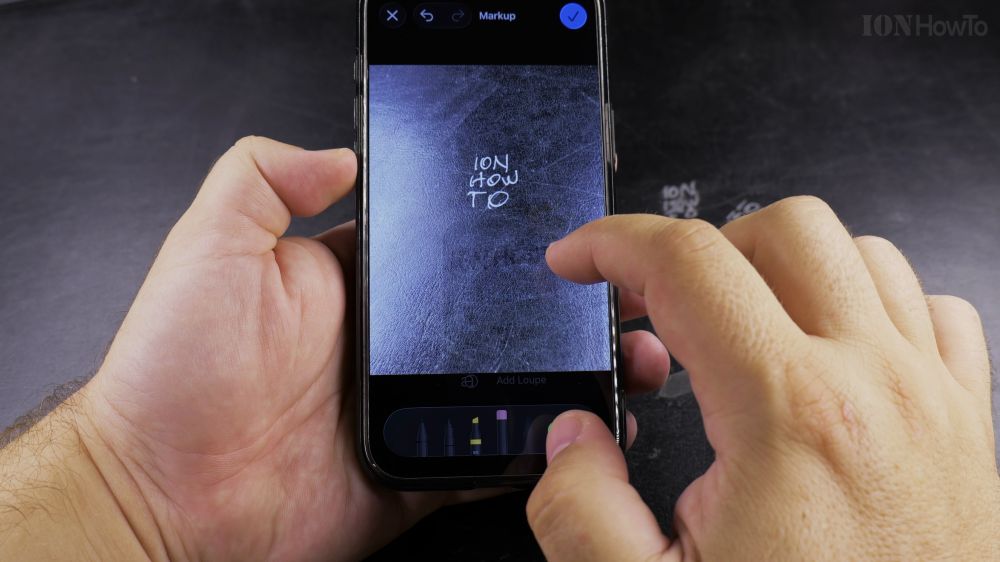
If your sticker drawer is cluttered with test cutouts or old pictures, cleaning it out makes finding your favorites much faster. I’ll show you how to delete and rearrange stickers in the iPhone Photos app.
1. Open a Photo to Edit
Open the **Photos** app, select any picture, and tap **Edit** in the top-right corner.
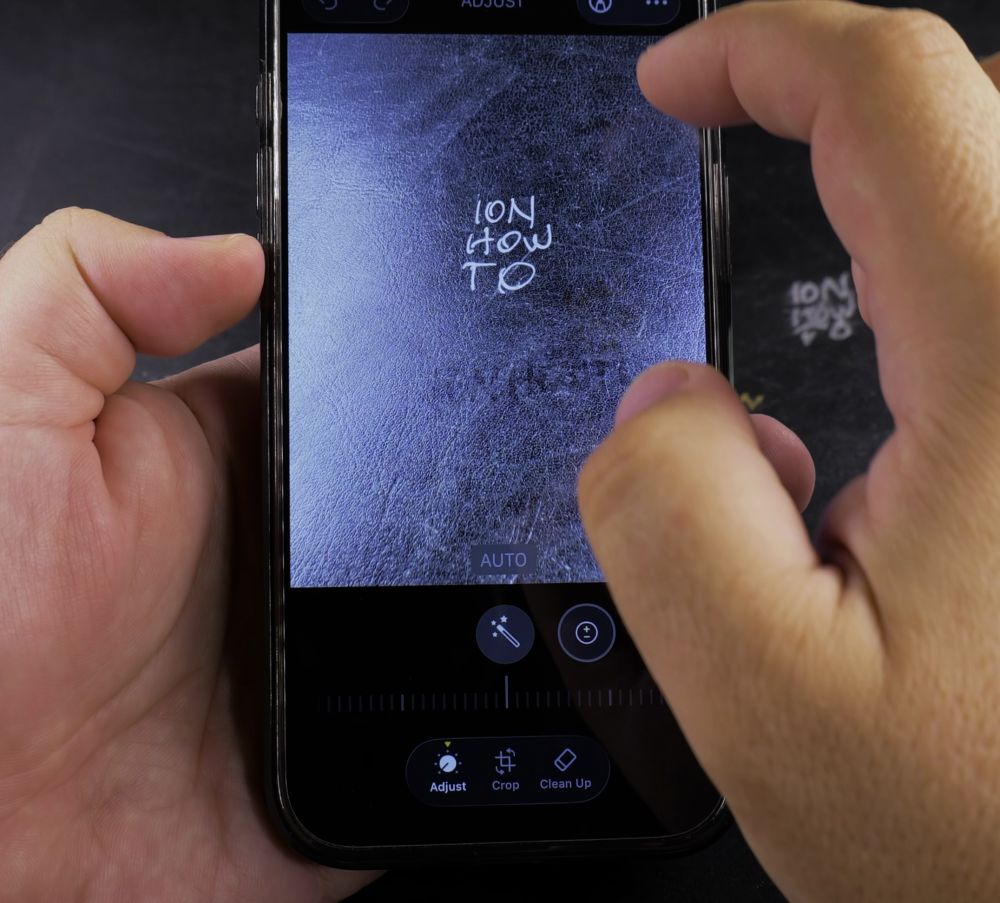
2. Open the Sticker Drawer
Tap the **Markup** (pen) icon, tap the **+ (plus)** button in the bottom toolbar, and tap **Add Sticker**.
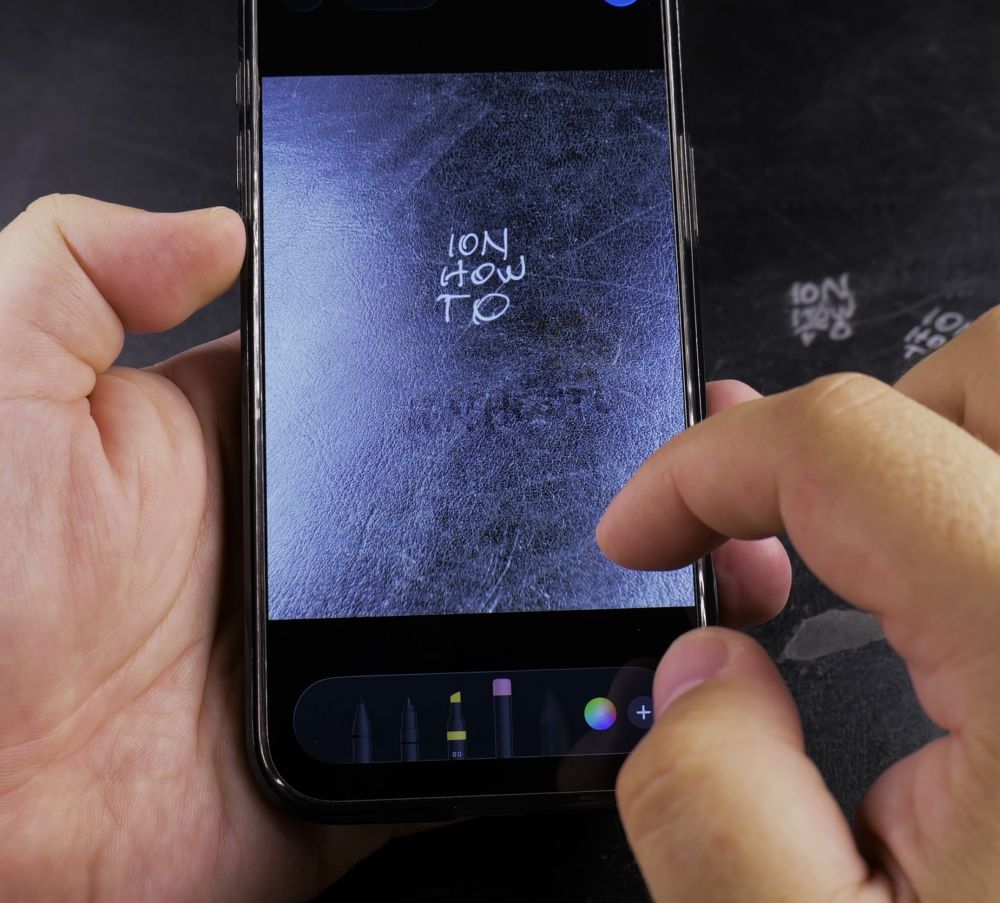
3. Long-Press a Sticker
Press and hold your finger on any sticker you want to remove until the options popup appears.
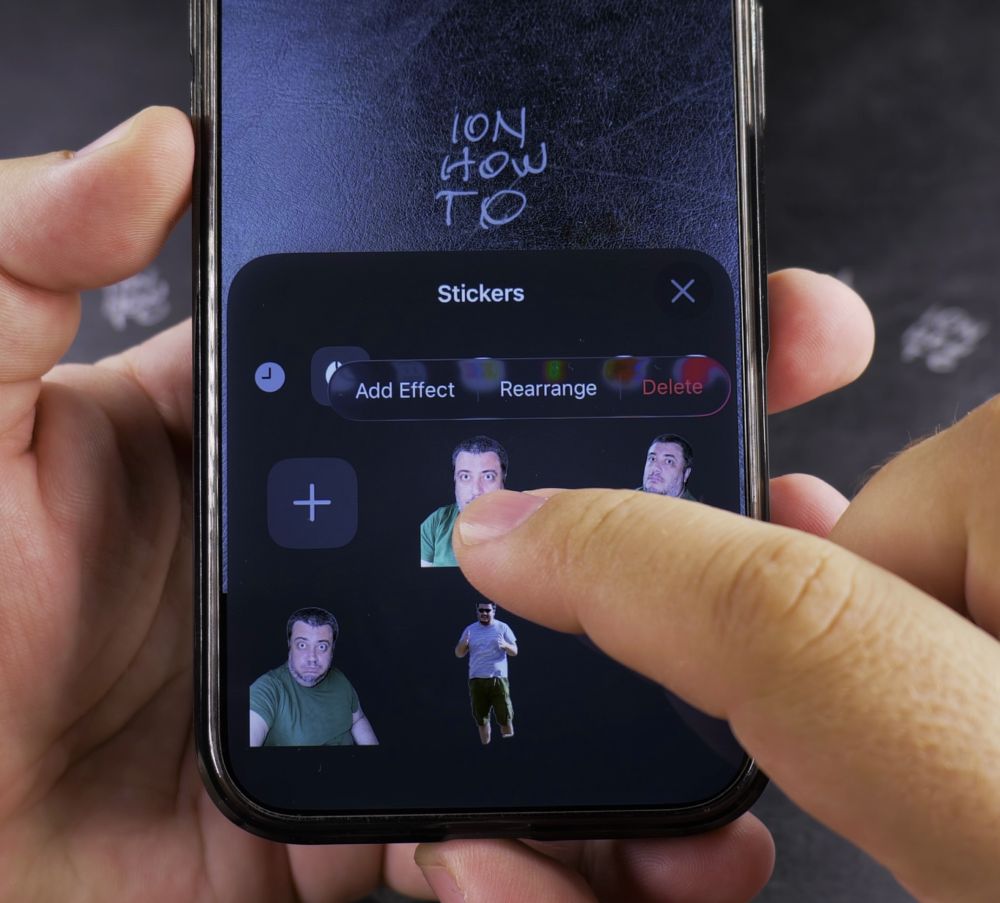
4. Tap Delete
Tap **Delete** in the popup menu. The sticker is permanently removed from your collection.
5. Rearrange Your Tray
To reorder stickers, press and hold any sticker until it wiggles slightly, then drag it left or right to your favorite spot.
Helpful Tips
You can always recreate deleted stickers anytime by opening the original photo and lifting the subject again. For more creative iOS tips, visit our iPhone Guides collection.


Leave a Reply