
Android: How to Remove a Photo from a Contact.
I show you how to remove a photo from a contact on your Android phone. This is useful if you want to delete an outdated picture or prefer having no image for certain contacts. Learn the steps to clean up your contact list by removing unwanted photos.
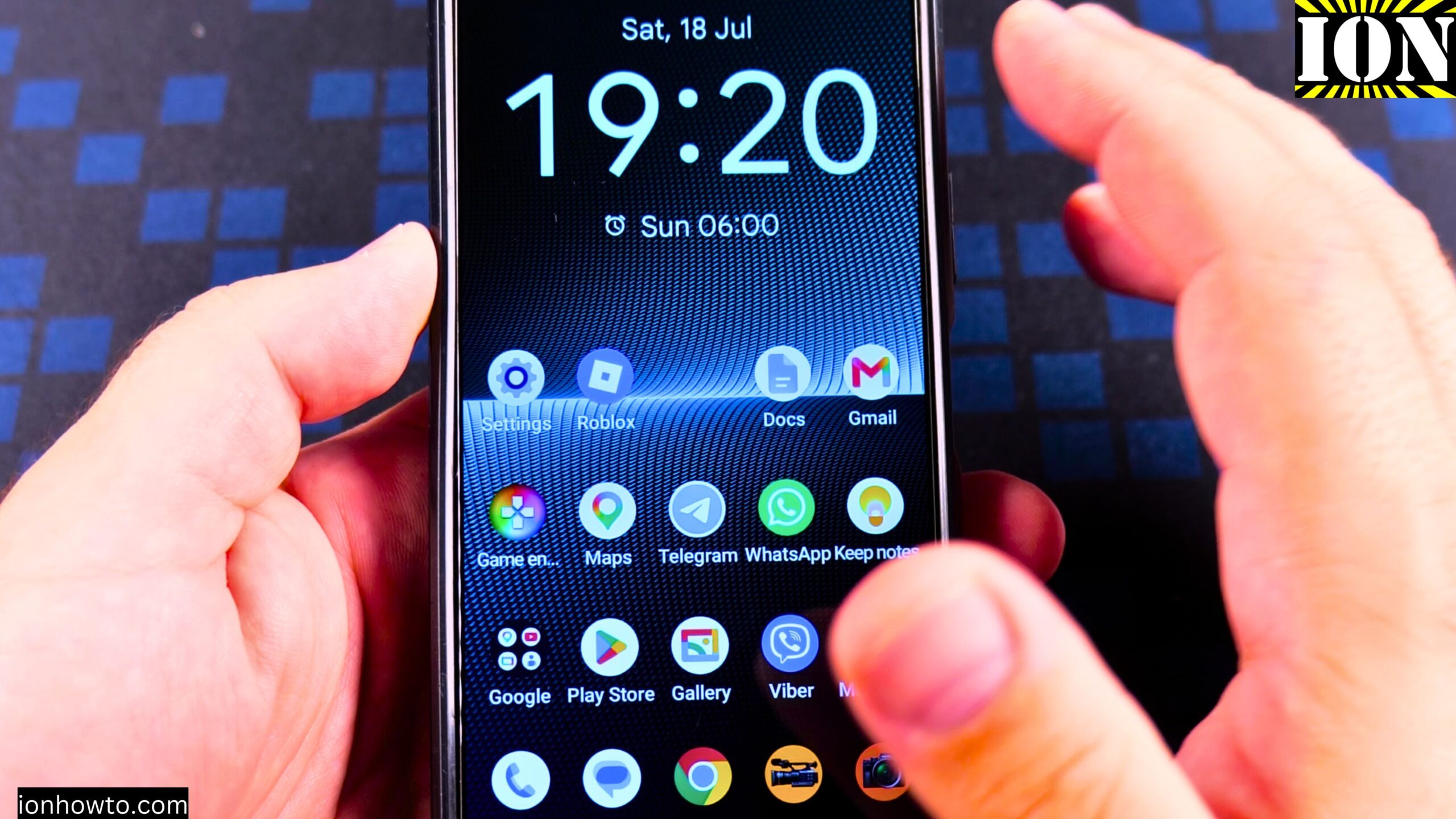
I’m showing you this on a Sony Xperia 1 V Global – EU Model XQ-DQ54 running Android 15.
How to Remove a Contact Photo on Android
- Open the Phone app or the Contacts app on your Android phone.
- Go to the Contacts tab. You can also use the Recent tab, it works the same way.
- Search for the contact that has the photo you want to remove.
- Tap on the contact to open it.
- Tap the pencil icon to edit the contact.
- In the edit screen, you will see the contact’s picture at the top.
- Tap on the picture and choose the option to remove or delete it.
- Tap Save.
That’s it. The contact no longer has a photo.
How to Remove Contact Photo on Android Video
What Happens After You Remove the Photo
After you remove the photo, the contact will show up in your list with a standard placeholder icon. This is usually the contact’s initials in a circle, or no image at all. All the other contact information stays the same. The phone number, email, address, and notes are all still there.
How to Confirm the Photo Is Gone
- Go back to your contacts list.
- Find the contact you just edited.
- You will see the placeholder initials instead of the old photo.
Can You Change the Photo Instead of Removing It
Yes. If you don’t want to remove the photo completely, you can change it instead.
- Open the contact and tap the pencil icon.
- Tap on the picture.
- Choose a new photo from your gallery or take a new one with the camera.
- Tap Save.
Why You Might Want to Remove a Contact Photo
- The photo is outdated.
- The photo was added by mistake.
- You want a consistent look for all your contacts.
- You prefer not to have custom images for certain people.
Quick Recap
- Open the Phone app or Contacts app.
- Find and open the contact.
- Tap the pencil icon to edit.
- Tap the photo and choose remove or delete.
- Tap Save.
- The contact will now show placeholder initials instead of a photo.
Related Guides and Helpful Resources
If you found this guide helpful, check out these related step-by-step tutorials and category resources on ION HowTo:
- How to Add a Picture to a Contact on Android: Personalize your contacts with custom profile photos for caller identification.
- How to Disable 2G on Android: Enhance network privacy and prevent insecure 2G connections.
- Turn Off Automatic Updates on Samsung Android: Manage app and firmware updates to save battery and mobile data.
- Android Tips and Tricks: Explore our full collection of tutorials and step-by-step articles in this category.


Leave a Reply