
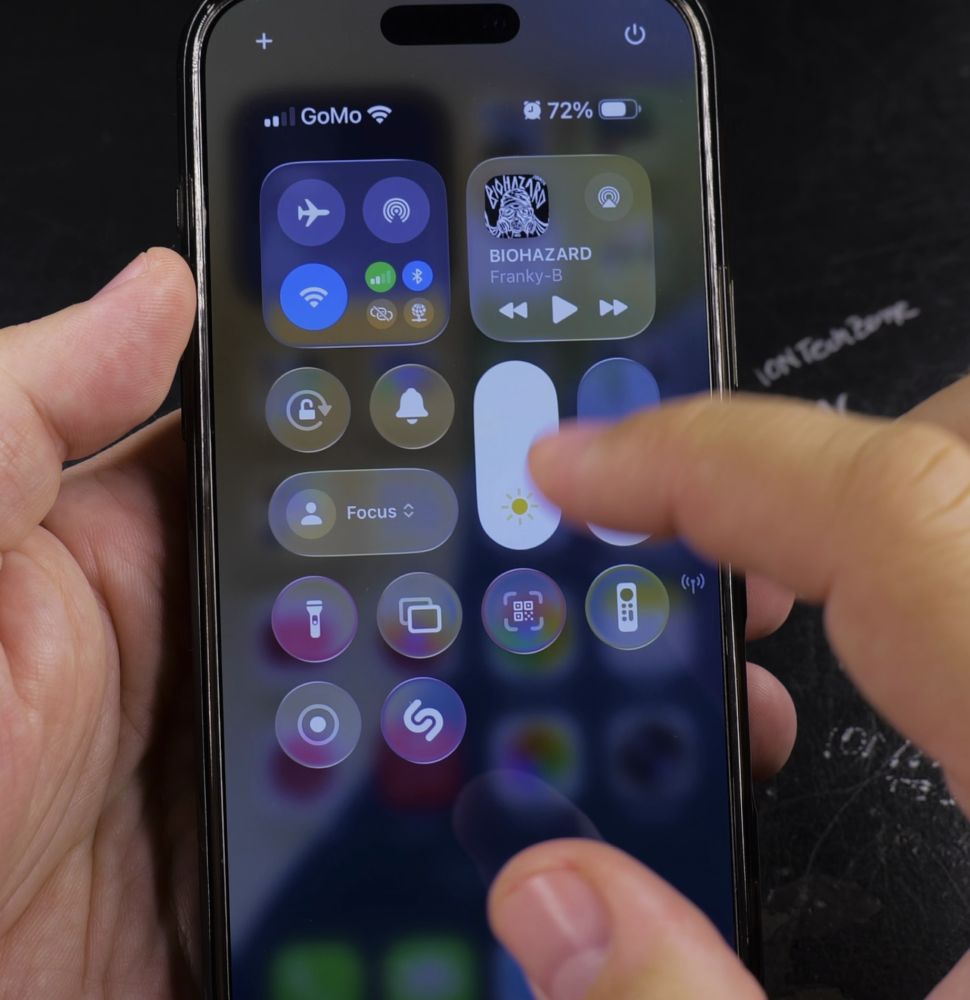
If you changed your mobile carrier or don’t want your personal cell number visible in group chats, you can remove it from Apple messaging. I’ll show you how to disable your phone number in iMessage and FaceTime settings.
1. Open Settings on Your iPhone
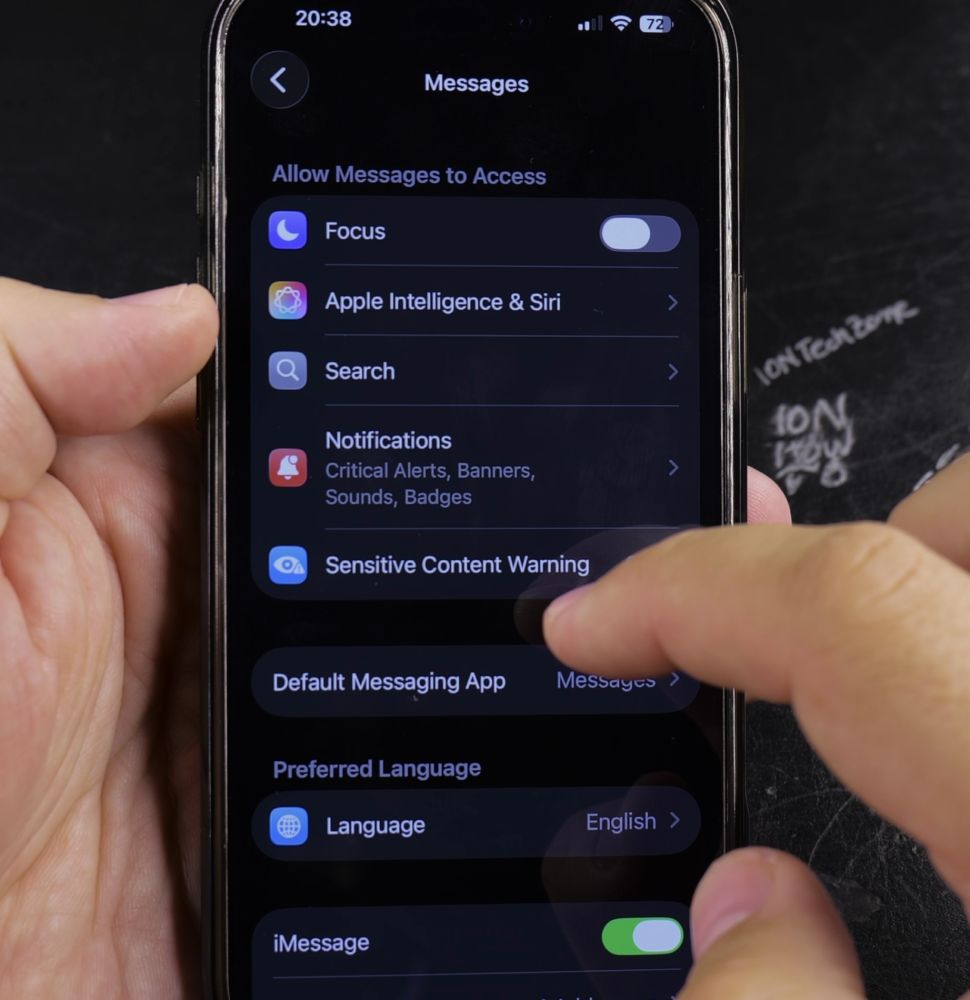
Tap the gray **Settings** icon on your Home Screen.
2. Tap Messages
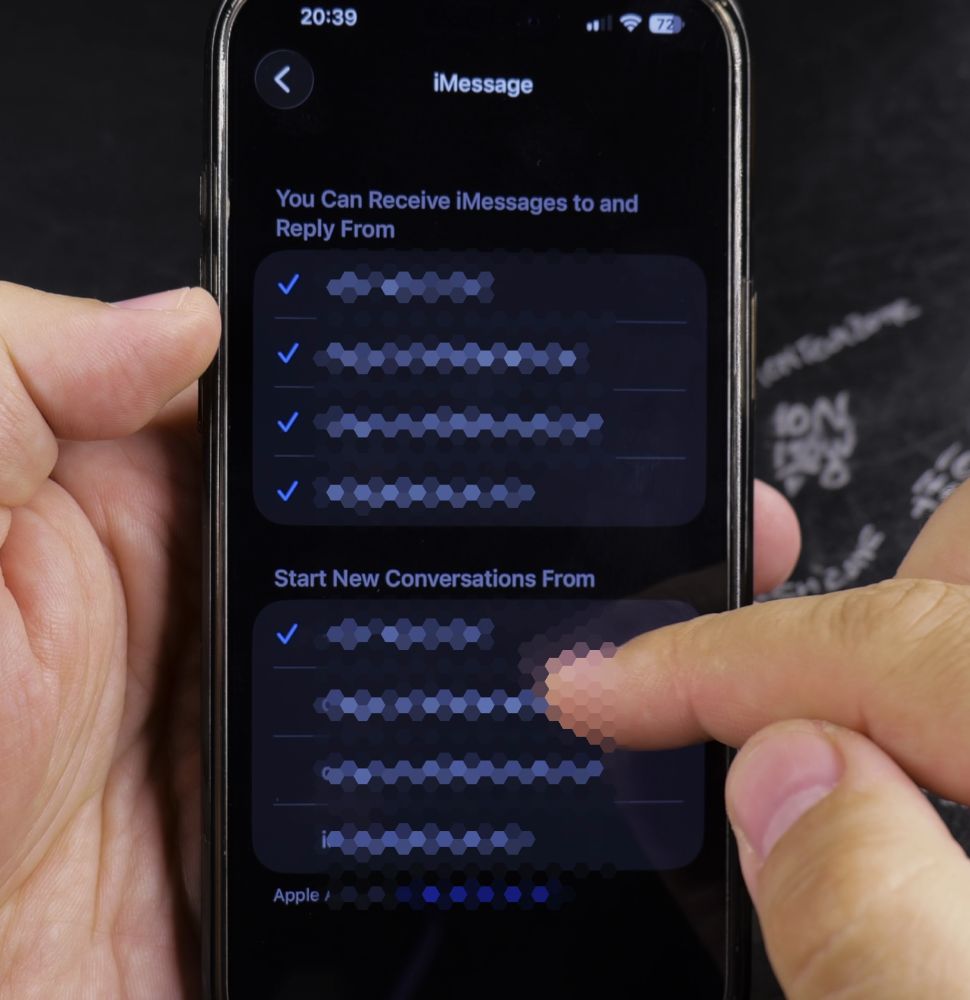
Scroll down through the app list and tap **Messages** with the green speech bubble icon.
3. Tap Send & Receive
Tap the row labeled **Send & Receive** to view all connected phone numbers and emails.
4. Uncheck Your Phone Number
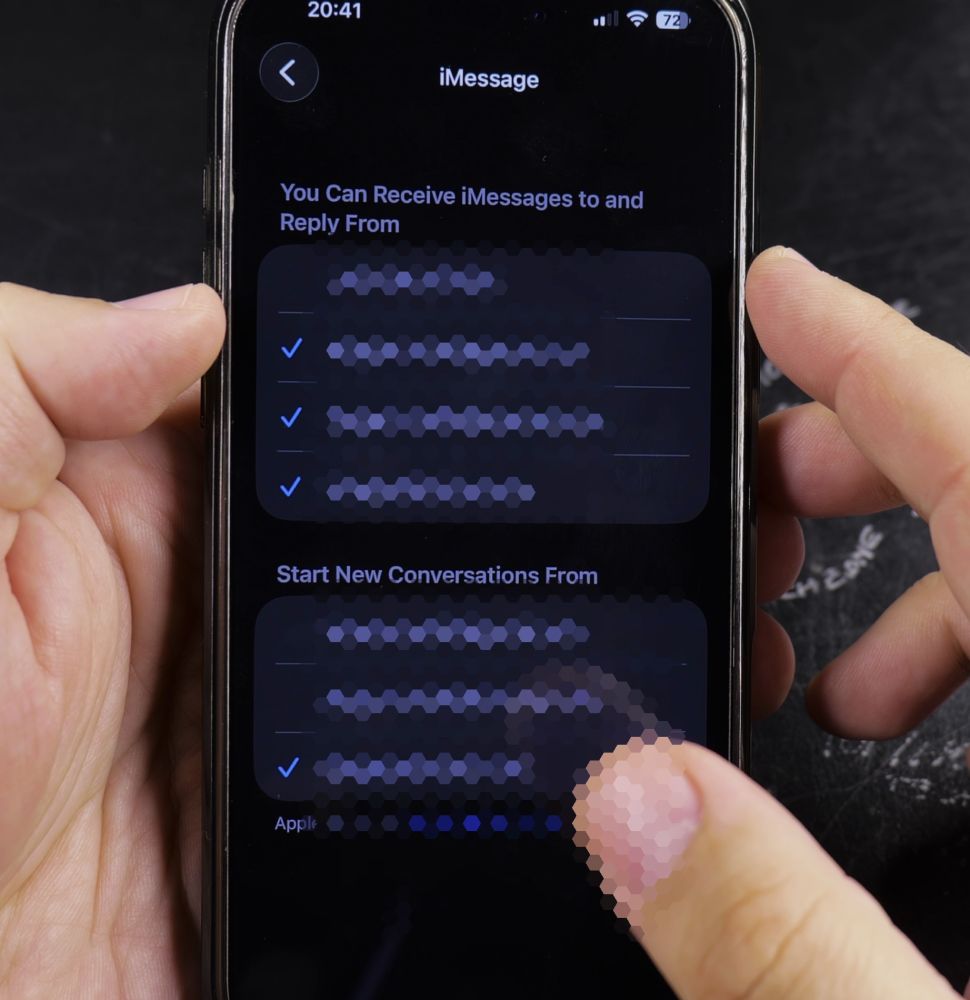
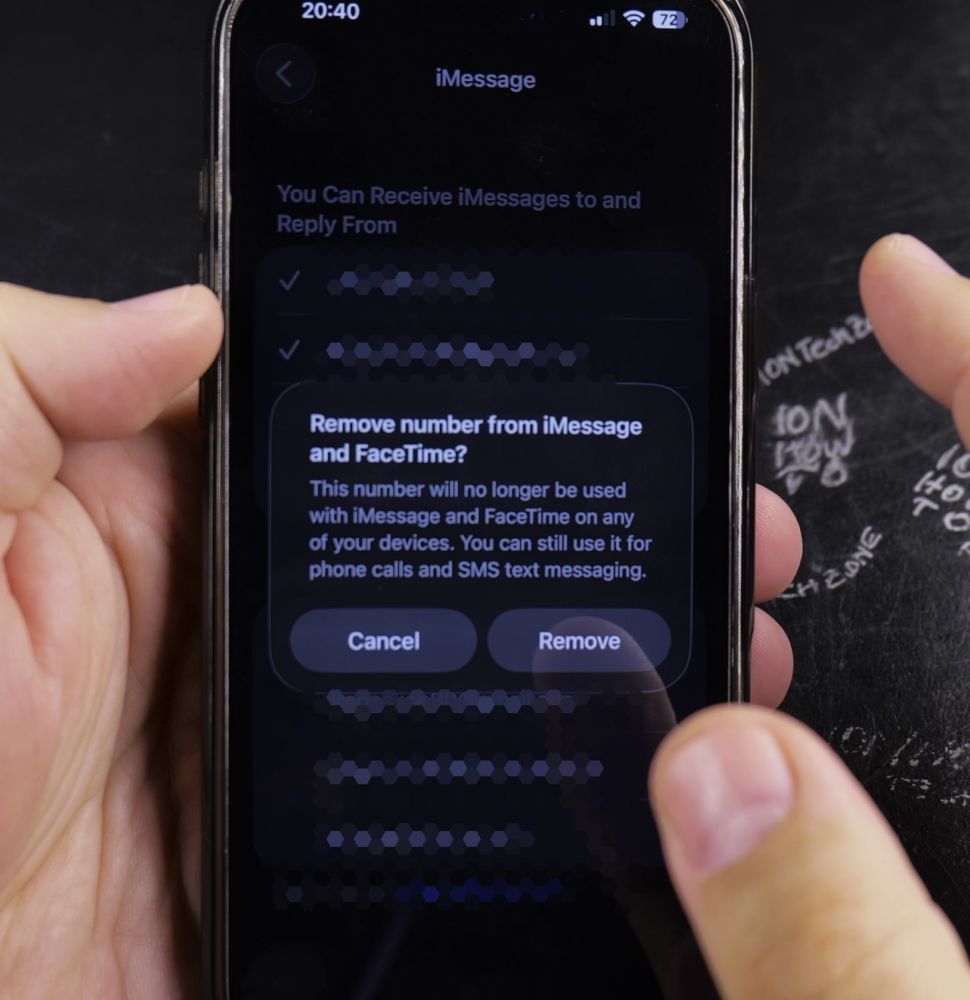
Tap the blue checkmark next to your phone number under *You Can Receive iMessages To and Reply From* to remove it.
Helpful Tips
Make sure you keep at least one active Apple Account email address checked so friends can still reach you over iMessage. For more security adjustments, read our guide on Turning on App Tracking on iPhone or check our iPhone Guides hub.


Leave a Reply