
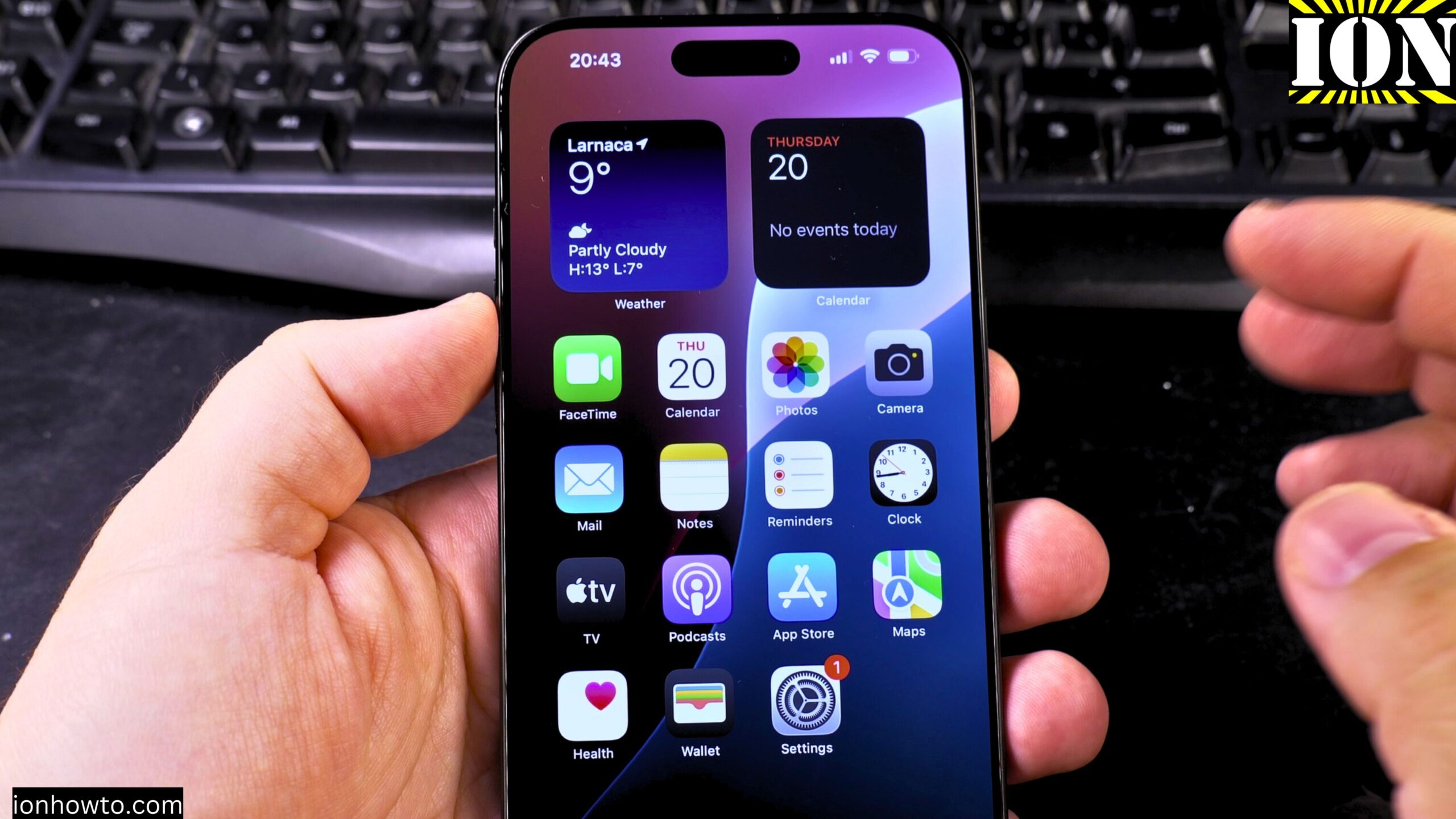
How to Remove Wallpaper and Make iPhone Home & Lock Screen Black.
Learn how to remove your wallpaper and set a pure black home screen and lock screen on your iPhone. I show you the steps to create a completely black background, which can help save battery life on iPhones with OLED screens.
Amazon links
As an Amazon Associate I earn from qualifying purchases:
- Phone Cases
- Mobile Tripods
- Usb-c charger
- Usb-c cable
- Docking stations
- Wireless car chargers
- Wireless charger stand
- SIM card removal tool
- SIM card holder
Showing you on iOS 26 Beta on iPhone 16 Pro Max Titanium Black 256 GB version Global model A3296 – MYWV3ZD/A
If you want a clean, minimalist look or need to reduce battery drain, setting a black wallpaper is a useful trick. A solid black background can also improve app icon visibility and reduce eye strain in dark environments. This method works for all iPhone models, including iPhone 15, iPhone 16 Pro, and older versions.
How to Remove Wallpaper and Make iPhone Home & Lock Screen Black Video.
Quick Steps and Scenarios Overview
| What You Need to Do | Quick Jump |
|---|---|
| Why Use a Black Wallpaper? | Jump to Step 1 |
| How to Set a Black Wallpaper on iPhone | Jump to Step 2 |
Why Use a Black Wallpaper?
- Battery savings OLED screens (on iPhone X and newer) turn off black pixels, saving power.
- Minimalist look A black background makes app icons and widgets stand out.
- Better visibility Reduces glare in low-light conditions.
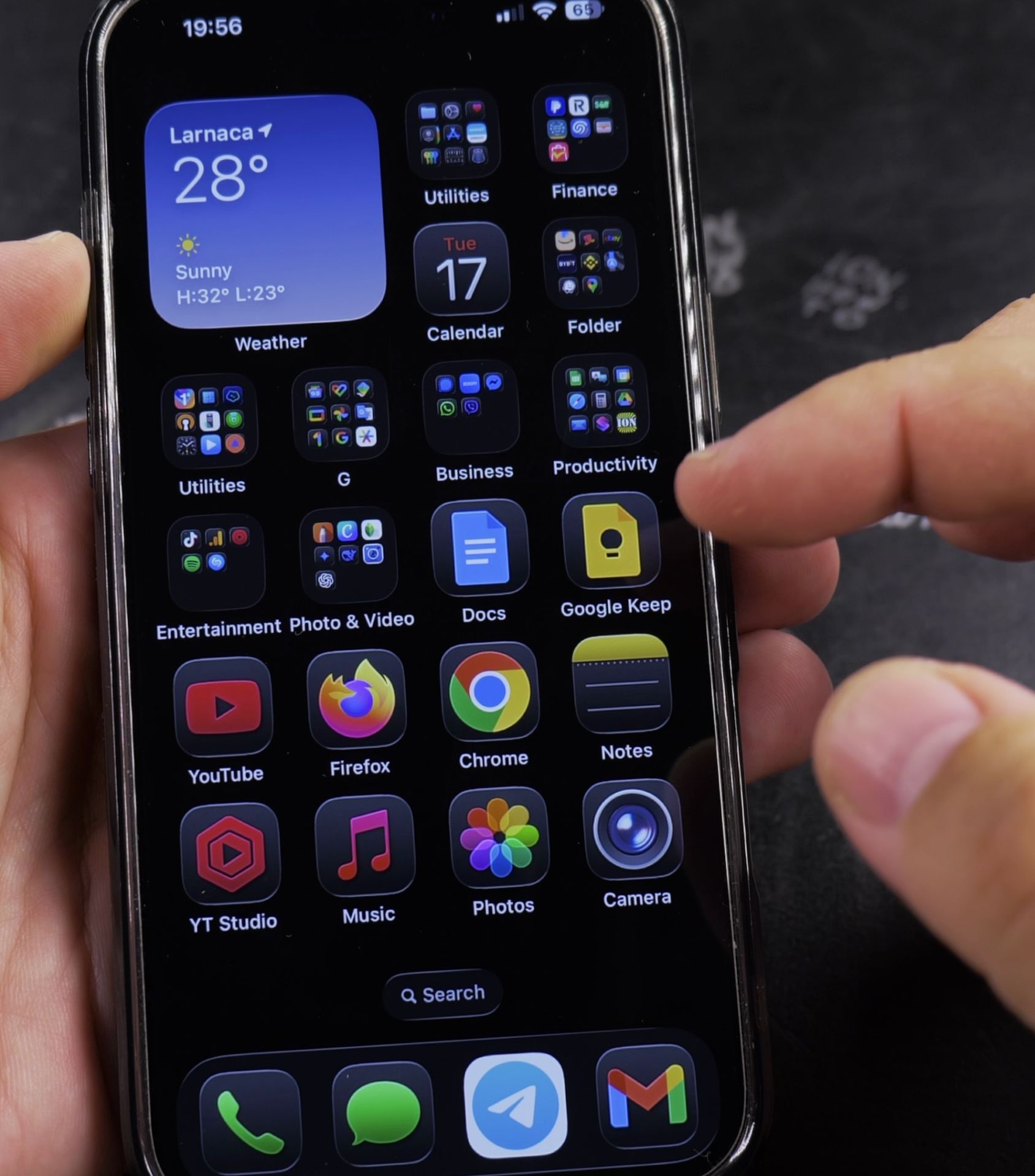
How to Set a Black Wallpaper on iPhone
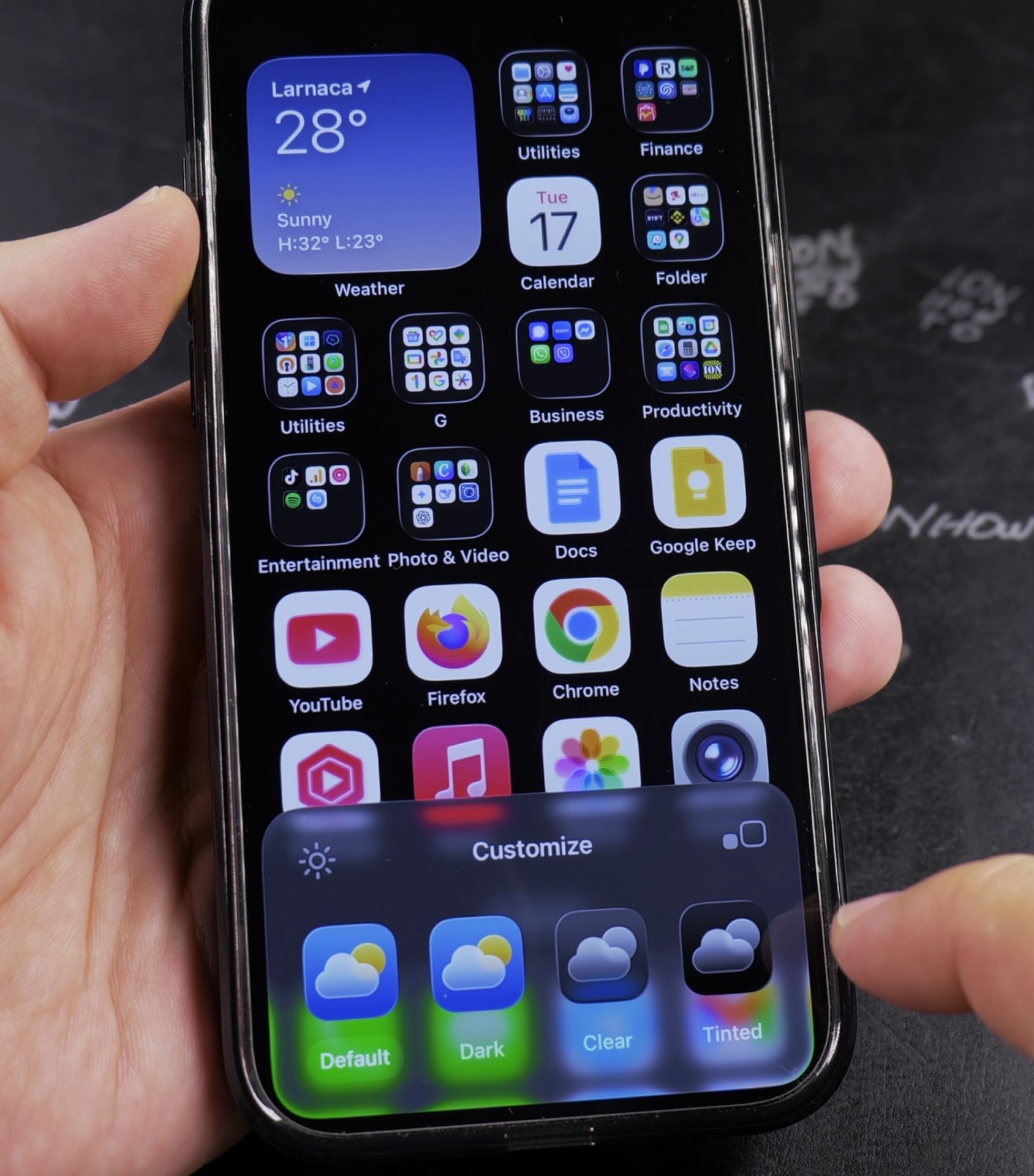
Step 1: Get a Pure Black Image
If you don’t already have one:
- Open Photos and tap the + icon.
- Select “Black” from the color options (or search for “black wallpaper” online).
- Save the image to your Photos app.
Step 2: Apply the Black Wallpaper
- Open Settings > Wallpaper.
- Tap Add New Wallpaper.
- Select your black image from Photos.
- Adjust zoom and positioning (pinch to zoom out fully for pure black).
- Tap Set and choose Lock Screen, Home Screen, or Both.
Step 3: Adjust Display Settings (Optional)
For the darkest appearance:
- Go to Settings > Display & Brightness.
- Enable Dark Mode.
- Reduce Brightness for better battery savings.
Troubleshooting Tips
- If the wallpaper looks gray, zoom out fully when setting it.
- Some wallpapers may have a slight gradient but you can use a true black image for best results.
- On older iPhones (non-OLED), battery savings will be minimal.
Final Thoughts
A black wallpaper gives your iPhone a sleek look while helping battery life on OLED models. If you have trouble setting it up or want recommendations for true black wallpapers, let me know in the comments!
Thanks for reading!
Helpful Tips
Take your time and check the screen carefully after each tap so you can confirm the setting changed as expected. If an option appears in a slightly different spot on your device, watch the embedded video above for a closer look.
Related Guides
- iPhone How to Show App Labels Customize Home Screen – If the names beneath your iPhone app icons disappeared after updating, your icons were switched to the large view.
- How to Add an App Icon Back to the Home Screen on iPhone – If an application icon disappeared from your iPhone Home Screen even though the app is still installed on your device, it is…
- Remove Website Shortcut from iPhone Home Screen – How to Remove Website Shortcuts from iPhone Home Screen iOS 18.5.
- iPhone How-To Guides – Browse more tutorials and practical guides in this section.


Leave a Reply