
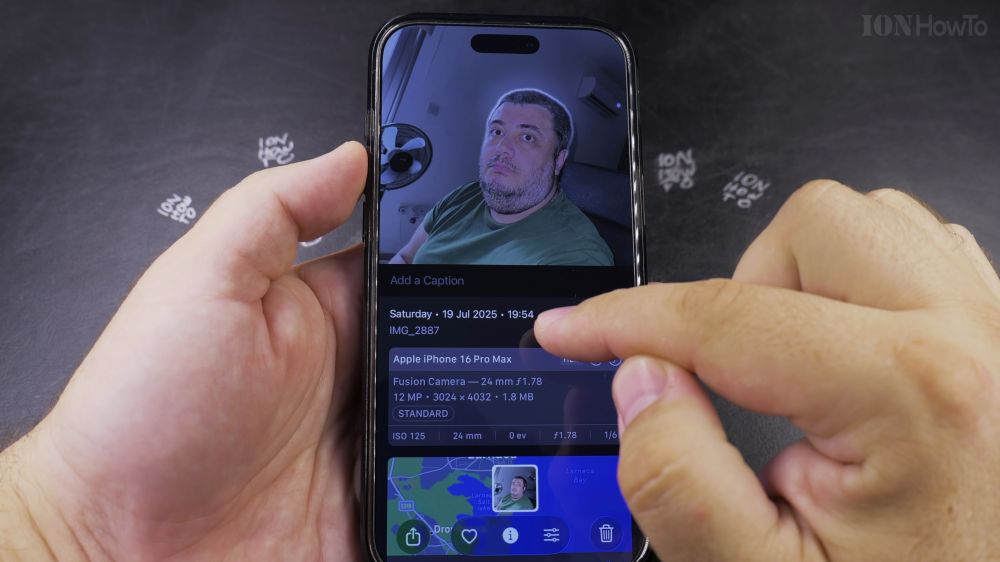
If searching through thousands of camera roll pictures feels overwhelming, adding captions lets you find any picture by typing keywords. I’ll show you how to add captions and rename photo files on your iPhone.
1. Open Photos
Tap the **Photos** app icon and open the image you want to label.
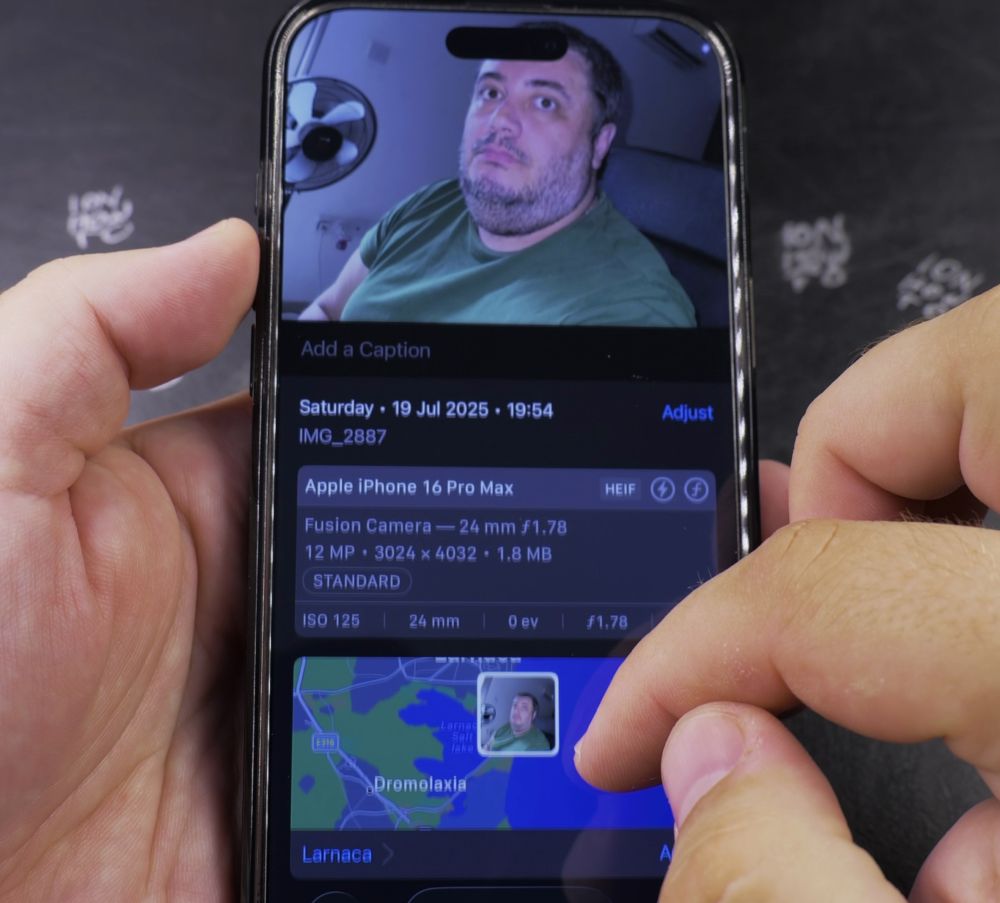
2. Reveal Photo Details
Swipe up on the photo (or tap the small **i** info icon at the bottom of the screen).

3. Tap Add a Caption
Tap the empty **Add a Caption** field at the very top of the details panel.

4. Type Your Description
Type descriptive words like *’Sunset Beach Vacation 2026’* or *’Kitchen Renovation Receipt’*.
5. Tap Done
Tap **Done** in the top-right corner to save the caption permanently to the photo file.
Helpful Tips
Any text you add to the caption field is indexed automatically by iOS. You can type those exact words into the Photos app search bar to find the image in seconds. For more photo tricks, check out our iPhone Guides collection.


Leave a Reply