
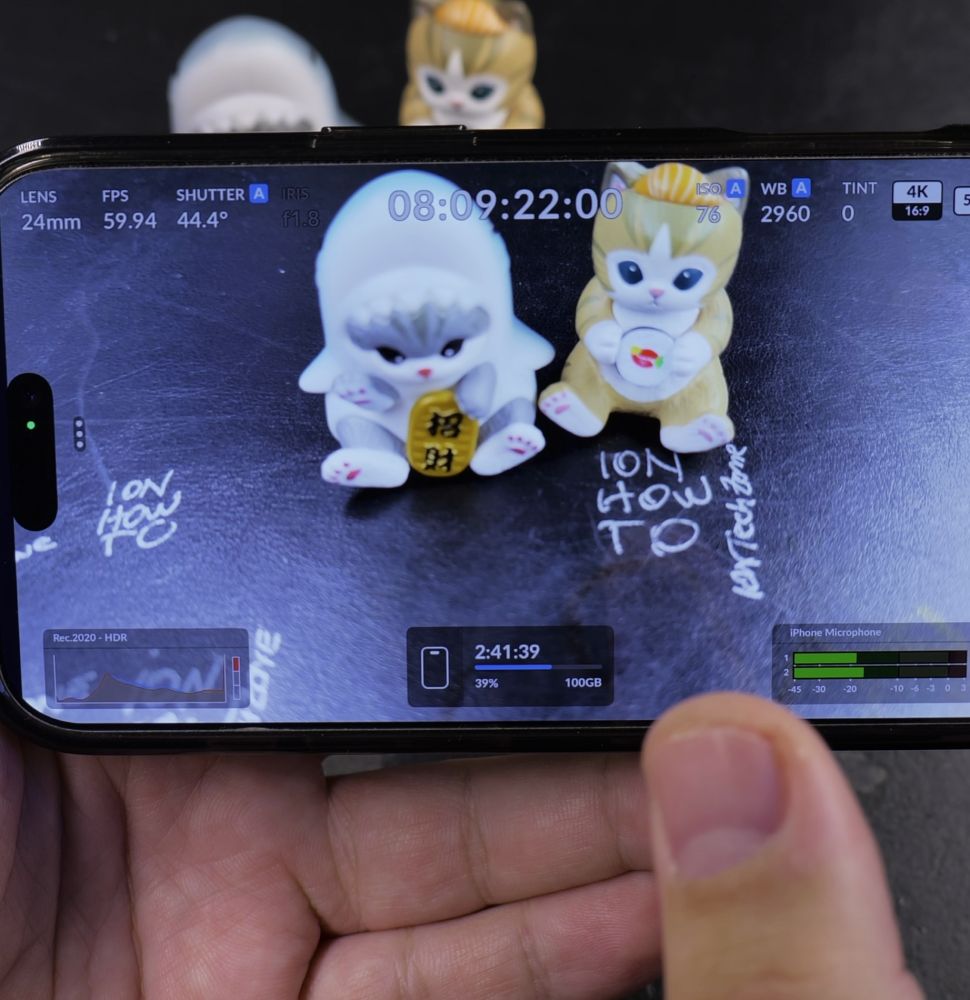
If your video compositions feel off-center or tilted, grid lines make leveling your horizon and framing subjects effortless. I’ll show you how to enable rule of thirds grid guides in the Blackmagic Camera app.
1. Open Blackmagic Camera App
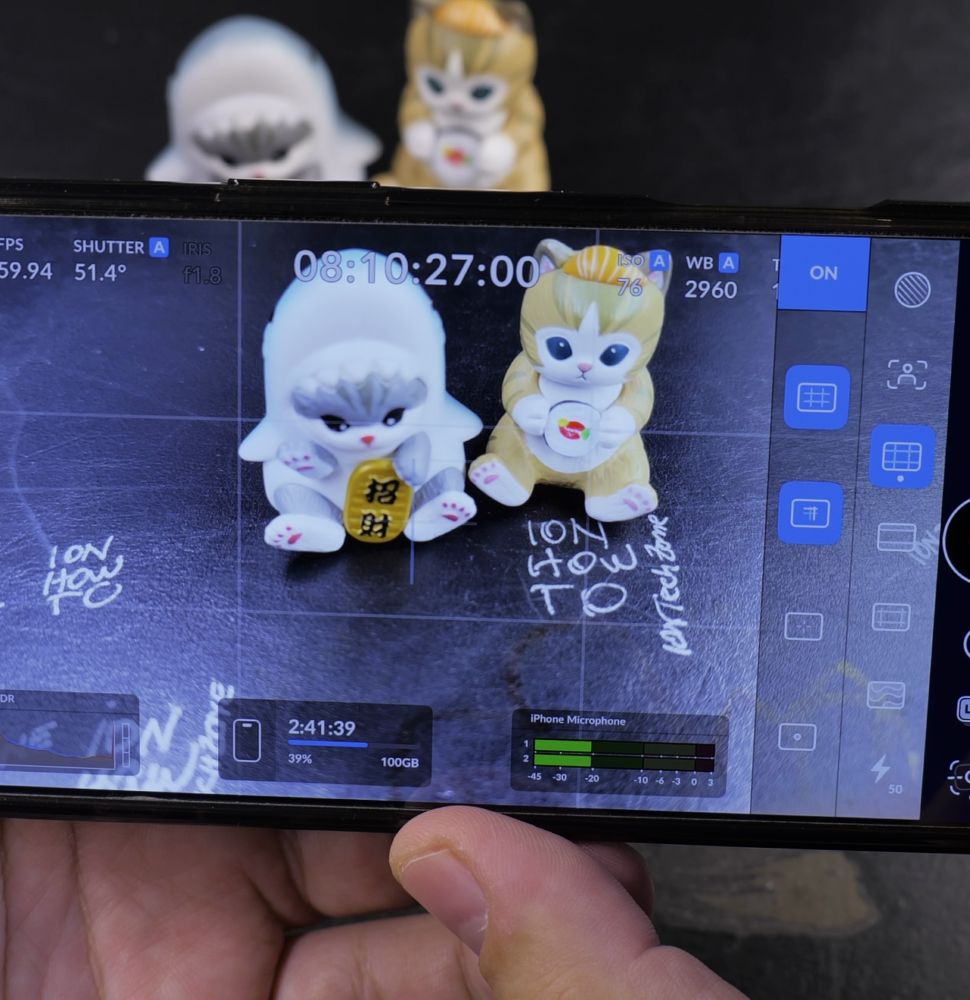
Launch the **Blackmagic Camera** app on your device.
2. Tap the Guide Overlay Icon
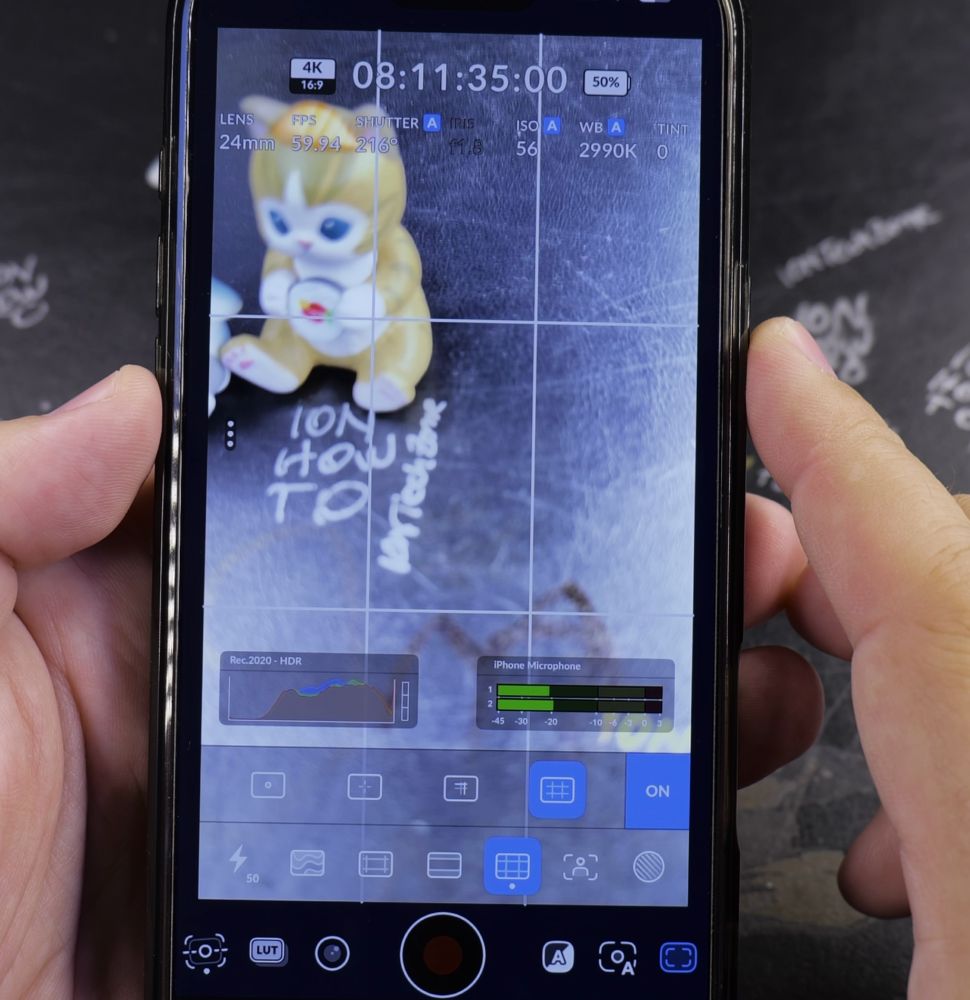
Tap the **Guide icon** (resembling a rectangle with dashed crosshairs) on the viewfinder toolbar.
3. Turn On Grid
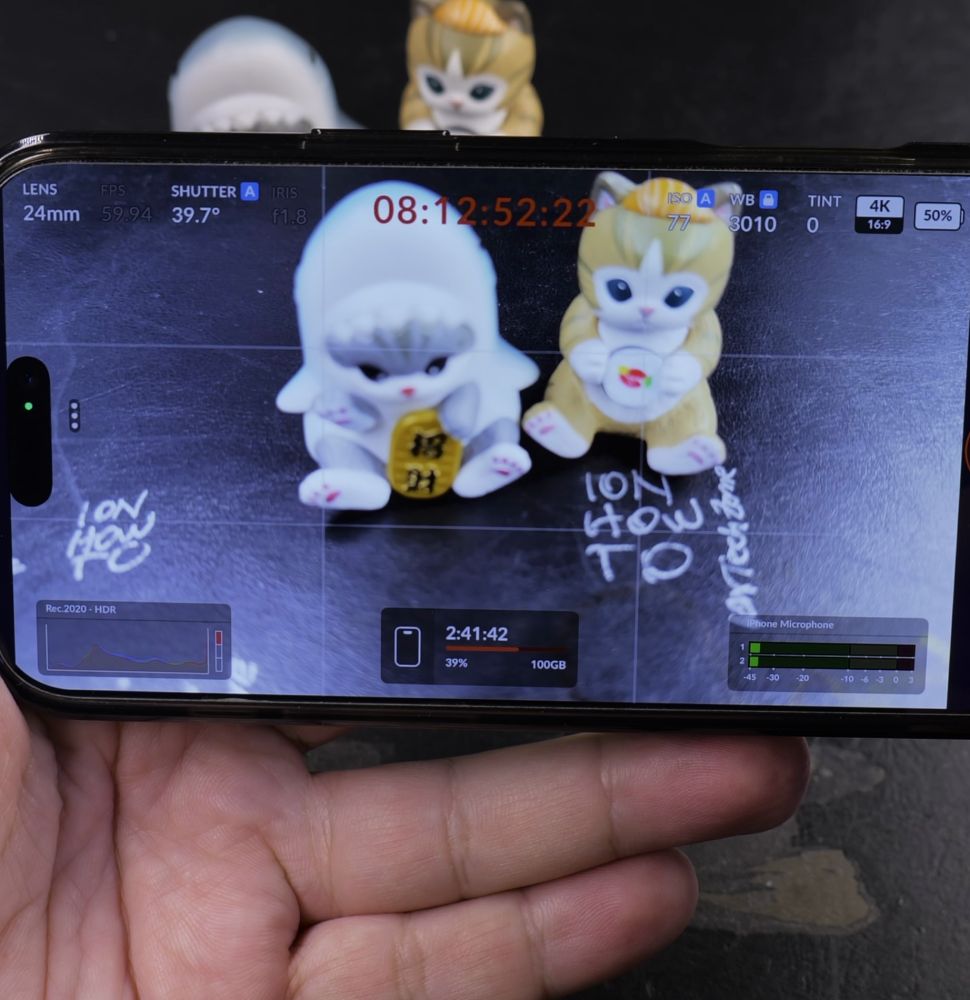
Toggle the switch labeled **Grid** so it highlights in green or active white.
4. Align Your Subject
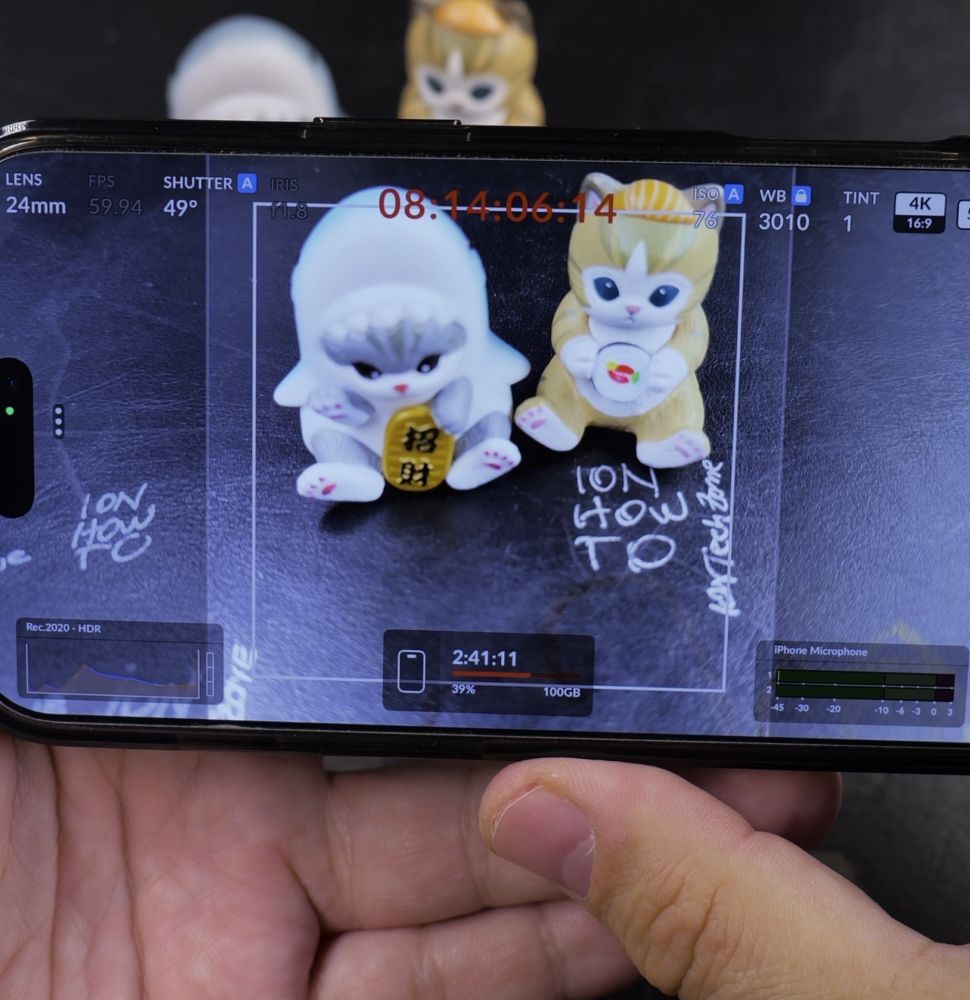
Use the intersecting grid lines to position horizon lines and subjects along the upper third.
Helpful Tips
You can also customize the grid opacity and choose between 3×3 Rule of Thirds or crosshairs. For more camera setups, check our guide on Enabling False Color in Blackmagic Camera or explore our Video & Camera hub.


Leave a Reply