
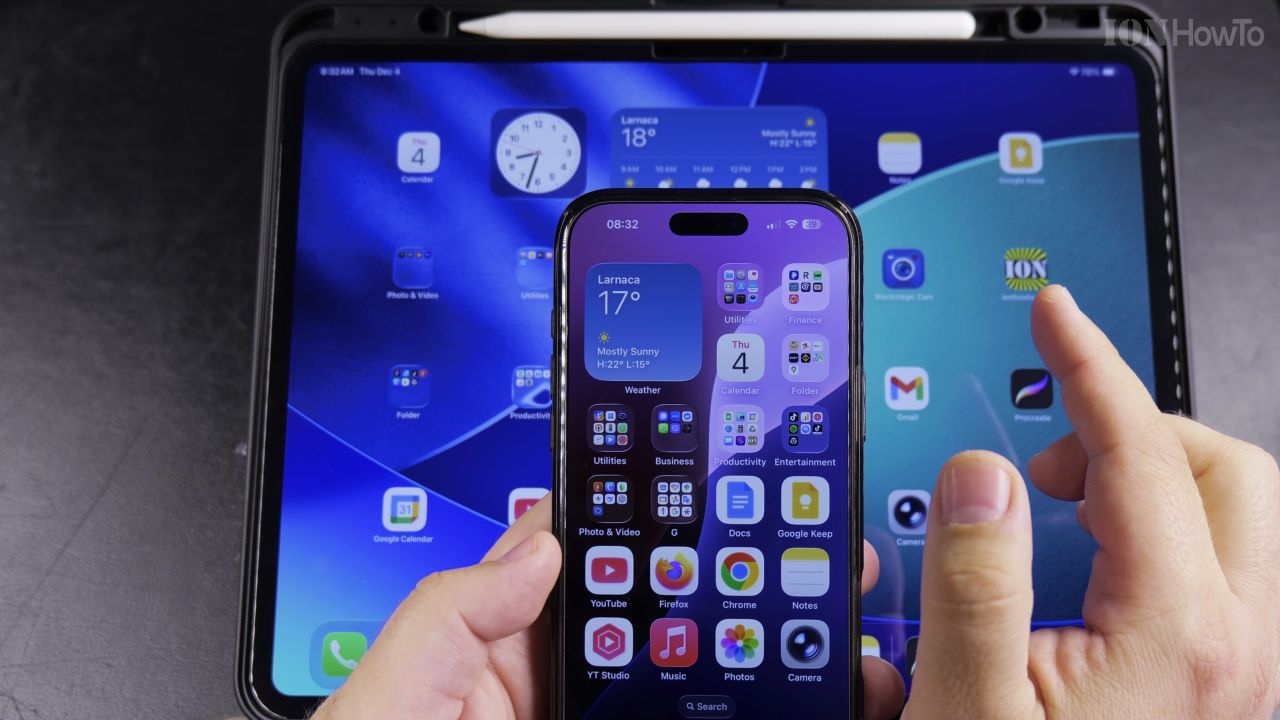
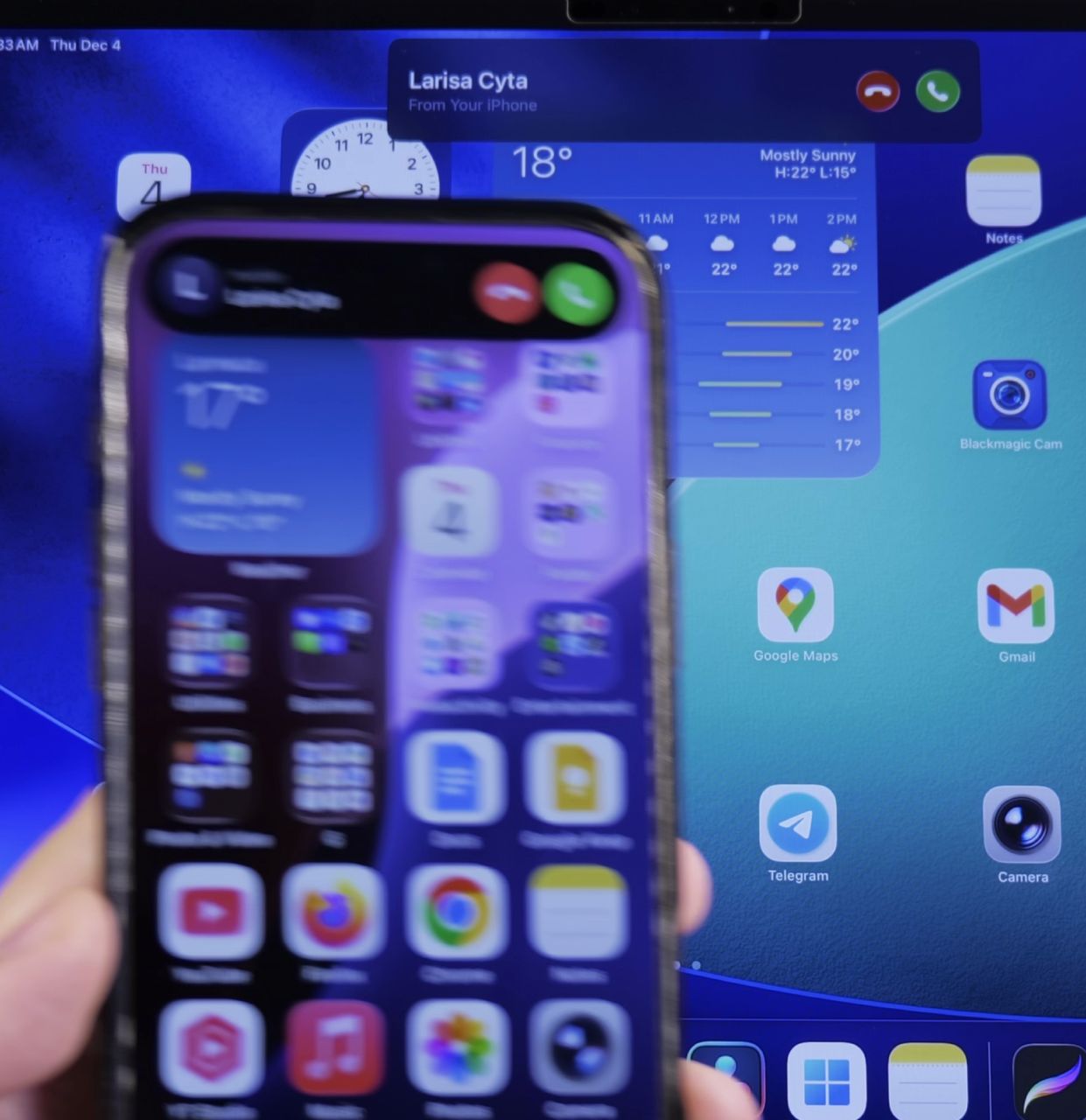
If your iPad, Mac, and Apple Watch all ring simultaneously every time someone calls your phone, you can silence them easily. I’ll show you how to disable Calls on Other Devices so only your iPhone rings.
1. Open Settings on Your Main iPhone
Tap the gray **Settings** gear icon on your iPhone.
2. Tap Phone
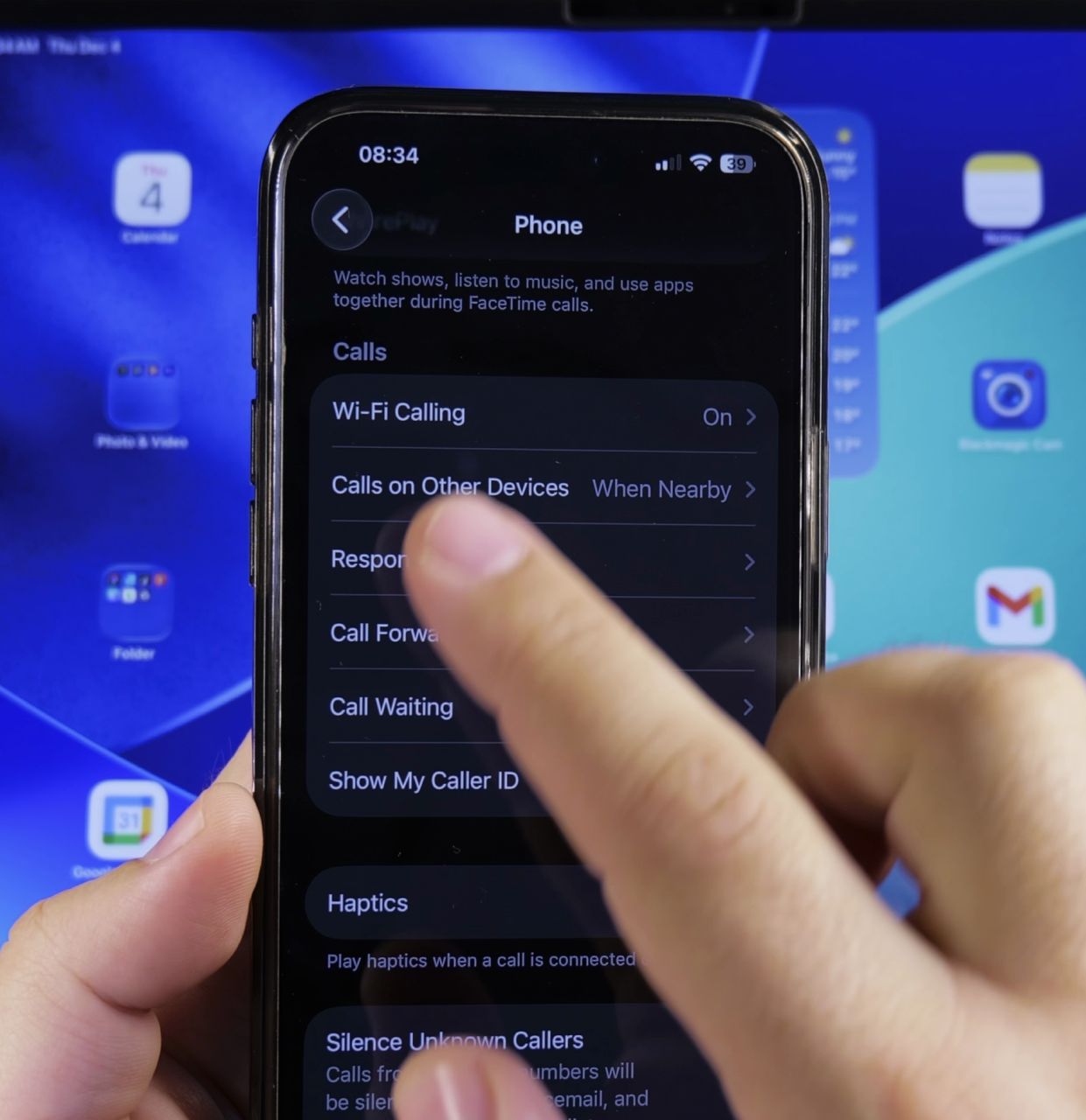
Scroll down through the settings list and tap **Phone** with the green phone icon.
3. Tap Calls on Other Devices
Tap the option labeled **Calls on Other Devices**.
4. Turn Off Remote Ringing
Switch off the master toggle next to **Allow Calls on Other Devices**, or flip off specific switches for devices you want to keep quiet.
Helpful Tips
Turning off this feature will not affect standard FaceTime calls or text messaging on your iPad and Mac. For more device audio and connectivity controls, see our guide on Getting Phone Calls on Wi-Fi iPad or browse our iPhone Guides hub.


Leave a Reply