
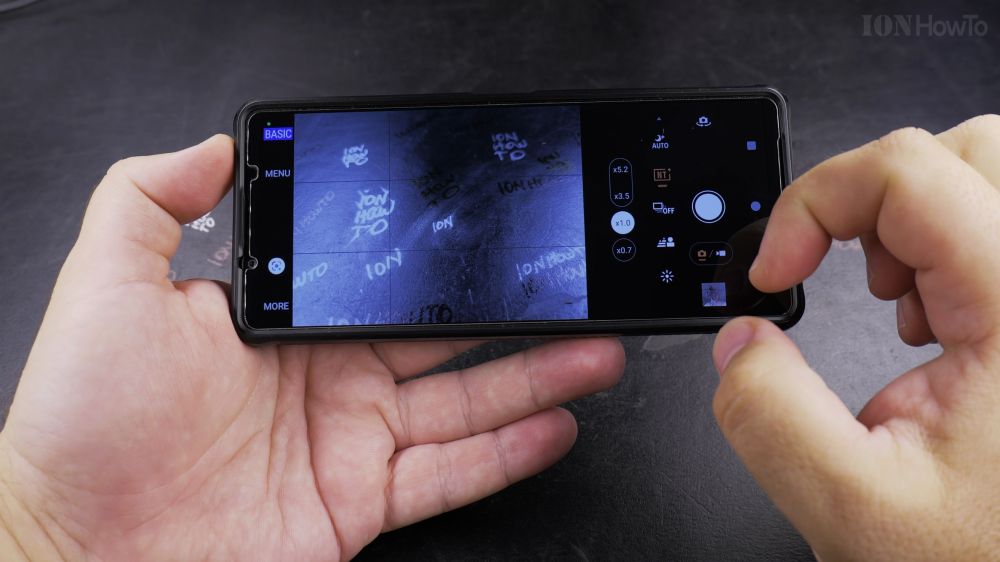
Modern Android phones come equipped with multiple camera lenses to capture everything from sweeping panoramas to close-up details. I’ll show you how to switch between camera lenses and zoom smoothly on your Android phone.
1. Open Camera
Tap the **Camera** app icon on your home screen or double-press your phone’s power button.
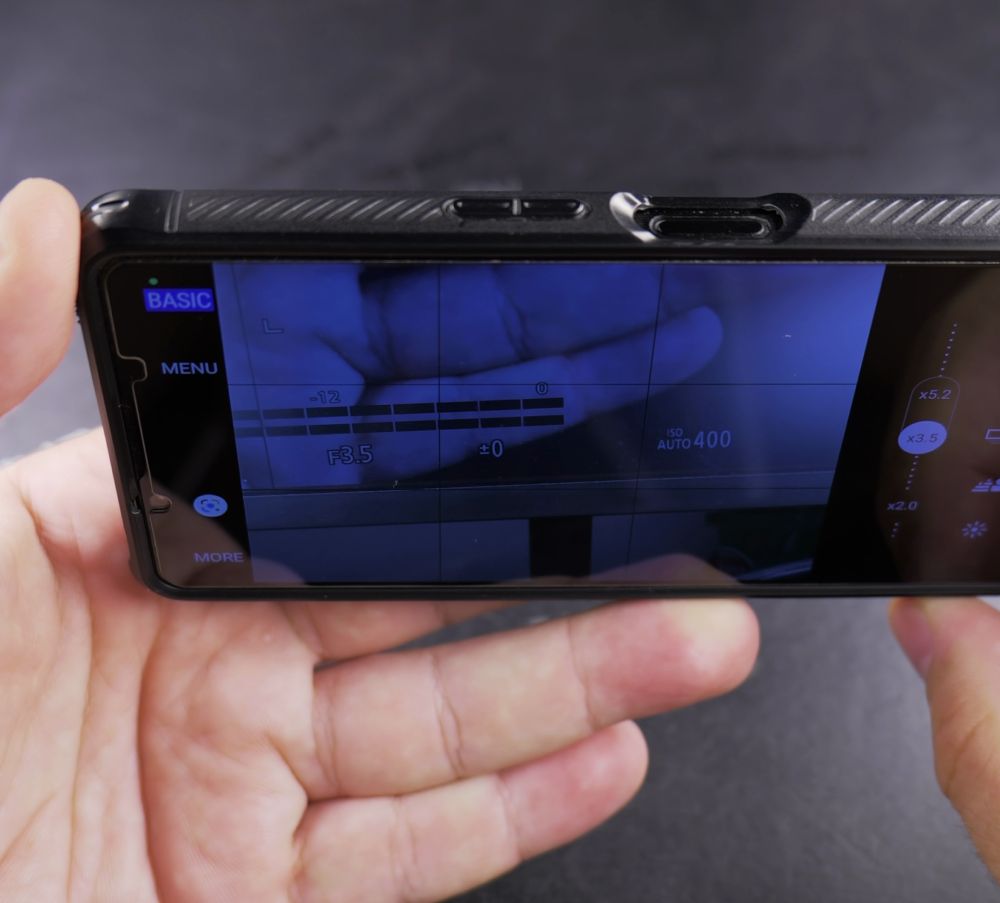
2. Select Lens Presets
Tap the small numbers near the shutter button: **0.6x** (ultra-wide), **1x** (main lens), or **3x / 5x** (telephoto zoom).
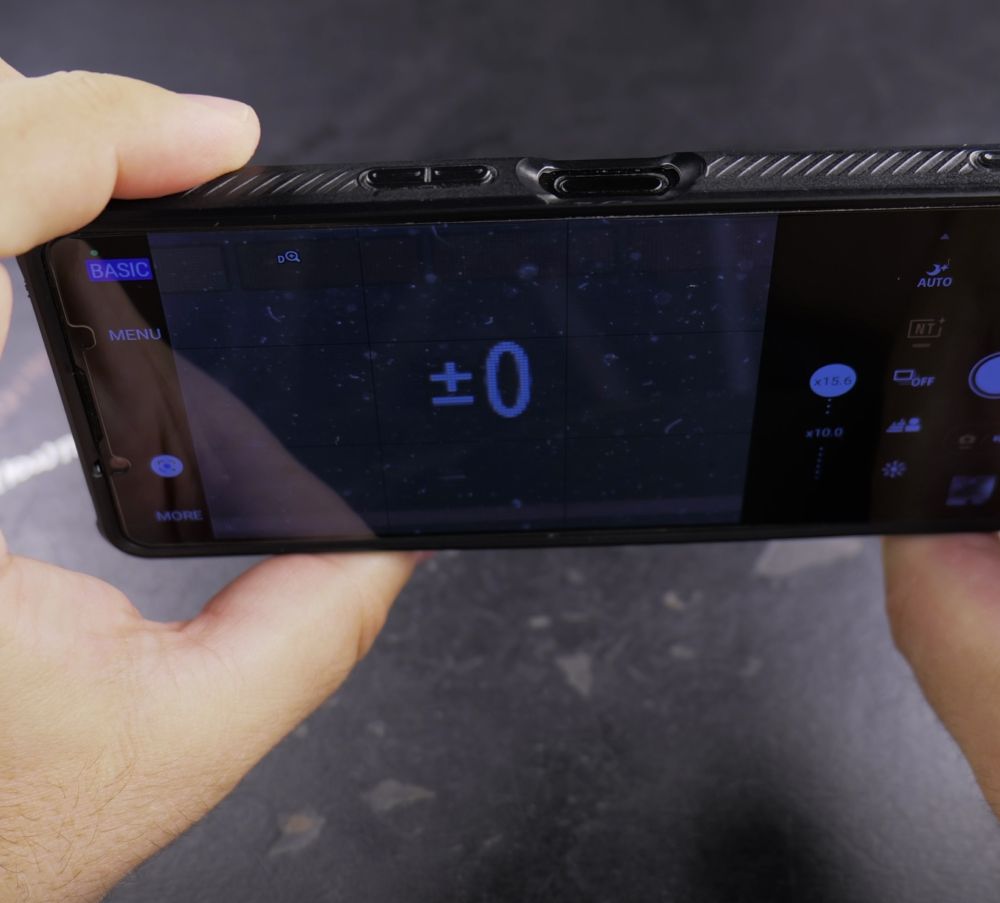
3. Use Smooth Zoom
Pinch two fingers outward on the screen or drag the zoom slider to fine-tune your shot’s magnification.
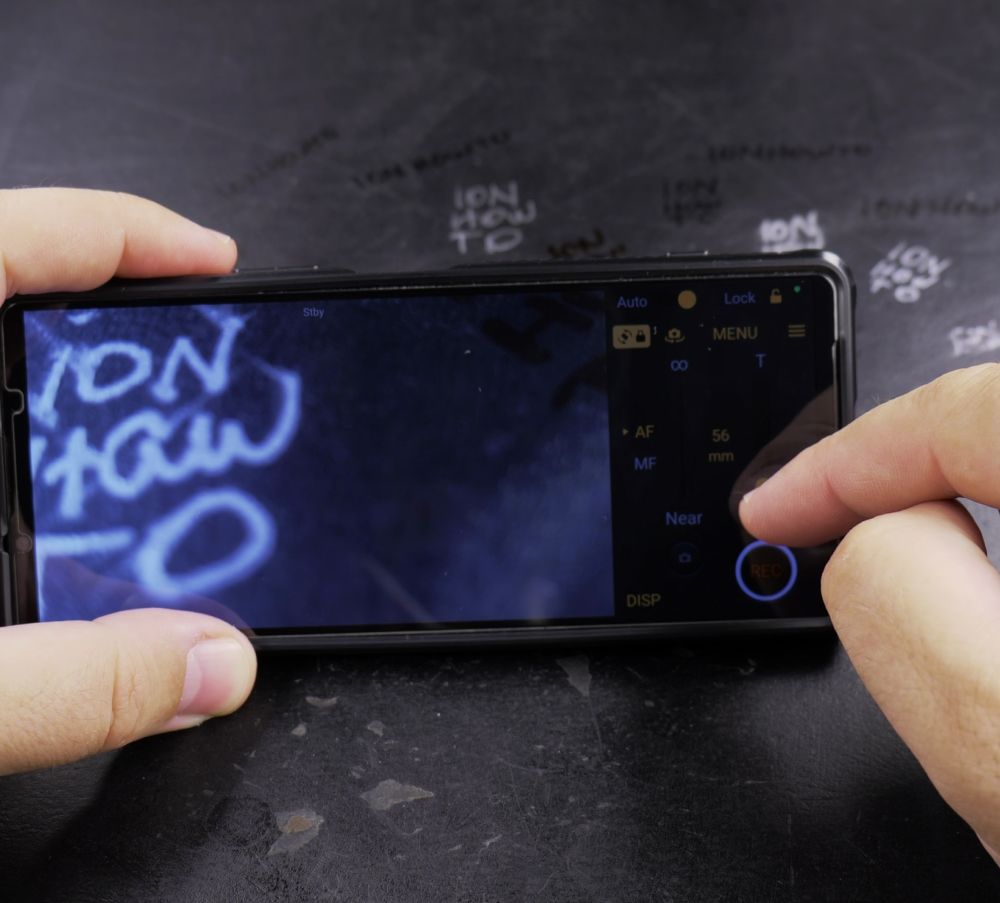
4. Flip to Front Camera
To take a selfie, tap the **circular arrow (Camera flip)** icon in the corner next to the shutter.
Helpful Tips
Double-pressing the power button on most Android phones opens the camera instantly, even when the screen is locked and dark. For more camera advice, visit our Android Guides hub.


Leave a Reply