

If bright colored fringes and outline highlights are cluttering your view while shooting, you can disable focus peaking. I’ll show you how to turn off focus assist in the Blackmagic Camera app.
1. Open Blackmagic Camera App

Launch the **Blackmagic Camera** app on your iPhone.
2. Open Monitoring Settings

Tap the **Monitor** button on the control bar.
3. Locate Focus Assist
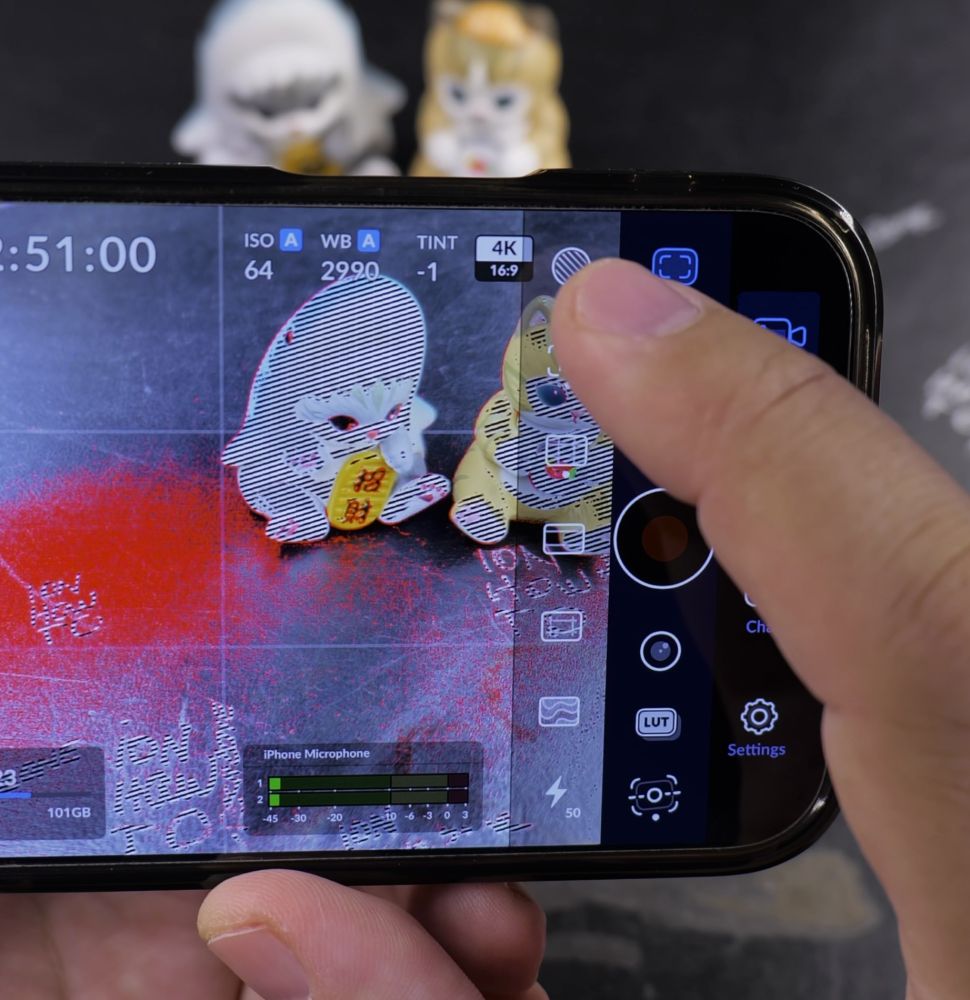
Tap the **Focus Assist** icon (marked with peaking lines).
4. Toggle Off to Clear Viewfinder

Tap the icon again so it turns off and the colored edge outlines disappear completely.
Helpful Tips
You can leave focus assist turned off and tap to focus anywhere on screen when autofocus is active. For more tips, read our guide on Showing Grid Lines in Blackmagic Camera or visit our Video & Camera hub.


Leave a Reply