
When shooting videos in dark rooms or outdoors at night, having constant illumination keeps your footage bright and clear. I’ll show you how to turn on continuous camera flash torch light for video recording on iPhone.
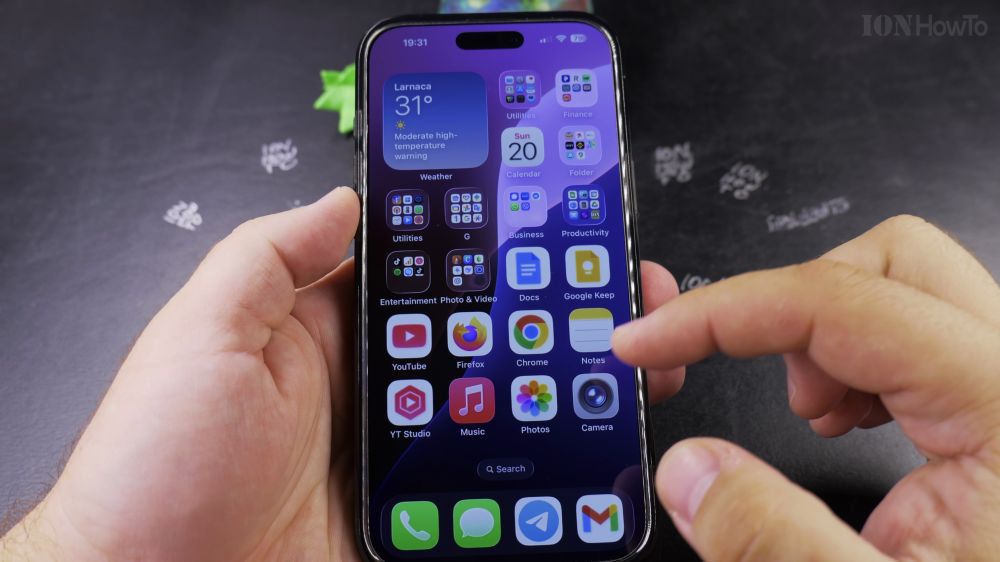
1. Open Camera
Tap the **Camera** app icon on your iPhone home screen.
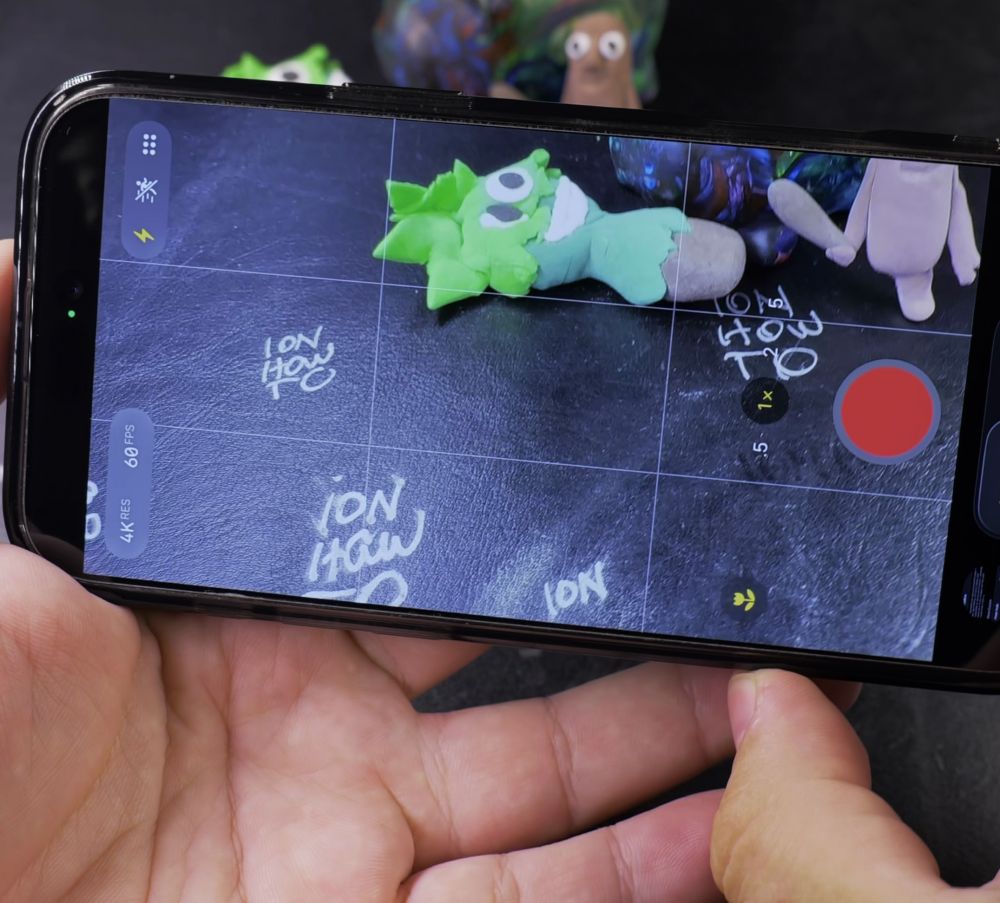
2. Switch to Video Mode
Swipe the mode selector strip at the bottom to **Video**.
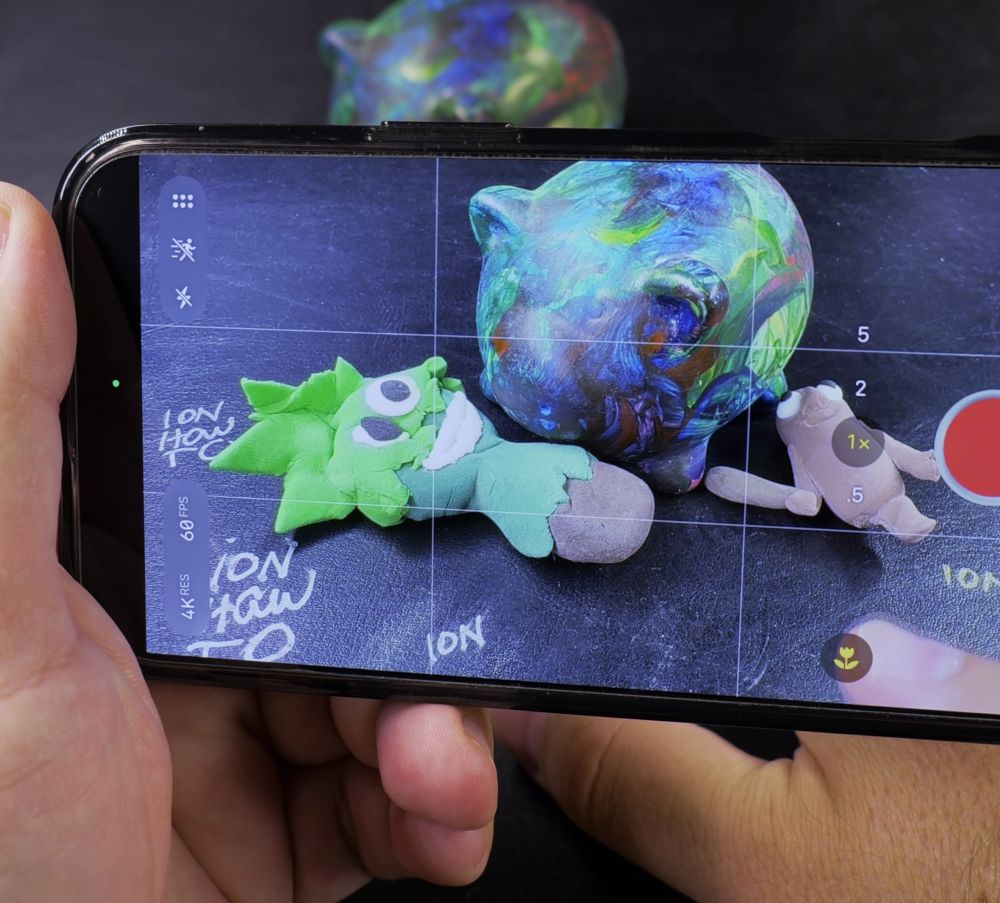
3. Open Camera Controls
Tap the small **chevron arrow (v)** at the top of the screen (or swipe up on the viewfinder).
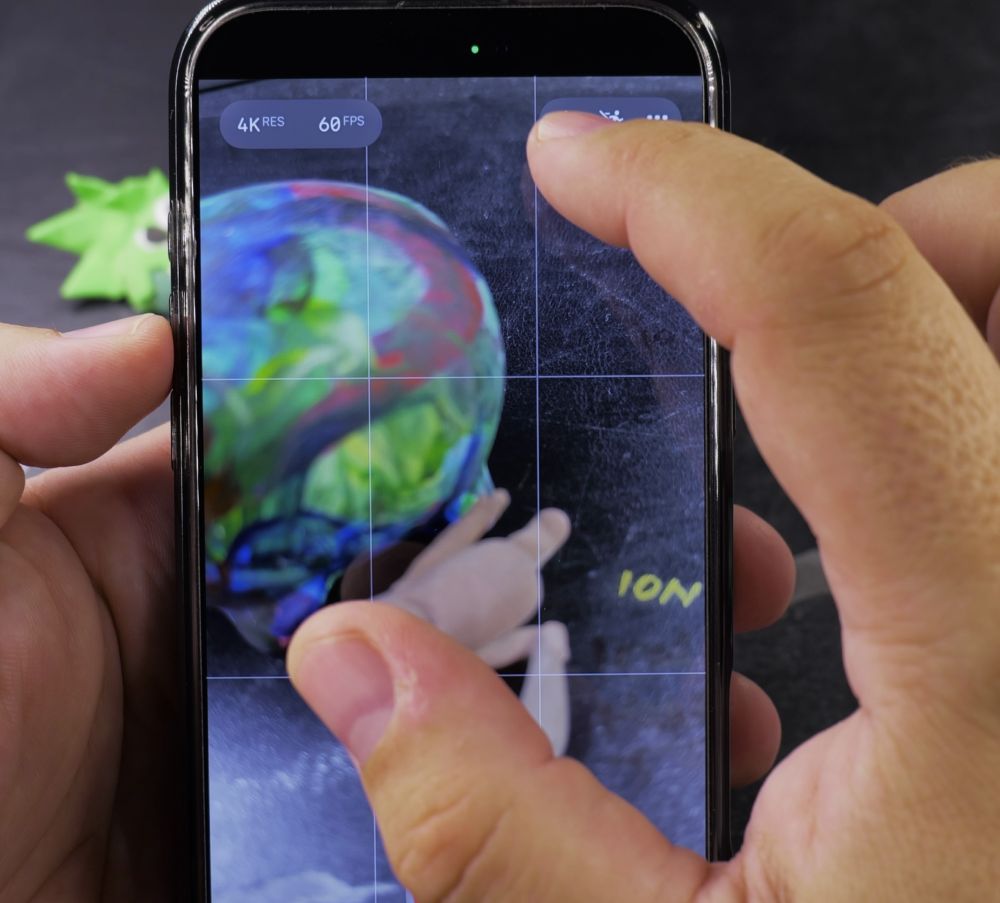
4. Tap the Flash Button
In the toolbar that slides up above the shutter button, tap the **lightning bolt (Flash)** icon.
5. Set Flash to On
Tap **On** (instead of Auto). The rear LED flashlight illuminates continuously so your scene stays brightly lit while recording.
Helpful Tips
Continuous video flash consumes battery faster and can warm up your iPhone during long recordings. Turn it back to ‘Off’ when you return to daytime recording. For more iOS camera tricks, explore our iPhone Guides collection.


Leave a Reply