


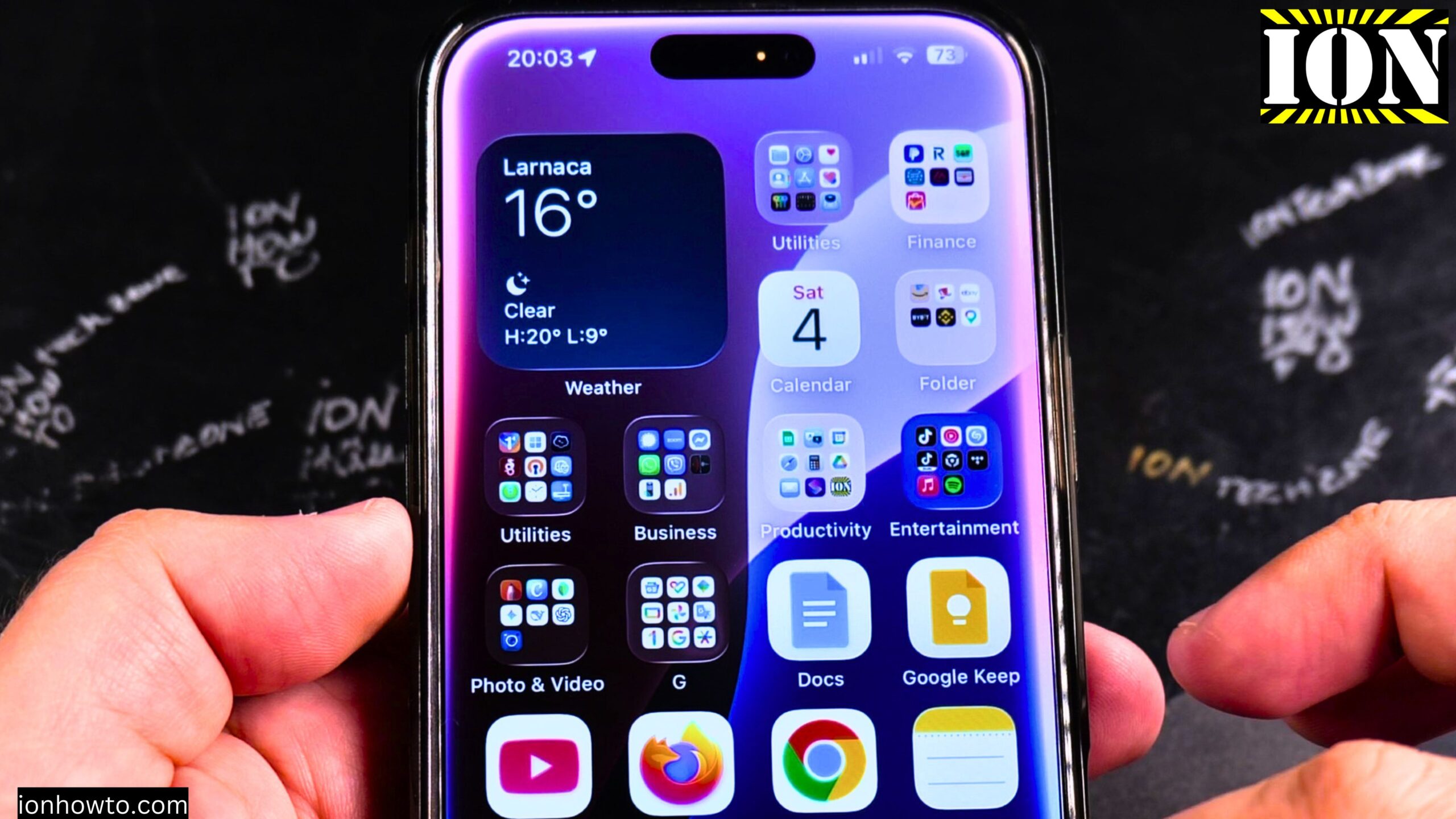
How to Remove the Weather Widget from Your iPhone Home Screen.
Learn how to remove the Weather widget from your iPhone home screen. I’ll show you the steps to delete this widget if you no longer want it taking up space.
I am showing you on iOS 18.5 with an iPhone 16 Pro Max Titanium Black 256 GB version Global model A3296 – MYWV3ZD/A. The steps work on all iPhone models running iOS 14 or later that support home screen widgets.
Learn how to get rid of the Weather widget on iPhone or how to delete widgets from your home screen. This guide will help. The Weather widget appears by default on many iPhones, but removing it is simple once you know how.

What Happens When You Remove the Weather Widget
Removing the Weather widget does not delete the Weather app or any of your data. Your weather app will still work normally. You are just removing the home screen preview. All your saved locations and settings stay right where they are.
You can always add the widget back later if you change your mind.
Method 1: Remove the Weather Widget Directly
This is the fastest method. Here is how to do it:
- Go to your iPhone home screen where the Weather widget is located
- Press and hold your finger on the Weather widget
- Keep holding until a menu pops up
- Tap “Remove Widget”
- Tap “Remove” again to confirm
That is it. The widget disappears immediately. The app icons around it will rearrange to fill the space.
Method 2: Enter Jiggle Mode First
If the menu does not pop up when you press and hold, try this method instead:
- Press and hold an empty area of your home screen (not on any app or widget)
- Keep holding until all the apps and widgets start jiggling
- Look for the minus sign (-) in the top left corner of the Weather widget
- Tap that minus sign
- Tap “Remove” to confirm
- Tap “Done” in the top right corner to stop the jiggling
This is the same method you use to delete apps from your home screen.
What If You Want to Resize the Widget Instead
If you like having the Weather widget but want it in a different size, you can resize it instead of removing it. Here is how:
- Press and hold on the Weather widget
- Tap “Edit Widget” or just look for the resize options
- Some widgets let you drag the corners to change size
- Other widgets give you size options to choose from
Be aware that resizing a widget can cause your home screen layout to change. App icons may move around to make room for the new widget size.
How to Turn a Weather App Icon into a Widget
If you have the Weather app icon on your home screen, you can actually convert it into a widget. This is a neat trick if you want the widget but do not want to go through the widget library.
Here is how to convert an app icon to a widget:
- Press and hold on the Weather app icon
- Tap “Edit Home Screen” or just keep holding until everything jiggles
- Look for the widget suggestion menu that appears
- You may see an option to convert the app icon into a widget
- Tap that option to transform the icon into a widget
This works for other Apple apps too, like Calendar and Fitness. You can convert them back and forth as you like.
How to Add the Weather Widget Back Later
If you remove the widget and then decide you want it again, here is how to add it back:
- Press and hold an empty area of your home screen until apps jiggle
- Tap the plus sign (+) in the top left corner
- Scroll down or search for “Weather”
- Tap on Weather to see the available widget sizes
- Swipe left and right to see the different size options
- Tap “Add Widget” when you find the size you want
- Drag the widget to where you want it on your home screen
- Tap “Done” in the top right corner
The widget will appear with your current weather information.
Removing Other Widgets
The same steps work for any widget on your iPhone home screen. This includes:
- Calendar widget
- News widget
- Fitness widget
- Clock widget
- Notes widget
- Stocks widget
- Any third-party widget from apps you have installed
Just press and hold any widget, tap Remove Widget, and it is gone. The app itself stays on your phone.
Why You Might Want to Remove Widgets
Widgets can be useful for quick information. But if you do not use them, they just take up space. Removing widgets you do not use can:
- Free up space for more app icons
- Let you add different widgets you prefer
- Make your home screen cleaner and less cluttered
- Reduce distractions from information you do not need
There is no wrong way to set up your home screen. Some people love widgets. Some people prefer just app icons. Both are fine.
Does Removing a Widget Save Battery Life
Widgets can use small amounts of battery power to update their information. The Weather widget checks for new weather data periodically. Removing it might save a tiny amount of battery life. But the difference is very small. You probably will not notice it. Remove widgets for organization and preference, not for battery savings.
Can You Remove the Weather App Entirely
You cannot delete the built-in Weather app from your iPhone. Apple does not allow you to remove most of its default apps completely. You can only remove the widget and hide the app icon. To hide the Weather app icon:
- Press and hold the Weather app icon
- Tap “Remove App”
- Tap “Remove from Home Screen” (not delete)
This moves the app to your App Library. You can still find it by swiping left past your last home screen. The app is not gone. It is just hidden from your main home screen.
Final Thoughts
Learn how to remove the Weather widget from your iPhone home screen by pressing and holding the widget, then tapping Remove Widget. It takes about two seconds.
If you change your mind later, adding it back is just as easy. Press and hold your home screen, tap the plus sign, find Weather, and add it back.
The steps work the same for removing other widgets like Calendar, News, or Fitness. Clean up your home screen exactly how you want it. Thanks for watching. I hope this helps you get some free space on your home screen.
Leave a Reply Cancel reply