
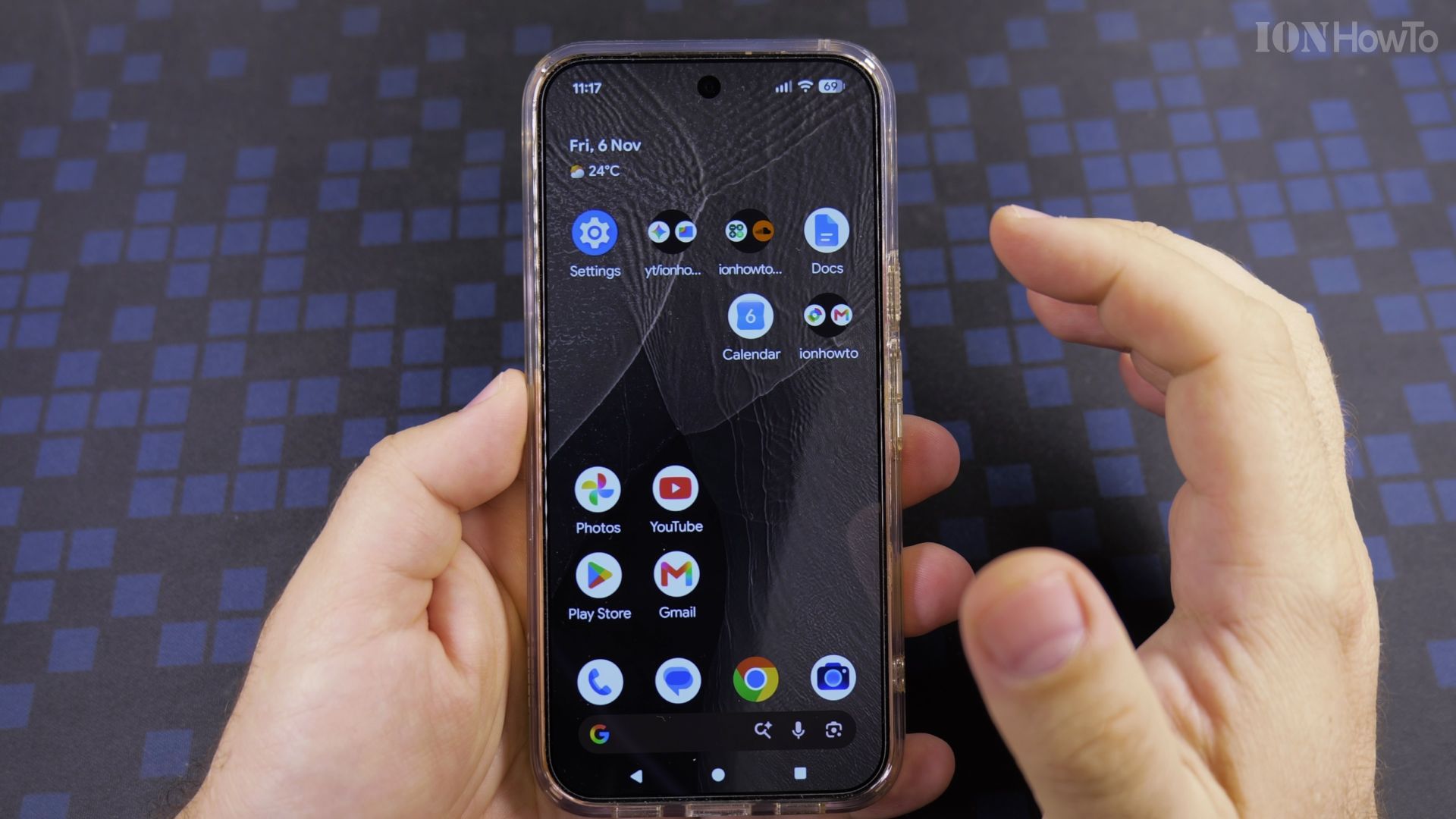
Want your chats to float on top of whatever you are doing? Bubbles do exactly that, and they are one switch away.
Your roadmap
Recommended Amazon Gear and Accessories
Disclosure: This article contains Amazon affiliate links. As an Amazon Associate, we earn from qualifying purchases at no extra cost to you.
- Phone Accessories
- Android Phone Case
- USB-C Charger
- USB-C Cable
- Wireless Charger Stand
- Wireless Car Charger
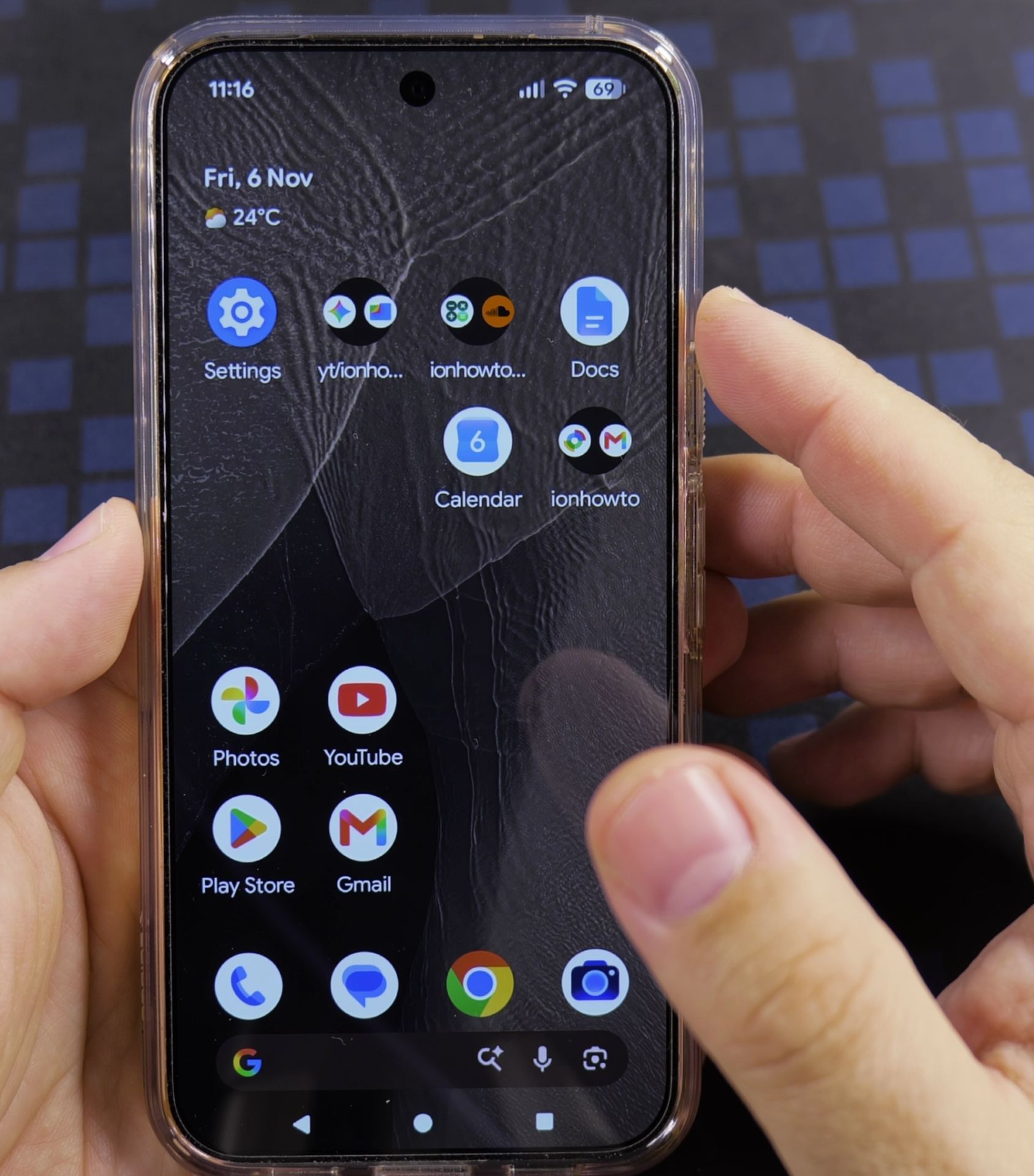
1. Go to Notifications in Settings
Open **Settings**, scroll down and tap **Notifications**.
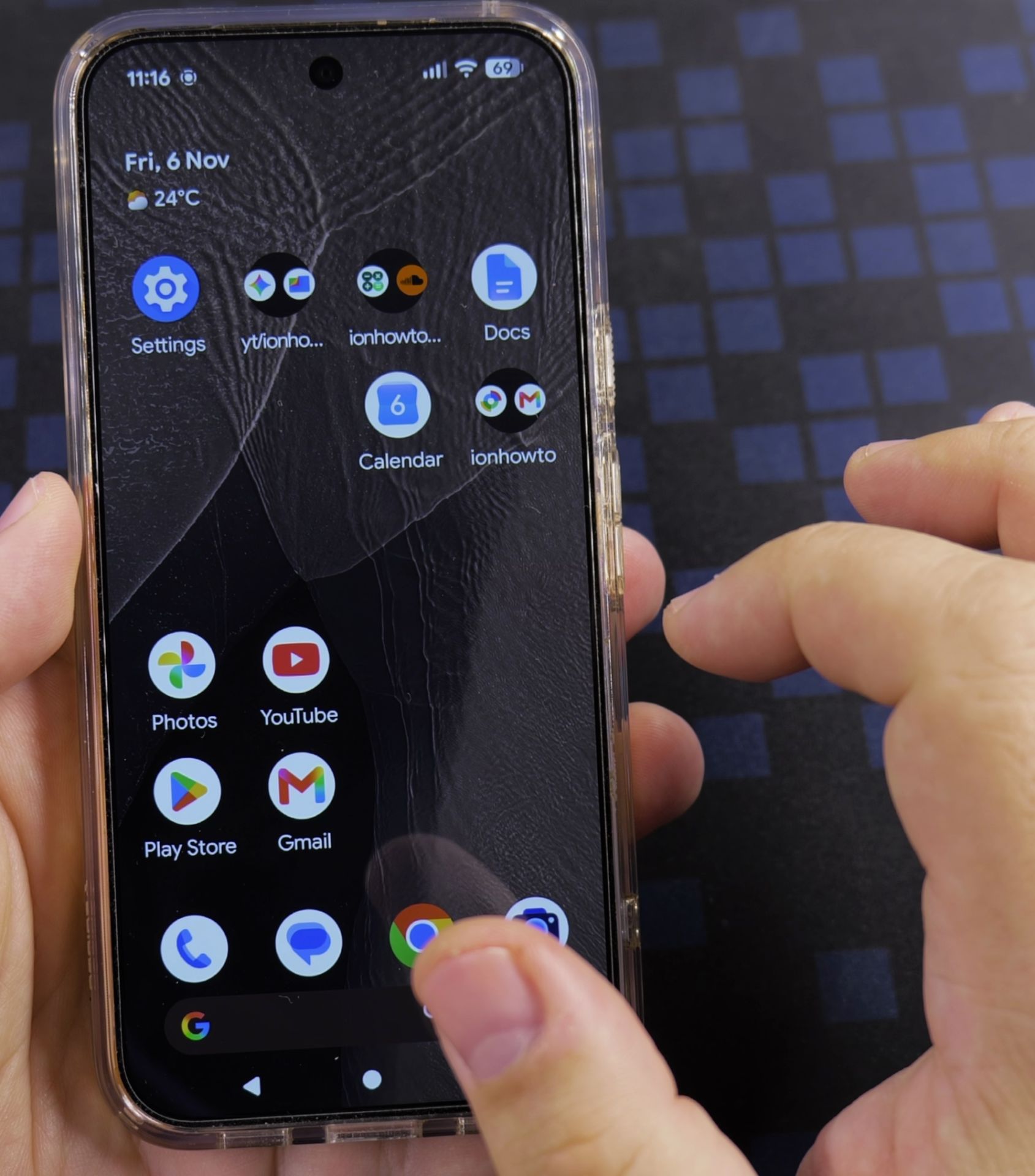
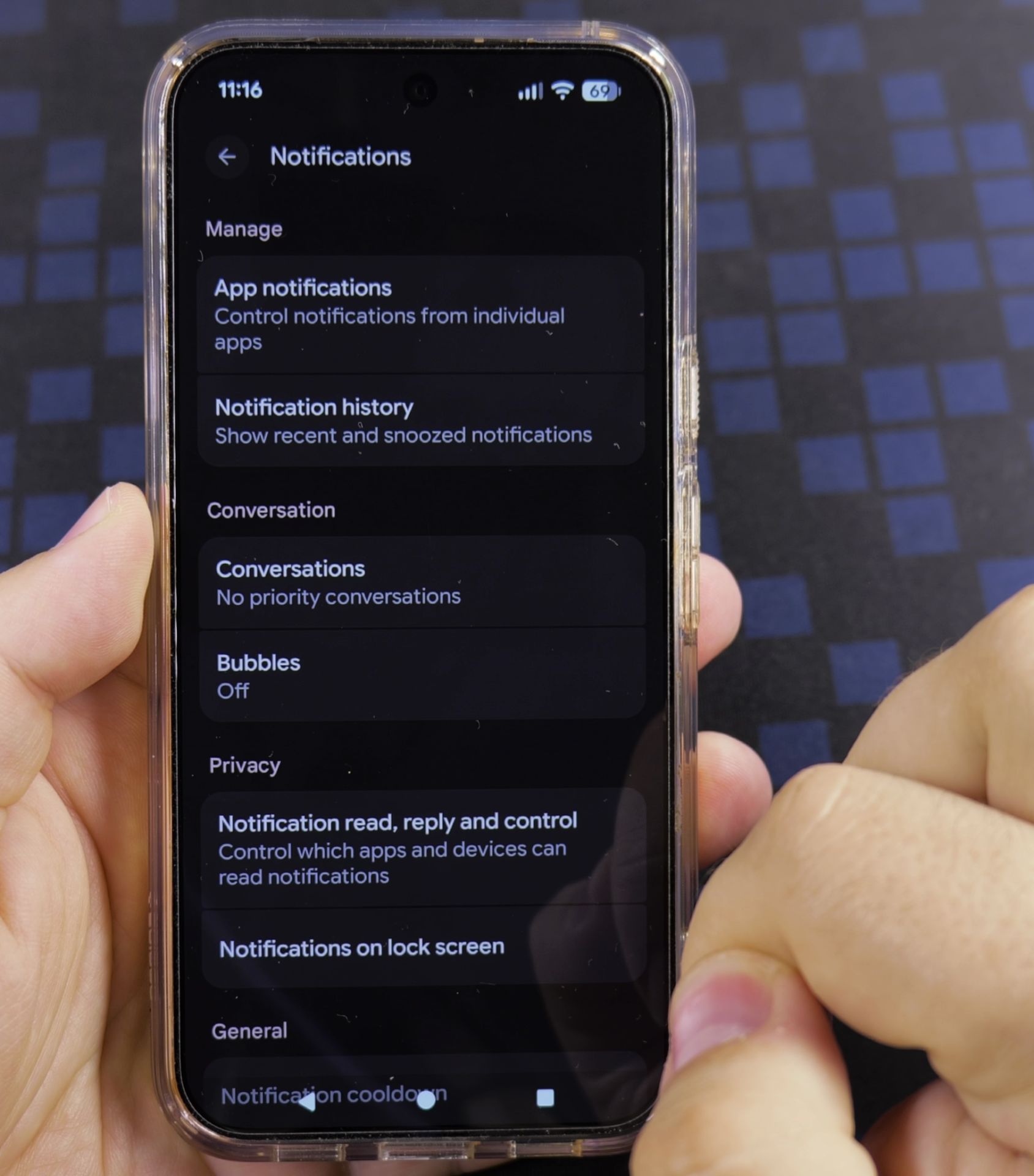
2. Open Bubbles
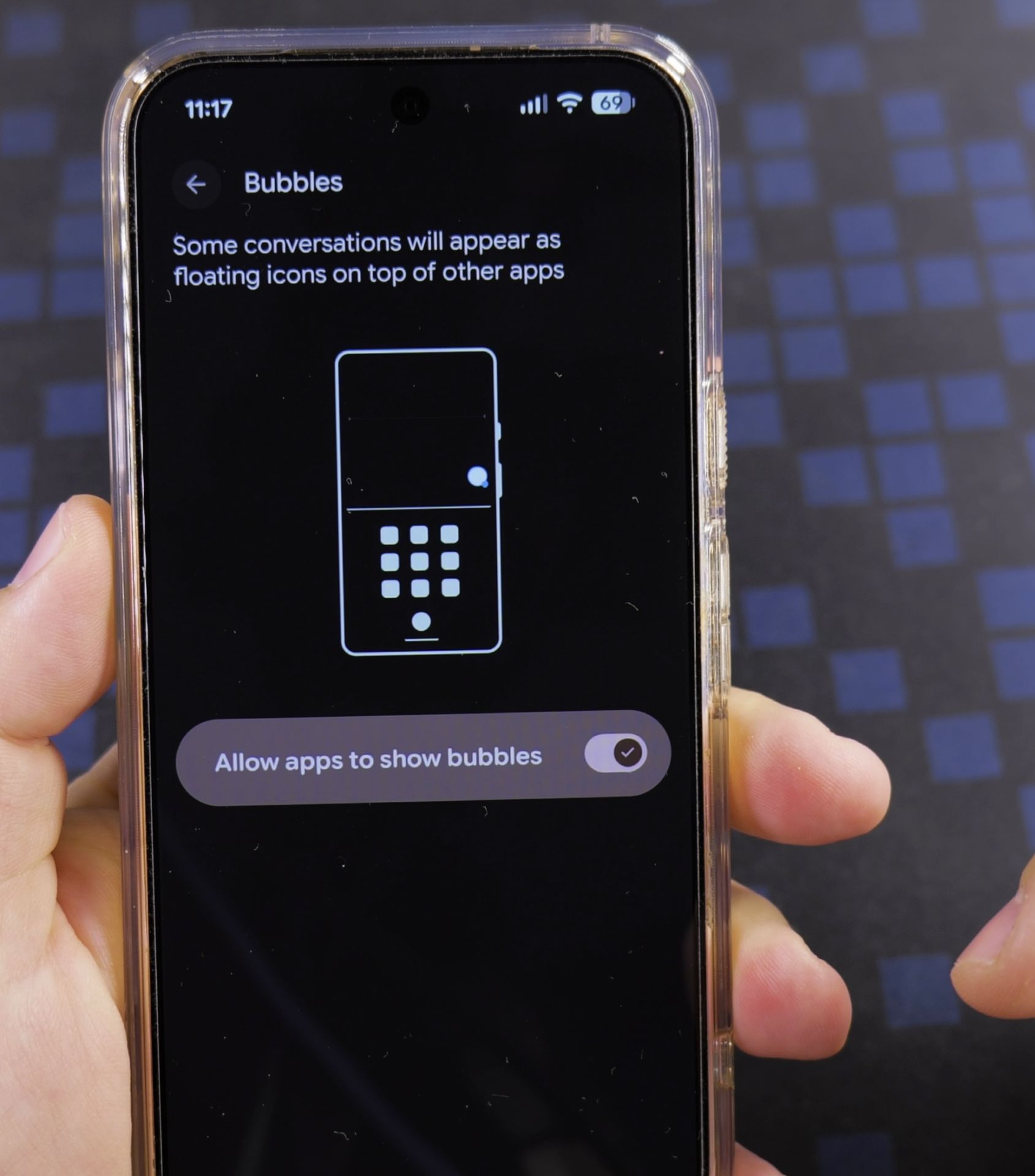
In the **Conversation** section tap **Bubbles**. A short picture explains how they float above other apps.
3. Switch on Allow apps to show bubbles
Turn **Allow apps to show bubbles** on. The switch turns light and shows a checkmark.
4. Try one out
Next time a chat app sends a message, a small round icon appears on the side. Tap it to read and reply without leaving your app.
Helpful Tips
- Not every app can make bubbles. Messaging apps work best.
- To stop them again, turn the same switch off.
Related Guides
- Disable Bubble Notifications on Android – How to Disable Bubble Notifications on Android Phones and Tablets.
- Disable Android Notifications at Night use Do Not Disturb – How to Disable Android Notifications at Night Using the Do Not Disturb Mode.
- Change Sound for Messages and Notifications on Android – How to Change Sound for Messages and Notifications on Android Devices.
- Android & Mobile Guides – Browse more tutorials and practical guides in this section.


Leave a Reply