
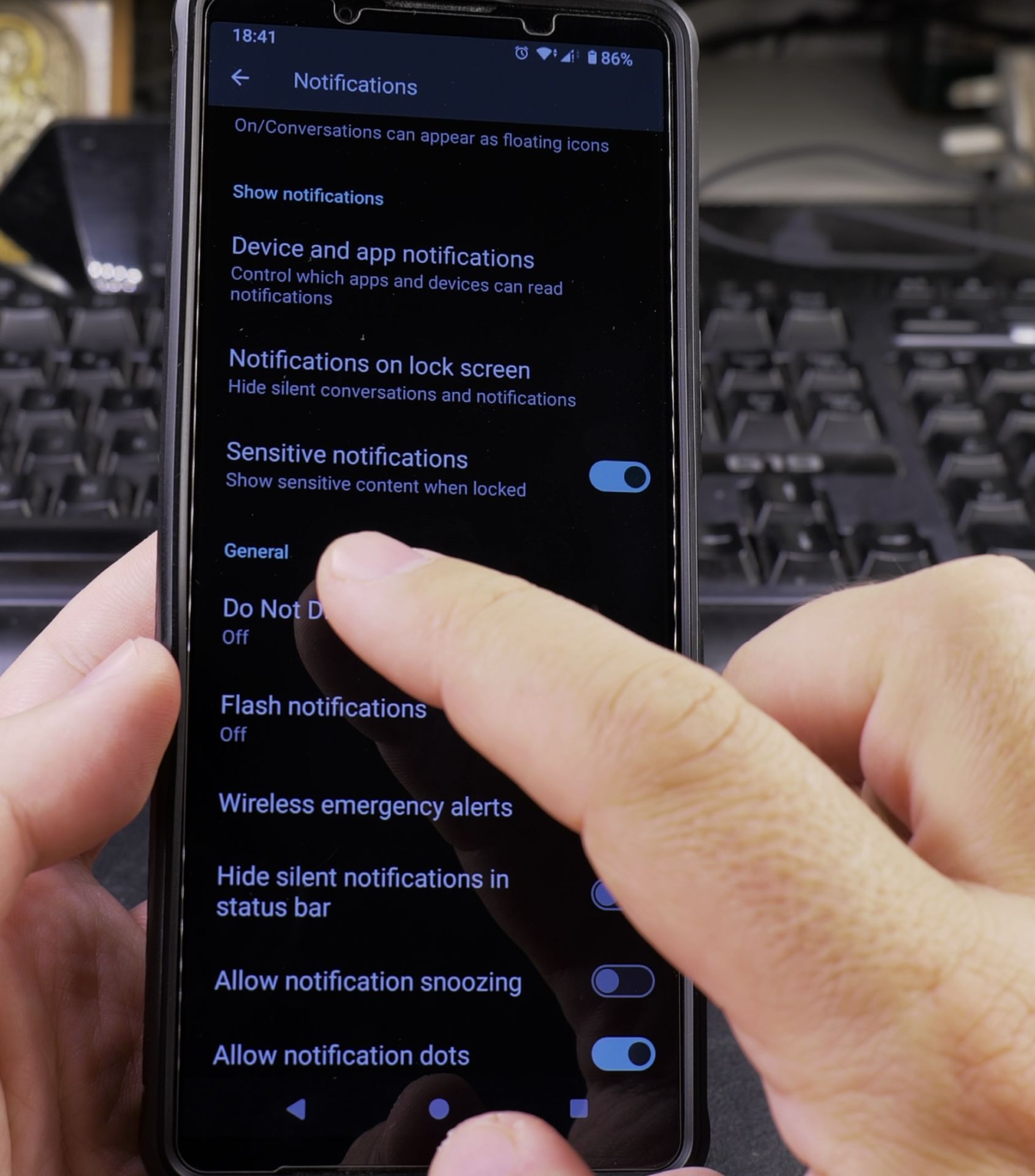
Bubble notifications (those floating chat heads) can be useful, but they can also get annoying. Learn how to turn them off on your Android device.
Amazon links
As an Amazon Associate I earn from qualifying purchases:
- Phone Cases
- Mobile Tripods
- Usb-c charger
- Usb-c cable
- Docking stations
- Wireless car chargers
- Wireless charger stand
- SIM card removal tool
- SIM card holder
Quick Steps and Scenarios Overview
| What You Need to Do | Quick Jump |
|---|---|
| What Are Bubble Notifications? | Jump to Step 1 |
| How to Turn Off Bubble Notifications | Jump to Step 2 |
| Alternative Method (For Some Samsung Devices) | Jump to Step 3 |
| Why Disable Bubbles? | Jump to Step 4 |
Tested on: Sony Xperia 1V (Android 14)
What Are Bubble Notifications?
- Floating chat heads that appear over other apps
- Common in messaging apps like Facebook Messenger and Google Messages
- Can be helpful but may block screen space
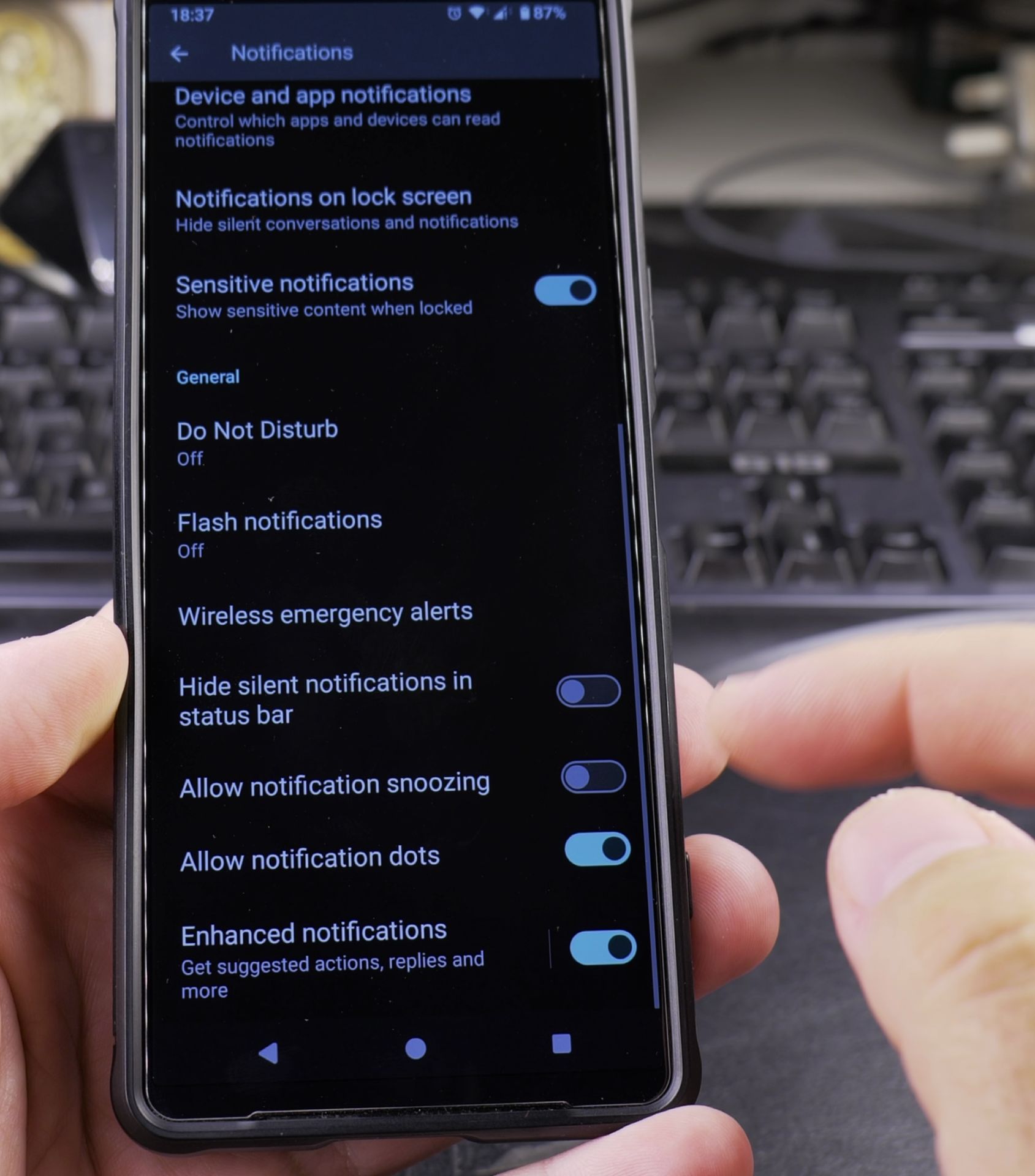
How to Turn Off Bubble Notifications
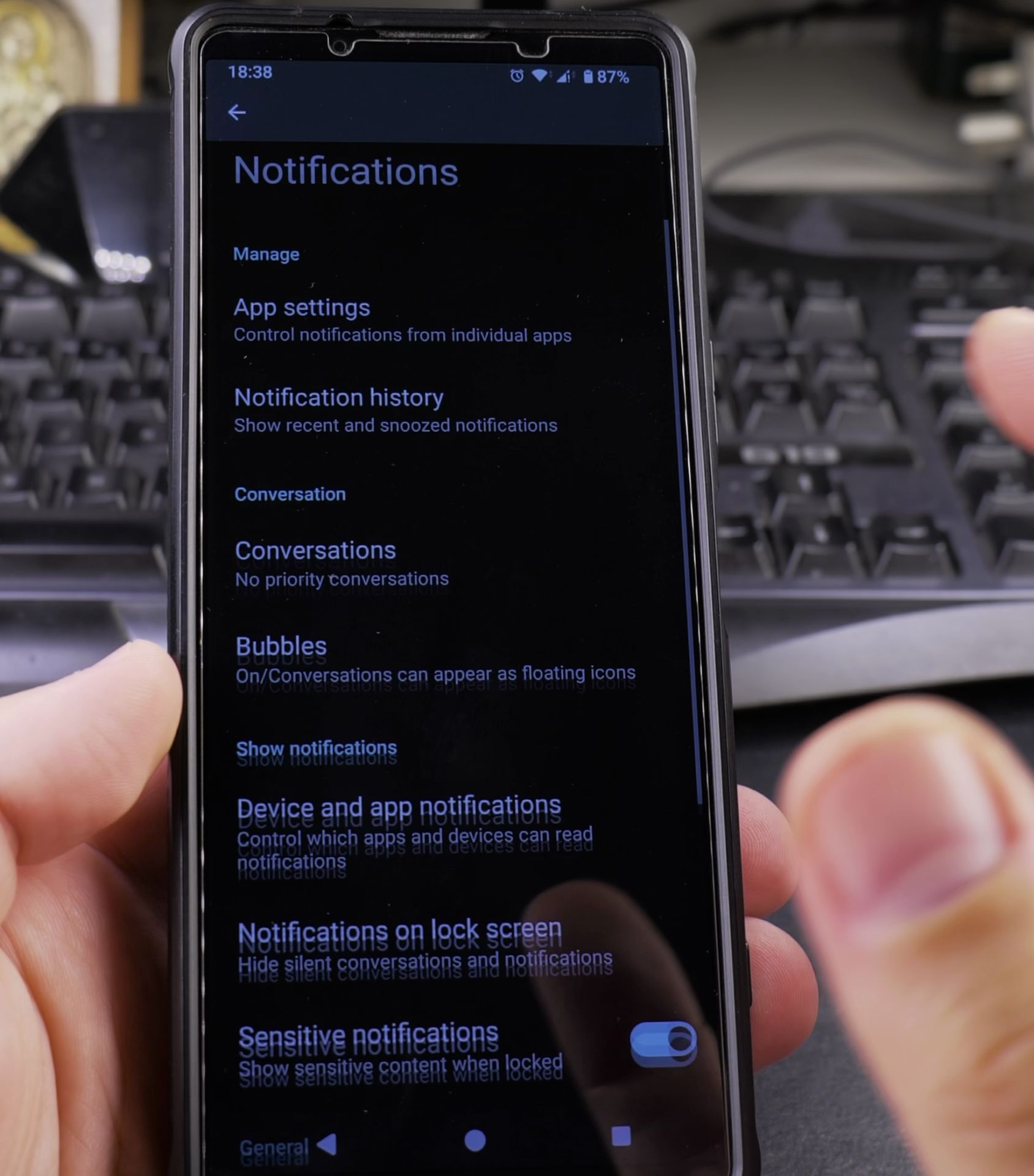
Method 1: Disable for All Apps
- Open Settings
- Tap the gear icon in your app drawer or notification panel.
- Go to Apps & notifications
- Some phones may call this “Notifications” or “Apps.”
- Select Notifications
- Look for “Bubbles” or “Bubble notifications.”
- Toggle off “Allow apps to show bubbles”
- This disables bubbles for every app.
Method 2: Disable for Specific Apps
- Go to Settings > Apps & notifications
- Select the app you want to adjust (like Messages or Facebook Messenger)
- Tap Notifications
- Look for “Bubbles” and select “Nothing can bubble”
Alternative Method (For Some Samsung Devices)
- Open Settings
- Go to Notifications
- Tap Advanced settings
- Select Floating notifications
- Choose Off
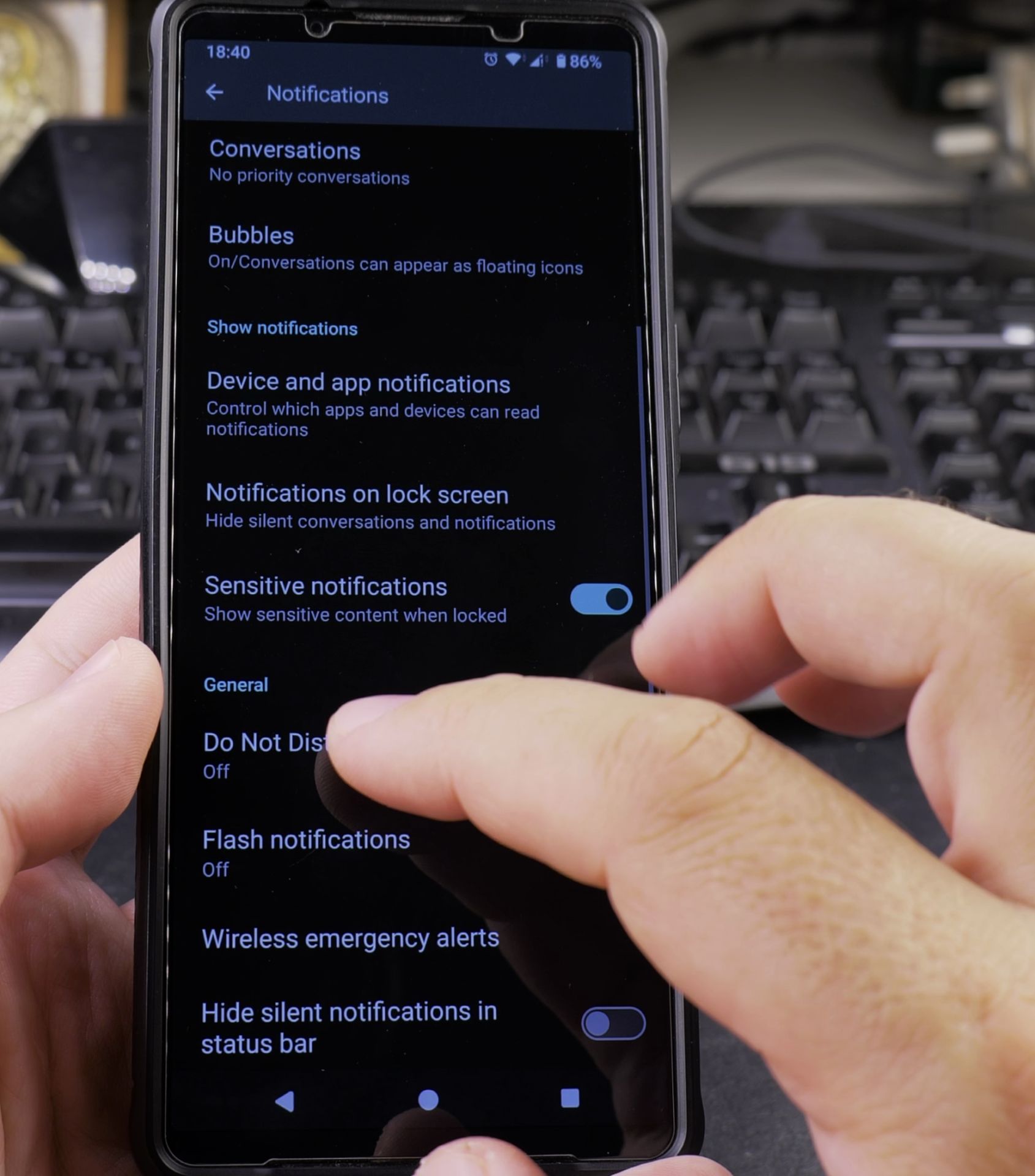
Why Disable Bubbles?
- Less distracting when using other apps
- Cleaner home screen
- Prevents accidental taps
If you change your mind later, just follow the same steps to turn them back on!
Note: Some apps may still show bubbles if they have their own in-app bubble settings.
Helpful Tips
Take your time and check the screen carefully after each tap so you can confirm the setting changed as expected. If an option appears in a slightly different spot on your device, watch the embedded video above for a closer look.
Related Guides
- Add Apps to Samsung Android Home Screen – How to Add Apps to Home Screen on Samsung Android.
- Remove App From Android Home Screen – How to Remove an App from Your Home Screen on Android.
- Android Touch Screen Taps and Multi-Touch Gestures – How to Use Android Touch Screen Taps and Multi-Touch Gestures.
- Android & Mobile Guides – Browse more tutorials and practical guides in this section.


Leave a Reply