
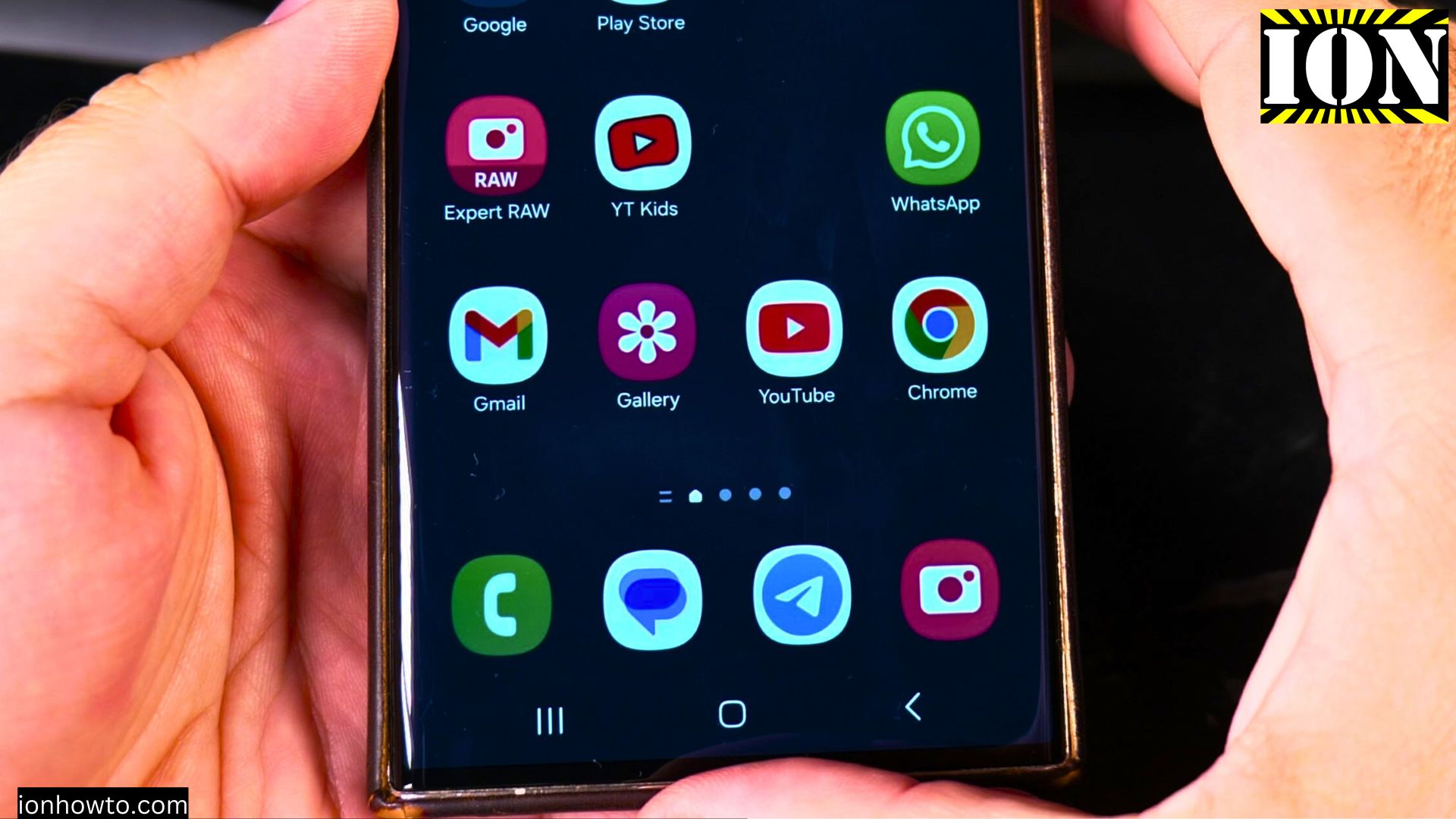
Keeping too many apps open can slow down your phone or drain your battery. Learn how to close apps – one at a time, all at once, or force close misbehaving apps – on your Samsung Galaxy device.
Amazon links
As an Amazon Associate I earn from qualifying purchases:
- Phone Cases
- Mobile Tripods
- Usb-c charger
- Usb-c cable
- Docking stations
- Wireless car chargers
- Wireless charger stand
- SIM card removal tool
- SIM card holder
Quick Steps and Scenarios Overview
| What You Need to Do | Quick Jump |
|---|---|
| Why Close Apps? | Jump to Step 1 |
| How to Close Individual Apps | Jump to Step 2 |
| Open the Recent Apps screen | Jump to Step 1 |
| How to Close All Apps at Once | Jump to Step 3 |
| Open the Recent Apps screen (same | Jump to Step 2 |
| Look for "Close all" | Jump to Step 3 |
Tested on: Samsung Galaxy S23 Ultra (OneUI 6.1, Android 14)
Why Close Apps?
- Saves battery Background apps use power.
- Frees up memory Helps your phone run faster.
- Fixes freezing Force-closing can stop glitchy apps.
How to Close Individual Apps
1. Open the Recent Apps screen
Open the Recent Apps screen.
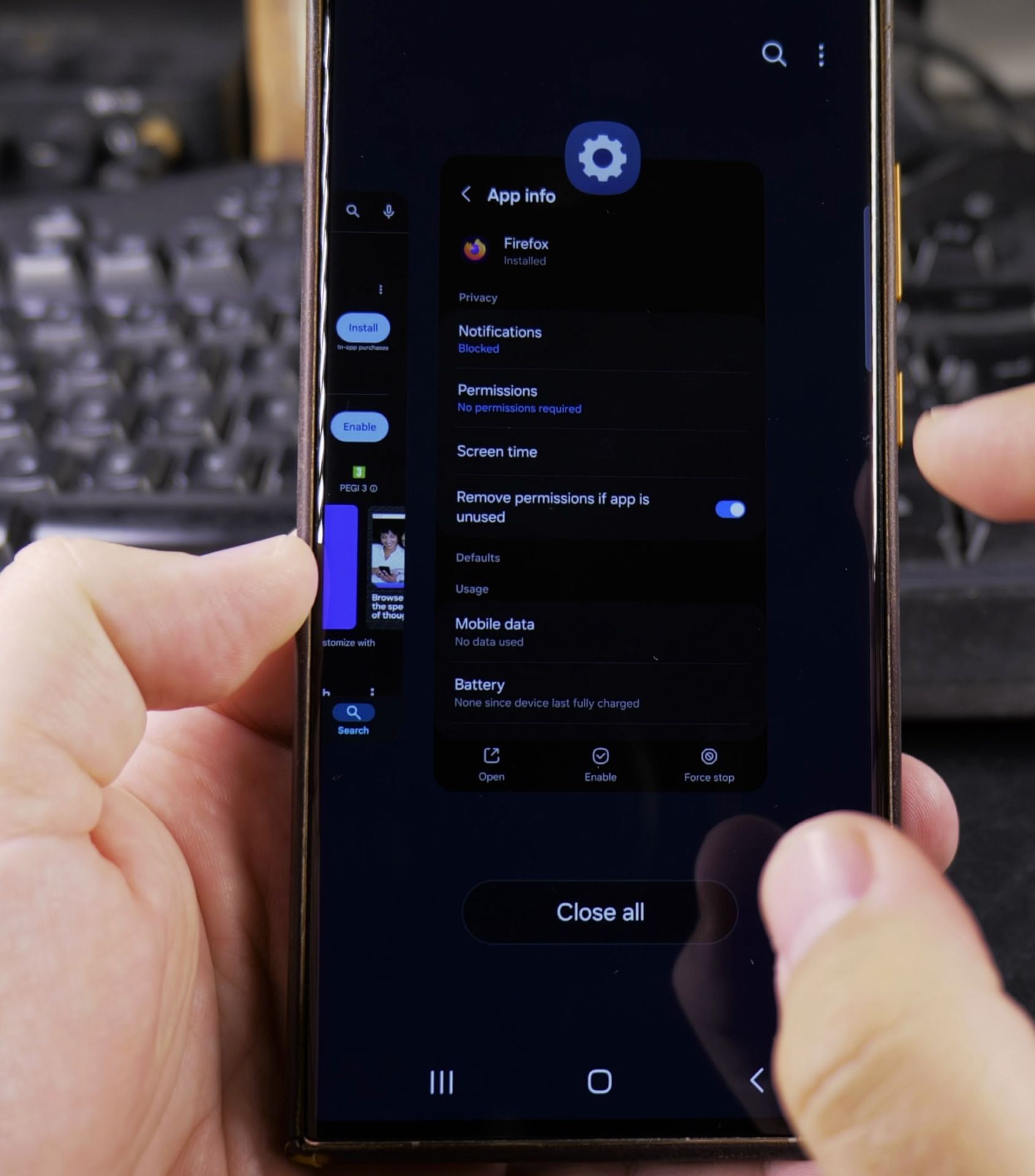
- Swipe up from the bottom of the screen and hold (or press the Recent Apps button if using navigation buttons).
- Find the app you want to close
- Swipe left or right to browse open apps.
- Swipe the app away
- Swipe the app up (or sideways, depending on your model) to close it.
Note: Some apps (like music players) may keep running in the background even after swiping them away.
How to Close All Apps at Once
2. Open the Recent Apps screen (same
Open the Recent Apps screen (same as above).
3. Look for “Close all”
Look for “Close all“.
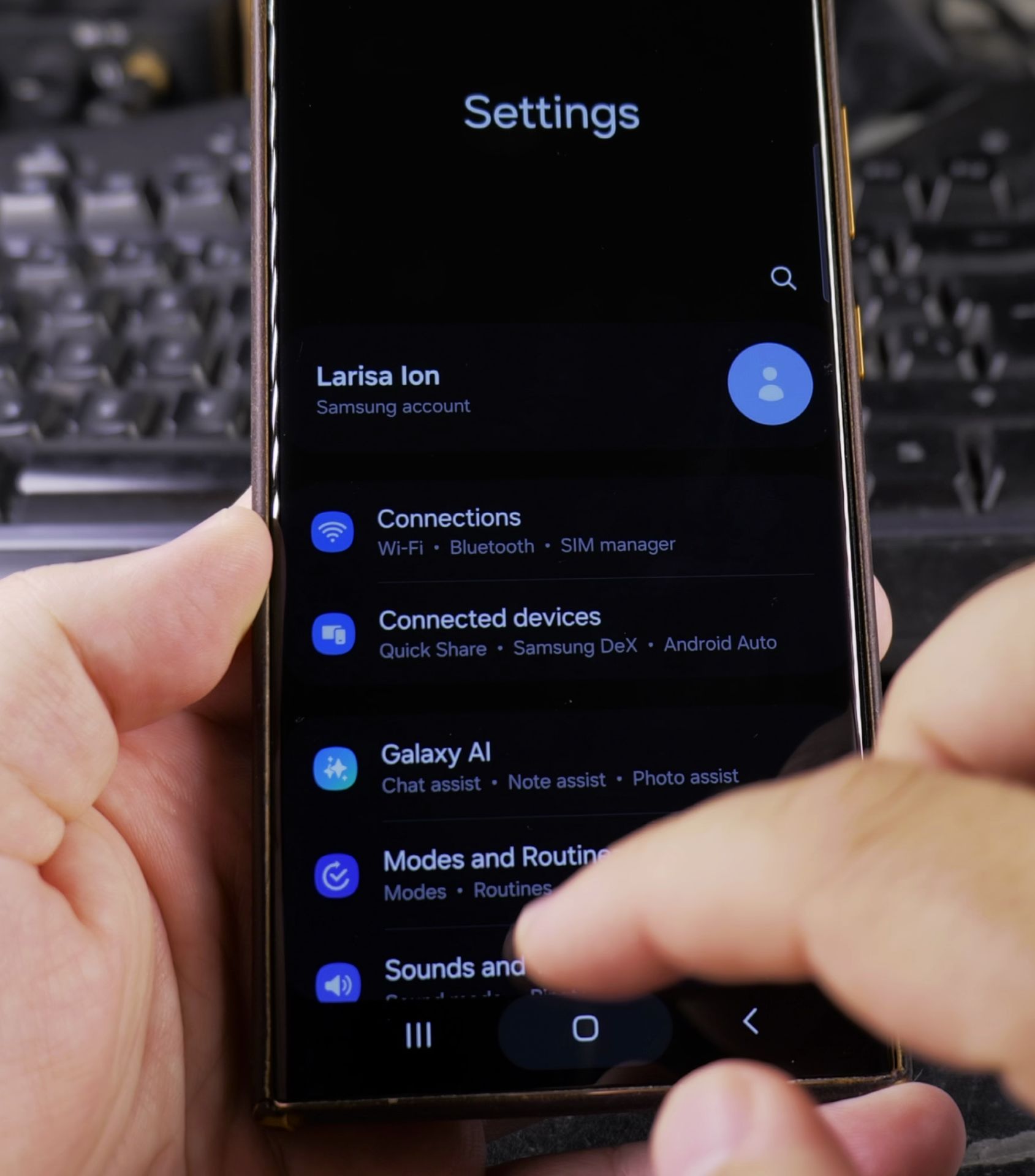
- On most Samsung Galaxy phones, this button is at the bottom of the screen.
- Tap “Close all”
- Instantly closes every app in the list.
Tip: This is great for a quick cleanup but won’t stop essential system processes.
How to Force Close an Unresponsive App
If an app is frozen or crashing, force-stopping it can help.
- Open Settings
- Tap the gear icon in your app drawer or swipe down and tap the settings icon.
- Go to Apps
- Scroll and select Apps (or Apps & Notifications on some models).
- Find the problematic app
- Scroll or search for the app giving you trouble.
- Tap “Force stop”
- Confirm if prompted. This shuts down the app completely.
Warning: Force-stopping may cause you to lose unsaved data in that app.
When to Use Each Method
- Close one app When you’re done using it.
- Close all apps For a quick performance boost.
- Force stop Only if an app is frozen or misbehaving.
Try these steps next time your phone feels sluggish or an app won’t respond!
Helpful Tips
Take your time and check the screen carefully after each tap so you can confirm the setting changed as expected. If an option appears in a slightly different spot on your device, watch the embedded video above for a closer look.
Related Guides
- Remove Apps from Samsung Android Home Screen – How to Remove Apps from Home Screen on Samsung Android.
- Add Apps to Samsung Android Home Screen – How to Add Apps to Home Screen on Samsung Android.
- Add Flashlight to Samsung Android Lock Screen – How to Add Flashlight to Lock Screen on Samsung Android Phones.
- Samsung Android Guides – Browse more tutorials and practical guides in this section.


Leave a Reply