
Adding widgets puts helpful tools like the weather, calendar, or clock right on your Android Home Screen without opening any apps. I show you how to add and arrange widgets on a Google Pixel 11 Pro XL running Android 17.
Helpful Pixel accessories (Amazon affiliate links): Android Phone Case | Phone Accessories | USB-C Charger | USB-C Cable | Wireless Charger Stand. As an Amazon Associate I earn from qualifying purchases.
Quick Steps
- Touch and Hold an Empty Spot on the Home Screen
- Tap Widgets in the Pop-Up Menu
- Choose and Drag Your Widget Onto the Screen
- Resize or Move the Widget if Needed
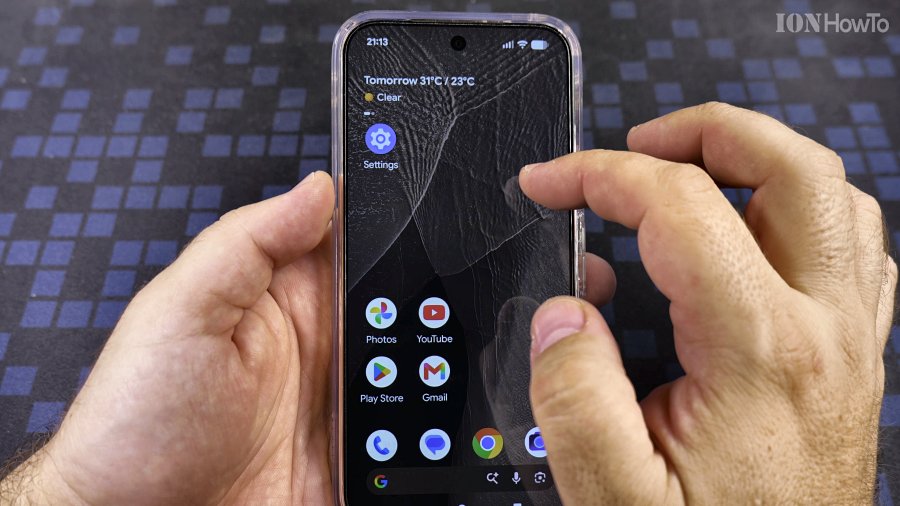
1. Touch and Hold an Empty Spot on the Home Screen
Go to the Home Screen page where you want the widget. Press and hold your finger on an empty space until the menu appears.
2. Tap Widgets in the Pop-Up Menu
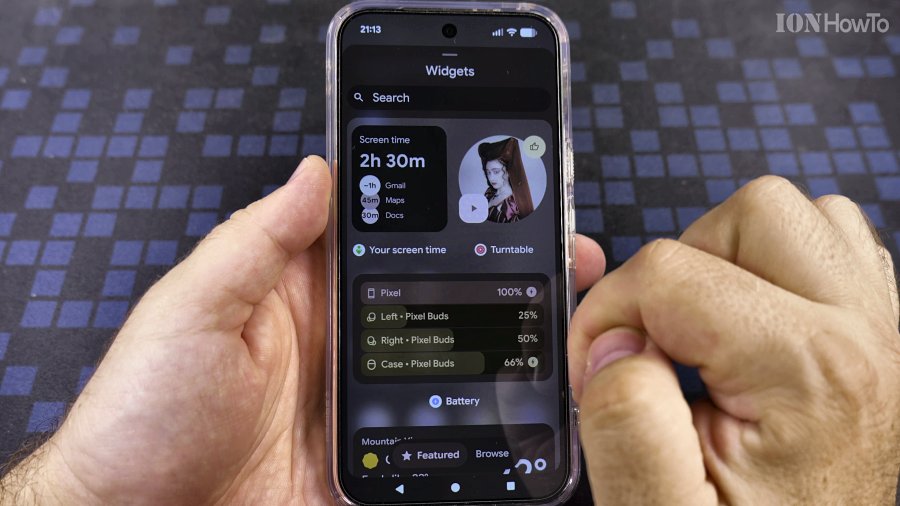
Tap Widgets from the pop-up options. You will see a list of apps that include widgets.
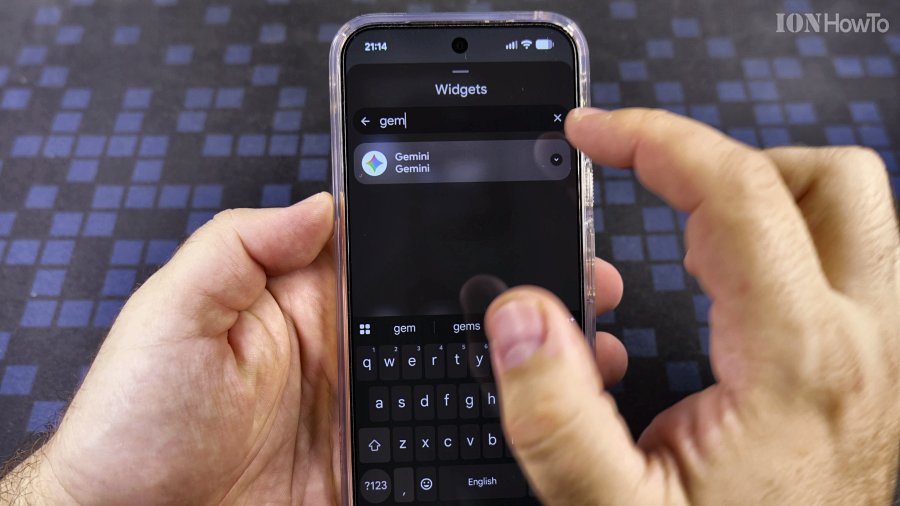
3. Choose and Drag Your Widget Onto the Screen
Tap an app name to preview its widgets. Press and hold the widget you want, drag it onto your Home Screen, and lift your finger.
4. Resize or Move the Widget if Needed
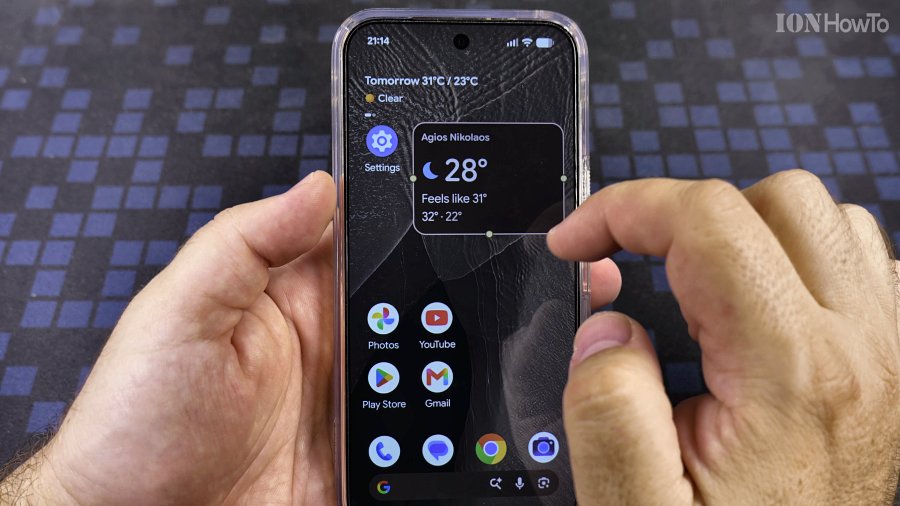
Drag the white dots around the edge of the widget to make it larger or smaller. Tap anywhere outside the widget when you are finished.
Helpful Tips
If there is not enough room on your current page, drag the widget toward the right edge of the screen to place it on a new Home Screen page.


Leave a Reply