

Samsung Galaxy Android Toggle Disable Wi-Fi and Use 5G Mobile Data to Fix Wi-Fi Connected but No Internet Problem. Turn Off Wi-Fi and Use 5G Mobile Data on Samsung Galaxy Android Devices: Fix Wi-Fi Issues and Toggle Mobile Data.
Amazon links
As an Amazon Associate I earn from qualifying purchases:
- Phone Cases
- Mobile Tripods
- Usb-c charger
- Usb-c cable
- Docking stations
- Wireless car chargers
- Wireless charger stand
- SIM card removal tool
- SIM card holder
Turn off Wi-Fi and use 5G on Samsung Galaxy to fix Wi-Fi connected but no internet on Android. Toggle mobile data settings for 4G and 5G on Samsung devices.
Quick Steps and Scenarios Overview
| What You Need to Do | Quick Jump |
|---|---|
| Turn mobile data and Wi-fi Off then Back On | Jump to Step 1 |
| Turn off Wi-Fi and enable 5G mobile data | Jump to Step 2 |
| Force disconnect from a weak Wi-Fi | Jump to Step 3 |
| Solving Common Wi-Fi Problems | Jump to Step 4 |
| Other solutions for fixing Wi-Fi | Jump to Step 5 |
In this video, I’m going to show you how to turn off Wi-Fi and use 5G mobile data on your Samsung Galaxy Android phone or tablet. If you want to switch to mobile data for faster speeds or troubleshoot Wi-Fi issues, I’ll guide you through the steps to seamlessly transition between connections.
Turn mobile data and Wi-fi Off then Back On
This is a quick trick to know how to force disconnect from a weak Wi-Fi signal, reconnect to a Wi-Fi network for sign-in pages, and other solutions to fix Wi-Fi connected but no internet problems. These tips will also apply to managing your 4G and 5G mobile data settings.
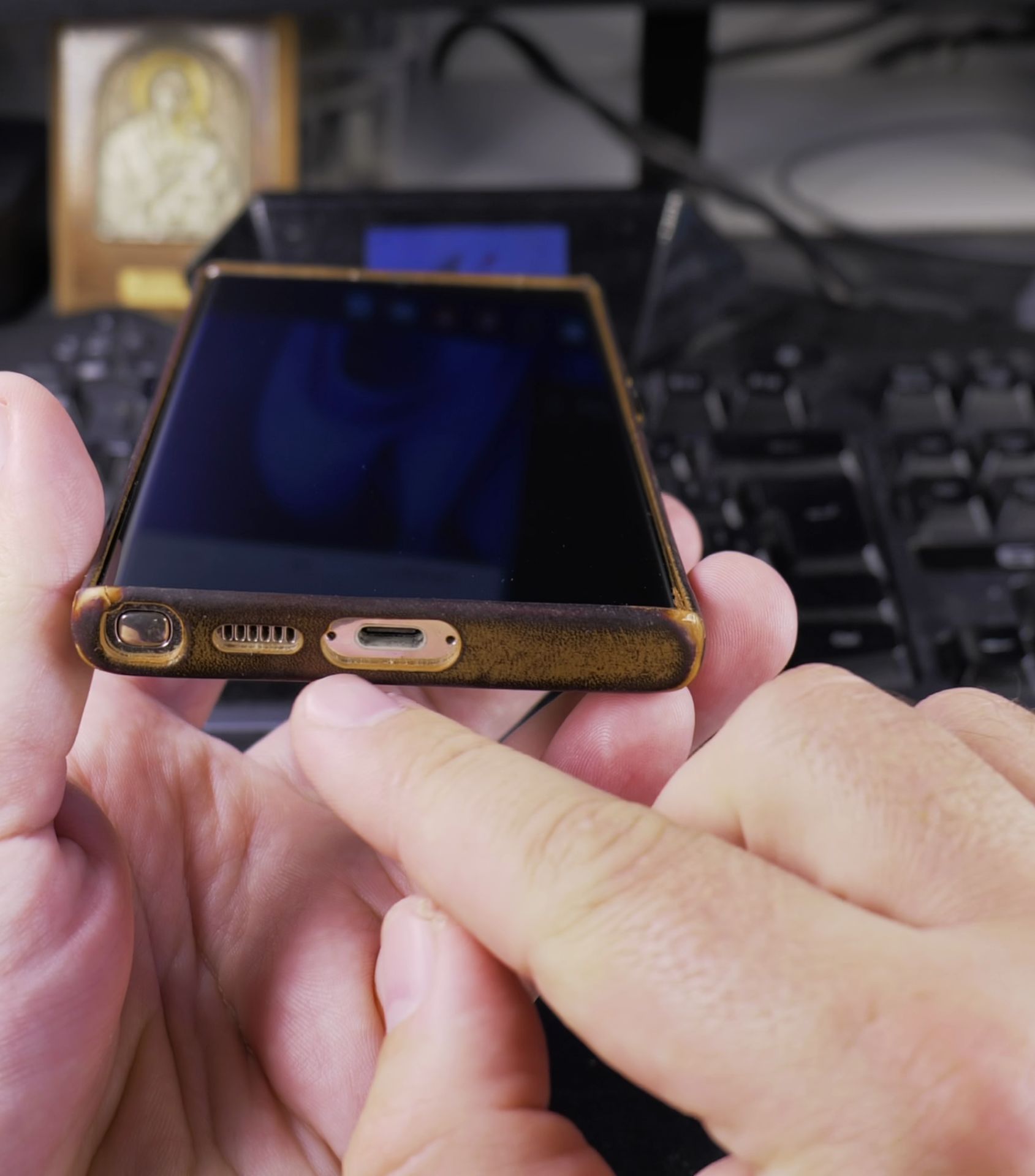
Phone: Samsung Galaxy S23 Ultra 512GB Android 14 OneUI 6.1 smartphone.
Turn off Wi-Fi and enable 5G mobile data
Steps:
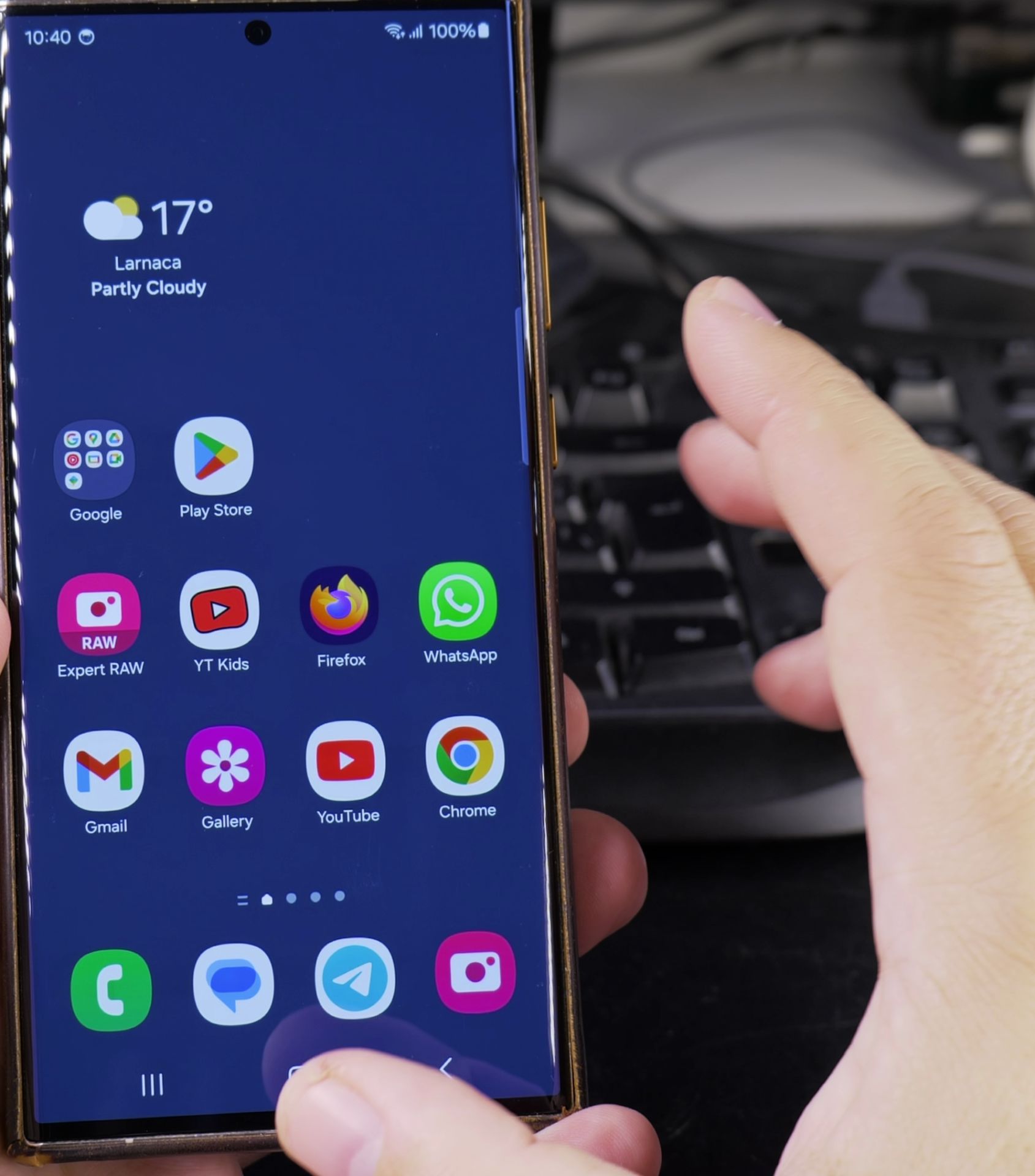
- Open the “Settings” app on your Samsung Galaxy device.
- Tap on “Connections” or “Network & Internet,” and then select “Wi-Fi.” Toggle the switch to turn off Wi-Fi.
- Next, go back to the “Connections” menu and tap on “Mobile networks” or “Data usage.”
- Toggle the switch to enable mobile data. If your device supports 5G, it will automatically connect to the 5G network if available.
Force disconnect from a weak Wi-Fi
To force disconnect from a weak Wi-Fi signal and reconnect to a Wi-Fi network for sign-in pages:
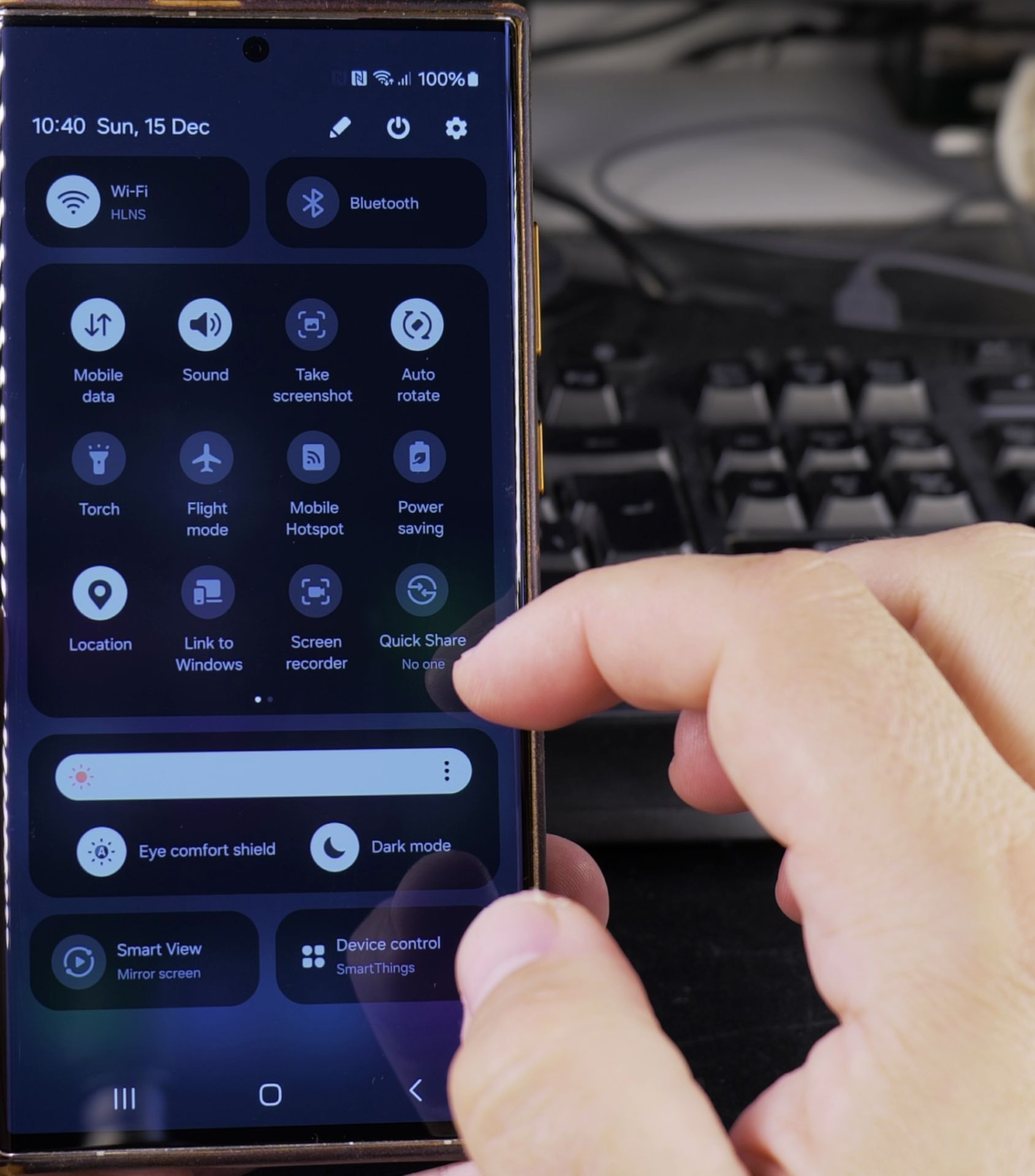
- Go to “Settings” and tap on “Wi-Fi.”
- Select the Wi-Fi network you are currently connected to and tap “Forget.”
- Then, reconnect to the same network by selecting it from the list of available networks and entering the password.
- This can help resolve issues where the Wi-Fi network requires you to sign in again.
Solving Common Wi-Fi Problems
For solving common Wi-Fi problems, toggling Wi-Fi off and back on can be an effective solution. Pull down the notification shade and tap the Wi-Fi icon to turn it off, then tap it again to turn it back on.
This can help reset your connection and solve issues where Wi-Fi is connected but there is no internet.
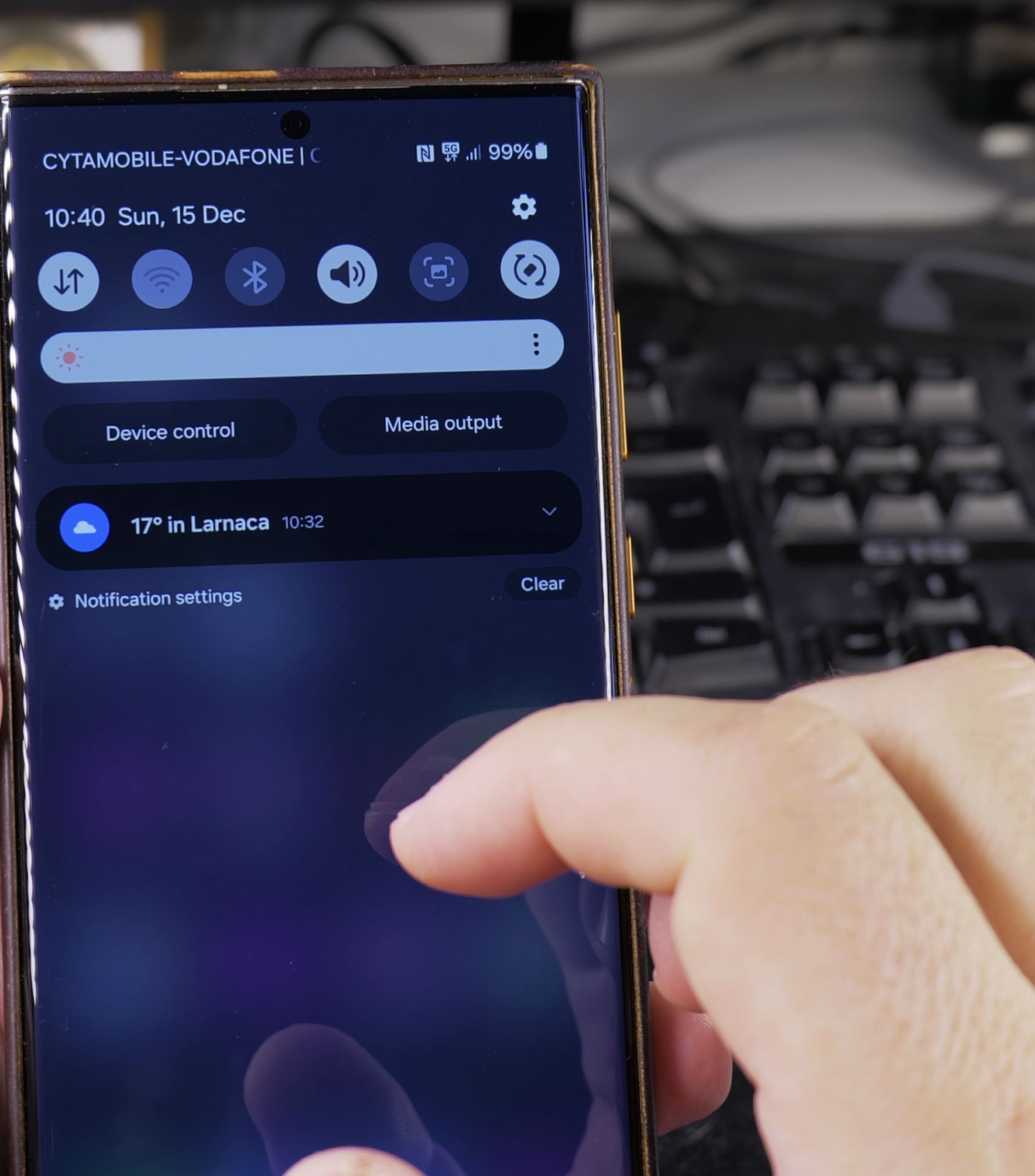
Other solutions for fixing Wi-Fi
Other solutions for fixing Wi-Fi connected but no internet issues include restarting your router, checking for software updates on your device, and ensuring that you are within range of the Wi-Fi signal. Follow these troubleshooting steps in detail to help you maintain a stable internet connection.
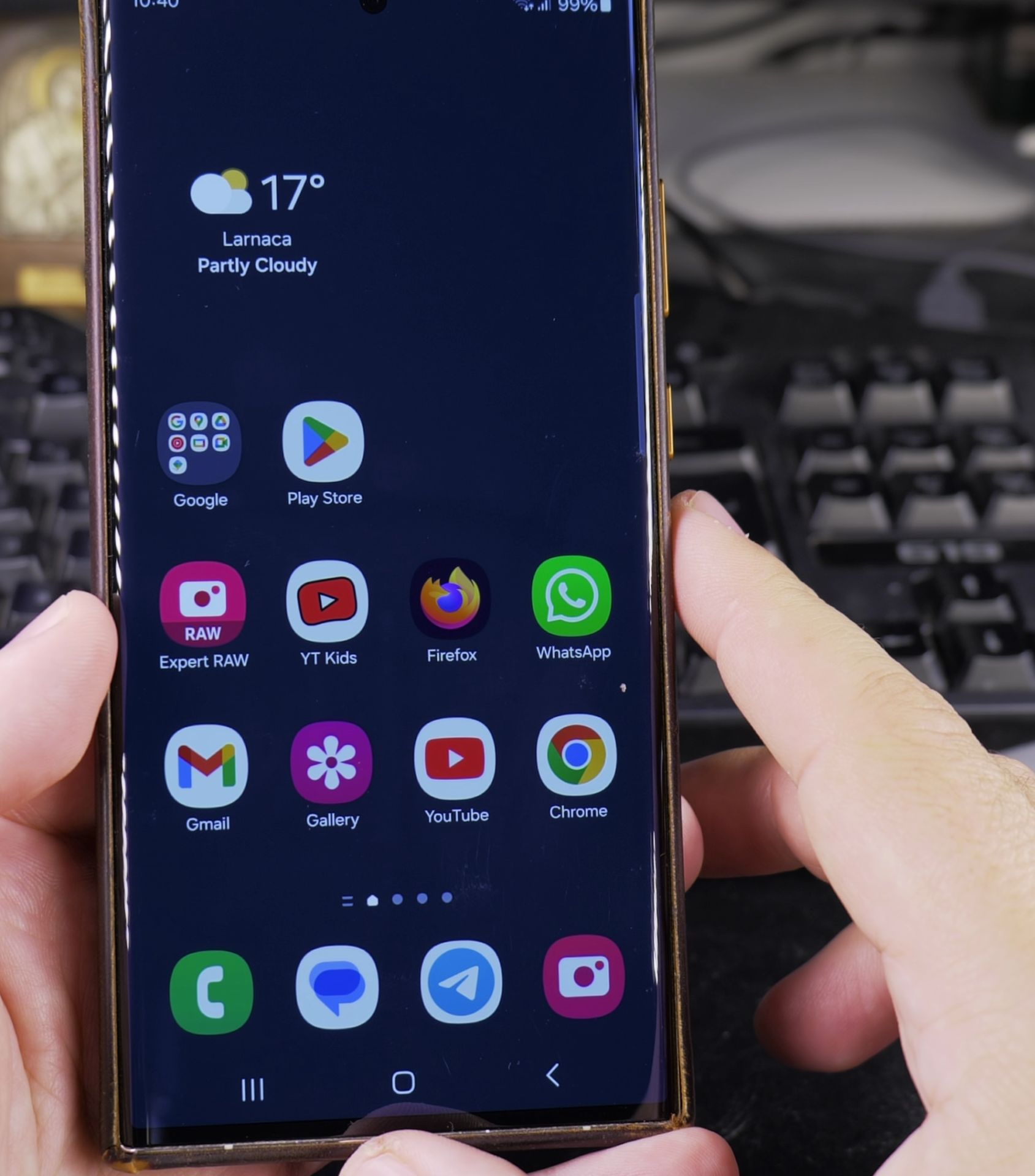
Learn how to manage your Wi-Fi and mobile data settings to keep your internet connection running smoothly.
Helpful Tips
Take your time and check the screen carefully after each tap so you can confirm the setting changed as expected. If an option appears in a slightly different spot on your device, watch the embedded video above for a closer look.
Related Guides
- Fix WiFi Problems No Internet Access Connected to Wi-Fi – How to Fix WiFi Problems: No Internet Access Even When Connected to Wi-Fi.
- Restrict Apps from Using Mobile Data or Wi-Fi on Samsung – How to Restrict Apps from Using Mobile Data or Wi-Fi on Samsung Android Devices.
- How to Access Network Share on Samsung Galaxy Android Phone – If you have movies, photos, or documents on your home computer or network drive, you can open them right from your phone.
- Samsung Android Guides – Browse more tutorials and practical guides in this section.


Leave a Reply