
Amazon links
As an Amazon Associate I earn from qualifying purchases:
- Phone Cases
- Mobile Tripods
- Usb-c charger
- Usb-c cable
- Docking stations
- Wireless car chargers
- Wireless charger stand
- SIM card removal tool
- SIM card holder
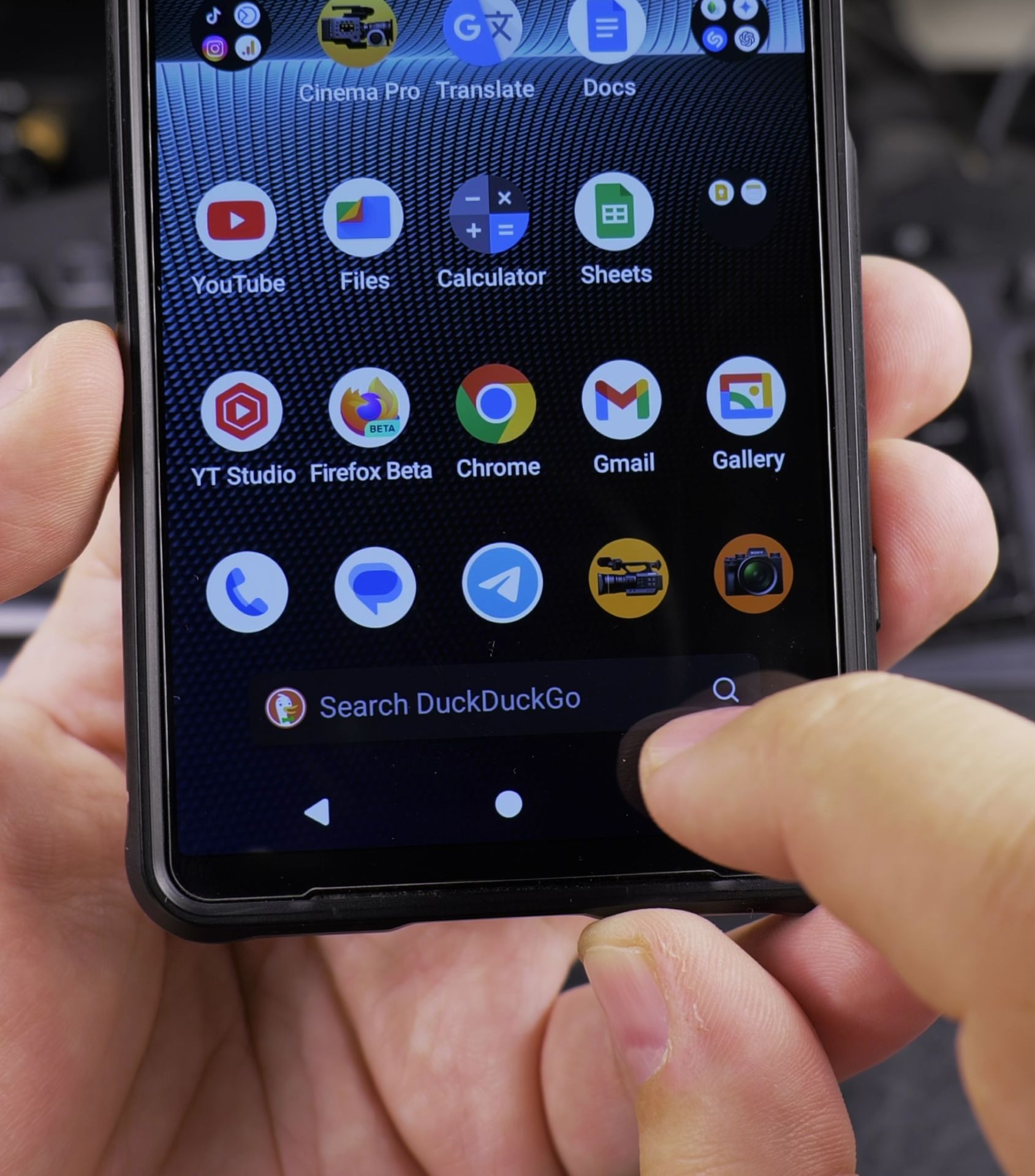
In a previous update I was shown the Search Engine Selector notification being prompted to choose a default search engine and default browser.
I guess for regularly reasons they show that and I chose Duck duck go as the search engine. The search bar changed to duckduckgo.
I actually use the Google search bar for voice search and Google Lens image search so I wanted the Google search bar back.
Quick Steps and Scenarios Overview
| What You Need to Do | Quick Jump |
|---|---|
| After the Android 15 Update | Jump to Step 1 |
| The Problem | Jump to Step 2 |
Before I found a way to make Google the default again using the Google app.
From what I remember, it prompted me if I want to switch to Google and I did.
After the Android 15 Update
After the Android 15 update, the search bar changed to Duckduckgo and I cand select another default search engine.
I tried going in the Settings – Apps – 3-dot menu – Show system apps – Search for Search Engine Selector.
The app is there and I tried resetting user data trying to make it show the search engine selection prompt again but it’s not working.
Can’t uninstall it either.
The Problem
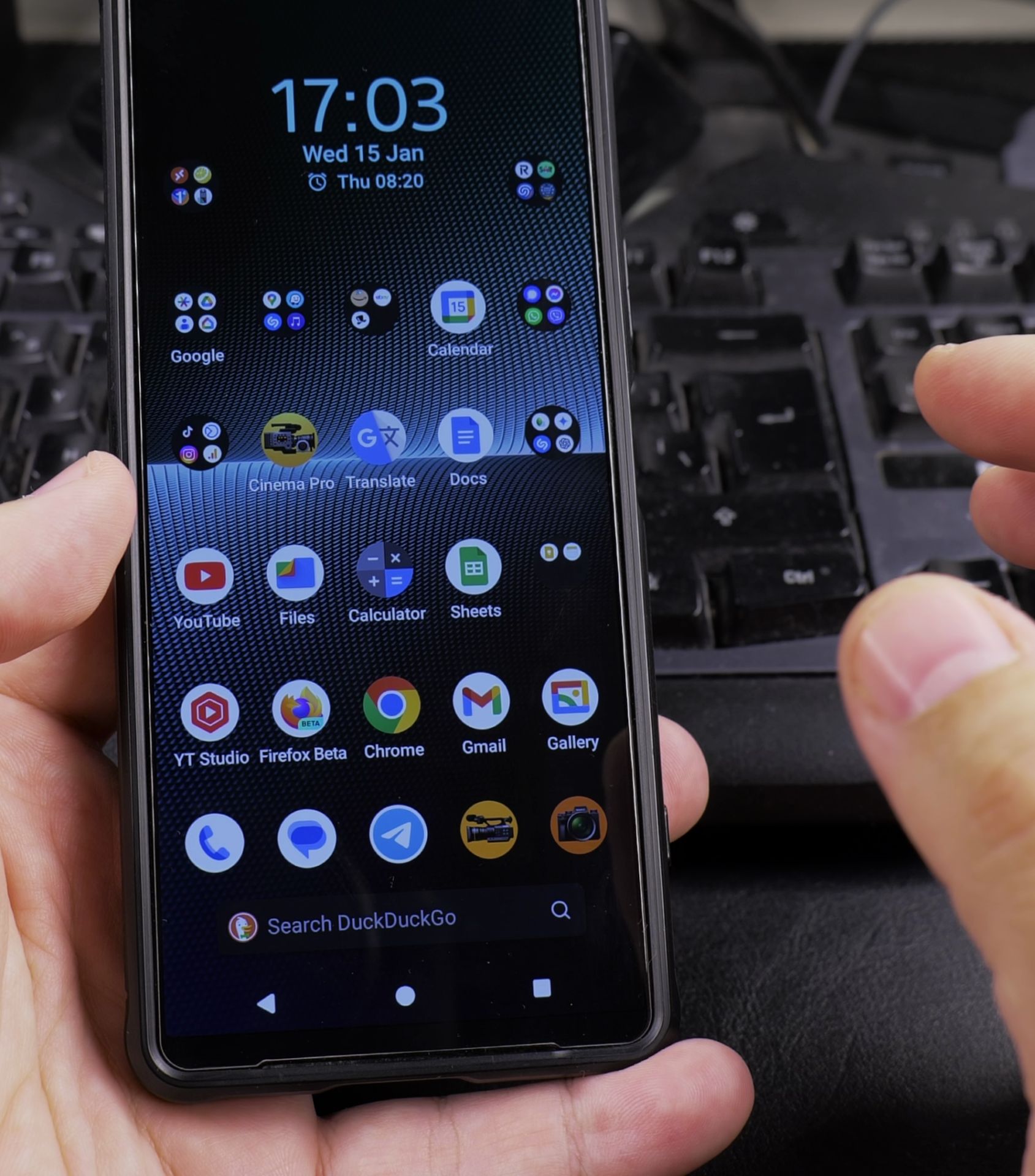
Now I could get it to show a basic Google search bar by uninstalling the Duckduckgo app but I wanted the microphone and image search.
Anyone know how to make the selector show again comment below!
Before I chose duckduckgo as the default search engine but changed my mind and was able to get the Google Search bar back.
After the Android 15 update, the Google search bar is gone and replaced with the DuckDuckGo search bar and at first when entering a search query in the DuckDuckGo search bar, it opens the Google app…
How to reset the Search engine selector system app to show me the search and browser selection window.
Any tips please?!
Helpful Tips
Take your time and check the screen carefully after each tap so you can confirm the setting changed as expected. If an option appears in a slightly different spot on your device, watch the embedded video above for a closer look.
Related Guides
- Move Address Bar in Android Chrome – How to Move the Address Bar Back to Top in Android Chrome.
- iPhone iOS 26 vs Android 15 Compared – Learn how the latest versions of iOS and Android stack up in this comparison of iOS 26 and Android 15.
- Google Search Without Typing Using Voice Commands on Android – How to Search on Google Without Typing Using Voice Commands in Google Assistant or Gemini AI on Android Devices.
- Android & Mobile – Browse more tutorials and practical guides in this section.


Leave a Reply