
When you need to check your Wi-Fi password to share it with a friend or connect a new device, I show you how to do that.
Your iPhone actually stores all the passwords for networks you’ve joined before. Here’s how to find them quickly.
Amazon links
As an Amazon Associate I earn from qualifying purchases:
- iPhone Accessories
- iPhone Charger
- iPhone Cases
- iPhone Screen protector
- iPhone Magsafe
- iPhone Wallet
- iPhone Usb c cable
iPhone How to Show Wi Fi Password.
Quick Steps and Scenarios Overview
| What You Need to Do | Quick Jump |
|---|---|
| How to View Saved Wi-Fi Passwords | Jump to Step 1 |
| Open your iPhone's Settings app | Jump to Step 1 |
| Tap Wi-Fi | Jump to Step 2 |
| Find the network whose password you need | Jump to Step 3 |
| Tap Password | Jump to Step 4 |
| Use Face ID | Jump to Step 5 |
Tested on iOS 18.4.1 with iPhone 16 Pro Max Titanium Black (256GB, Global Model A3296 – MYWV3ZD/A).
How to View Saved Wi-Fi Passwords
1. Open your iPhone’s Settings app
Open your iPhone’s Settings app.
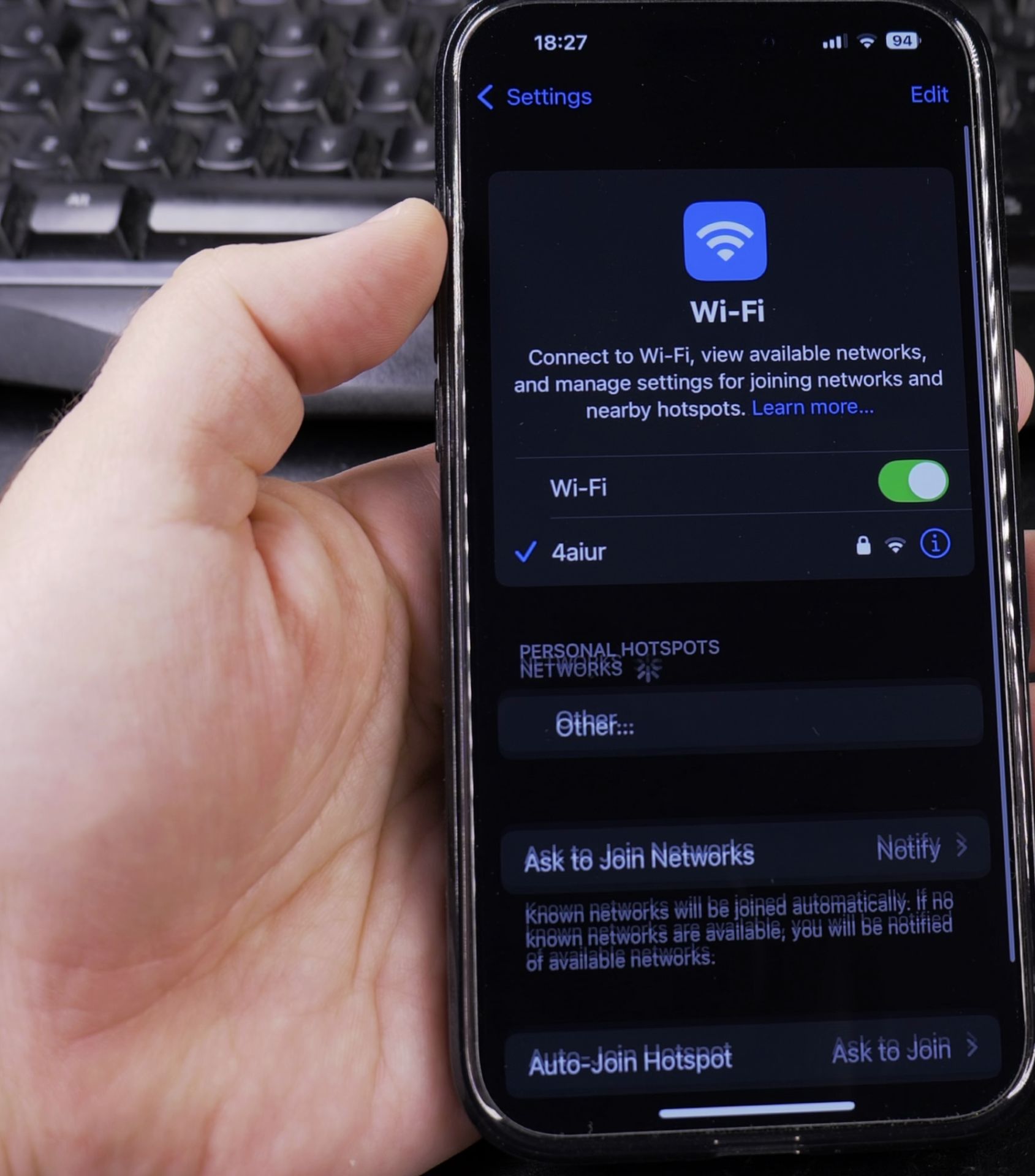
2. Tap Wi-Fi
Tap Wi-Fi.
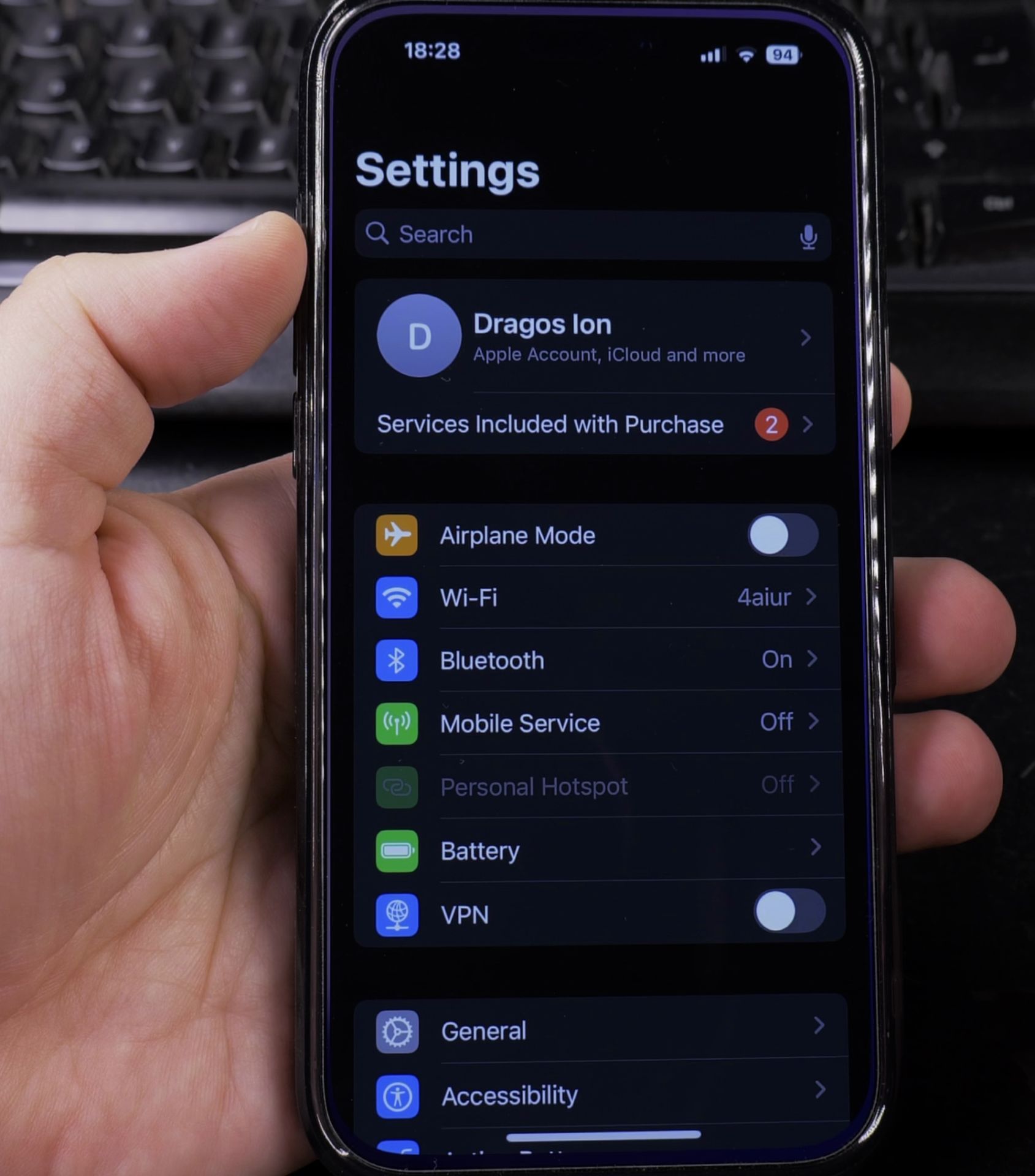
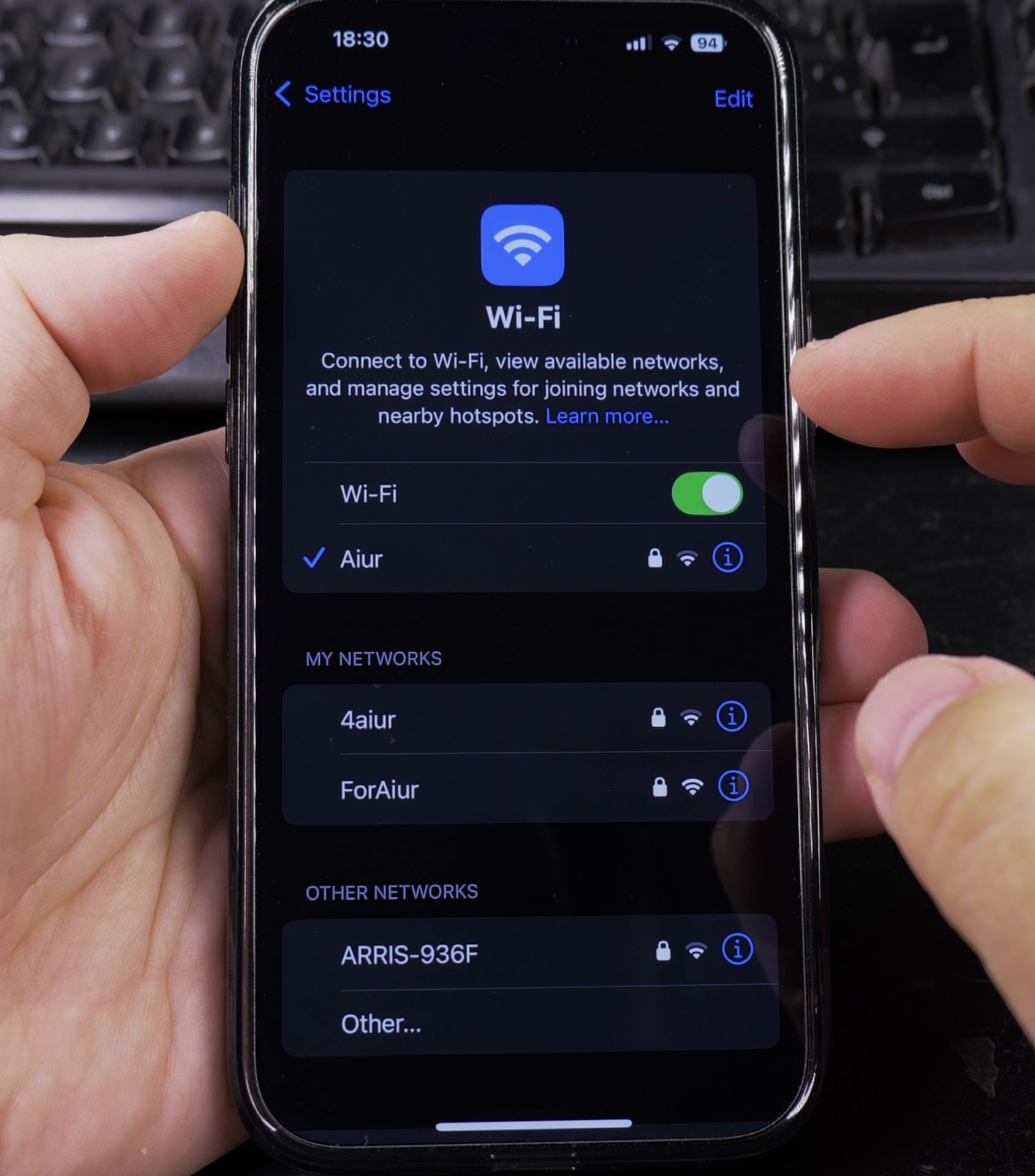
3. Find the network whose password you need
Find the network whose password you need and tap the (i) icon next to it.
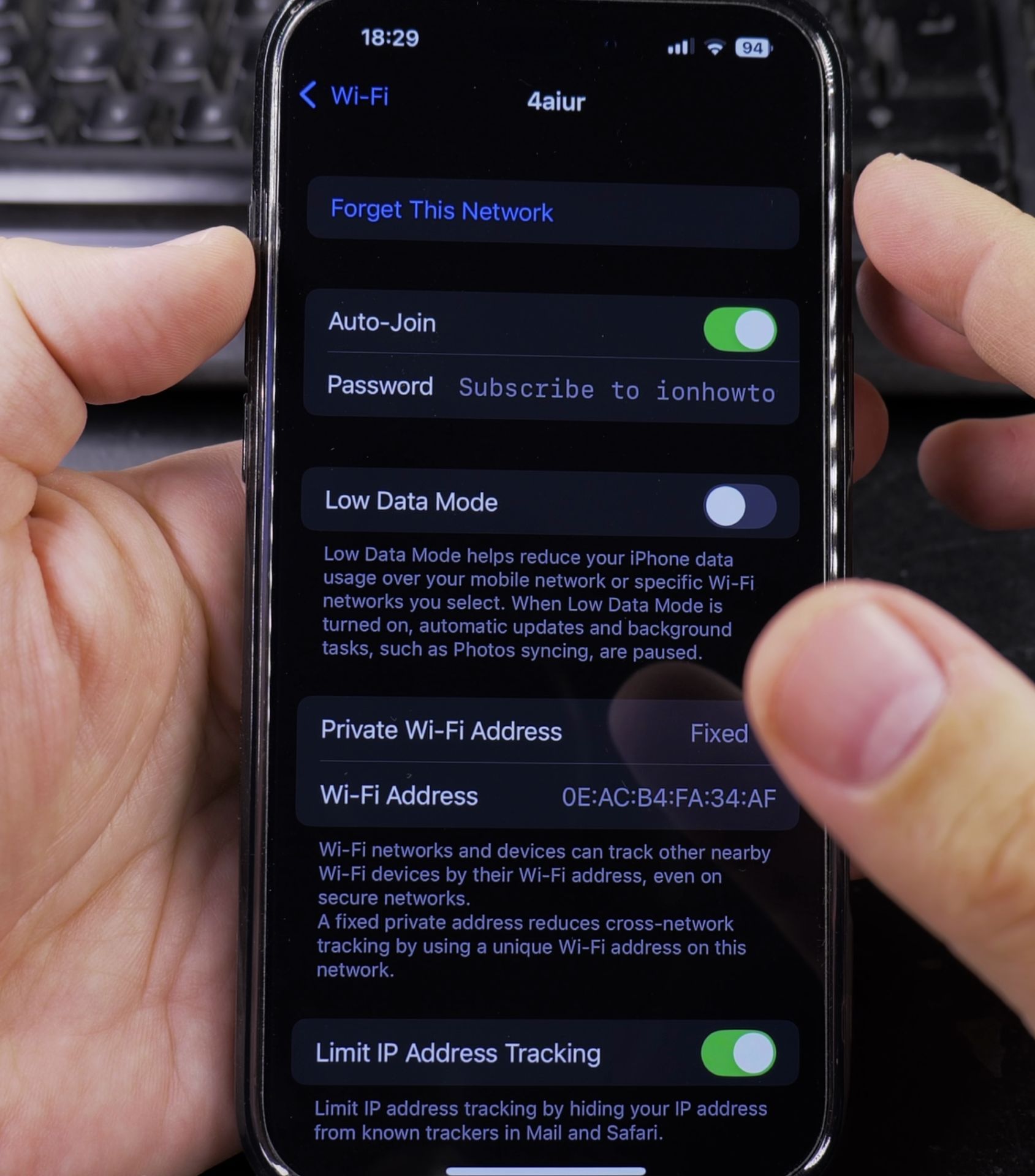
4. Tap Password
Tap Password.
5. Use Face ID
Use Face ID, Touch ID, or enter your passcode to reveal the password.
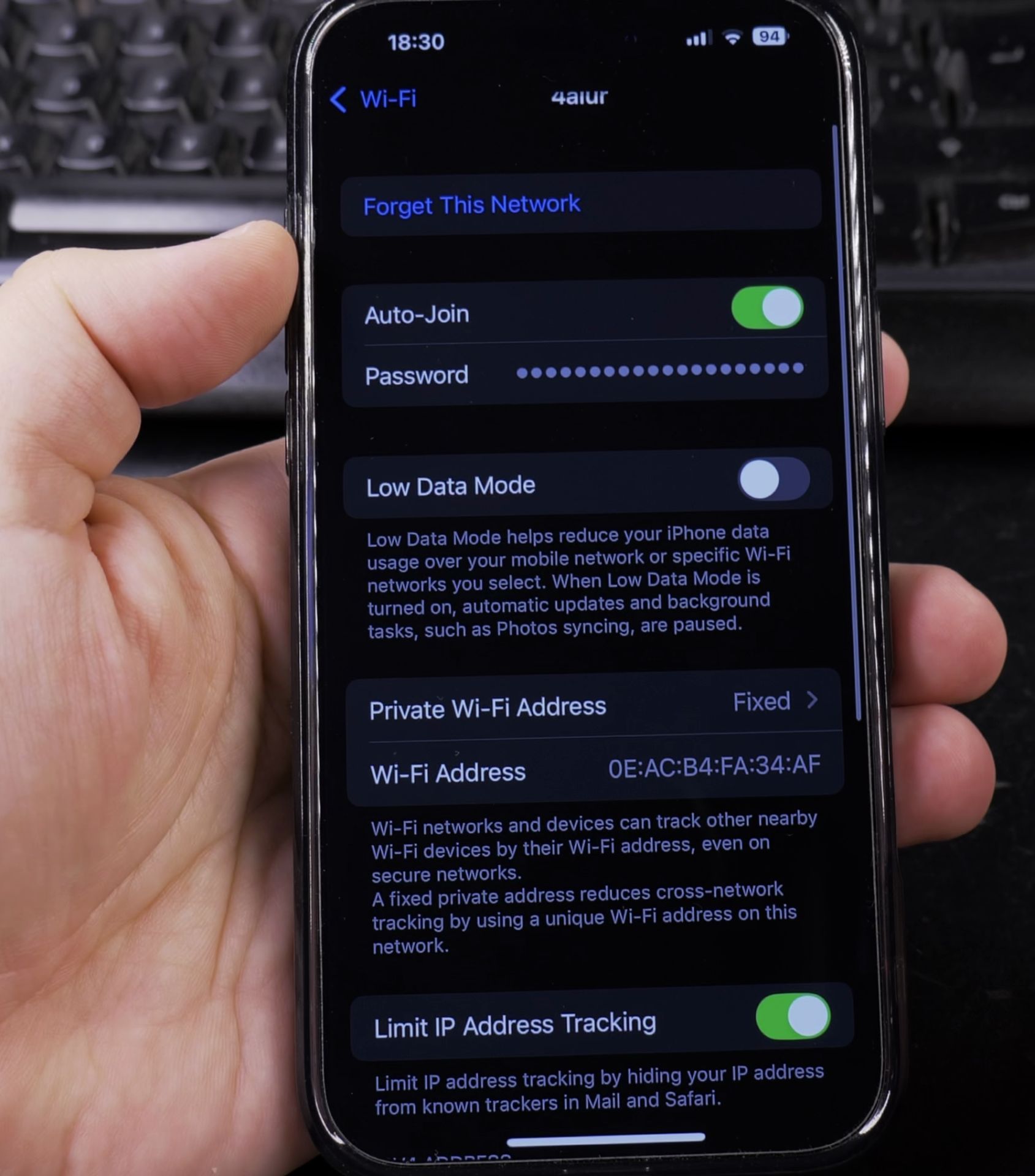
Once visible, you can tap and hold to Copy the password and share it.
What If the Network Isn’t Listed?
If you’re not currently connected to the network:
- Go to Settings > Wi-Fi
- Tap on Edit on the right top corner and you see a list with all the Wi-Fi networks you previously joined including the ones not in range.
- Find the network whose password you need and tap the (i) icon next to it
- 4. Tap Password
- 5. Use Face ID, Touch ID, or enter your passcode to reveal the password
You can also use the Apple Passwords app where you will see any saved Wi-Fi networks on your iPhone.
Important Notes
- This only works for networks you’ve previously connected to
- You’ll need to authenticate with Face ID/Touch ID each time
- Older iPhones (pre-iOS 16) might need to use iCloud Keychain to view passwords
Need Help?
If you can’t find a password or have trouble with these steps, let me know in the comments below. I’m happy to help troubleshoot!
For more handy iPhone tips like this, check out our other simple guides. Never struggle with Wi-Fi passwords again!
Helpful Tips
Take your time and check the screen carefully after each tap so you can confirm the setting changed as expected. If an option appears in a slightly different spot on your device, watch the embedded video above for a closer look.
Related Guides
- Check Wi-Fi Calling on iPhone – How to Check if Wi-Fi Calling is Working on Your iPhone.
- How to Connect iPad to Wi-Fi with a QR Code – If typing long Wi-Fi passwords with special characters is frustrating, your iPad can join networks by simply scanning a QR code.
- How to Get Phone Calls on Wi-Fi Only iPad – If your iPad does not have a cellular SIM card, you can still answer regular phone calls right from your tablet.
- iPhone How-To Guides – Browse more tutorials and practical guides in this section.


Leave a Reply