
Amazon links
As an Amazon Associate I earn from qualifying purchases:
- iPhone Accessories
- iPhone Charger
- iPhone Cases
- iPhone Screen protector
- iPhone Magsafe
- iPhone Wallet
- iPhone Usb c cable
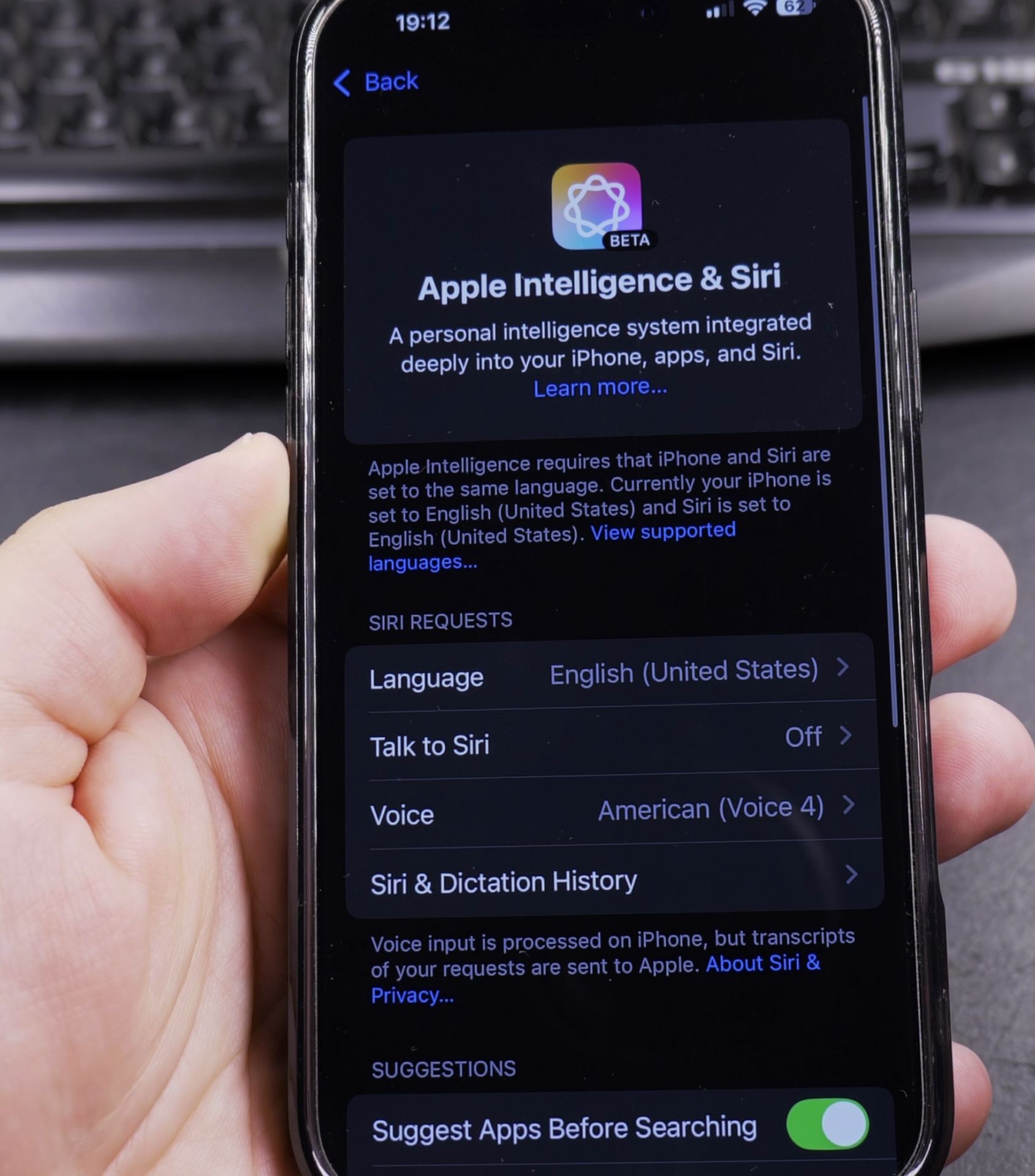
If Apple Intelligence isn’t working on your iPhone, the issue might be your language settings. Apple Intelligence requires your iPhone’s system language and Siri language to match. I’ll show you how to fix this problem with clear steps.
How to Fix Apple Intelligence Language Problem on iPhone.
Quick Steps and Scenarios Overview
| What You Need to Do | Quick Jump |
|---|---|
| Why Apple Intelligence Isn't Working | Jump to Step 1 |
| How to Check Your Current Language Settings | Jump to Step 2 |
| How to Fix the Language Mismatch | Jump to Step 3 |
| Supported Apple Intelligence Languages | Jump to Step 4 |
Demo performed on iOS 18.4.1 with iPhone 16 Pro Max Titanium Black 256GB (Global model A3296 – MYWV3ZD/A)
Why Apple Intelligence Isn’t Working
The most common reason Apple Intelligence won’t activate is a language mismatch. If you use multiple languages on your iPhone, check these two settings:
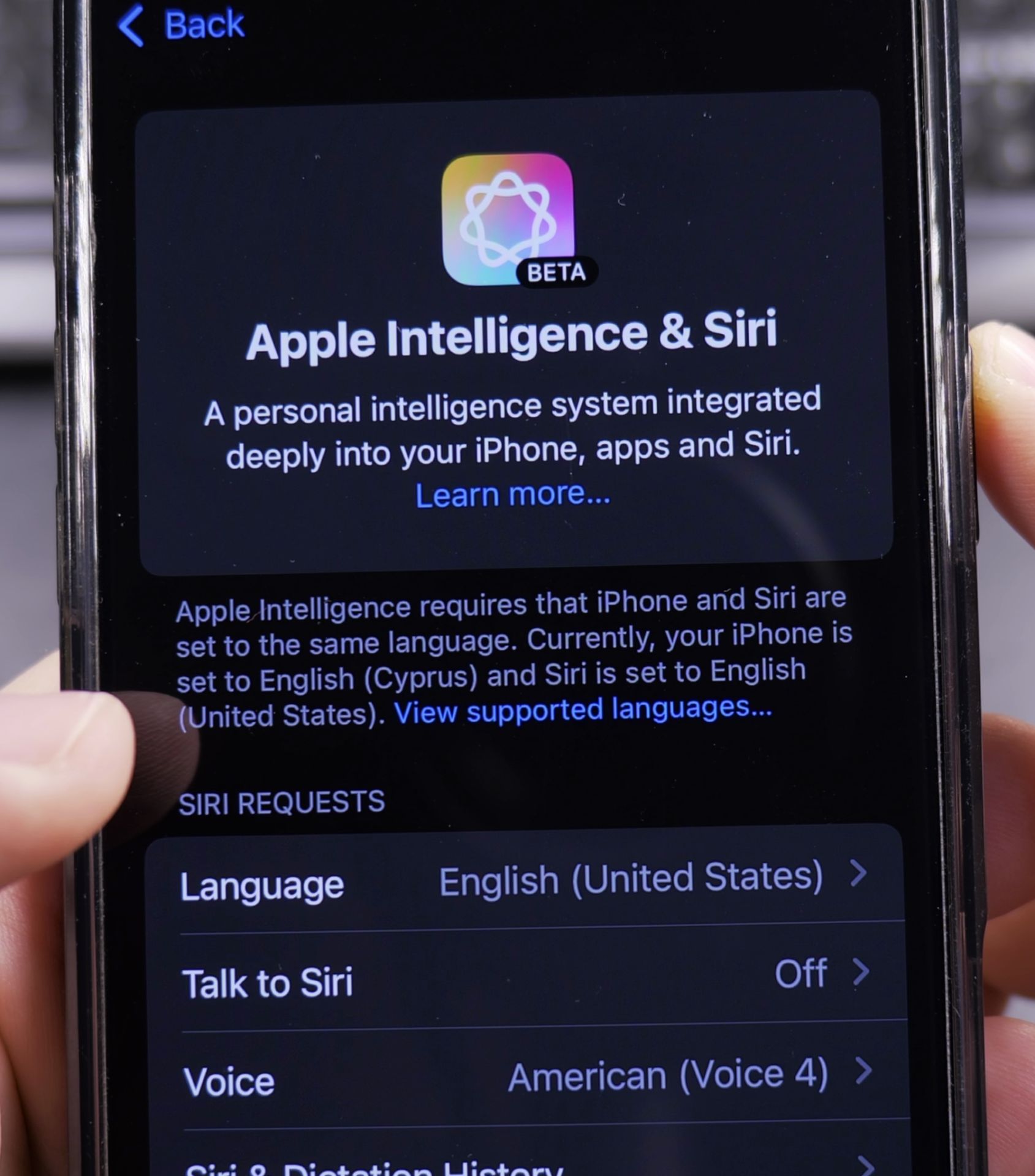
- Your iPhone’s system language
- Siri’s language
Apple Intelligence only works when both are set to the same supported language.
How to Check Your Current Language Settings
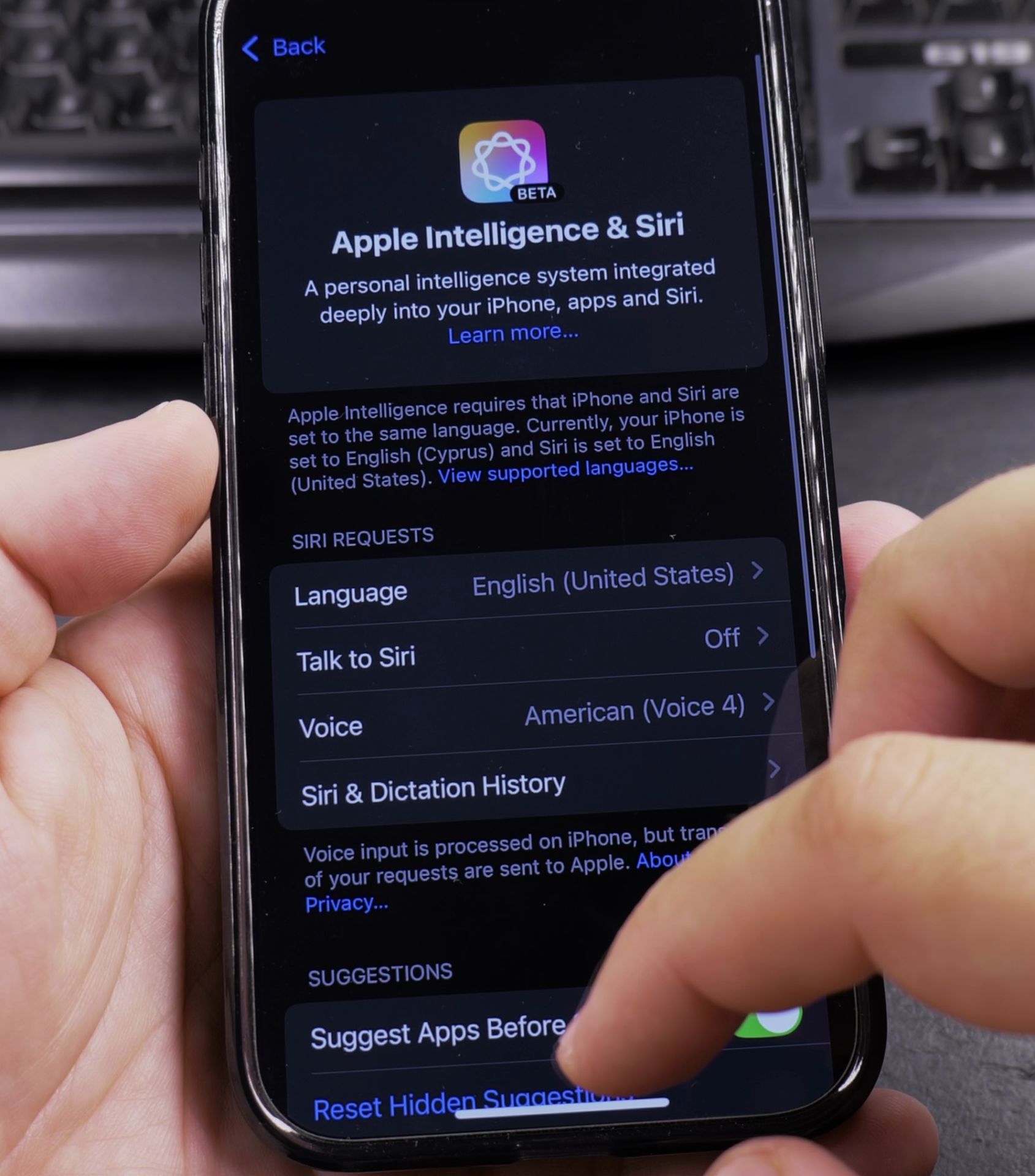
Check System Language
- Open Settings
- Tap General
- Select Language & Region
- Look at iPhone Language
Check Siri Language
- Open Settings
- Tap Siri & Search
- Select Language
How to Fix the Language Mismatch
You have two options to make Apple Intelligence work:
Option 1: Change iPhone System Language
- Go to Settings > General > Language & Region
- Tap iPhone Language
- Choose the same language Siri uses
- Tap Change to [Language]
Option 2: Change Siri Language
- Go to Settings > Siri & Search
- Tap Language
- Select the same language your iPhone uses
Supported Apple Intelligence Languages
Learn which languages currently work with Apple Intelligence (as of iOS 18.4.1):
- English (US, UK, Australia, Canada)
- Spanish
- French
- German
- Japanese
If your preferred language isn’t listed, you’ll need to wait for future updates.
What If You Need Different Languages?
Some users prefer keeping their iPhone in one language but want Siri in another. Unfortunately, Apple Intelligence won’t work in this case. You have two choices:
- Keep both languages the same to use Apple Intelligence
- Use different languages and wait for Apple to update this requirement
Troubleshooting Tips
If Apple Intelligence still isn’t working after matching languages:
- Restart your iPhone
- Check for iOS updates
- Reset Siri by turning it off/on in Settings
Did this fix work for you? Let me know in the comments if you’re still having issues or if you found another solution.
Note: Apple may change these requirements in future updates. I’ll update this post if anything changes.
Helpful Tips
Take your time and check the screen carefully after each tap so you can confirm the setting changed as expected. If an option appears in a slightly different spot on your device, watch the embedded video above for a closer look.
Related Guides
- Why I Don't Like Apple Intelligence on iPhone – After using Apple Intelligence on my iPhone for a while, I've found several reasons why I'm not completely sold on this feature.
- How to Turn Off Apple Intelligence on iPhone – Learn how to disable Apple Intelligence features on your iPhone.
- How to Enable Apple Intelligence on iPhone – Learn how to turn on Apple Intelligence and get it working on your iPhone.
- iPhone How-To Guides – Browse more tutorials and practical guides in this section.


Leave a Reply