
Amazon links
As an Amazon Associate I earn from qualifying purchases:
- iPhone Accessories
- iPhone Charger
- iPhone Cases
- iPhone Screen protector
- iPhone Magsafe
- iPhone Wallet
- iPhone Usb c cable
Learn how to supercharge Siri by connecting it to ChatGPT through Apple Intelligence. I’ll show you how to get smarter answers and more helpful responses from your iPhone’s assistant.
How to Use Siri with ChatGPT on iPhone Apple Intelligence.
Quick Steps and Scenarios Overview
| What You Need to Do | Quick Jump |
|---|---|
| What You'll Need | Jump to Step 1 |
| How to Set Up ChatGPT With Siri | Jump to Step 2 |
| How It Works in Everyday Use | Jump to Step 3 |
| Types of Questions That Use ChatGPT | Jump to Step 4 |
| How to Know When ChatGPT Is Responding | Jump to Step 5 |
| Managing the Integration | Jump to Step 6 |
Demonstrated on iOS 18.4.1 with iPhone 16 Pro Max Titanium Black 256GB (Global Model A3296 – MYWV3ZD/A).
What You’ll Need
Before you begin:
- An iPhone 15 Pro or newer (required for Apple Intelligence)
- iOS 18 or later installed
- A ChatGPT account (free version works)
- Apple Intelligence enabled on your device
How to Set Up ChatGPT With Siri
Follow these steps to connect the services:
- Open the Settings app on your iPhone
- Scroll down and tap Siri & Search
- Select Apple Intelligence
- Choose ChatGPT Integration
- Toggle the switch to On
- Sign in to your ChatGPT account when prompted
- Review and accept the permissions
How It Works in Everyday Use
Once connected, here’s what to expect:
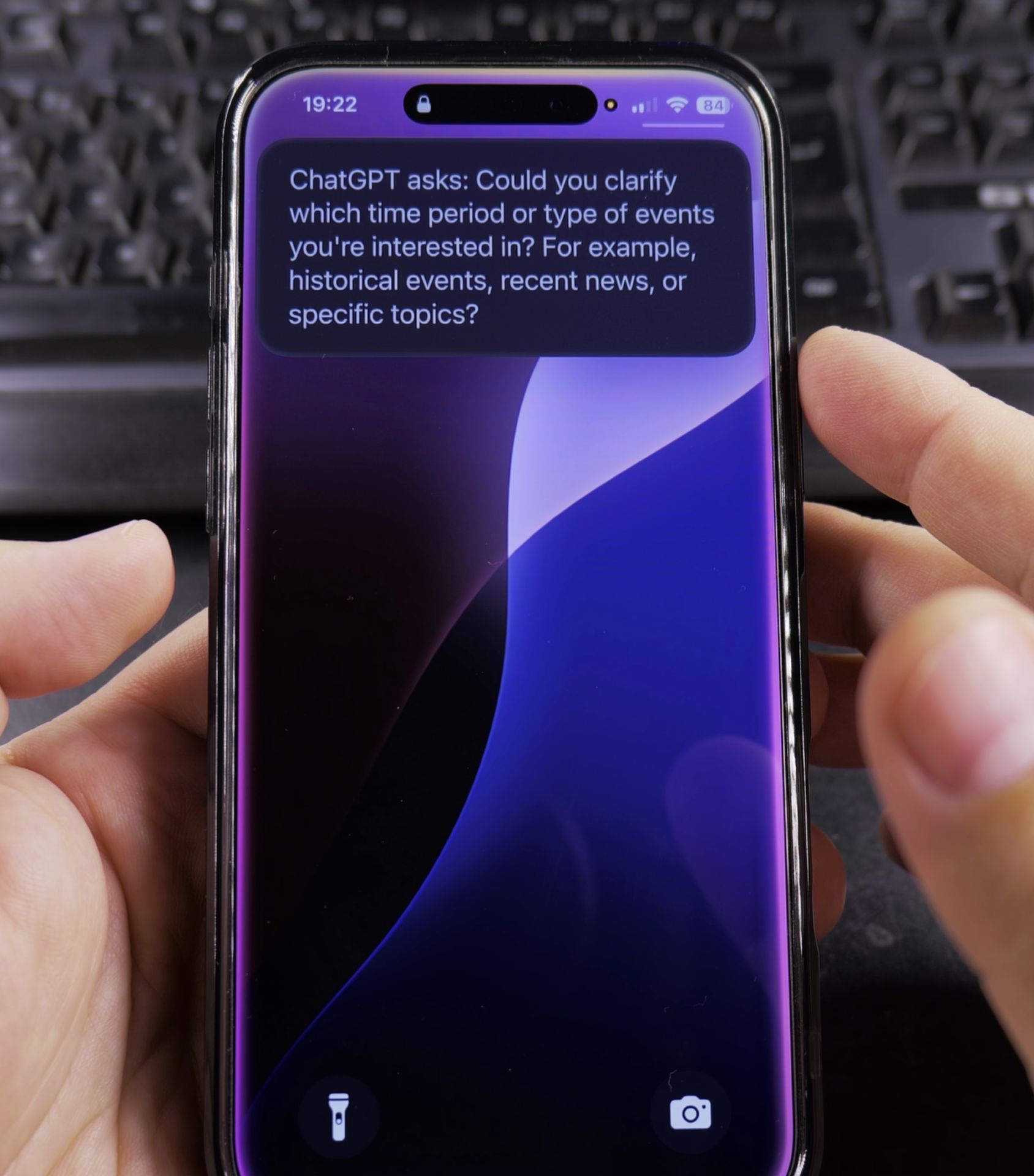
- Siri automatically uses ChatGPT for complex questions
- You’ll see “Powered by ChatGPT” when it’s active
- Regular Siri functions still work normally
- The integration is seamless – no special commands needed
Types of Questions That Use ChatGPT
Siri will tap into ChatGPT for:
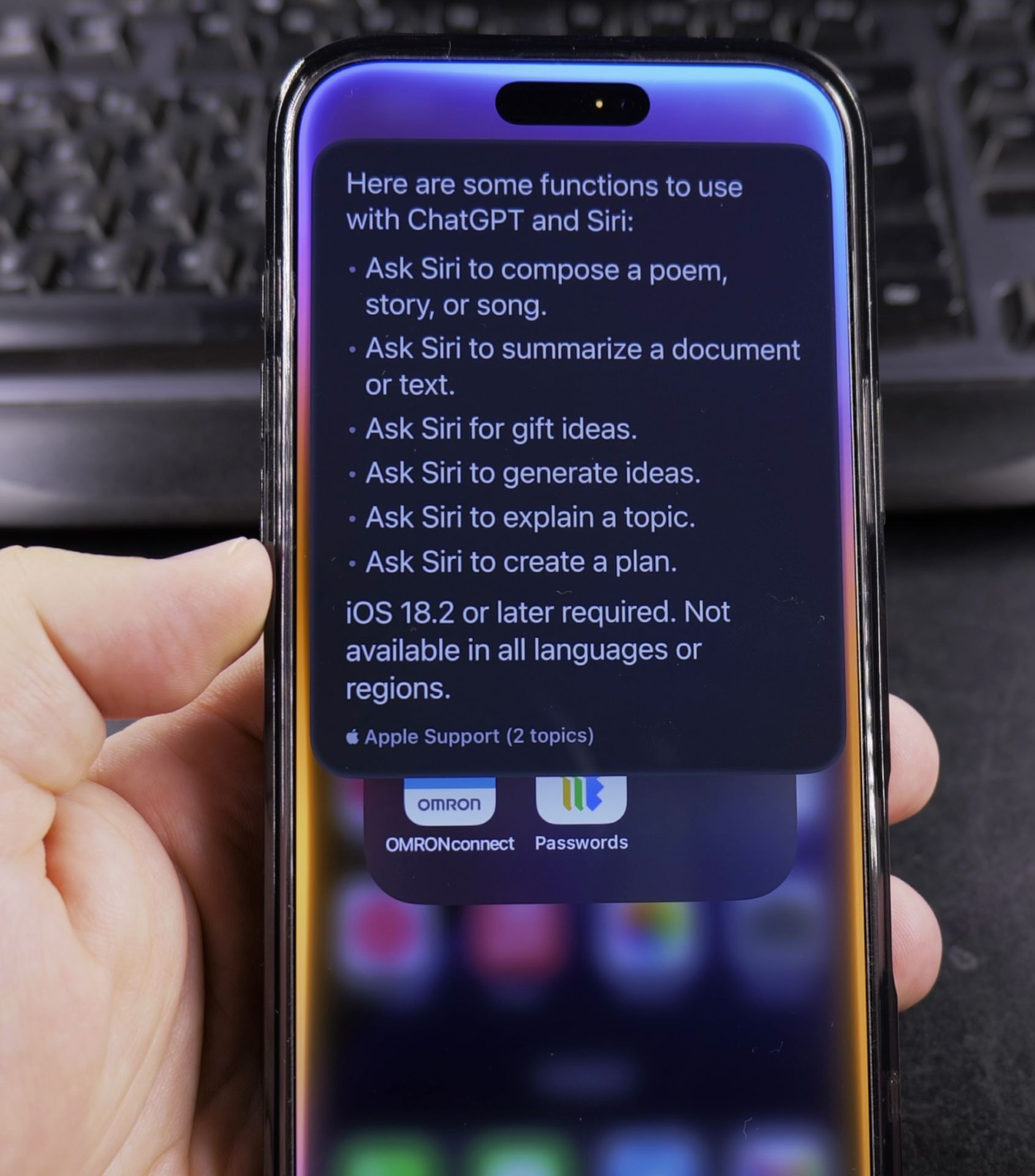
- Creative writing requests
- Detailed explanations
- Complex problem solving
- Idea generation
- Technical topics
How to Know When ChatGPT Is Responding
Look for these indicators:
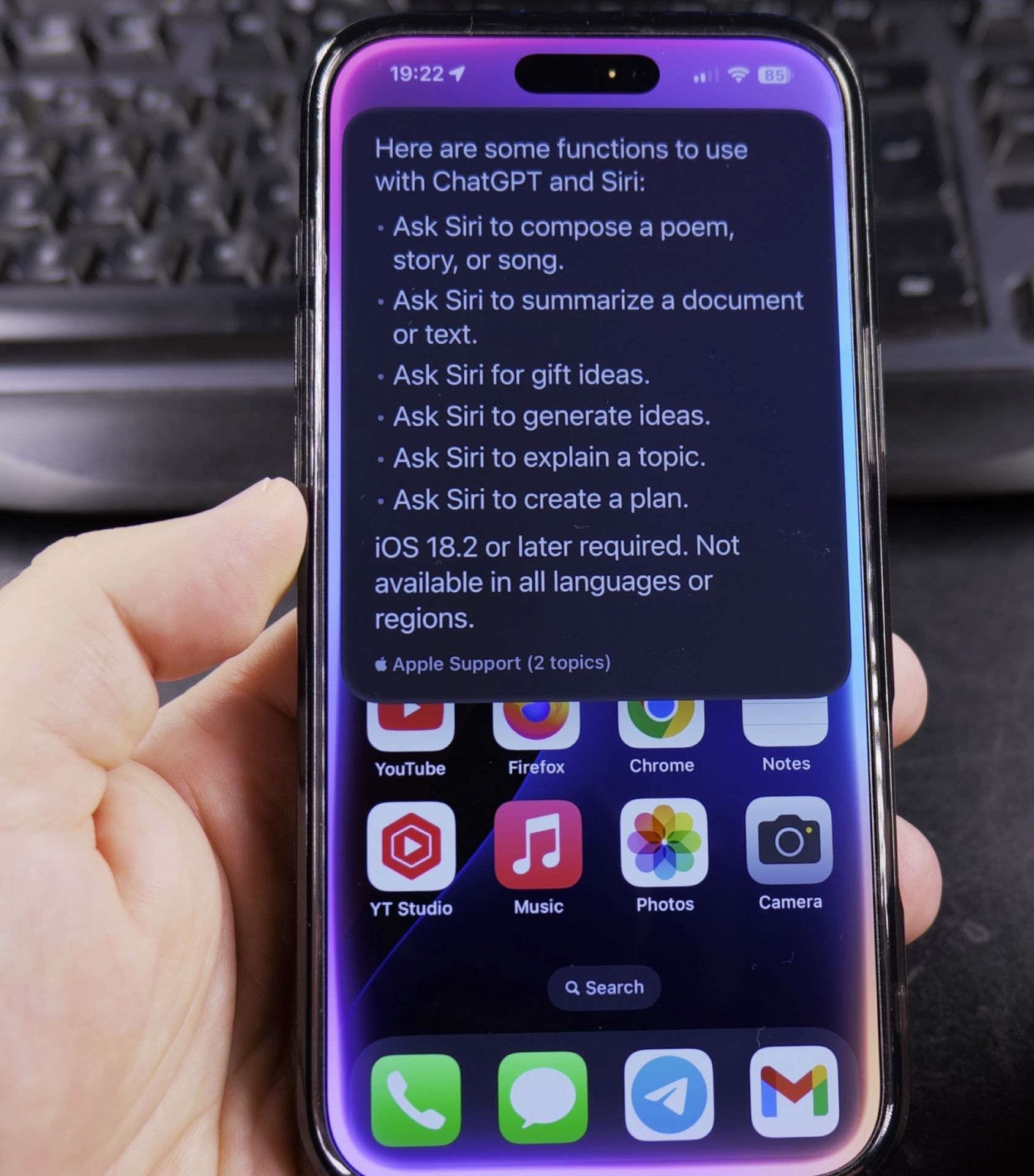
- The response starts with “Using ChatGPT…”
- More detailed and nuanced answers
- Follow-up questions stay in ChatGPT mode
- You can ask “Was that from ChatGPT?” to confirm
Managing the Integration
Customize your experience:
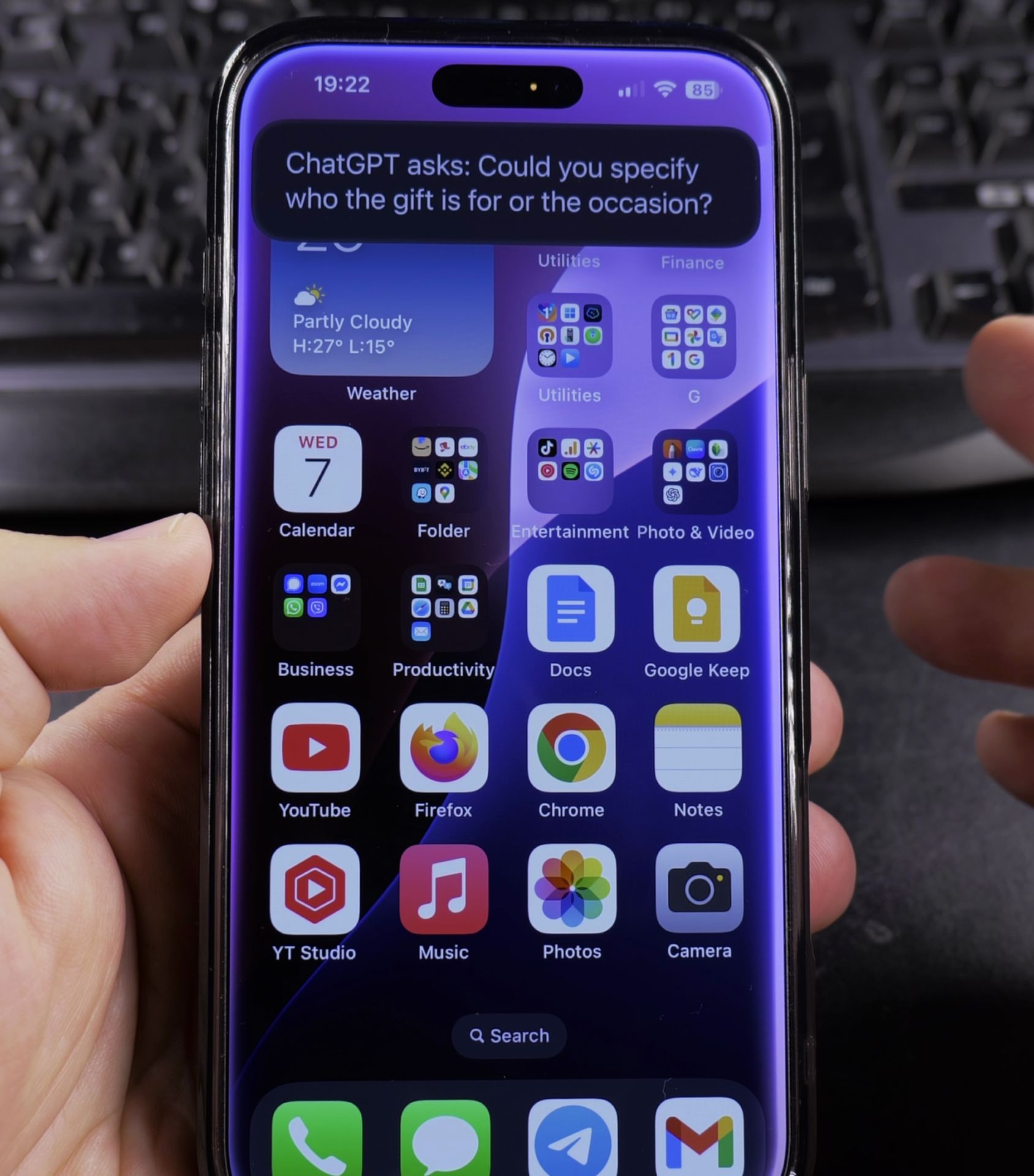
- Adjust how often Siri uses ChatGPT in Settings
- Set privacy controls for data sharing
- Choose response length preferences
- View your ChatGPT usage history
Turning Off the Feature
To disable ChatGPT integration:
- Go to Settings > Siri & Search
- Select Apple Intelligence
- Tap ChatGPT Integration
- Toggle the switch to Off
Why This Combination Works Well
Together they provide:
- Siri’s convenience and device integration
- ChatGPT’s advanced language capabilities
- Apple’s privacy protections
- A seamless user experience
Final Thoughts
Connecting ChatGPT to Siri through Apple Intelligence creates a more powerful and helpful assistant on your iPhone. The setup is quick, and the benefits are noticeable right away.
If you try this integration, let me know in the comments how it’s working for you!
Helpful Tips
Take your time and check the screen carefully after each tap so you can confirm the setting changed as expected. If an option appears in a slightly different spot on your device, watch the embedded video above for a closer look.
Related Guides
- How to Turn Off Apple Intelligence on iPhone – Learn how to disable Apple Intelligence features on your iPhone.
- How to Enable Apple Intelligence on iPhone – Learn how to turn on Apple Intelligence and get it working on your iPhone.
- Fix Apple Intelligence Language Problem on iPhone – How to Fix Apple Intelligence Language Problem on iPhone.
- iPhone How-To Guides – Browse more tutorials and practical guides in this section.


Leave a Reply