
Amazon links
As an Amazon Associate I earn from qualifying purchases:
- iPhone Accessories
- iPhone Charger
- iPhone Cases
- iPhone Screen protector
- iPhone Magsafe
- iPhone Wallet
- iPhone Usb c cable
Learn how to turn on Apple Intelligence and get it working on your iPhone. I’ll show you the steps to set it up and explain why it might not be showing up for you.
How to Enable Apple Intelligence on iPhone.
Quick Steps and Scenarios Overview
| What You Need to Do | Quick Jump |
|---|---|
| Check If Your iPhone Supports Apple Intelligence | Jump to Step 1 |
| How to Turn On Apple Intelligence | Jump to Step 2 |
| Common Issues and Fixes | Jump to Step 3 |
| What Happens After Enabling | Jump to Step 4 |
| If Your Language Isn't Supported | Jump to Step 5 |
| Final Tips | Jump to Step 6 |
Demo performed on iOS 18.4.1 with iPhone 16 Pro Max Titanium Black 256GB (Global model A3296 – MYWV3ZD/A)
Check If Your iPhone Supports Apple Intelligence
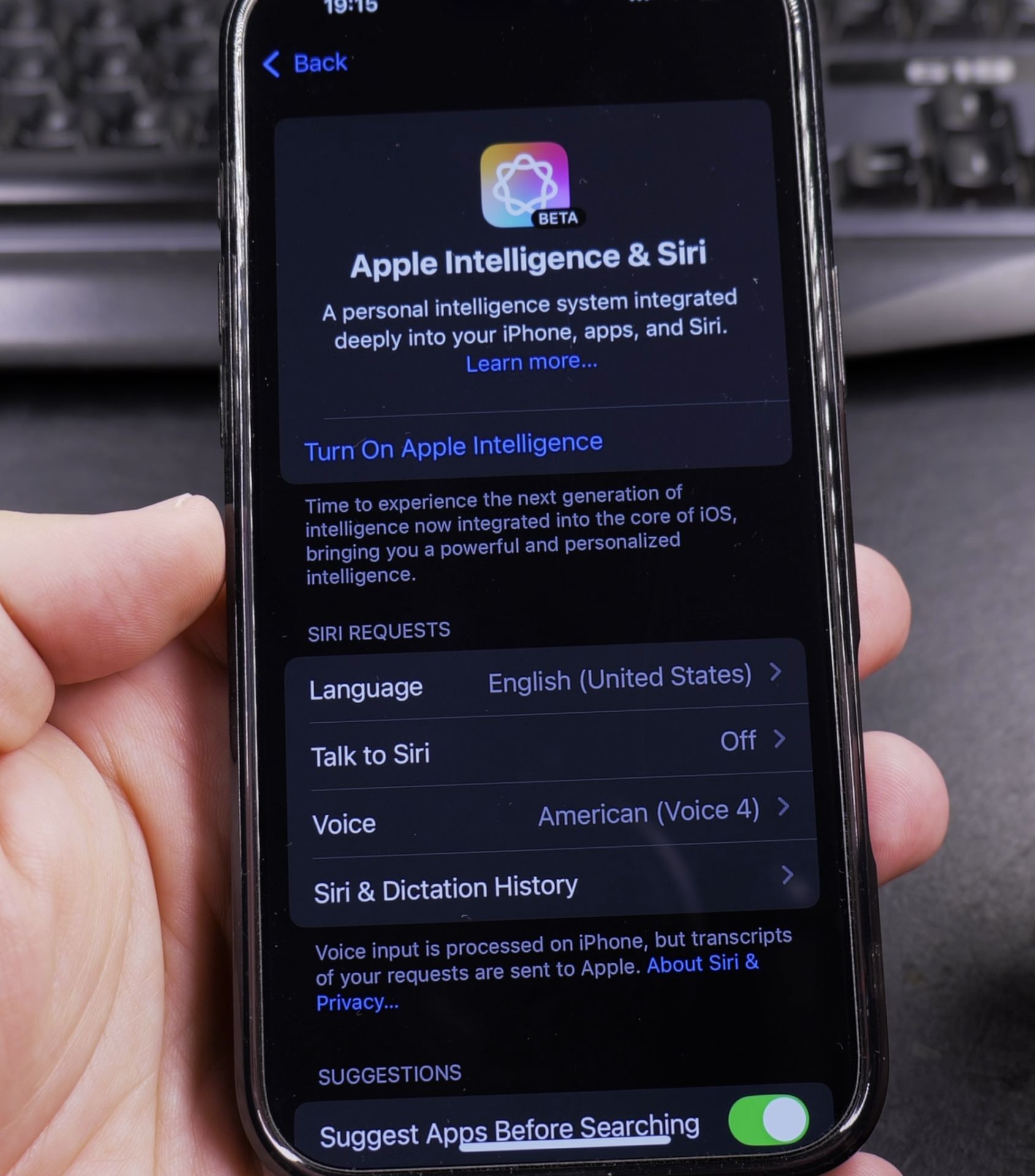
Before trying to enable Apple Intelligence, make sure your device meets these requirements:
Device Requirements
- iPhone 15 Pro or newer models
- iOS 18 or later installed
- At least 25GB of storage
How to Check Compatibility
- Go to Settings
- Tap General
- Select About
- Look for Apple Intelligence in the list
If you don’t see it here, your device might not be supported.
How to Turn On Apple Intelligence
Follow these steps to enable Apple Intelligence:
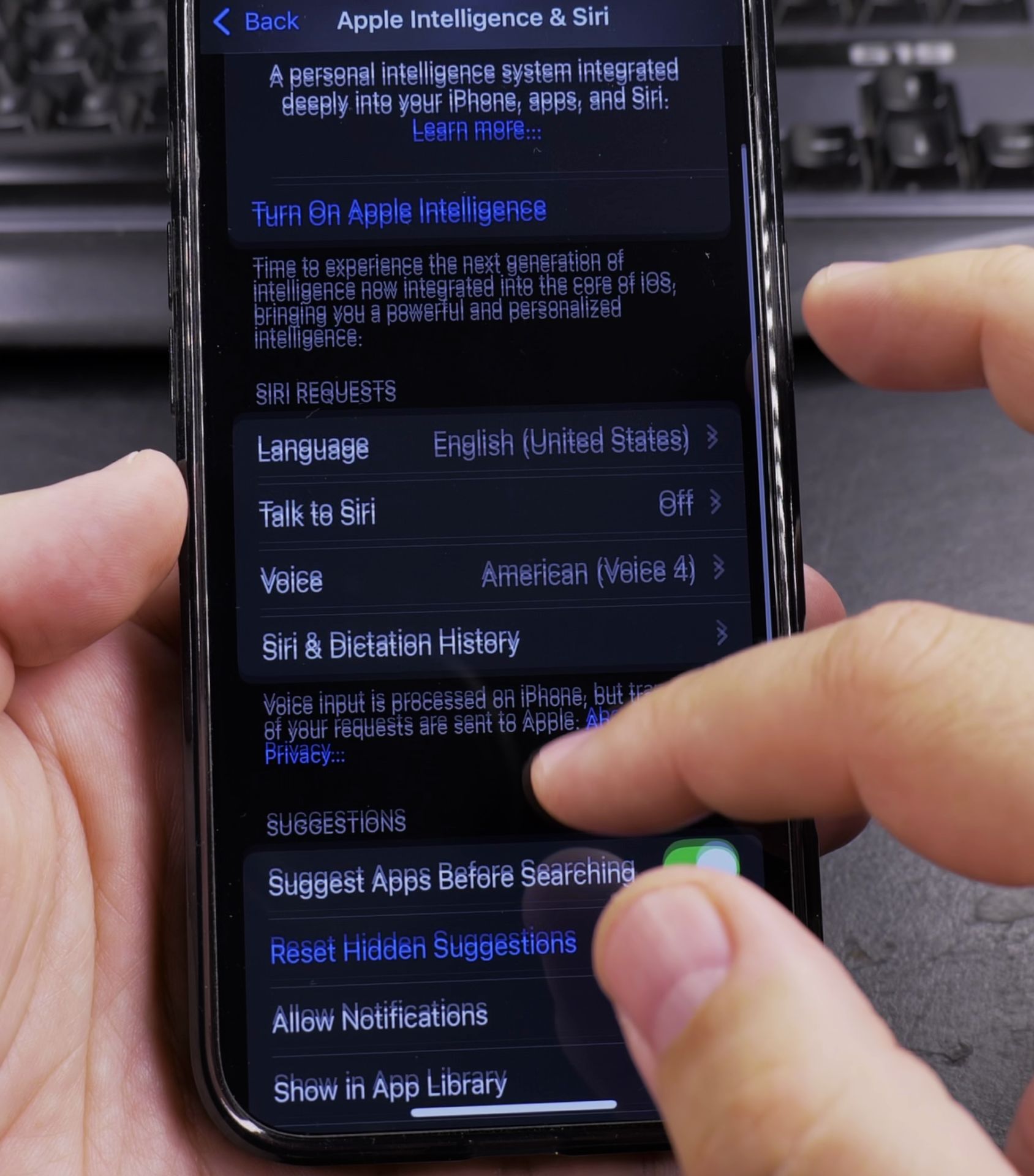
- Open Settings
- Scroll down and tap Siri & Search
- Select Apple Intelligence
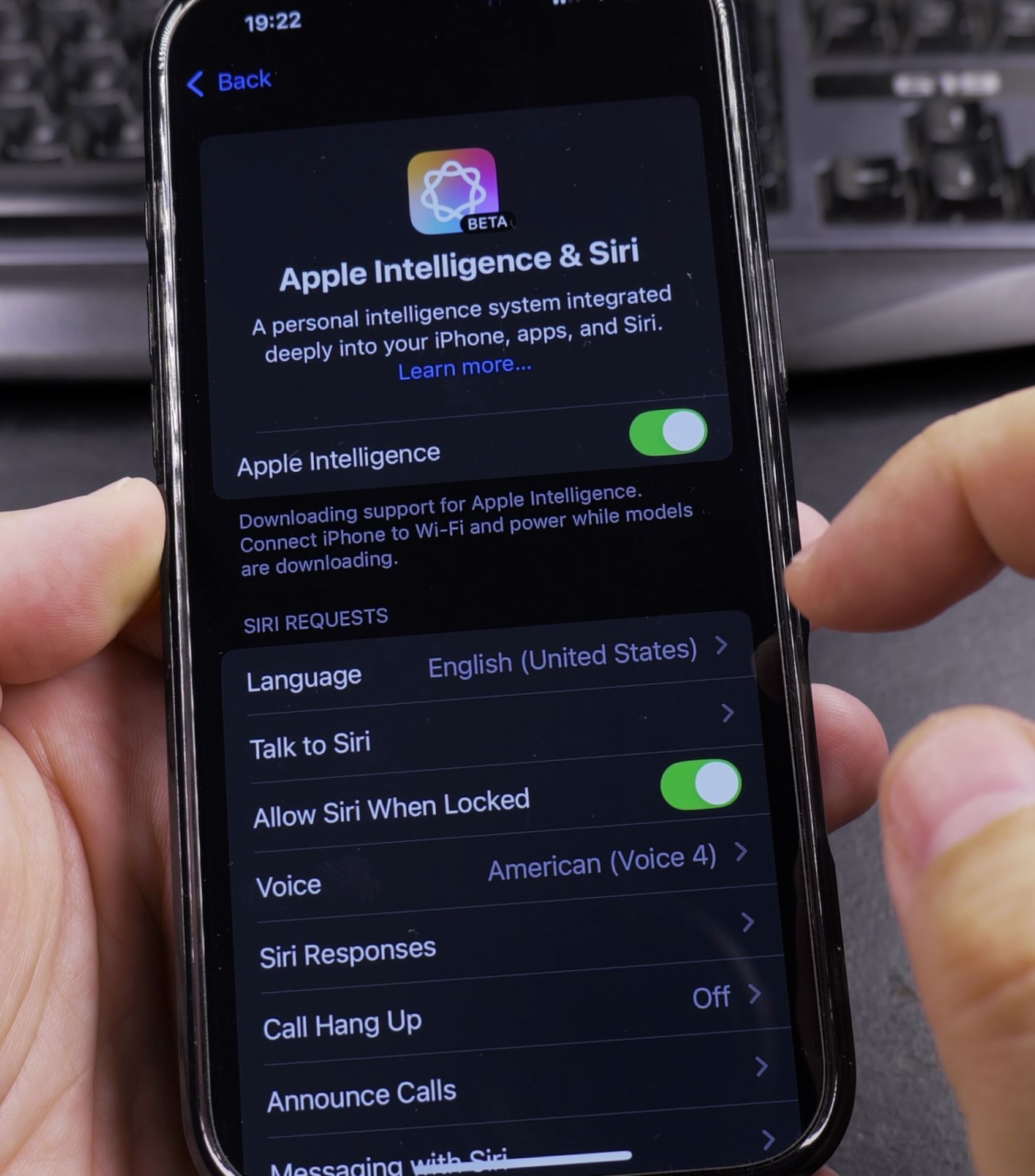
- Toggle the switch to On
- Agree to the terms when prompted
Common Issues and Fixes
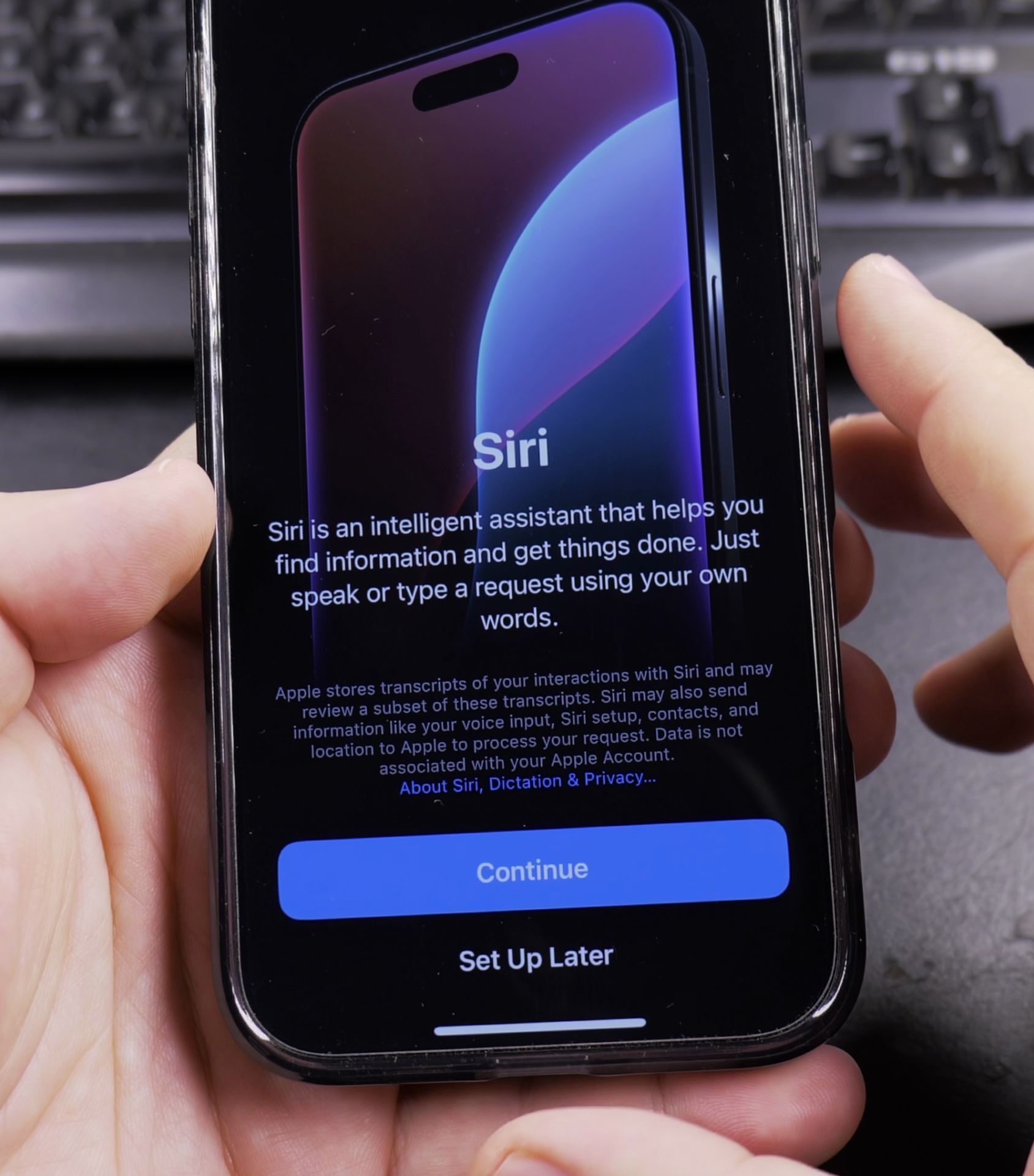
Language Settings Problem
Apple Intelligence requires your iPhone’s system language and Siri language to match exactly.
How to fix:
- Go to Settings > General > Language & Region
- Make sure your iPhone language matches your Siri language
- Restart your iPhone
Siri Not Enabled
Apple Intelligence won’t work if Siri is disabled.
How to enable Siri:
- Open Settings
- Tap Siri & Search
- Turn on Listen for “Hey Siri”
- Enable Press Side Button for Siri
Apple Intelligence Not Showing Up
If you don’t see the option at all:
- Check for iOS updates in Settings > General > Software Update
- Restart your iPhone
- Wait 24 hours (Apple sometimes rolls out features gradually)
What Happens After Enabling
Once you turn on Apple Intelligence:
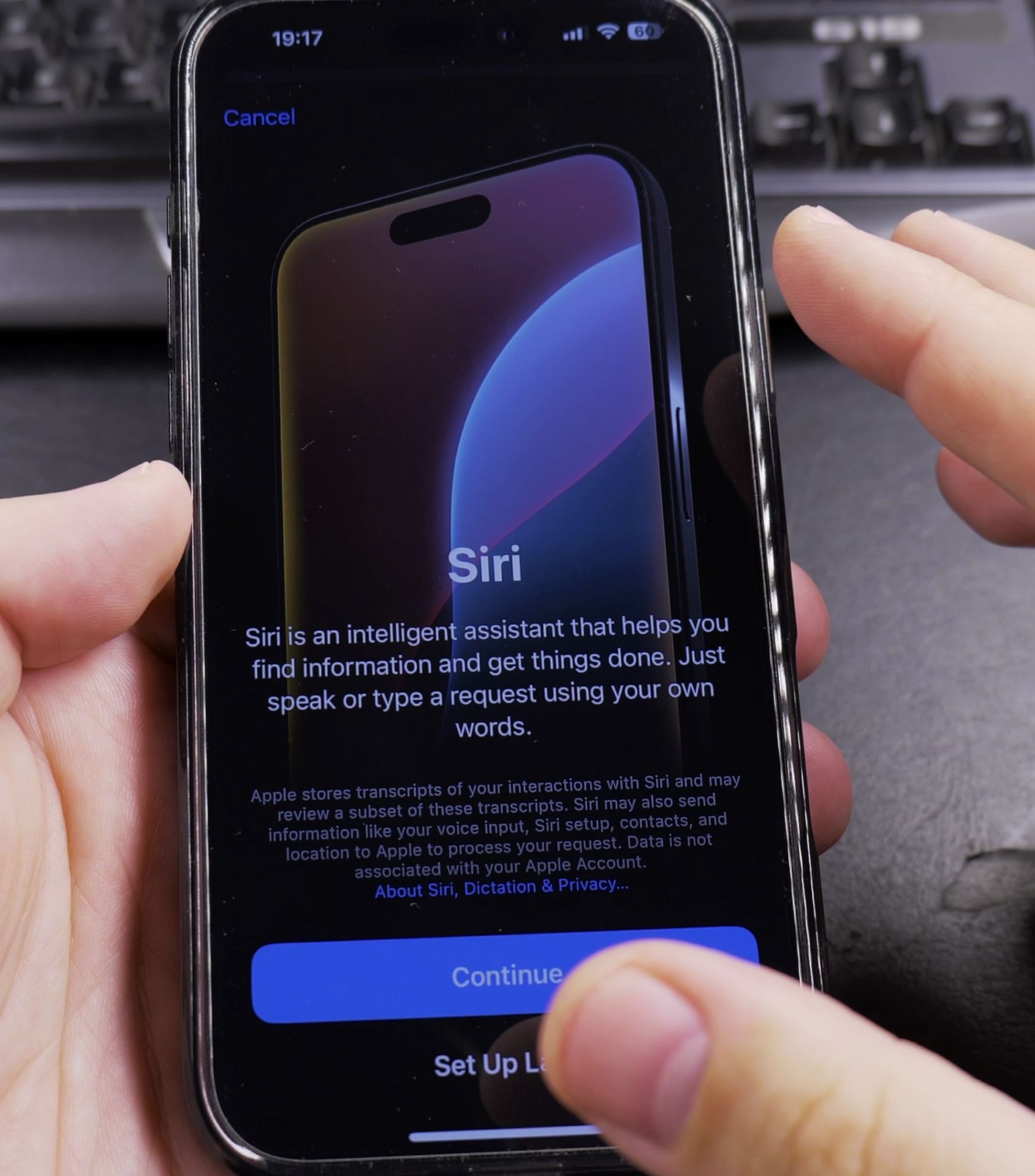
- Your iPhone will download necessary AI models (this may take time)
- You’ll see the new Genmoji Playground app appear
- Siri will get a colorful new interface when activated
You’ll know it’s working when you see the full-screen colorful animation instead of the old Siri orb.
If Your Language Isn’t Supported
Apple Intelligence currently works with:
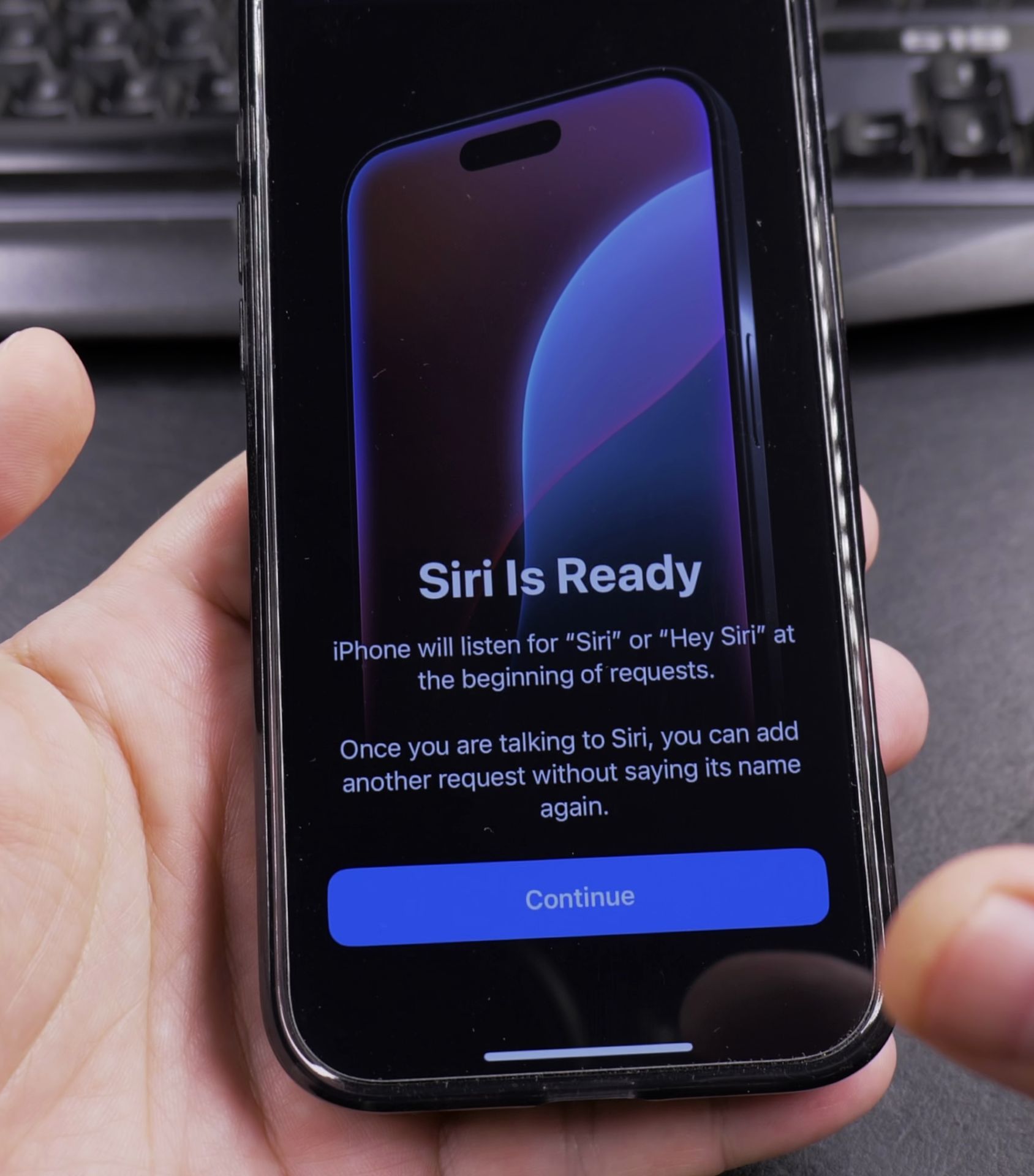
- English (US, UK, Australia, Canada)
- Spanish
- French
- German
- Japanese
If your language isn’t listed, you’ll need to wait for future updates. You can switch to a supported language temporarily if you want to try Apple Intelligence now.
Final Tips
- Keep your iPhone charged during the initial setup
- Connect to WiFi for faster downloads
- Be patient – some features take time to fully activate
Having trouble? Let me know in the comments which step didn’t work for you and I’ll try to help.
Helpful Tips
Take your time and check the screen carefully after each tap so you can confirm the setting changed as expected. If an option appears in a slightly different spot on your device, watch the embedded video above for a closer look.
Related Guides
- Why I Don't Like Apple Intelligence on iPhone – After using Apple Intelligence on my iPhone for a while, I've found several reasons why I'm not completely sold on this feature.
- How to Turn Off Apple Intelligence on iPhone – Learn how to disable Apple Intelligence features on your iPhone.
- Fix Apple Intelligence Language Problem on iPhone – How to Fix Apple Intelligence Language Problem on iPhone.
- iPhone How-To Guides – Browse more tutorials and practical guides in this section.


Leave a Reply