
Amazon links
As an Amazon Associate I earn from qualifying purchases:
- iPhone Accessories
- iPhone Charger
- iPhone Cases
- iPhone Screen protector
- iPhone Magsafe
- iPhone Wallet
- iPhone Usb c cable
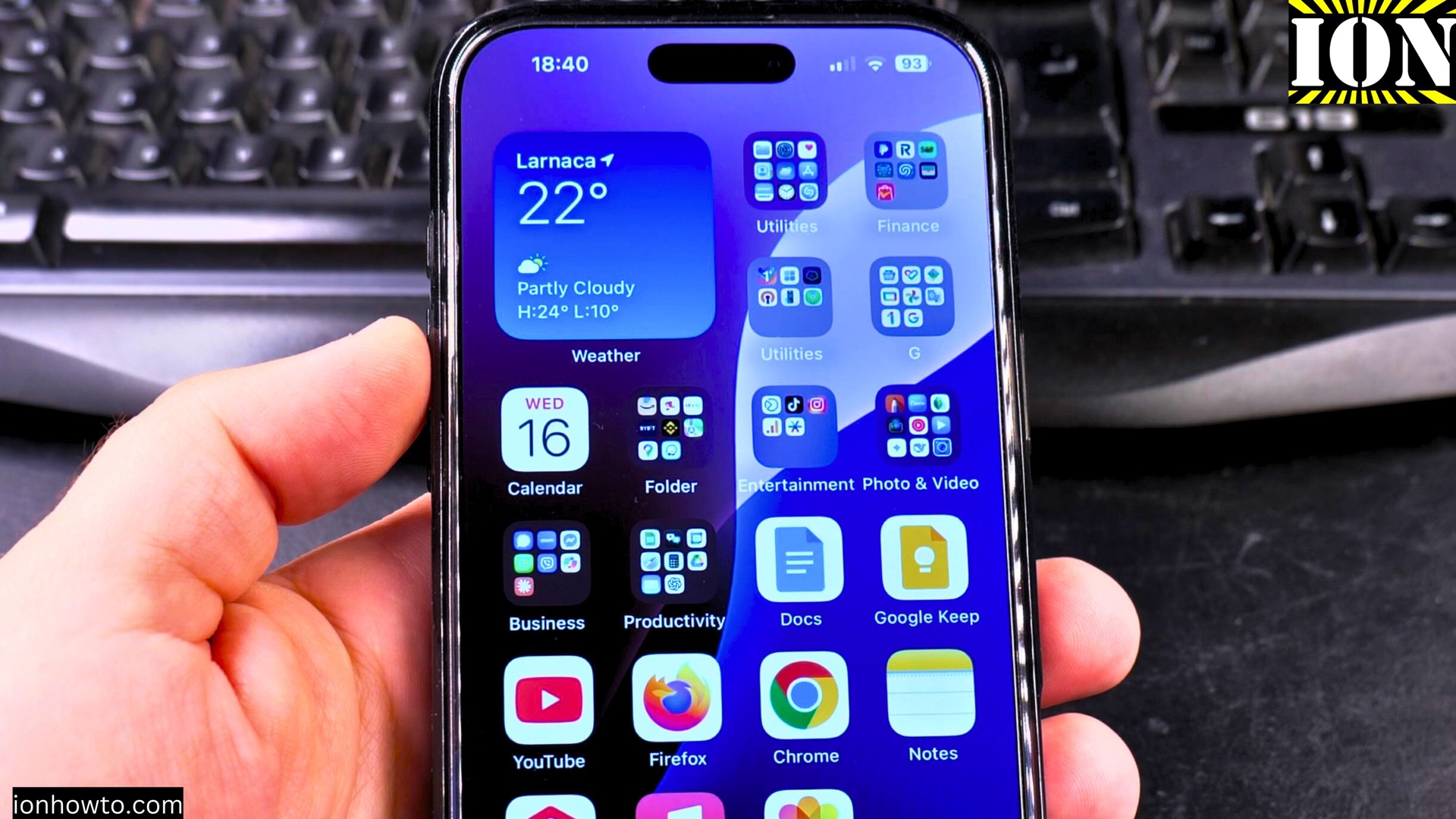
Learn how to disable Apple Intelligence features on your iPhone. I’ll show you where to find the settings and explain what happens when you turn it off.
How to Turn Off Apple Intelligence on iPhone.
Quick Steps and Scenarios Overview
| What You Need to Do | Quick Jump |
|---|---|
| How to Disable Apple Intelligence Completely | Jump to Step 1 |
| How to Temporarily Disable Specific Features | Jump to Step 2 |
| Alternative Option: Keep Siri Without Apple Intelligence | Jump to Step 3 |
Demo performed on iOS 18.4.1 with iPhone 16 Pro Max Titanium Black 256GB (Global model A3296 – MYWV3ZD/A)
How to Disable Apple Intelligence Completely
Follow these steps to turn off all Apple Intelligence features:
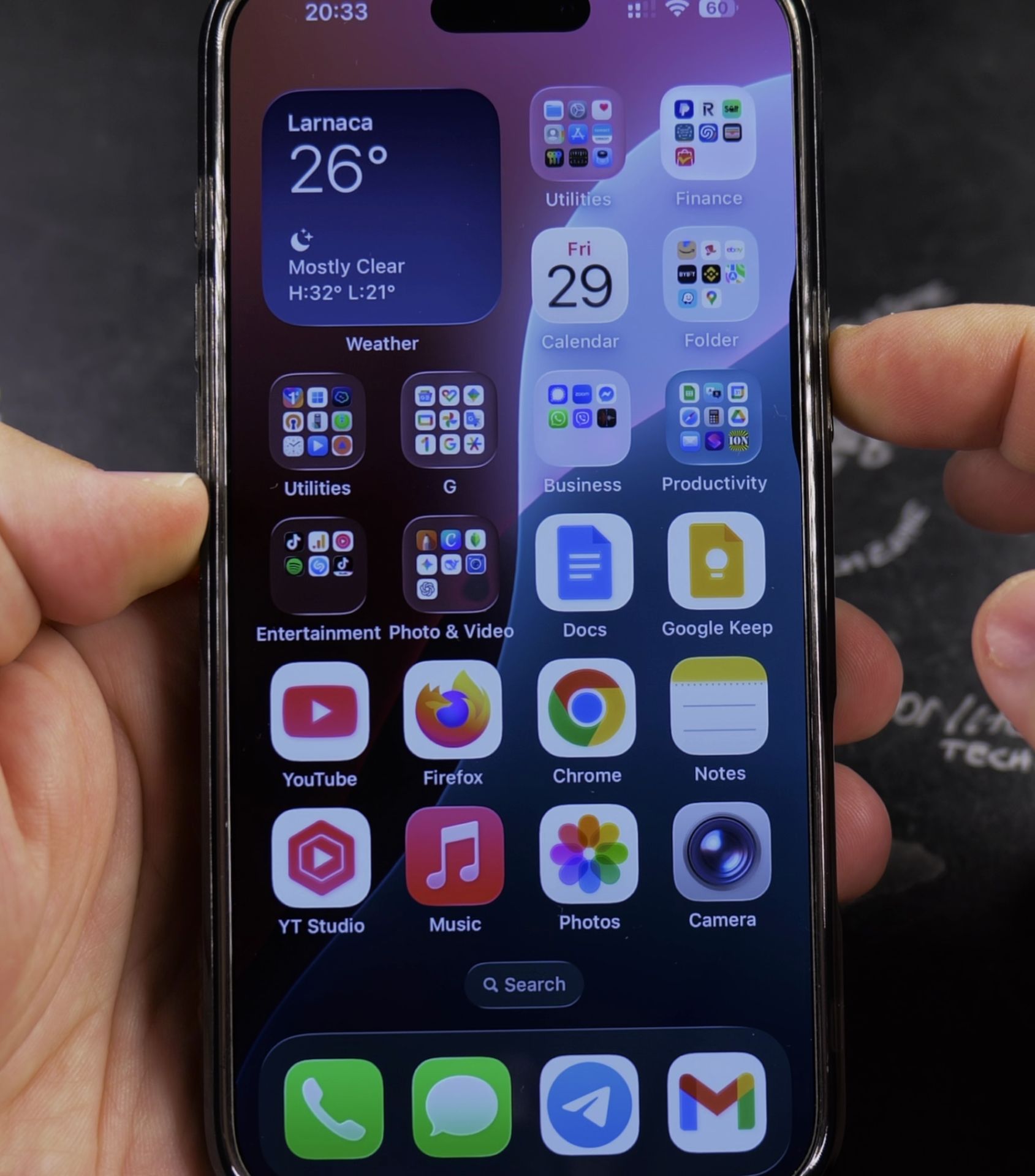
- Open Settings on your iPhone
- Scroll down and tap Siri & Search
- Select Apple Intelligence
- Toggle the switch to Off
- Confirm your choice when prompted
How to Temporarily Disable Specific Features
If you don’t want to turn off everything, you can disable individual Apple Intelligence features:
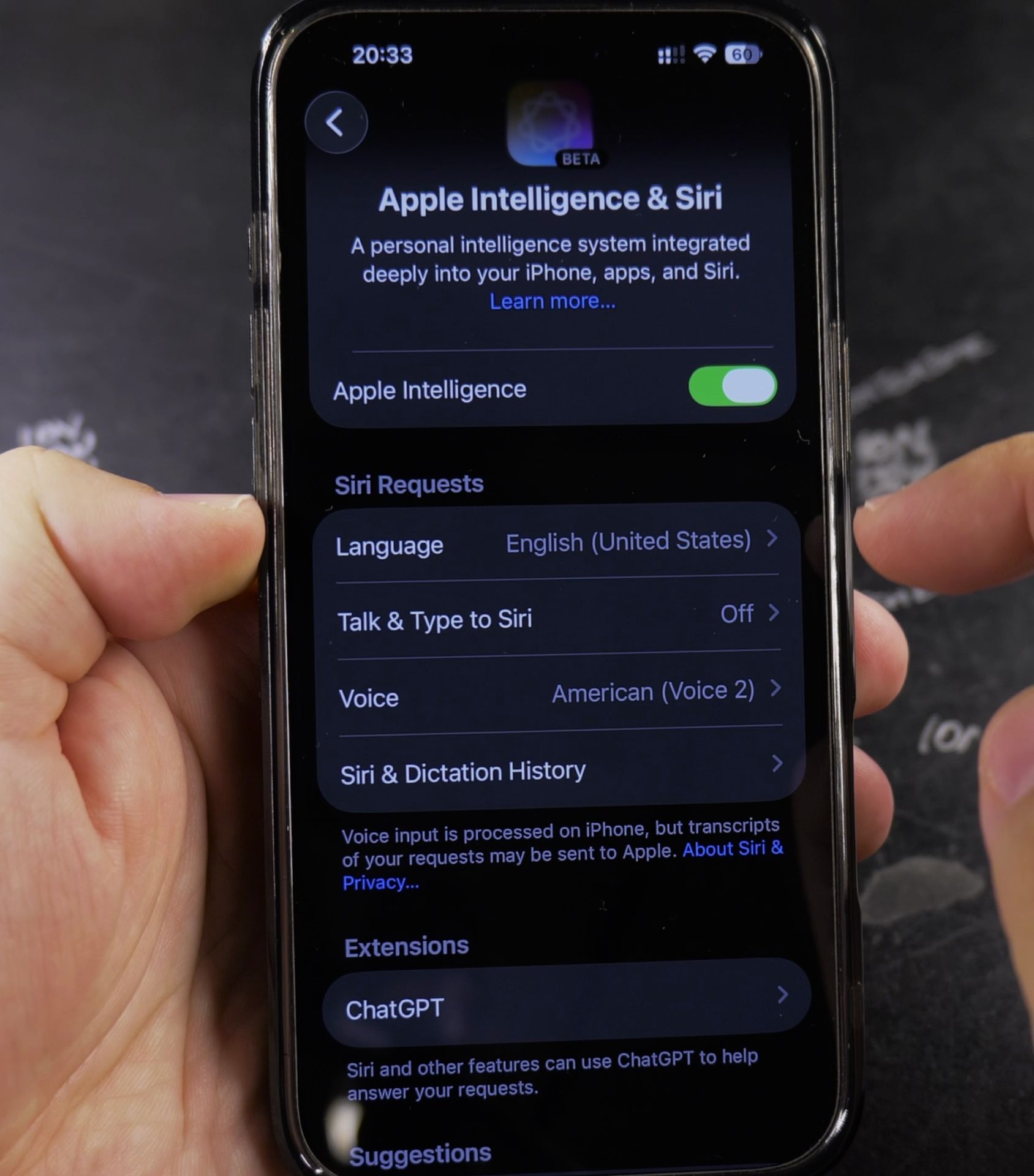
- Go to Settings > Siri & Search > Apple Intelligence
- Under Features, you’ll see options like:
- Smart Siri Suggestions
- Contextual Awareness
- Predictive Text
- Toggle off any features you want to disable
What Happens When You Turn Off Apple Intelligence
Learn how disabling Apple Intelligence affects your iPhone:
- Siri will return to basic functionality without smart suggestions
- Keyboard predictions won’t use AI enhancements
- Some app integrations may stop working
- Your iPhone may use slightly less battery
Important Things to Know
- Siri Still Works: You can keep using basic Siri features after turning off Apple Intelligence
- Privacy: Disabling stops data processing for AI features
- Re-enabling: You can turn it back on anytime by following the same steps
- Updates: Some iOS features may require Apple Intelligence in future versions
Alternative Option: Keep Siri Without Apple Intelligence
If you want to keep Siri but disable Apple Intelligence:
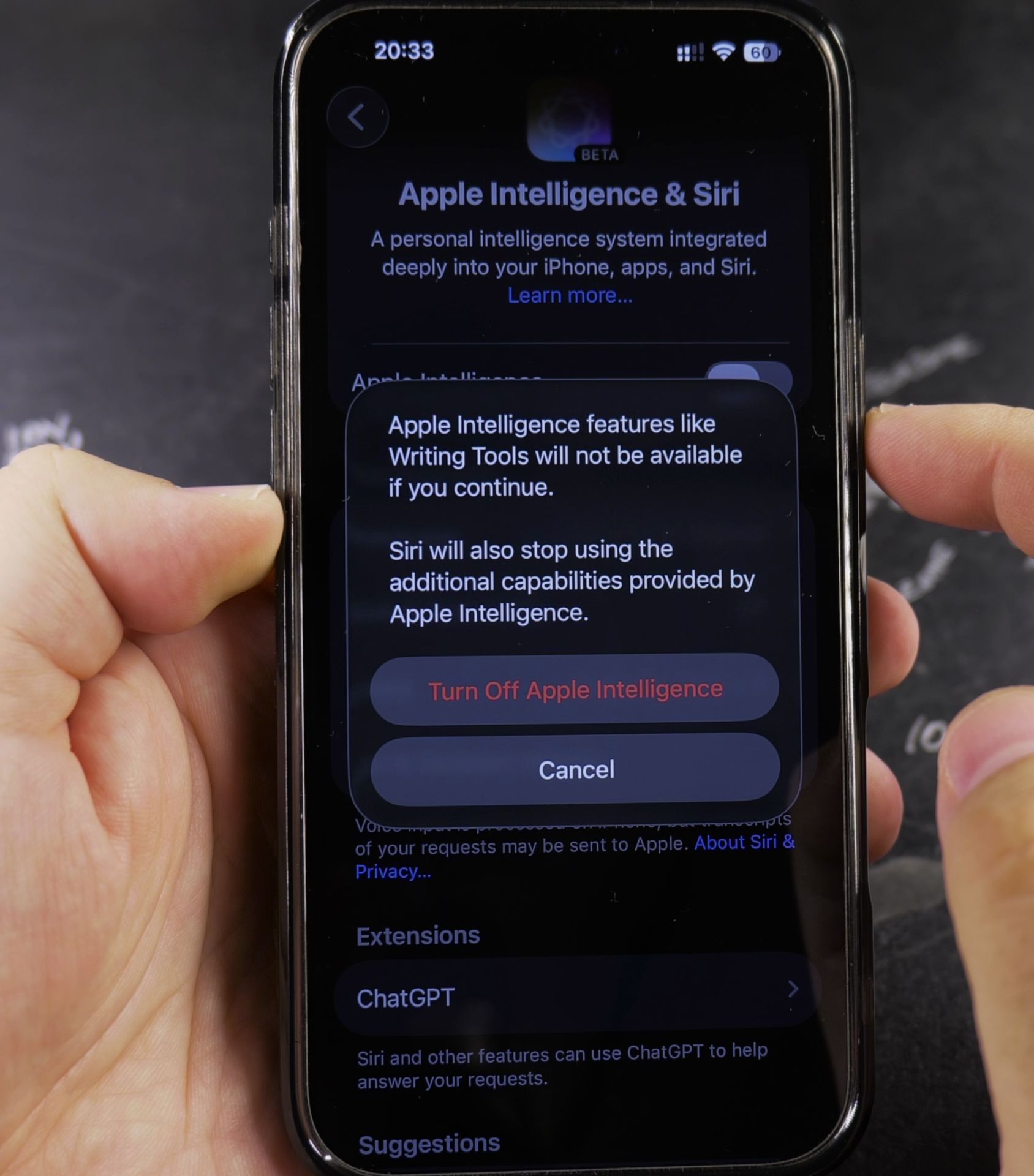
- Turn off Apple Intelligence using the steps above
- Go to Settings > Siri & Search
- Keep Siri enabled but customize which features are active
Troubleshooting
If you’re having trouble turning off Apple Intelligence:
- Make sure your iPhone is updated to the latest iOS version
- Restart your iPhone after making changes
- Check for restrictions in Screen Time > Content & Privacy Restrictions
Remember, you can always re-enable these features later if you change your mind. The settings remain in the same location, ready to be adjusted whenever you need.
Helpful Tips
Take your time and check the screen carefully after each tap so you can confirm the setting changed as expected. If an option appears in a slightly different spot on your device, watch the embedded video above for a closer look.
Related Guides
- Why I Don't Like Apple Intelligence on iPhone – After using Apple Intelligence on my iPhone for a while, I've found several reasons why I'm not completely sold on this feature.
- How to Enable Apple Intelligence on iPhone – Learn how to turn on Apple Intelligence and get it working on your iPhone.
- Fix Apple Intelligence Language Problem on iPhone – How to Fix Apple Intelligence Language Problem on iPhone.
- iPhone How-To Guides – Browse more tutorials and practical guides in this section.


Leave a Reply