
Amazon links
As an Amazon Associate I earn from qualifying purchases:
- iPhone Accessories
- iPhone Charger
- iPhone Cases
- iPhone Screen protector
- iPhone Magsafe
- iPhone Wallet
- iPhone Usb c cable
Learn how to generate a QR code for any website link using just your iPhone. I’ll show you the steps to create scannable QR codes that direct people to websites without needing to type long URLs. This works for all iPhone models running iOS 14 or later.
How to Create a QR Code for Any Website on iPhone.
Quick Steps and Scenarios Overview
| What You Need to Do | Quick Jump |
|---|---|
| Method 1: Using Safari's Built-in QR Code Generator | Jump to Step 1 |
| Method 2: Creating Custom QR Codes with Shortcuts | Jump to Step 2 |
| Tips for Using Website QR Codes | Jump to Step 3 |
| Why Use Website QR Codes? | Jump to Step 4 |
Demonstrated on iOS 18.5 with iPhone 16 Pro Max Titanium Black 256 GB version Global model A3296 – MYWV3ZD/A
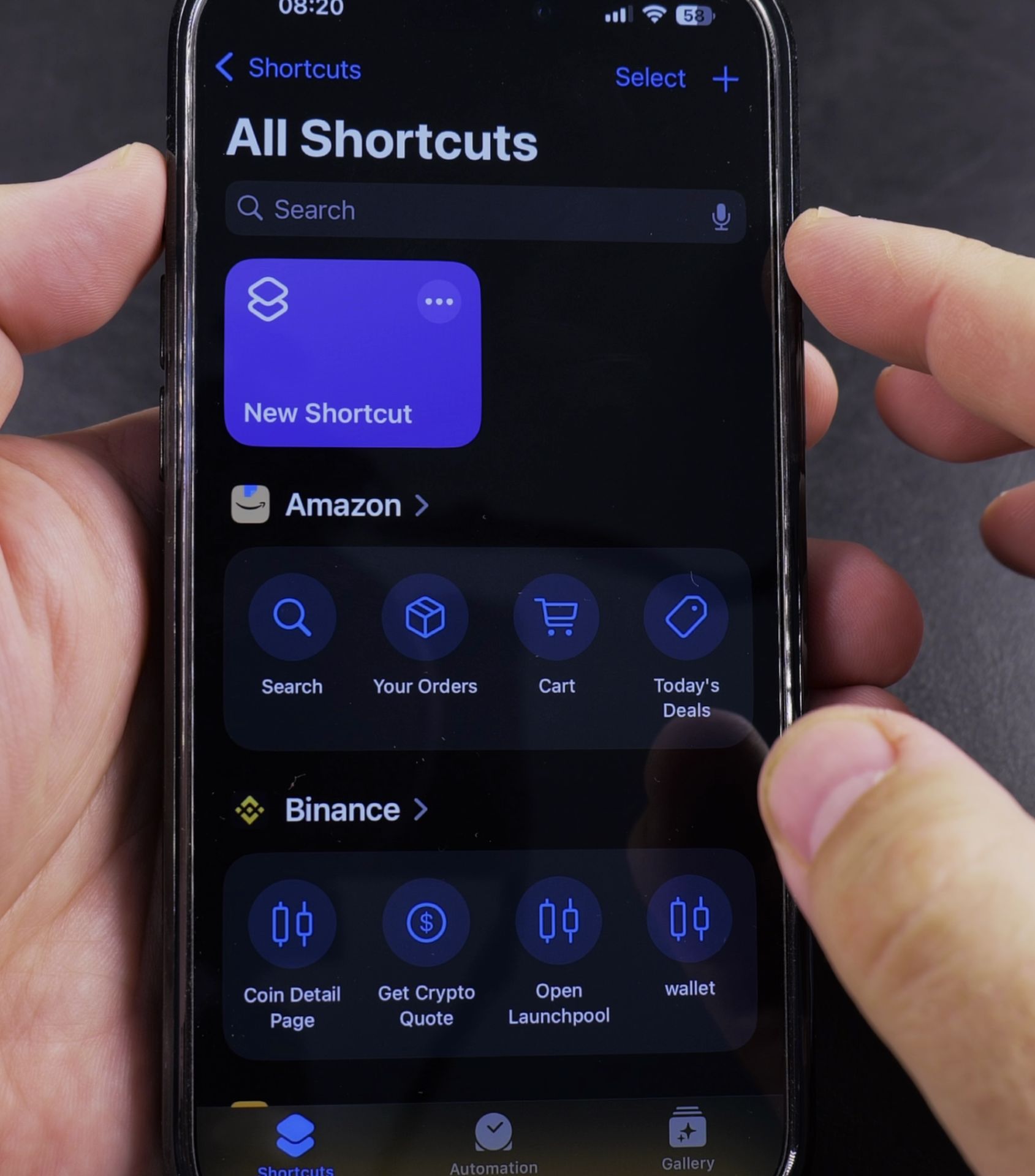
Method 1: Using Safari’s Built-in QR Code Generator
The easiest way to create a QR code for any website:
- Open Safari and Go to the website you want to share
- Tap the Share button (the square with an arrow pointing up)
- Scroll down and select Create QR Code
- Customize the QR code by tapping the color palette icon (optional)
- Tap Done to save it to your Photos app
You can now share this QR code directly from Photos or by tapping the Share button in the QR code preview.
Method 2: Creating Custom QR Codes with Shortcuts
For more control or to create reusable QR codes:
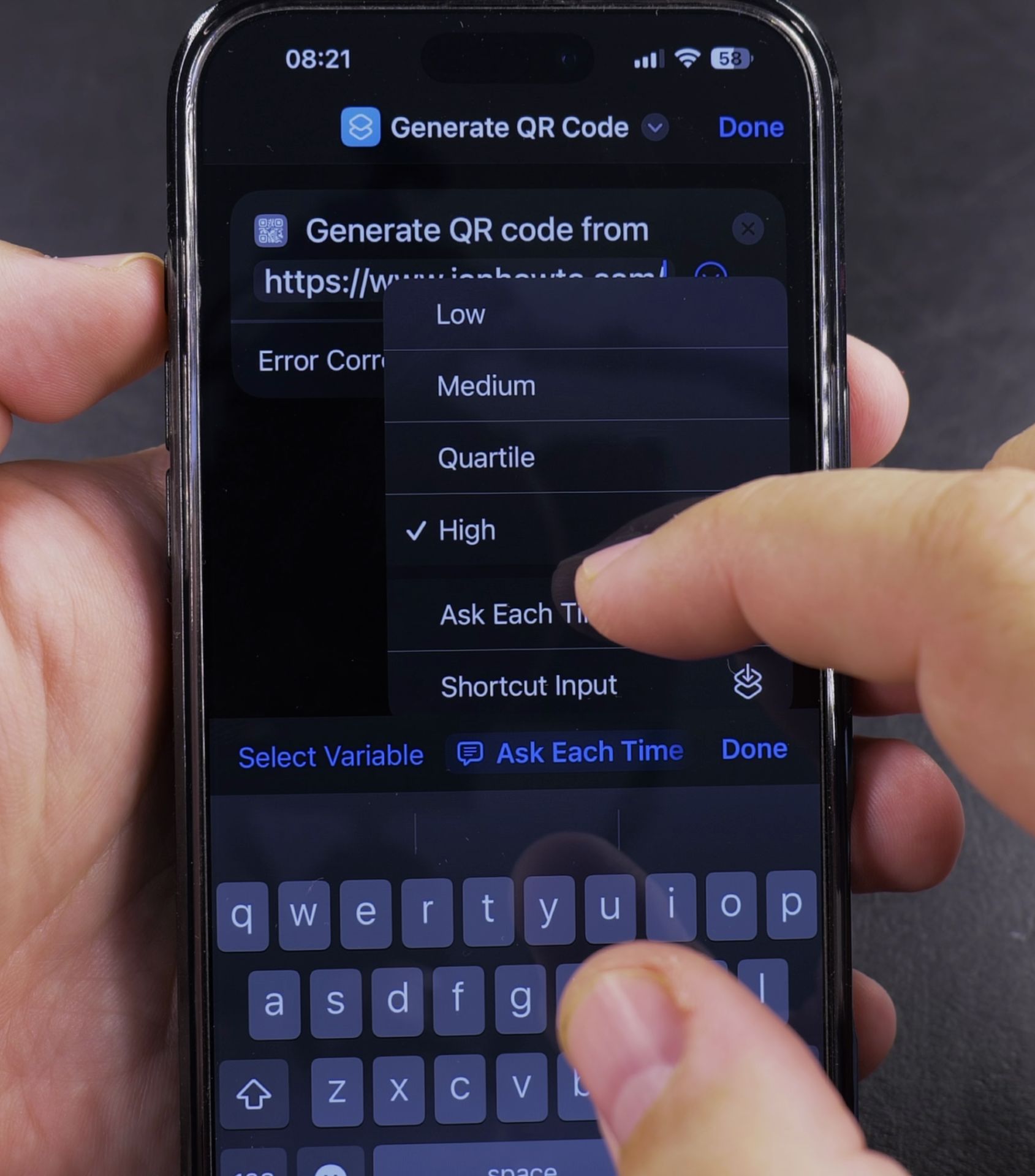
- Open the Shortcuts app
- Tap the + button to create a new shortcut
- Search for and add the Generate QR Code action
- Set the input to Text and paste your website URL
- Add a Show Result action to display the QR code
- Name your shortcut (like “Website QR Generator”)
- Tap Done to save
Now whenever you run this shortcut, it will generate a QR code for the website you specified.
Tips for Using Website QR Codes
- Test your QR code before sharing it
- Make sure the website URL is correct
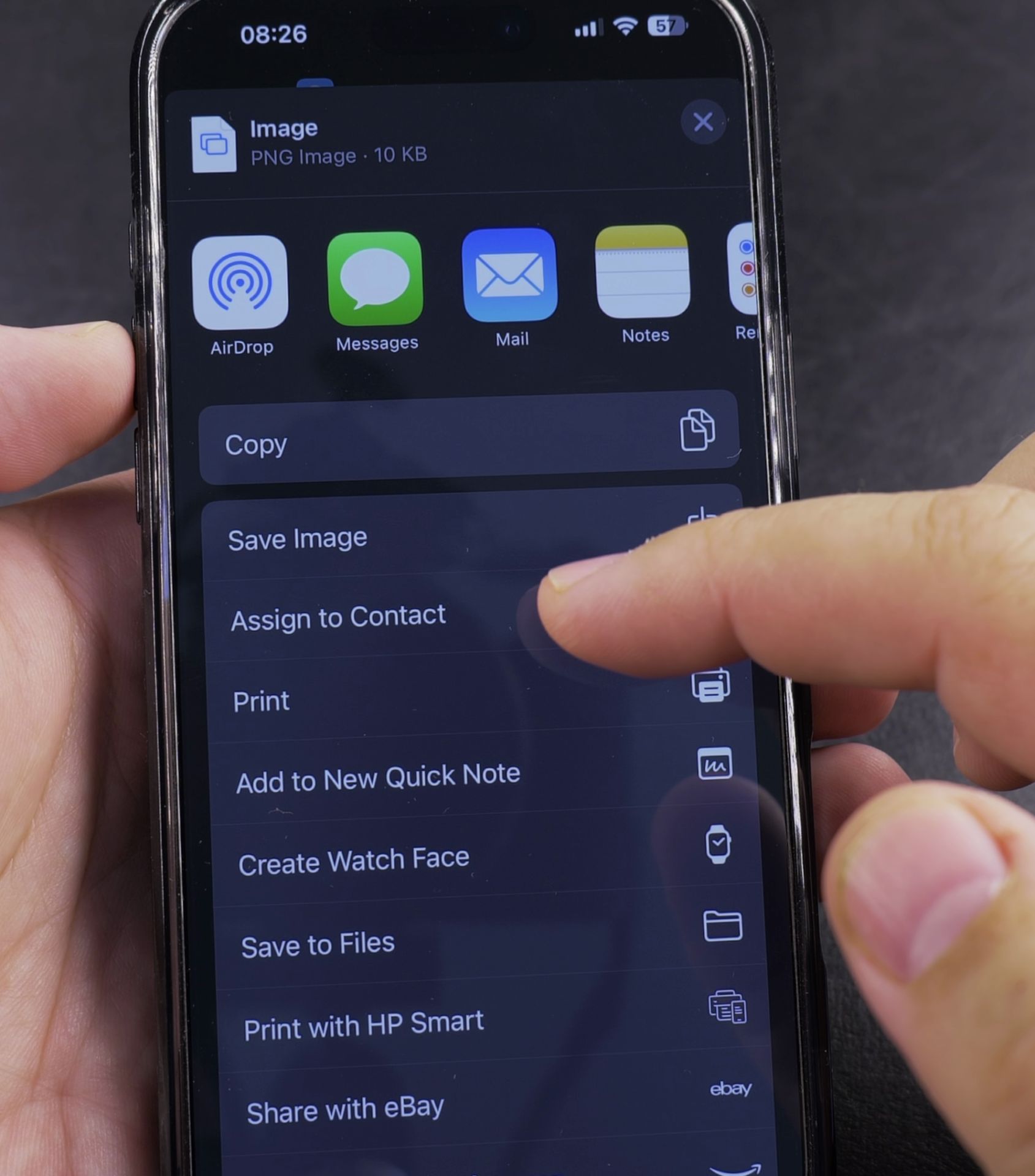
- For business cards or print materials, save the QR code as a high-resolution image
- You can share QR codes directly via Messages, Mail, or social media
Why Use Website QR Codes?
- Great for sharing links at events or meetings
- Useful for business cards and marketing materials
- Helps customers quickly access your website
- Eliminates typos from manually entered URLs
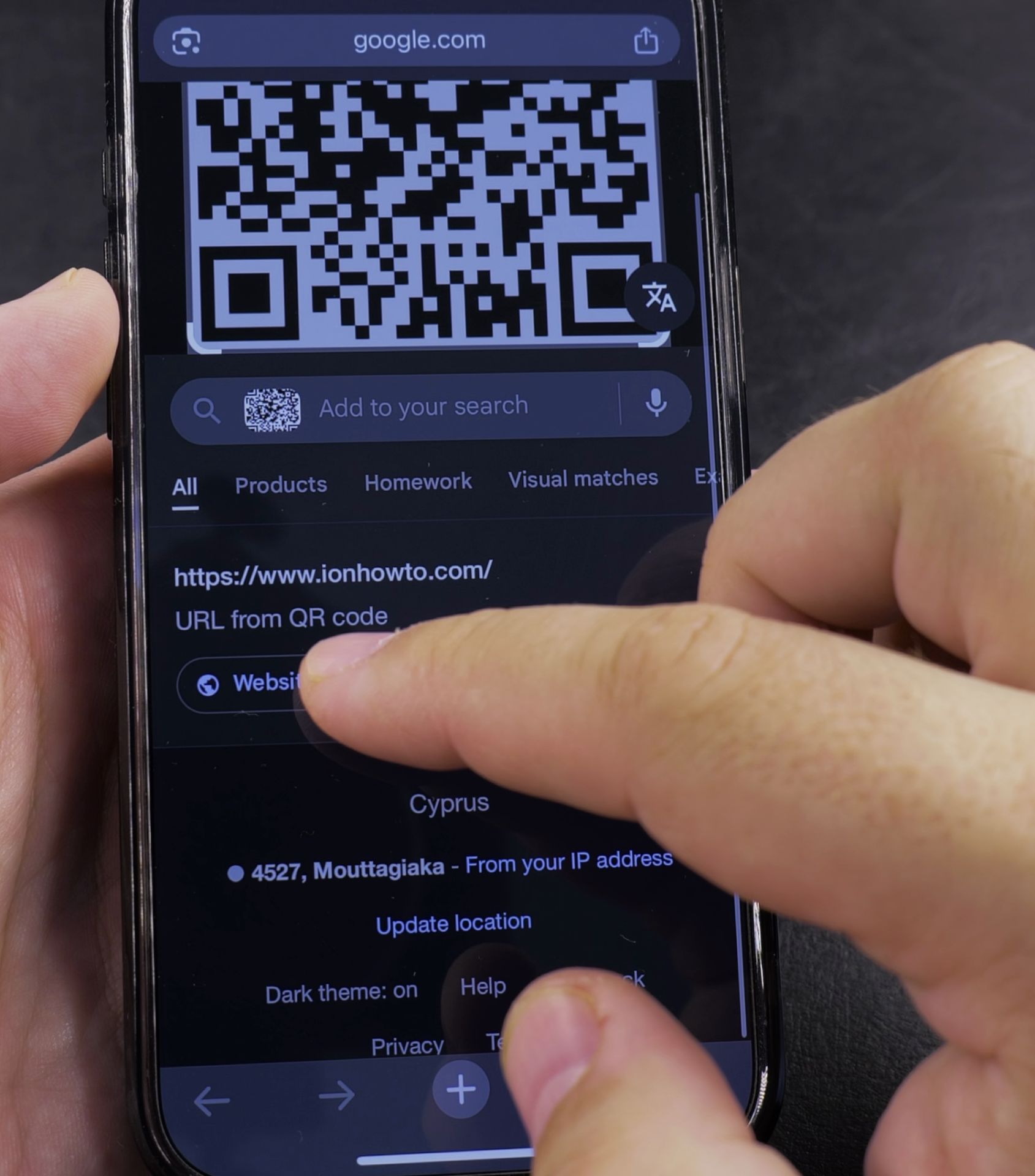
Let me know in the comments what website you’ll be creating a QR code for. If you found this guide helpful for learning how to generate website QR codes on iPhone, consider subscribing for more practical iPhone productivity tips.
Helpful Tips
Take your time and check the screen carefully after each tap so you can confirm the setting changed as expected. If an option appears in a slightly different spot on your device, watch the embedded video above for a closer look.
Related Guides
- How to Connect iPad to Wi-Fi with a QR Code – If typing long Wi-Fi passwords with special characters is frustrating, your iPad can join networks by simply scanning a QR code.
- Unlock and Disable SIM PIN Code on iPhone – How to Unlock and Disable SIM PIN Code on iPhone.
- How to Enable SIM PIN Code on iPhone – Learn how to require a SIM PIN code after restart on your iPhone.
- iPhone How-To Guides – Browse more tutorials and practical guides in this section.


Leave a Reply