

Amazon links
As an Amazon Associate I earn from qualifying purchases:
- Phone Cases
- Mobile Tripods
- Usb-c charger
- Usb-c cable
- Docking stations
- Wireless car chargers
- Wireless charger stand
- SIM card removal tool
- SIM card holder
Learn how to clean up your widget stacks by removing individual widgets while keeping the rest of your stack intact. I’ll show you how to delete or reorganize widgets in stacks on your Samsung Galaxy phone.
Quick Steps and Scenarios Overview
| What You Need to Do | Quick Jump |
|---|---|
| Steps to Remove a Widget from a Stack | Jump to Step 1 |
| Press and hold the widget stack | Jump to Step 1 |
| Tap Edit stack when the menu appears | Jump to Step 2 |
| You'll see all widgets in the stack | Jump to Step 3 |
| To remove a widget | Jump to Step 4 |
| Alternative Method: Move Widget Out of Stack | Jump to Step 2 |
Demonstrated on Samsung Galaxy S23 Ultra running Android 15 with One UI 7.0
Steps to Remove a Widget from a Stack
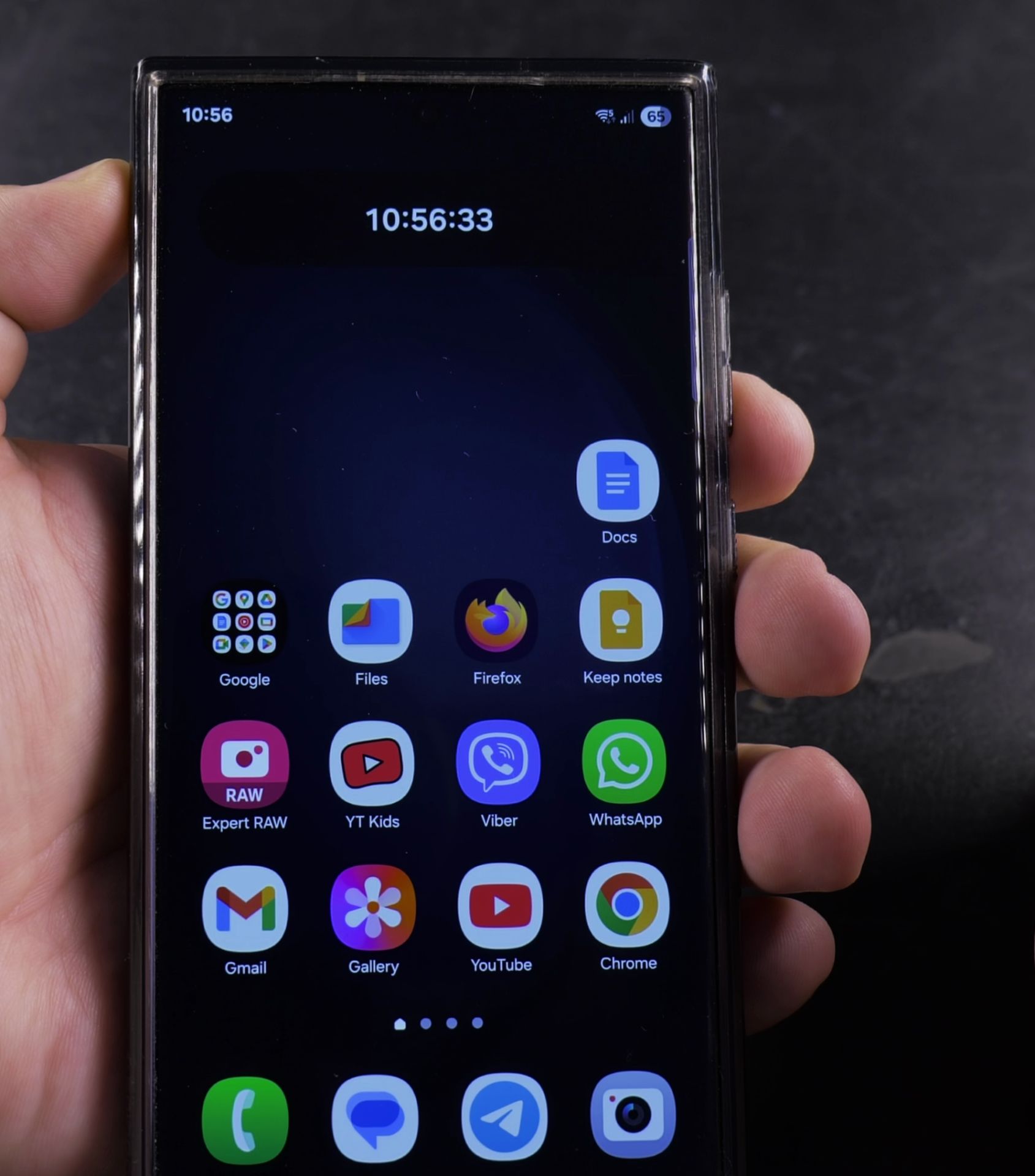
1. Press and hold the widget stack
Press and hold the widget stack on your home screen.
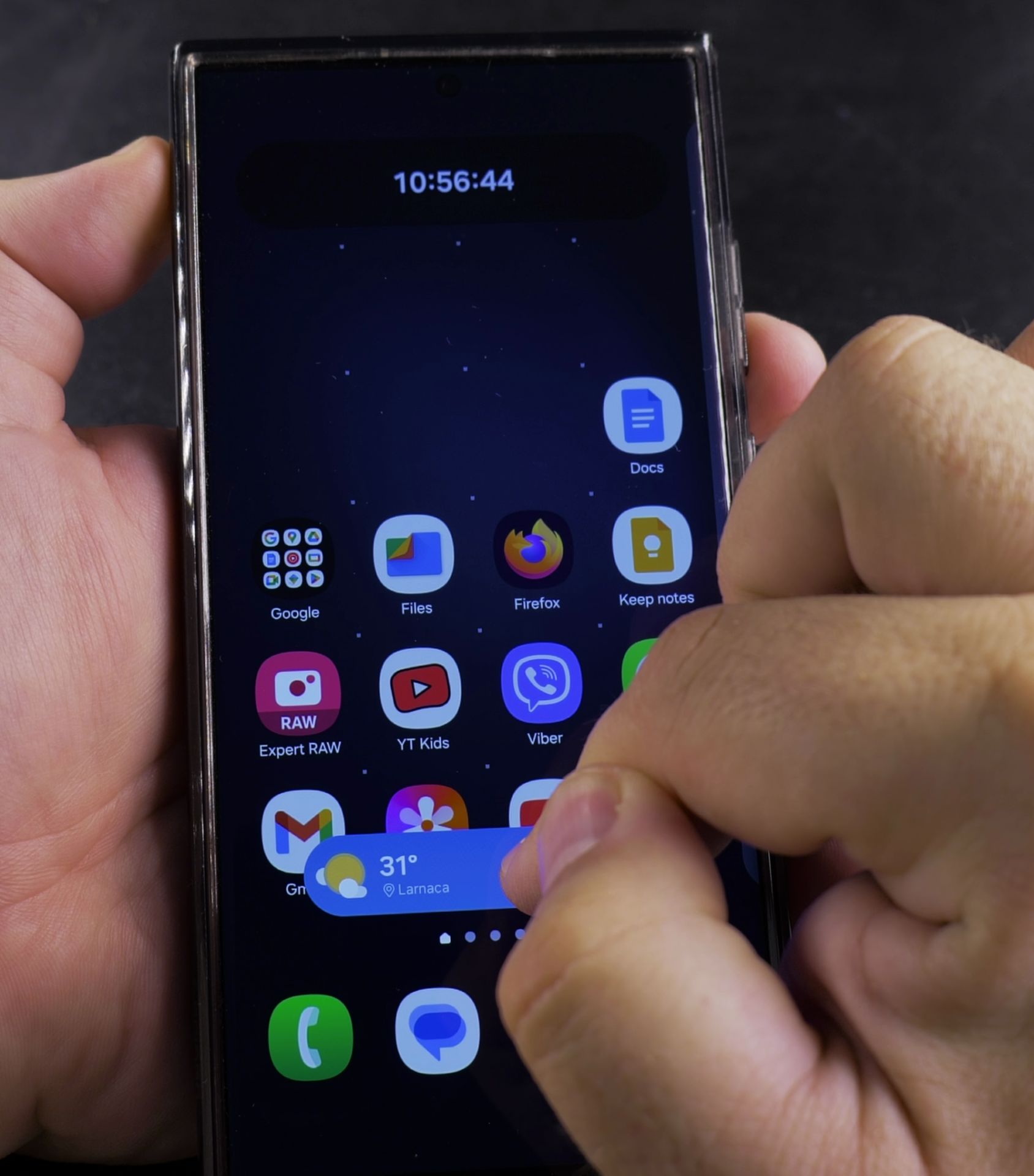
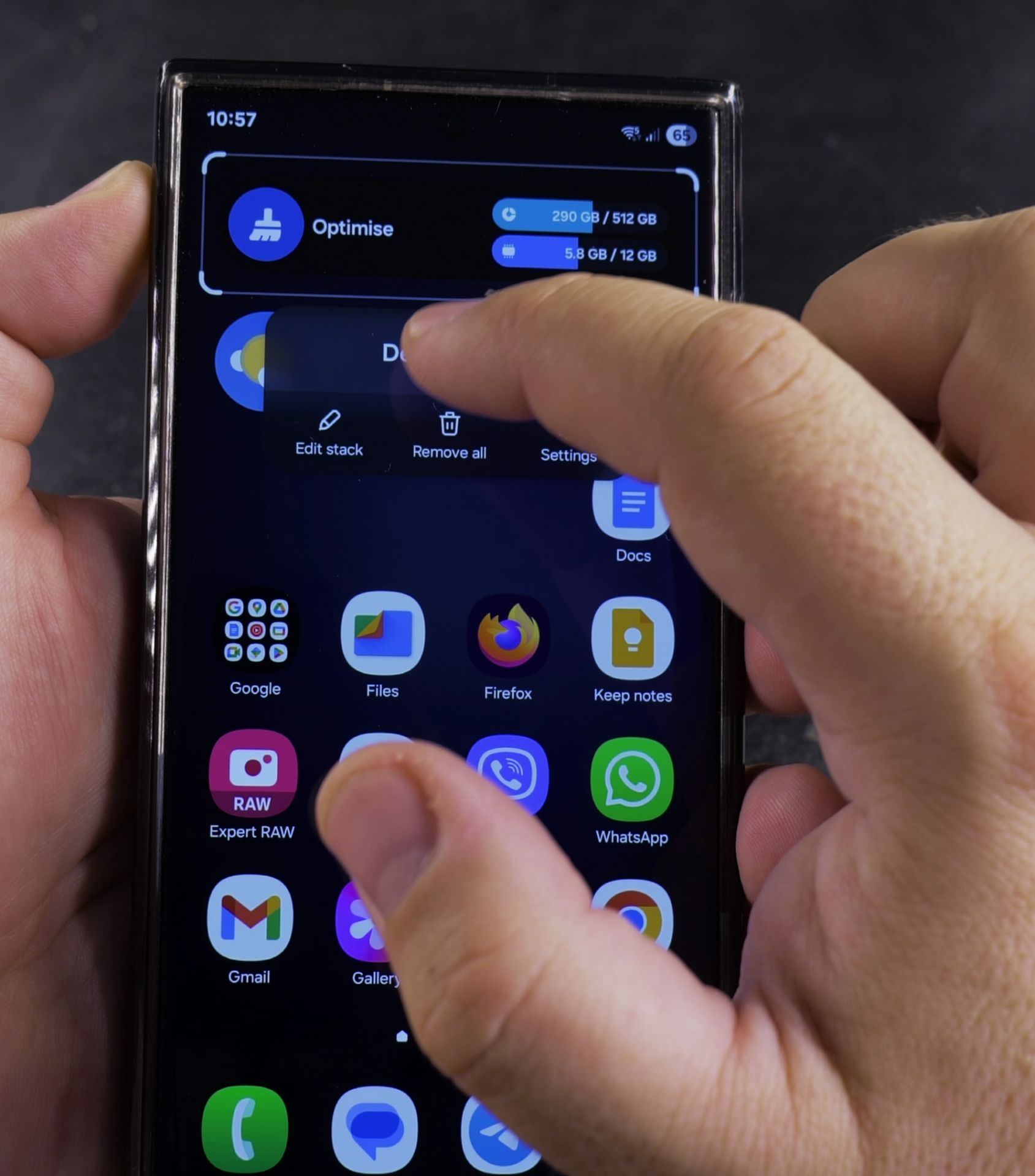
2. Tap Edit stack when the menu appears
Tap Edit stack when the menu appears.
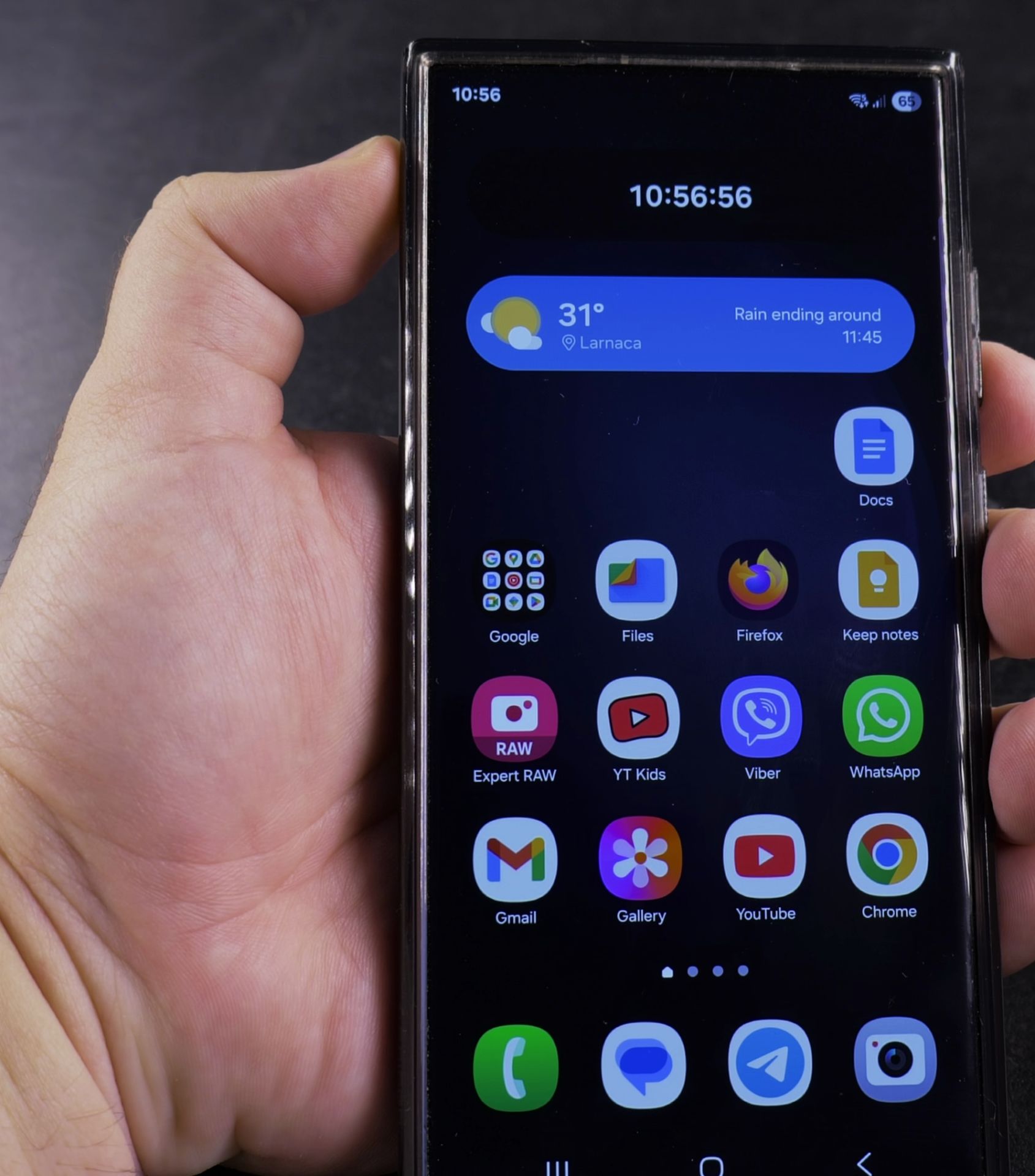
3. You’ll see all widgets in the stack
You’ll see all widgets in the stack appear in a carousel.
4. To remove a widget
To remove a widget:.
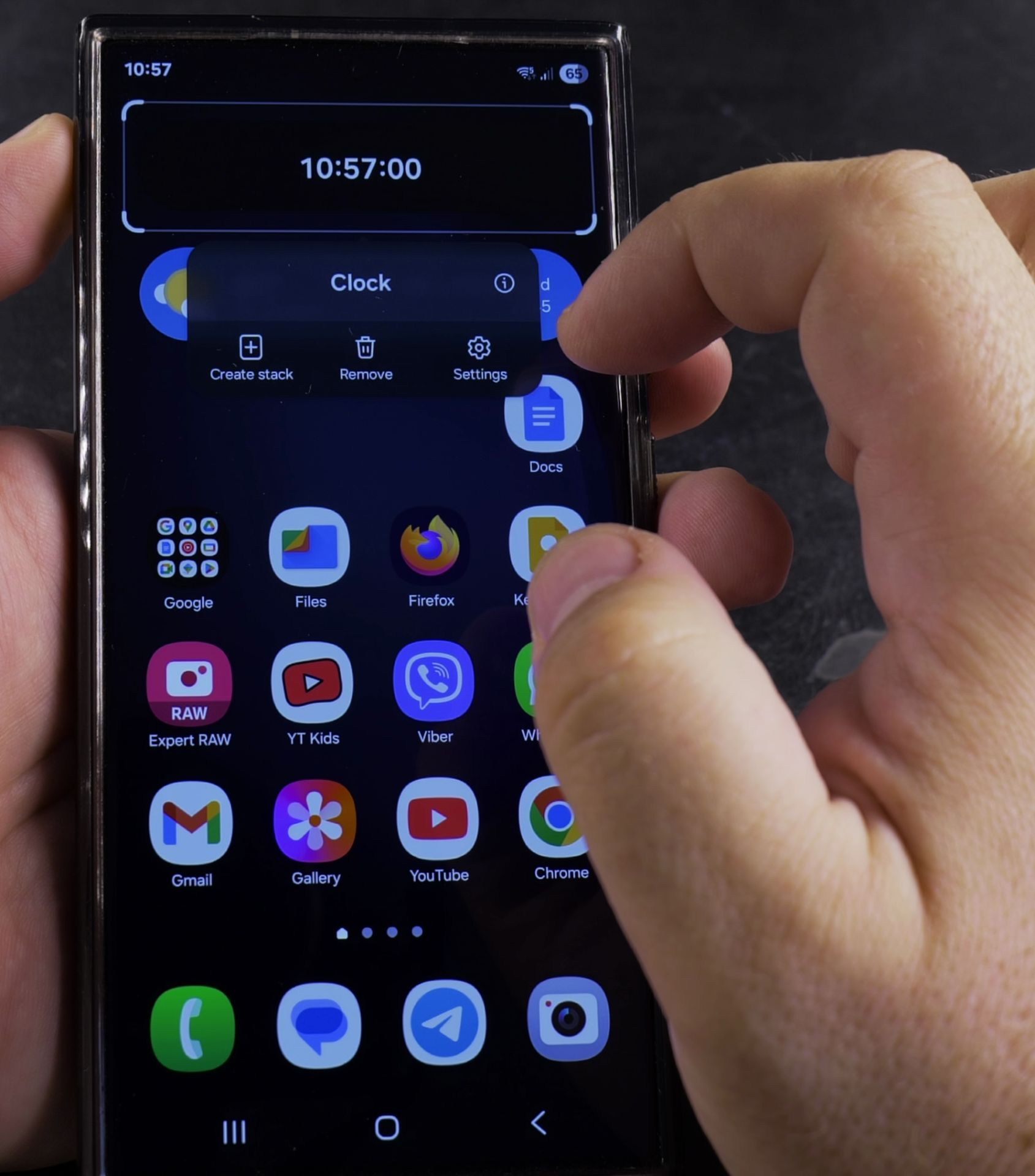
- Swipe to the widget you want to delete
- Tap the minus (-) icon in the top corner
- Confirm removal if prompted
- To rearrange widgets:
- Press and hold a widget in the carousel
- Drag it left or right to change its position in the stack
Alternative Method: Move Widget Out of Stack
If you want to keep the widget but place it separately:
- Press and hold the widget stack
- Tap Edit stack
- Swipe to the widget you want to move out
- Press and hold the widget
- Drag it out of the stack and onto your home screen
What Happens When You Remove a Widget
- The widget is removed from the stack but remains available to add again
- Your other widgets in the stack stay exactly where they are
- No data is deleted from the app itself
How to Add Widgets Back to a Stack
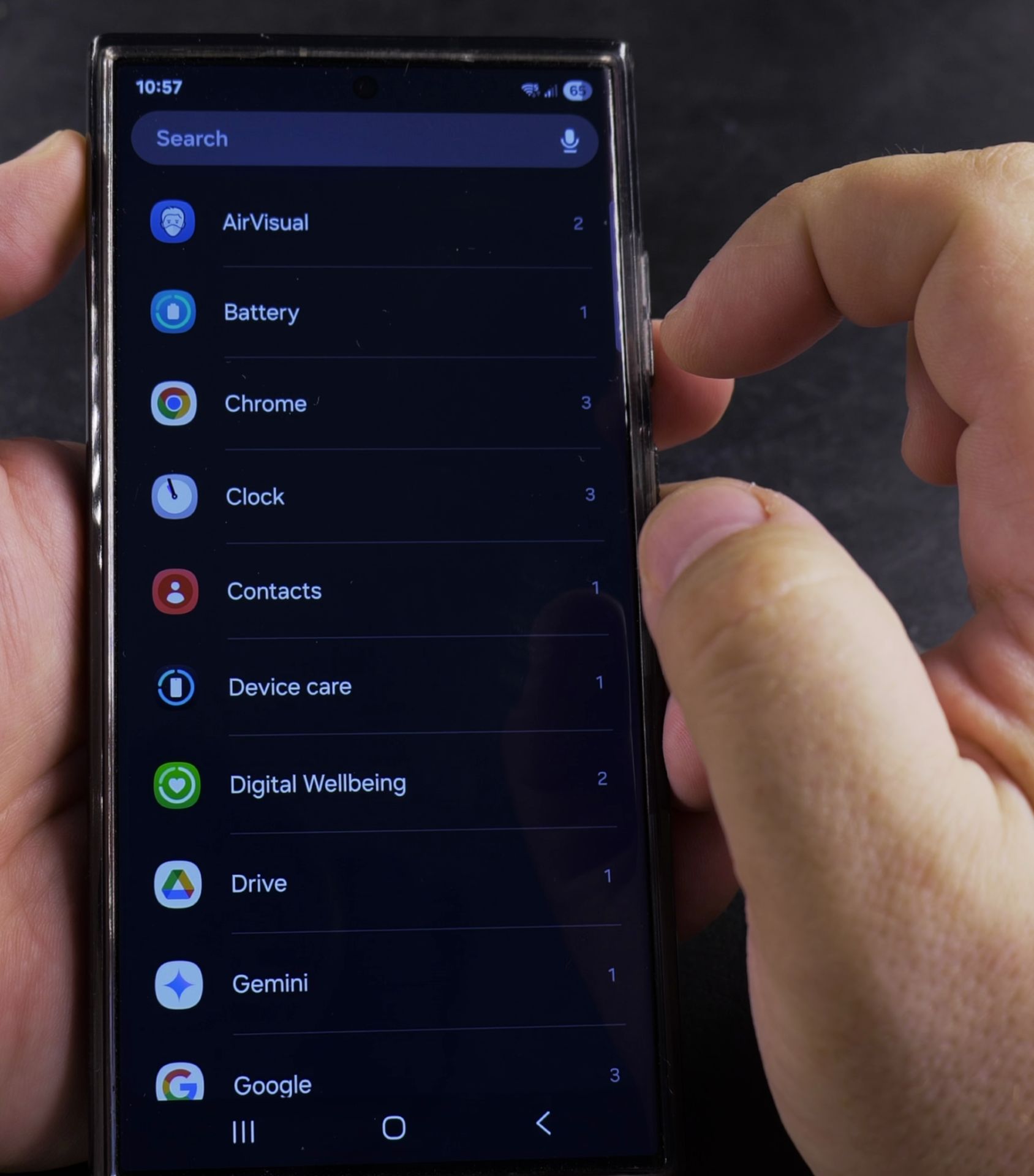
5. Press and hold an empty space
Press and hold an empty space on your home screen.
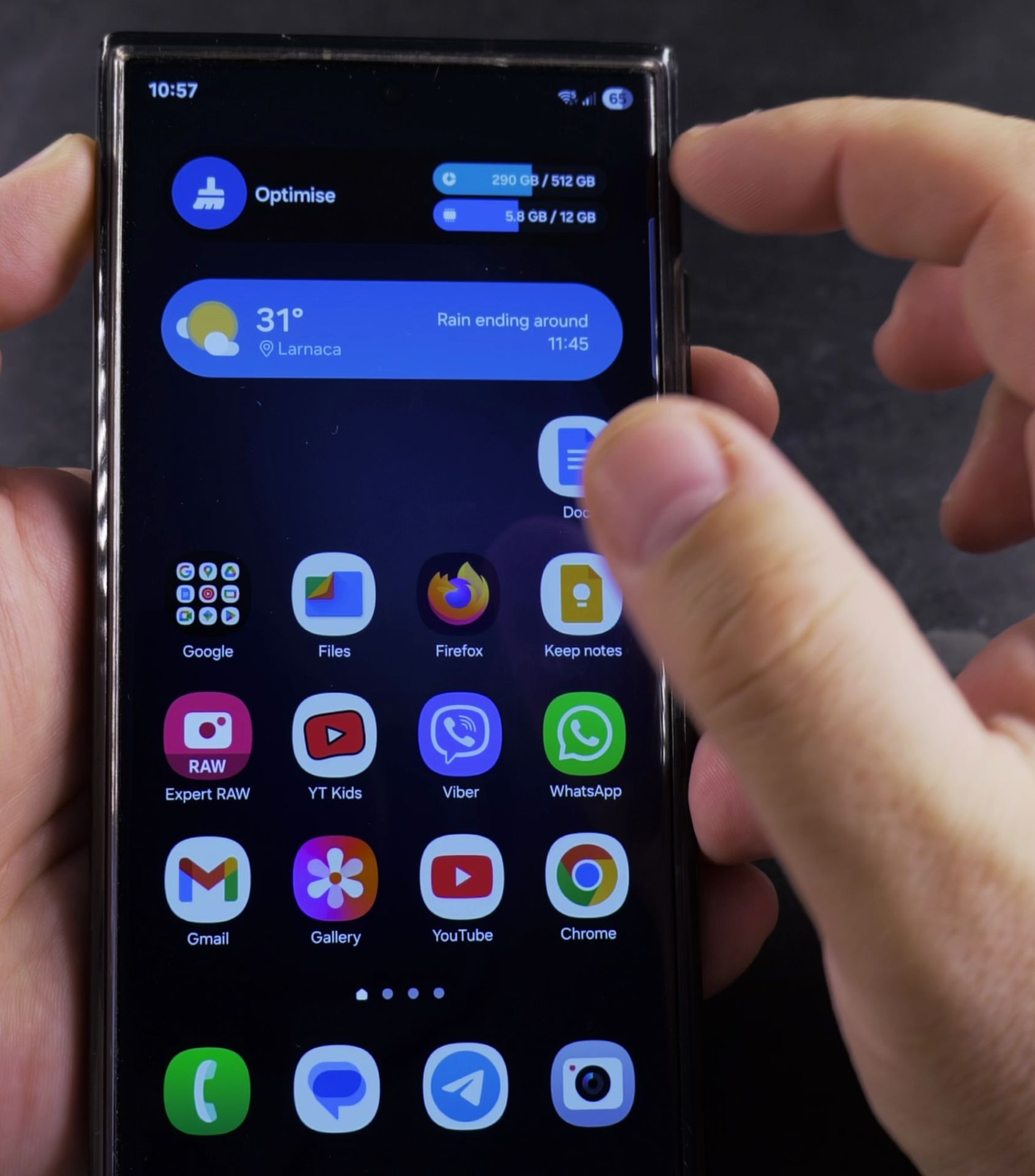
6. Tap Widgets
Tap Widgets.
7. Find and select the widget you want
Find and select the widget you want to add.
8. Instead of placing it on the home
Instead of placing it on the home screen:.
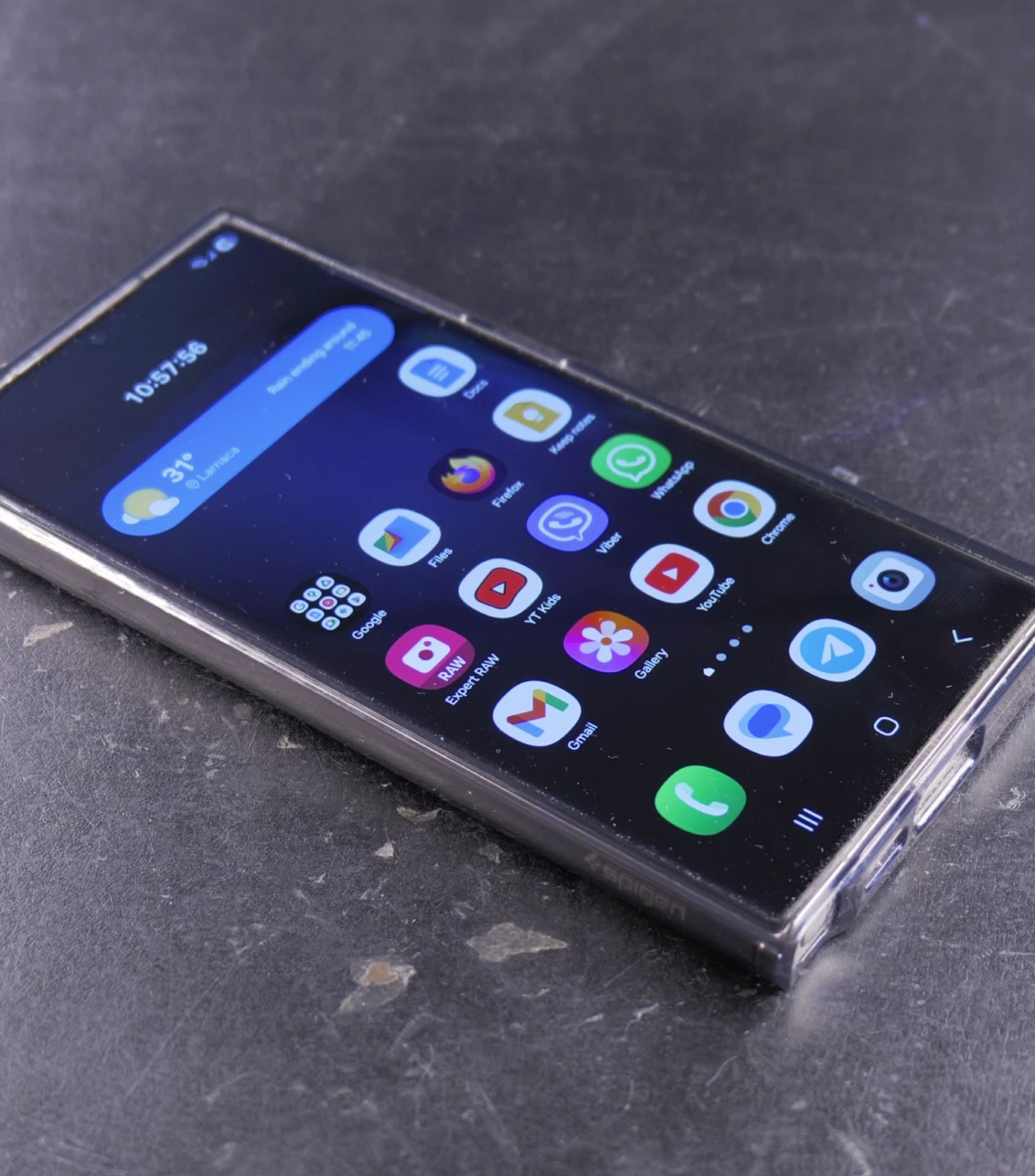
- Drag it over an existing stack
- Release when the stack highlights
Helpful Widget Stack Tips
- You can have up to 5 widgets in a single stack
- Swipe left/right on a stack to cycle through widgets
- Stacks save space while keeping multiple widgets accessible
- Try grouping similar widgets (like all weather or calendar widgets)
Troubleshooting
If you can’t edit your widget stack:
- Make sure you’re not in “Home screen locked” mode
- Check if you’re using the default One UI launcher
- Restart your phone and try again
Let me know in the comments how you organize your widget stacks or if you have any questions about One UI 7 home screen customization.
Helpful Tips
Take your time and check the screen carefully after each tap so you can confirm the setting changed as expected. If an option appears in a slightly different spot on your device, watch the embedded video above for a closer look.
Related Guides
- How to Add Weather Widget on Samsung Home Screen – How to Add a Weather Widget to Your Samsung Home Screen.
- Remove Clock Widget from Home Screen on Samsung – How to Remove Clock Widget from Home Screen on Samsung One UI 7 Android 15.
- Remove Apps from Samsung Android Home Screen – How to Remove Apps from Home Screen on Samsung Android.
- Samsung Android Guides – Browse more tutorials and practical guides in this section.


Leave a Reply