
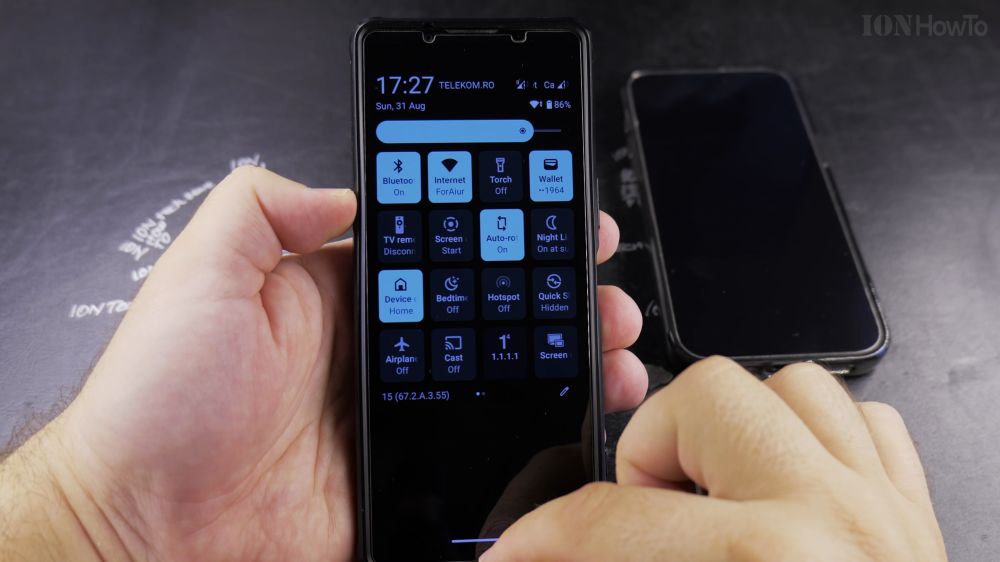
If you use your personal Android phone for work or business, you might want your caller ID hidden on every call you make. I’ll show you how to hide your number line-wide in your Android phone settings.
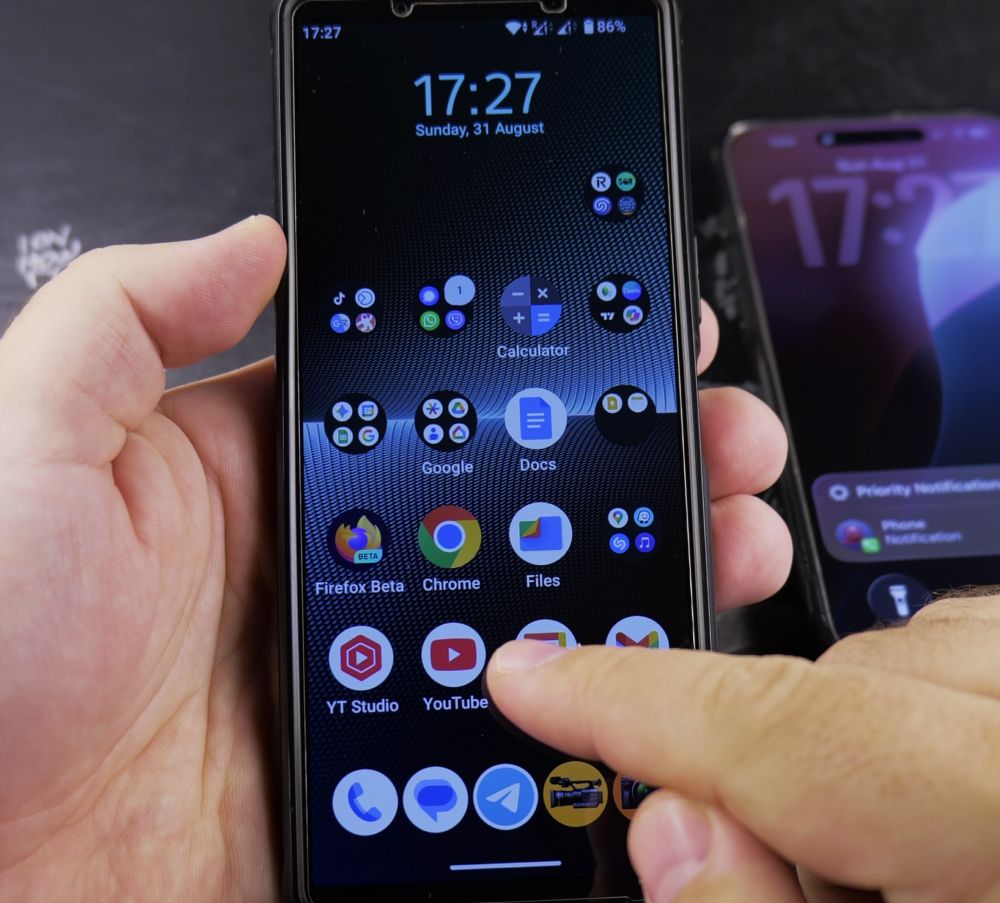
1. Open the Phone App
Tap the blue **Phone** app icon on your Android home screen.
2. Open Settings
In the top-right corner, tap the **three dots** icon, then tap **Settings**.
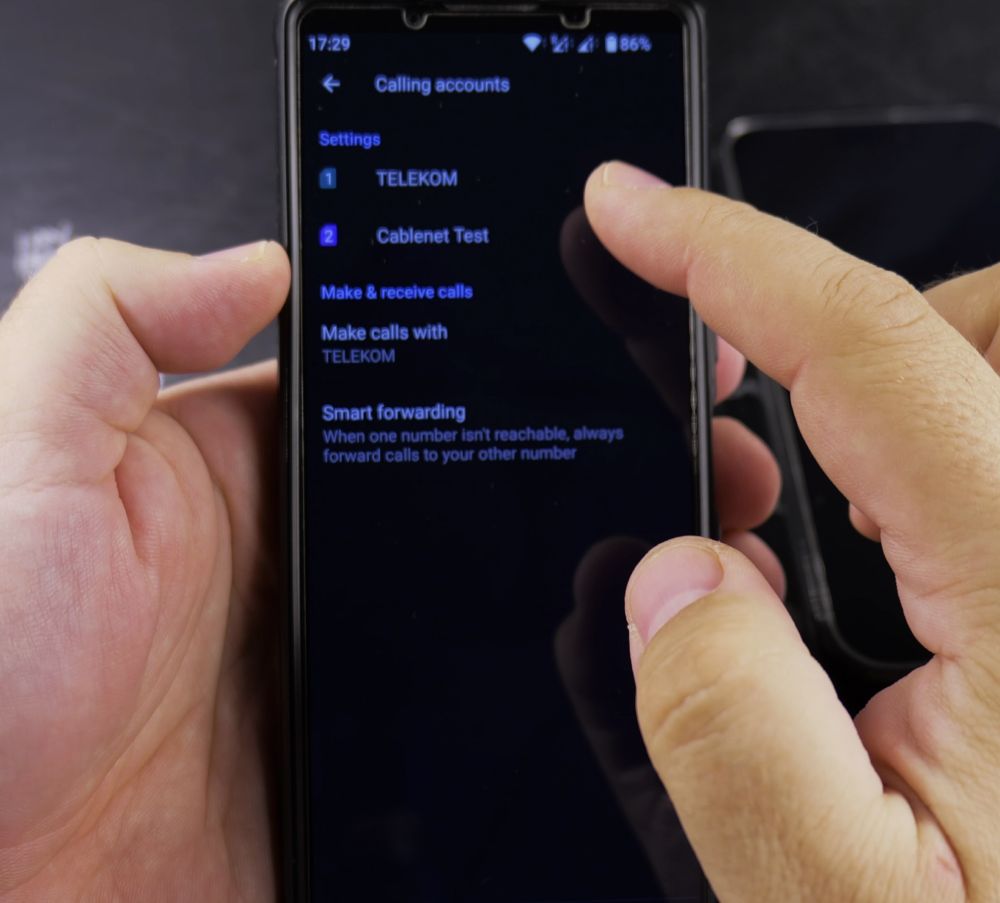
3. Tap Calling Accounts
Under the General settings section, tap **Calling accounts**.
4. Select Your SIM Card
If you have a dual-SIM or eSIM device, tap the specific SIM card you want to adjust.
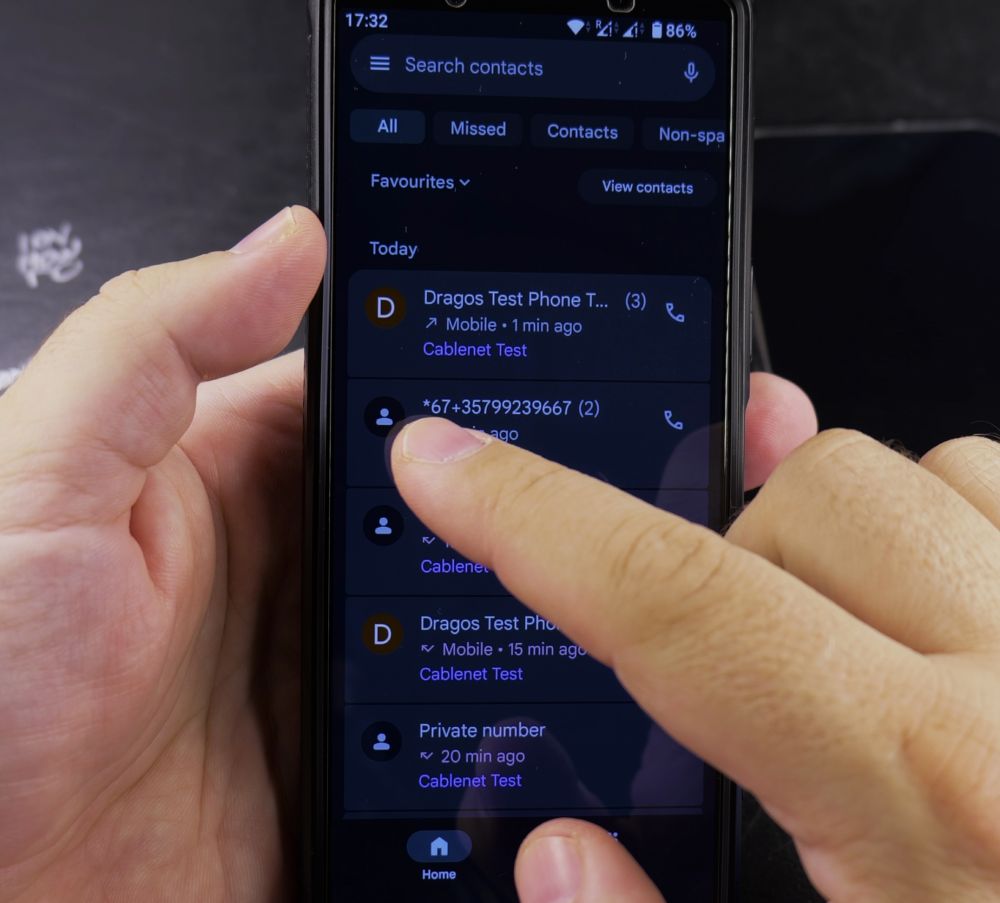
5. Tap Additional Settings
Scroll down and tap **Additional settings**. Allow a moment for your network carrier settings to query.
6. Set Caller ID to Hide Number
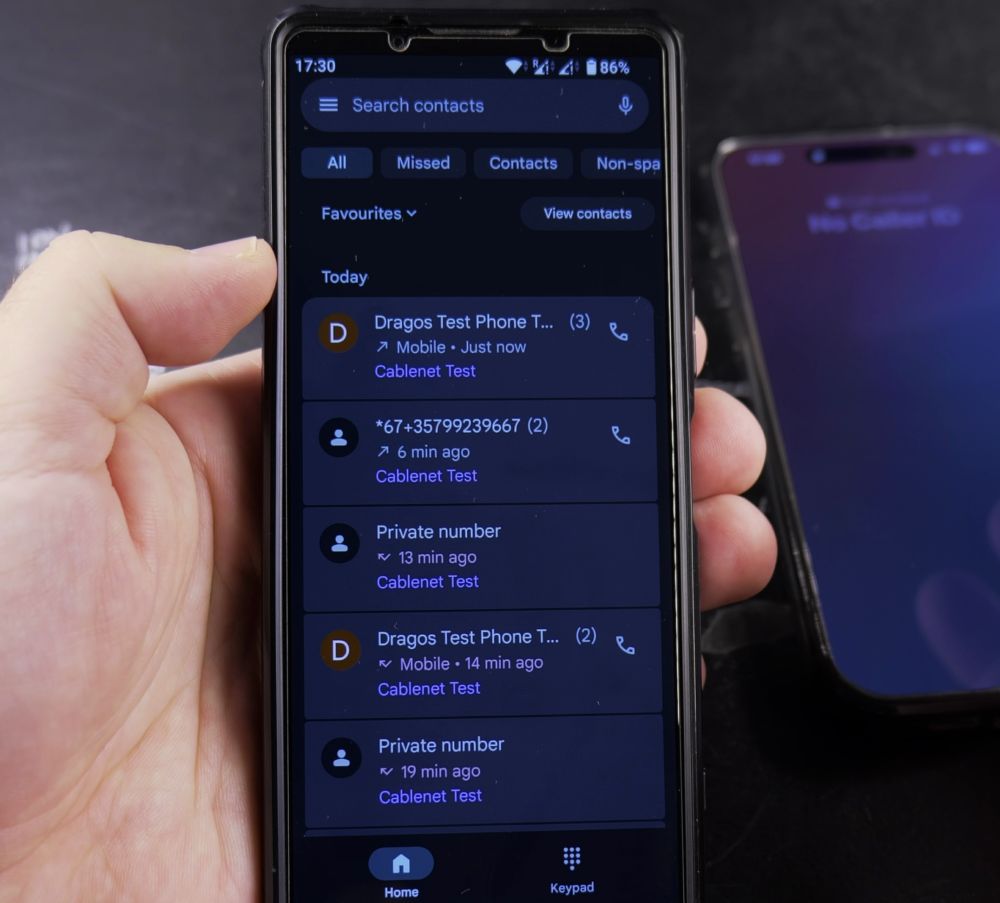
Tap **Caller ID**, then select **Hide number**. Every outgoing call from this SIM will now appear as Private Number.
Helpful Tips
If the Caller ID setting appears grayed out or says ‘Network error’, your mobile carrier may manage caller ID at the network level and requires calling customer service. For single calls, you can also use temporary dialing codes described in our guide on how to hide your number with prefix codes.


Leave a Reply