
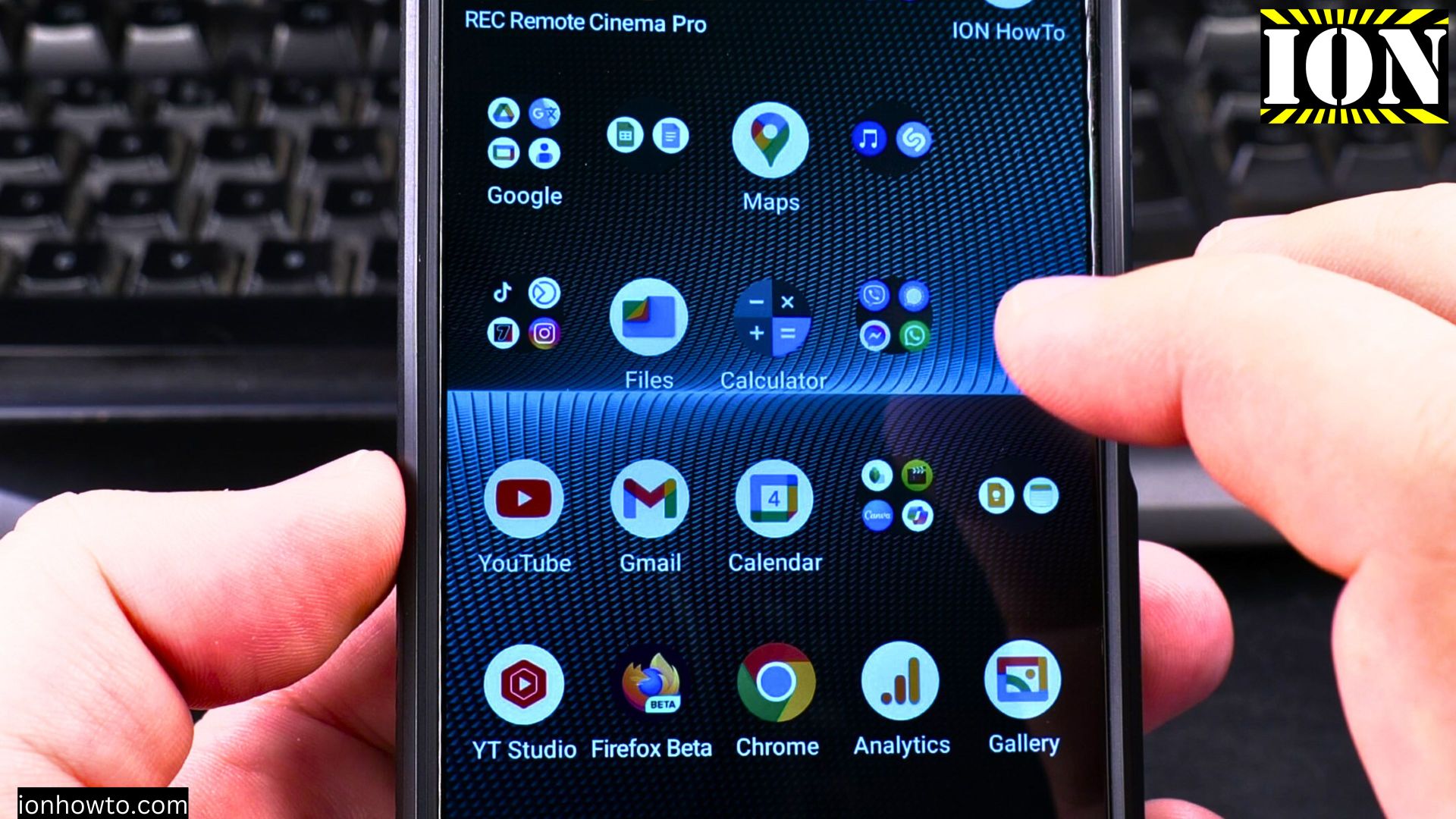
Learn how to disable mobile data on your Android device when you want to stop using 4G or 5G networks. Turning off mobile data can help save battery life and prevent background data usage.
Amazon links
As an Amazon Associate I earn from qualifying purchases:
- Phone Cases
- Mobile Tripods
- Usb-c charger
- Usb-c cable
- Docking stations
- Wireless car chargers
- Wireless charger stand
- SIM card removal tool
- SIM card holder
How to Turn Off Mobile Data 4G or 5G on Android Devices.
Quick Steps and Scenarios Overview
| What You Need to Do | Quick Jump |
|---|---|
| Quickest Way to Turn Off Mobile Data | Jump to Step 1 |
| How to Disable Mobile Data Through Settings | Jump to Step 2 |
| Open the Settings app | Jump to Step 1 |
| Go to "Network & internet" (or "Connections" | Jump to Step 2 |
| Select "Mobile network" | Jump to Step 3 |
| Toggle off the "Mobile data" switch | Jump to Step 4 |
Quickest Way to Turn Off Mobile Data
- Swipe down from the top of your screen to open the notification panel
- Swipe down again to expand quick settings
- Tap the Mobile Data icon (two arrows pointing opposite directions)
- The icon will turn gray when mobile data is off
How to Disable Mobile Data Through Settings
1. Open the Settings app
Open the Settings app.
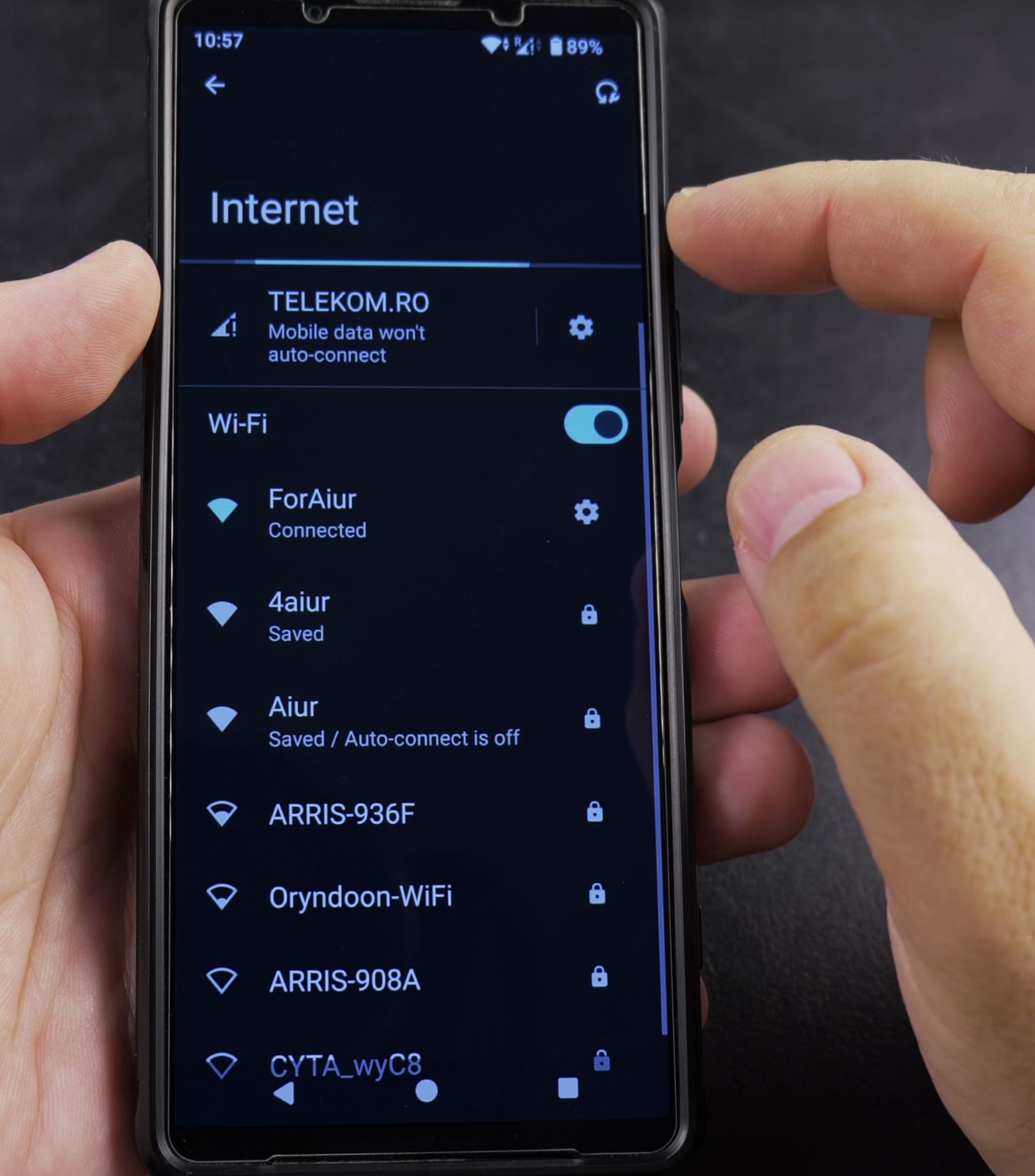
2. Go to “Network & internet” (or “Connections”
Go to “Network & internet” (or “Connections” on some devices).
3. Select “Mobile network”
Select “Mobile network”.
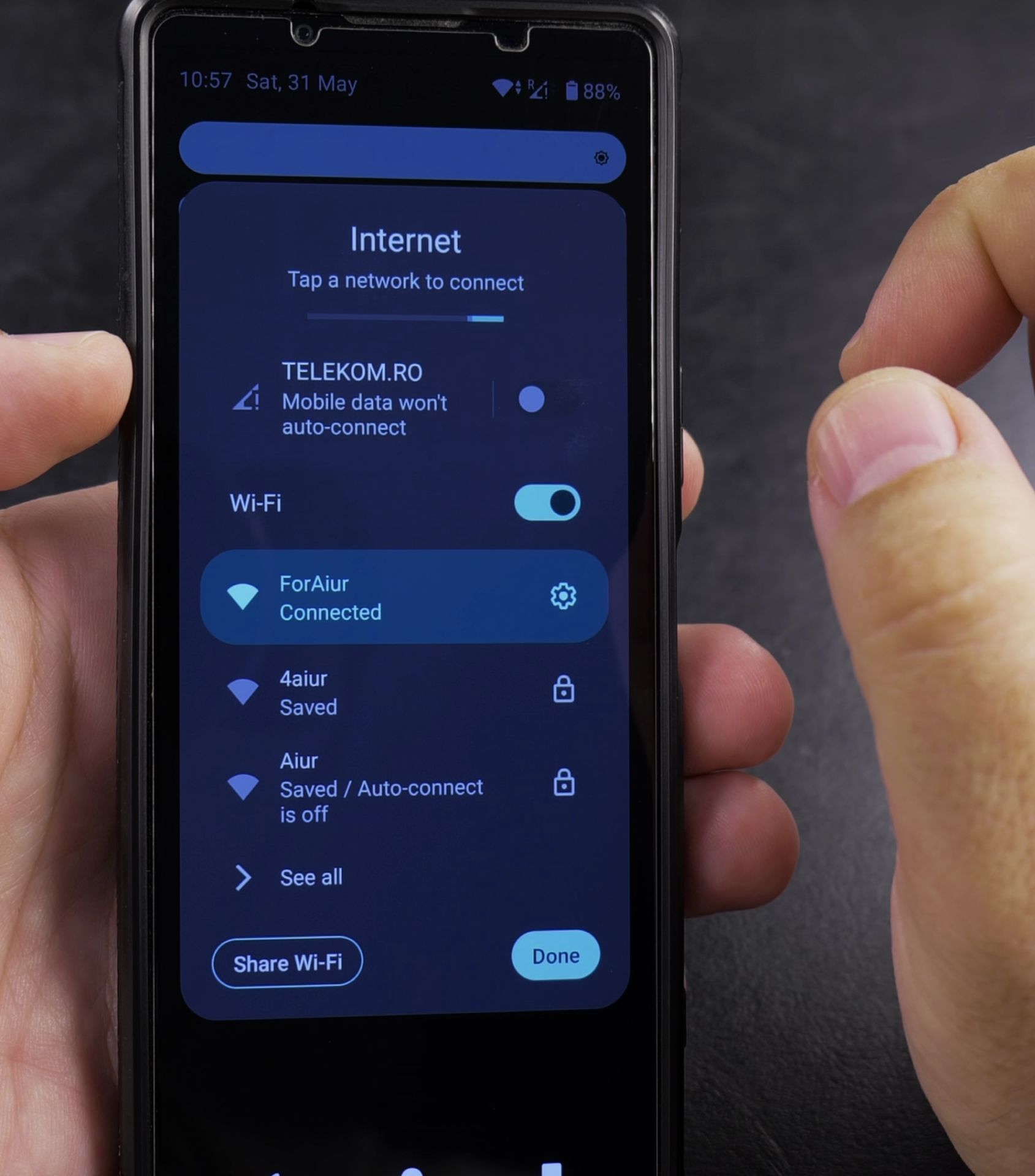
4. Toggle off the “Mobile data” switch
Toggle off the “Mobile data” switch.
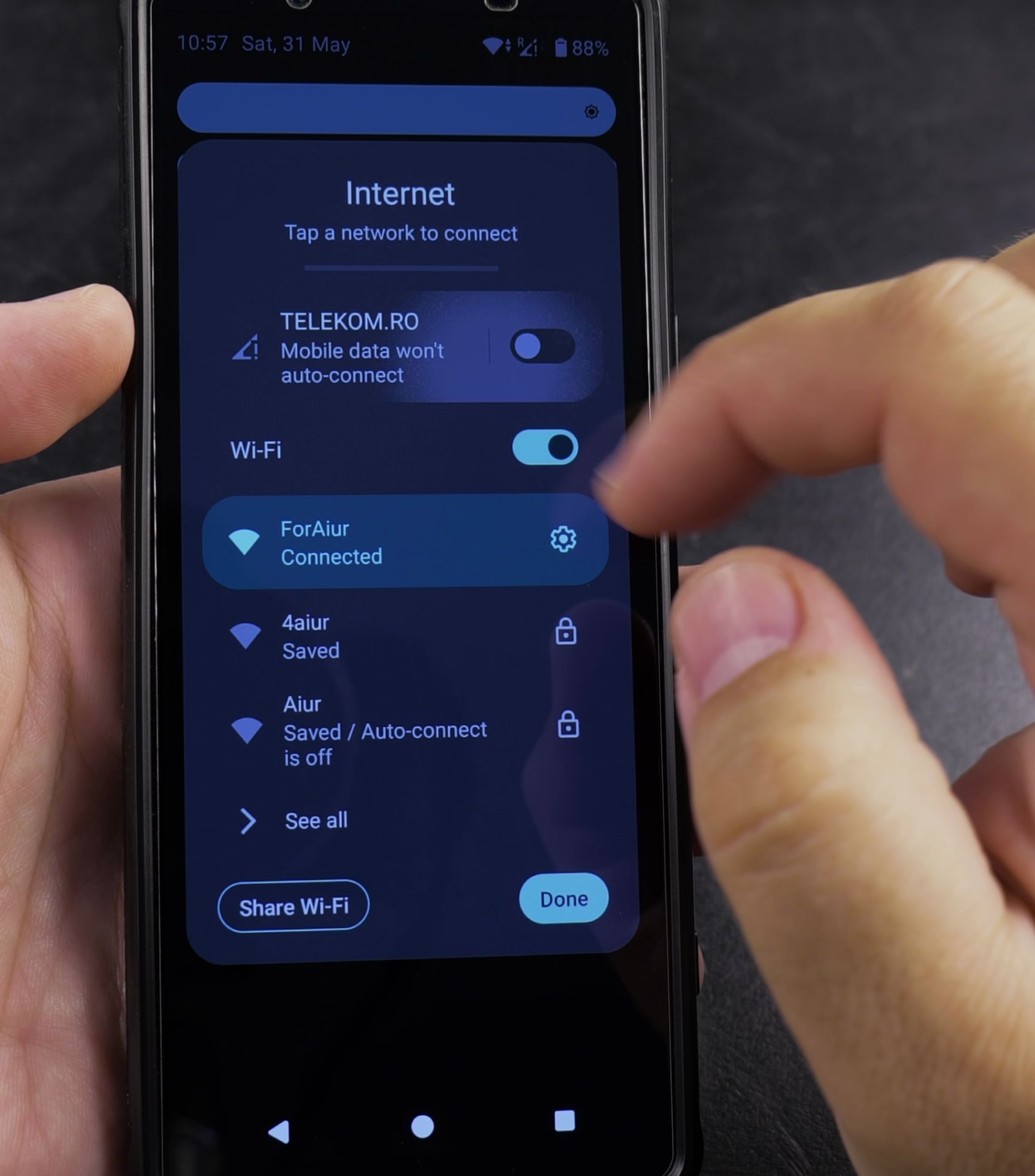
What Happens When You Turn Off Mobile Data
- You can still make calls and send SMS texts
- Internet access will only work on Wi-Fi
- Apps won’t update in the background
- Location services may be less accurate
How to Restrict Background Data Usage
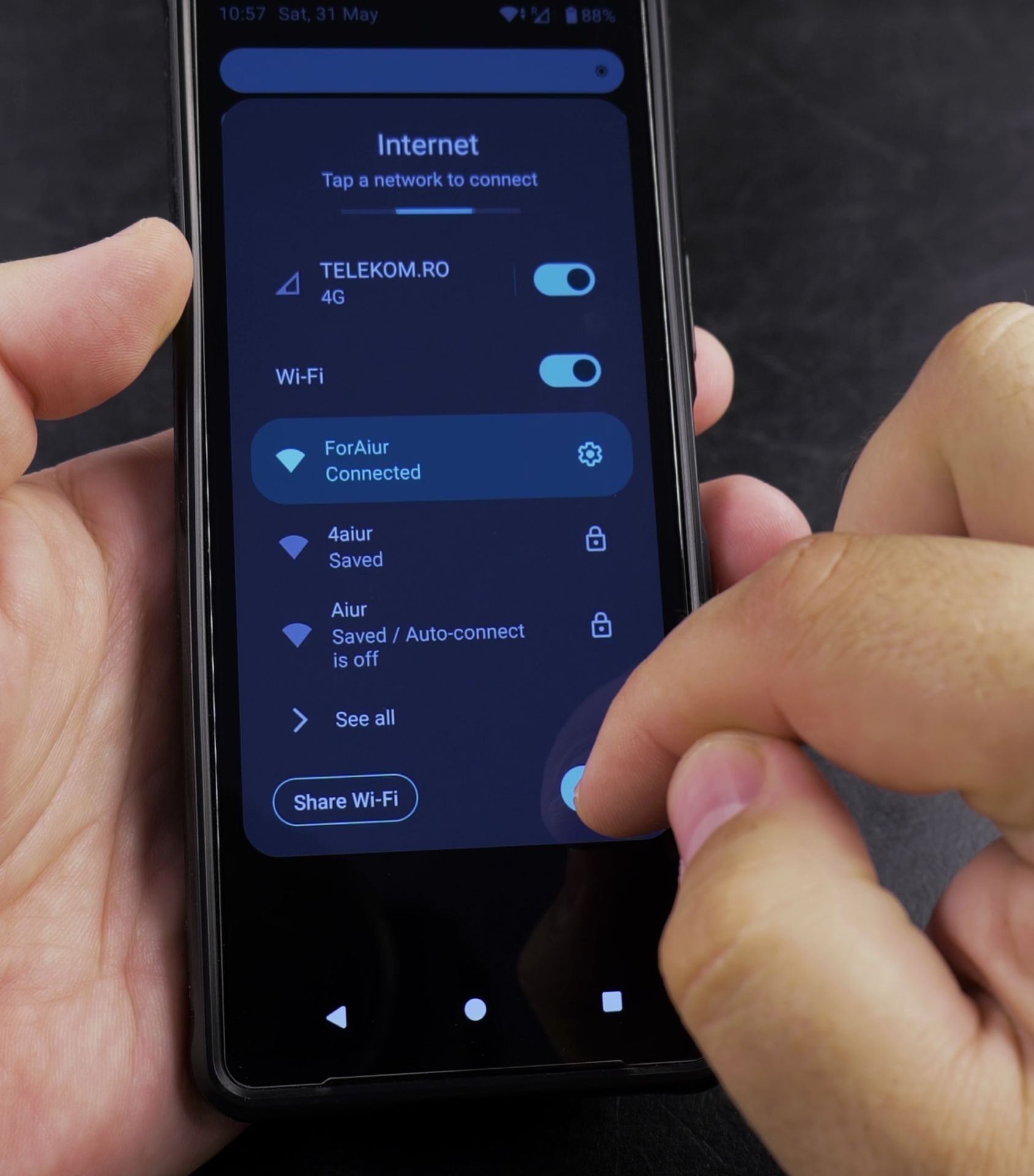
5. Go to Settings > Network & internet
Go to Settings > Network & internet > Data usage.
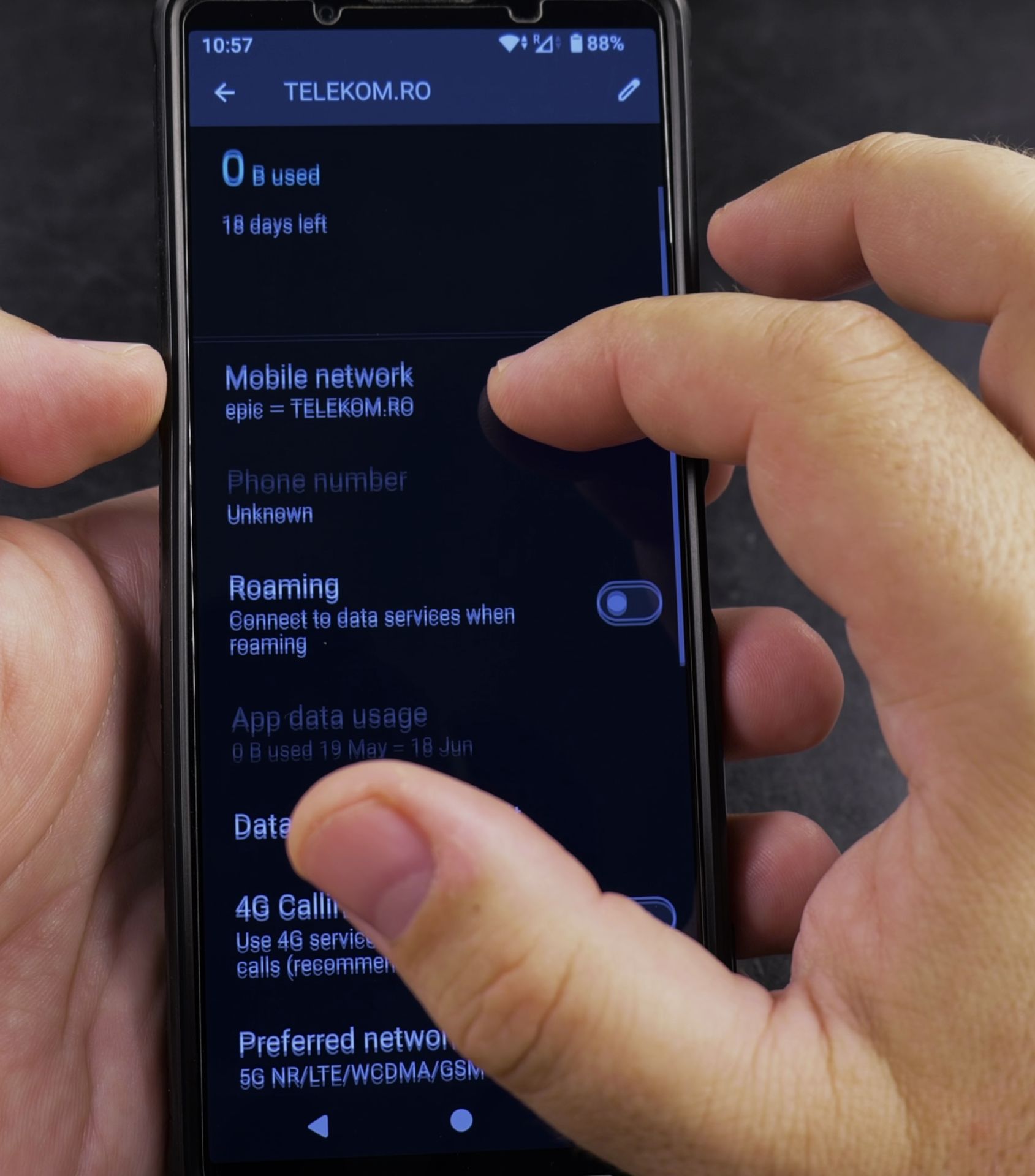
6. Tap “Mobile data usage”
Tap “Mobile data usage”.
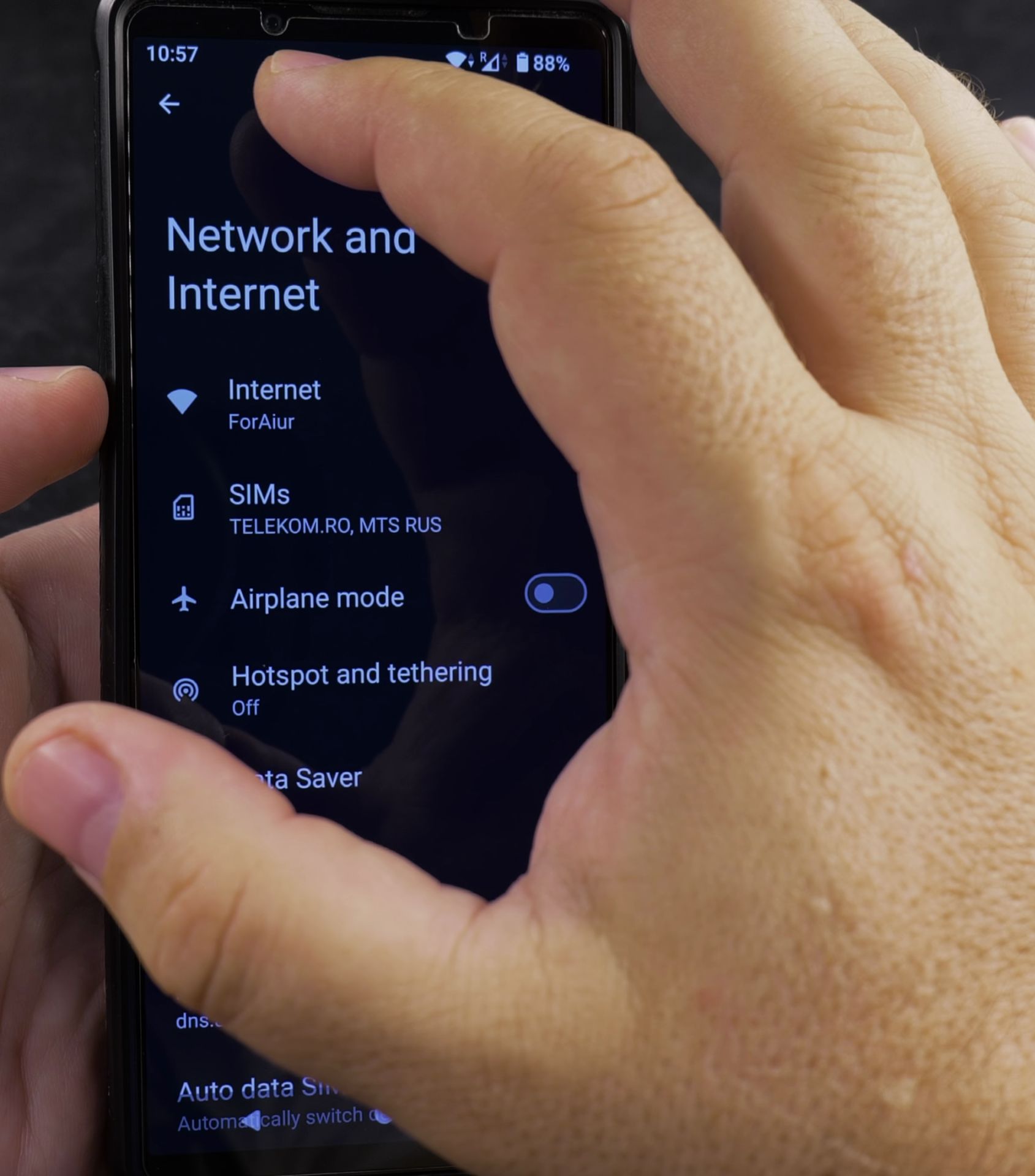
7. Select any app to restrict its background
Select any app to restrict its background data.
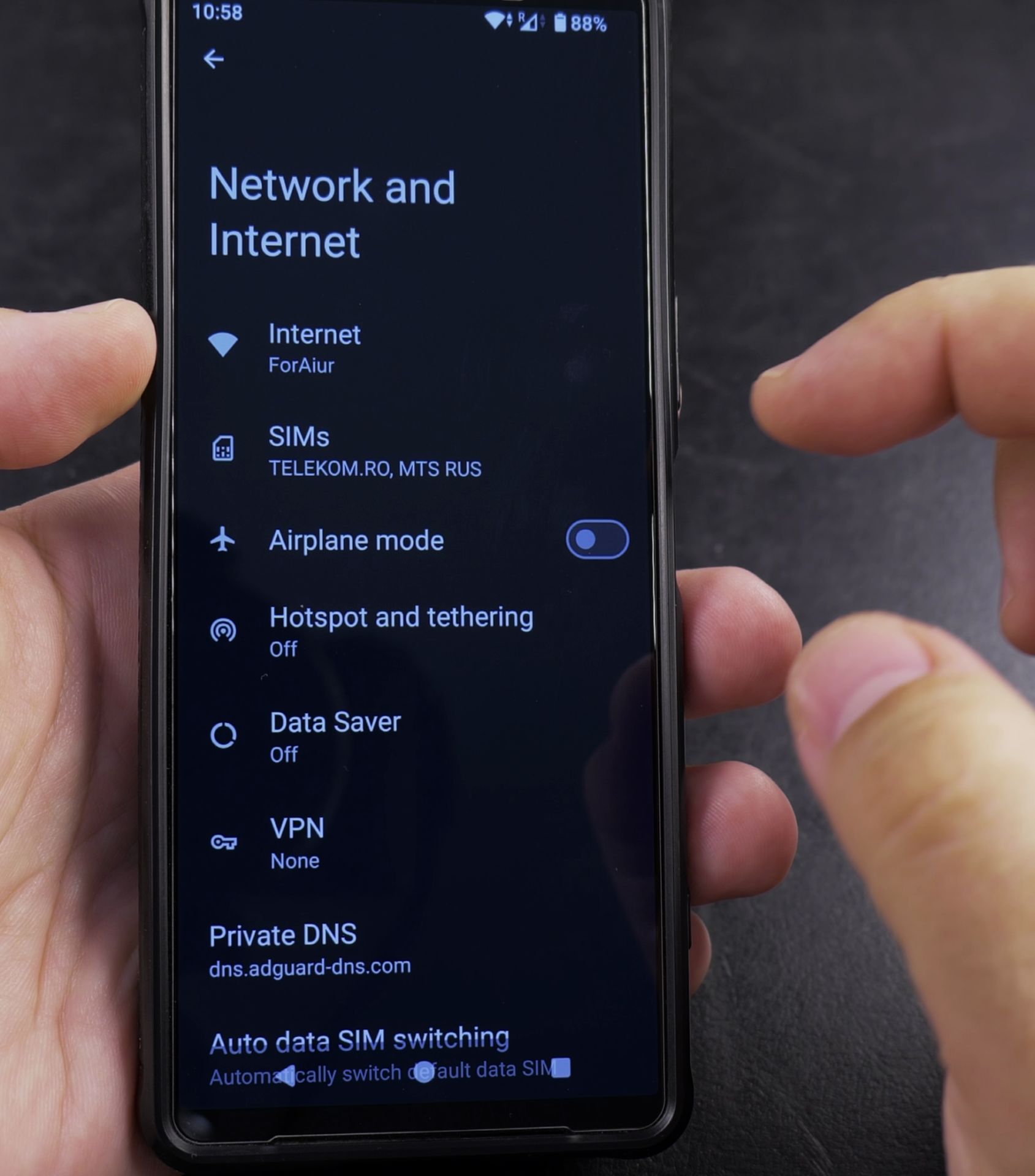
8. Toggle on “Restrict app background data”
Toggle on “Restrict app background data”.
Setting a Data Limit (Android 9+)
- Go to Settings > Network & internet > Data usage
- Tap “Data warning & limit”
- Set your wanted data limit
- Toggle on “Set data limit”
Important Notes
- Turning off mobile data won’t stop phone calls or SMS
- Some system services may still use minimal data
- You’ll need to manually turn data back on when needed
- Emergency calls always work regardless of data settings
Now you can easily control when your phone uses mobile data. This helps prevent unexpected charges and saves battery when you don’t need internet access. If you need to completely disable all cellular connections, use Airplane Mode instead.
Helpful Tips
Take your time and check the screen carefully after each tap so you can confirm the setting changed as expected. If an option appears in a slightly different spot on your device, watch the embedded video above for a closer look.
Related Guides
- How to Enable Mobile Data on Android Devices – How to Enable Mobile Data (4G/5G) on Android Devices.
- Android 5G Mobile Data Settings – I show you in the video on the Sony Xperia 1V running Android 14.
- Remove Apps from Samsung Android Home Screen – How to Remove Apps from Home Screen on Samsung Android.
- Android & Mobile Guides – Browse more tutorials and practical guides in this section.


Leave a Reply