
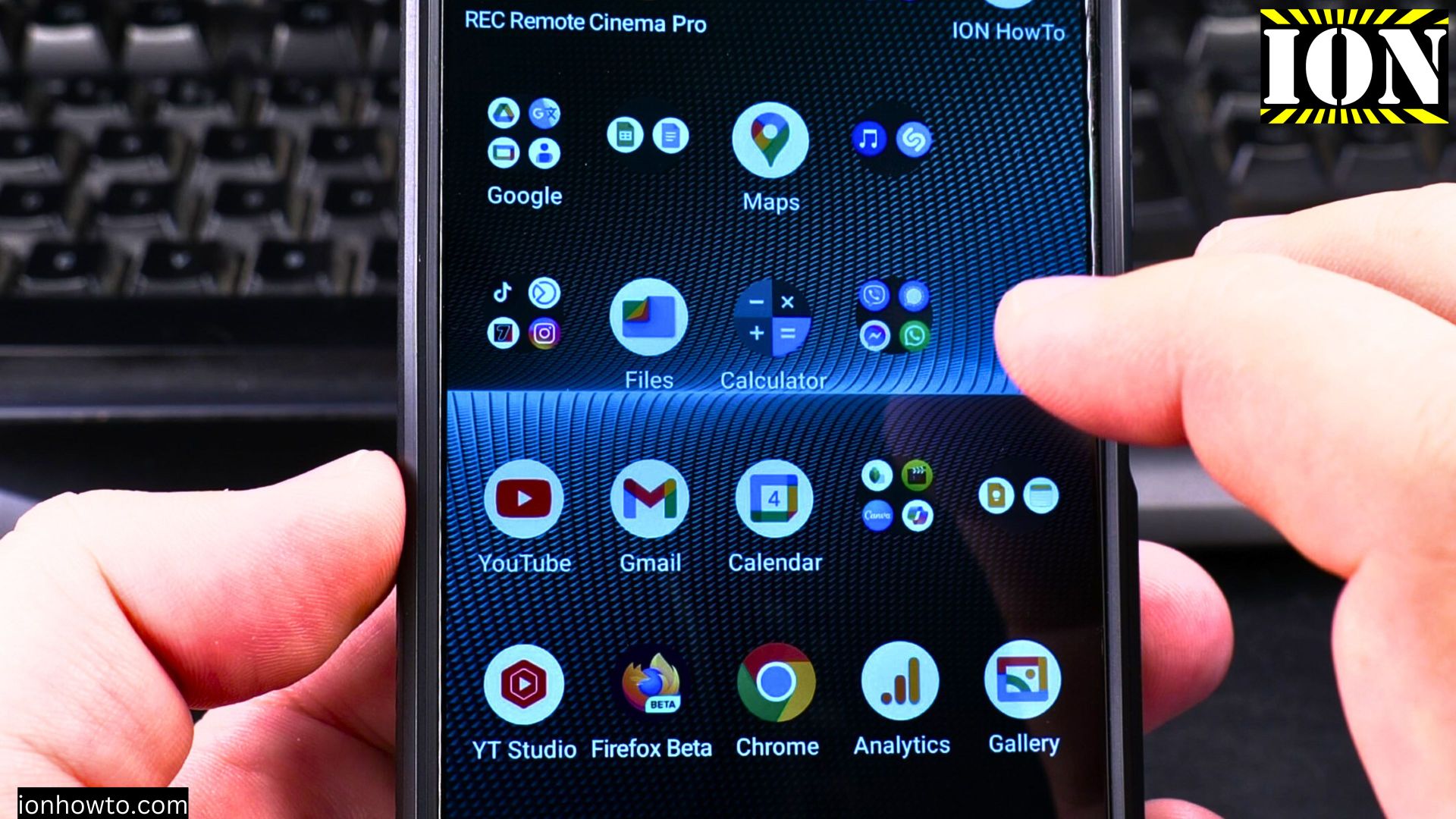
I show you in the video on the Sony Xperia 1V running Android 14.
Amazon links
As an Amazon Associate I earn from qualifying purchases:
- Phone Accessories
- Screen protectors
- Phone Cases
- Mobile Tripods
- Usb-c charger
- Usb-c cable
- Docking stations
- Wireless car chargers
- Wireless charger stand
- SIM card removal tool
- SIM card holder
Instructions below for Android 14 snd Android 15.
5G Settings
Open the 5G settings:
- Open Settings on your phone
- Tap on Network & Internet
- Select Mobile Network or Internet then Gear icon on your mobile operator name
- Look for Preferred Network Type or Network Mode
Setting Up Data Limits
How to set up data warnings and limits:
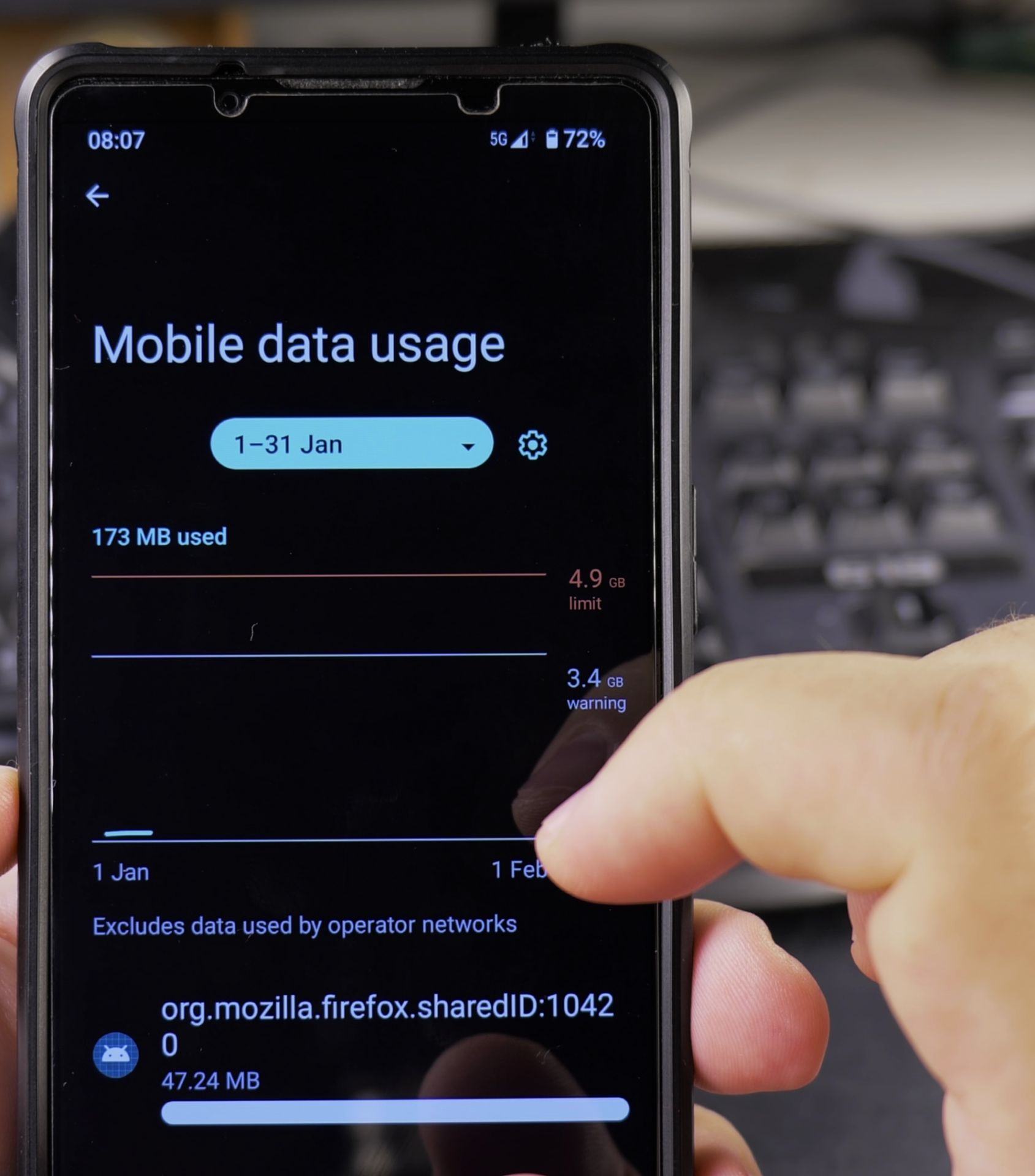
- Go to Settings > Network & Internet > Mobile Network or Internet then Mobile Network Gear Icon
- Tap on Data Warning & Limit
- Set your monthly data limit (like 5GB or 10GB)
- Add a warning level (90% of the limit)
- Toggle “Set data limit” to automatically disable mobile data when you hit your cap
Managing App Data Usage
Some apps can consume a lot of mobile data but you can limit data usage per app:
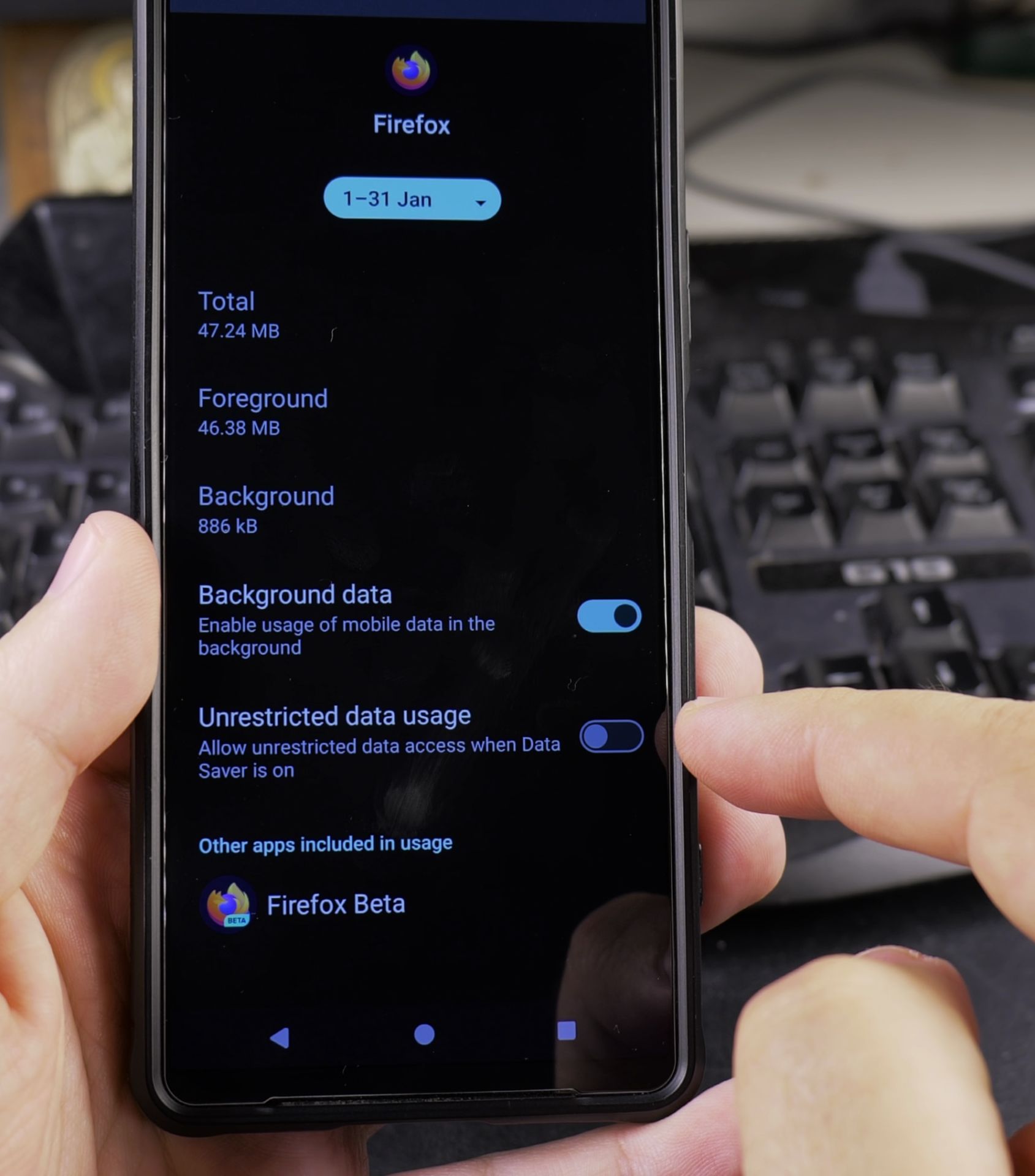
- Settings > Network & Internet > Mobile Data or Internet then Mobile Gear Icon
- App data usage – You’ll see a list of apps and their data usage
- Tap on any app to restrict its background data usage
- Toggle “Restrict app background data” if you want to limit its data consumption
Data Saver Mode to protect your battery
Data Saver is really helpful when you’re trying to stretch your data allowance:
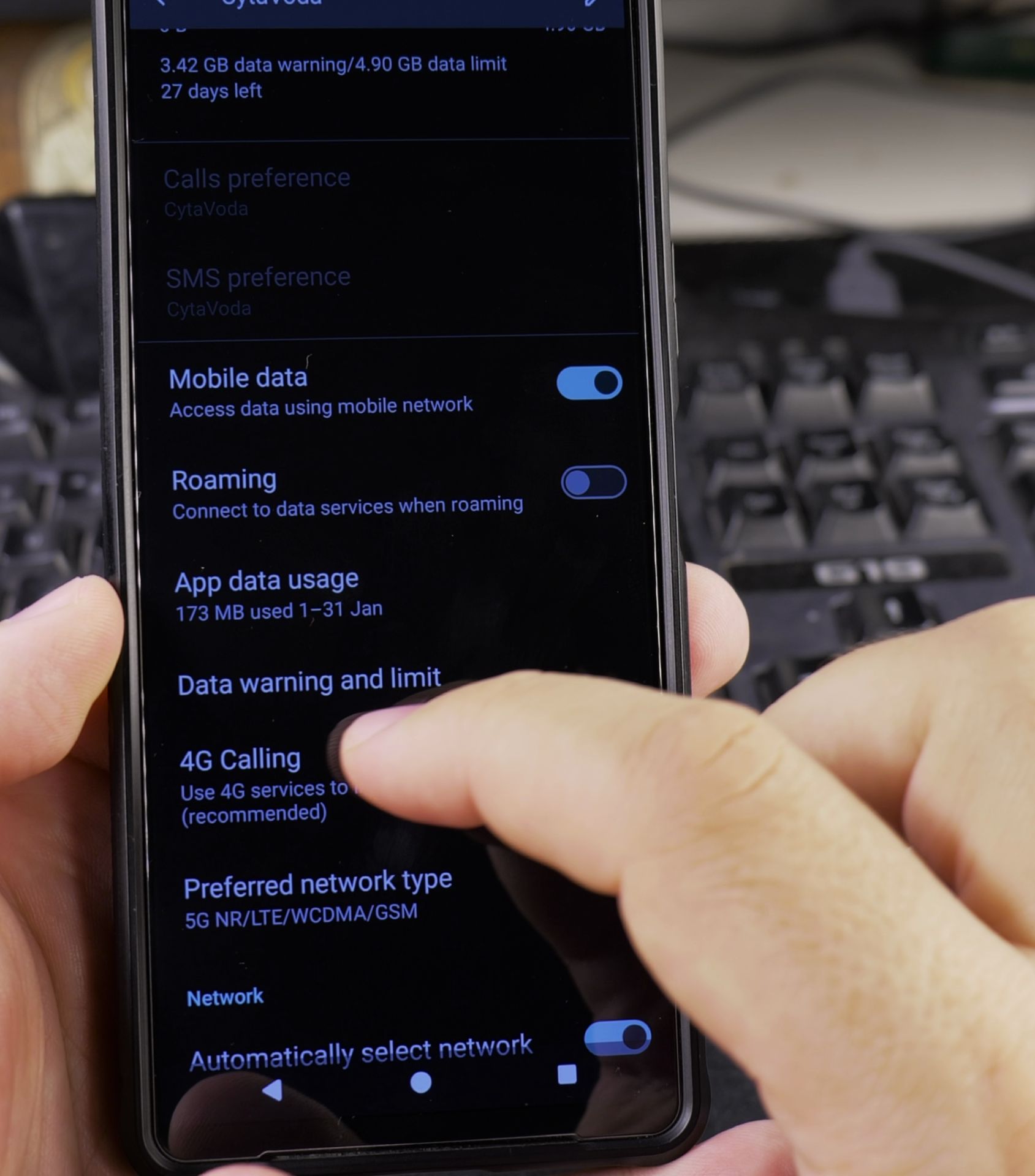
- Go to Settings > Network & Internet
- Tap on “Data Saver”
- Toggle it on
- Select “Unrestricted data” to choose which apps can still use data freely
Mobile Hotspot Share Your 5G Mobile Data
How to set up a hotspot:
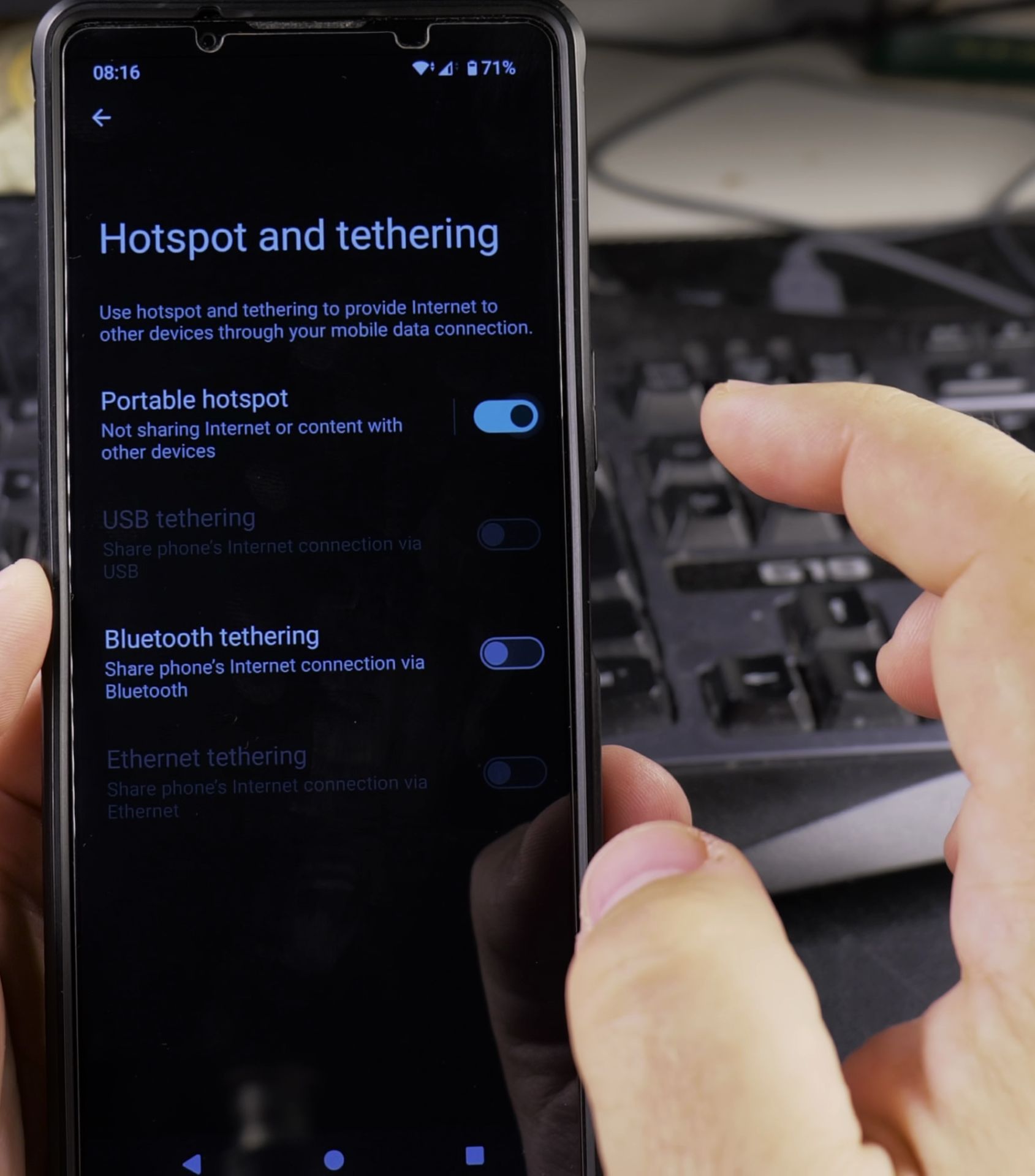
- Open Settings > Network & Internet
- Tap on Hotspot & Tethering
- Select Wi-Fi hotspot or Portable Hotspot
- Set your network name and password
- Toggle it on to start sharing
Extra Tips
If you have connection issues try these steps:
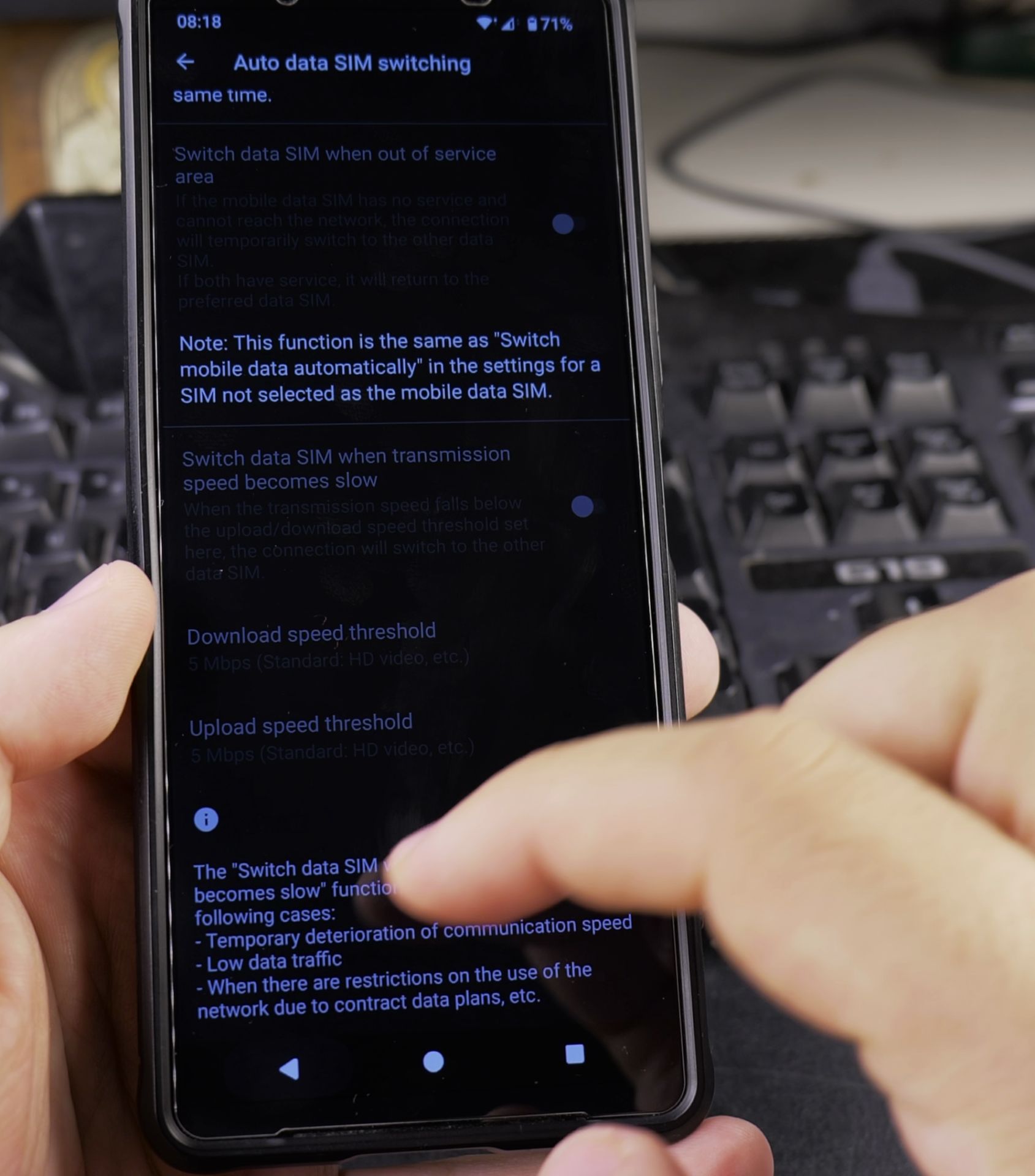
- Toggle Airplane Mode on and off
- Restart your phone
- Check for carrier settings updates
- Try switching between 5G and 4G networks
Conclusion
Customizing your 5G data usage helps you use the mobile data for things that are important and not background updates.
Want to conserve even more data? Consider downloading music and videos on Wi-Fi and using offline maps when possible. These small changes can make a big difference in your monthly data usage.
Helpful Tips
Take your time and check the screen carefully after each tap so you can confirm the setting changed as expected. If an option appears in a slightly different spot on your device, watch the embedded video above for a closer look.
Related Guides
- How to Turn Off Mobile Data on Android Devices – How to Turn Off Mobile Data (4G/5G) on Android Devices.
- How to Enable Mobile Data on Android Devices – How to Enable Mobile Data (4G/5G) on Android Devices.
- How to Enable Mobile Data Roaming on Samsung – How to Enable Mobile Data Roaming on Samsung Phones.
- 10GB Fiber Home Network Guides – Browse more tutorials and practical guides in this section.


Leave a Reply