
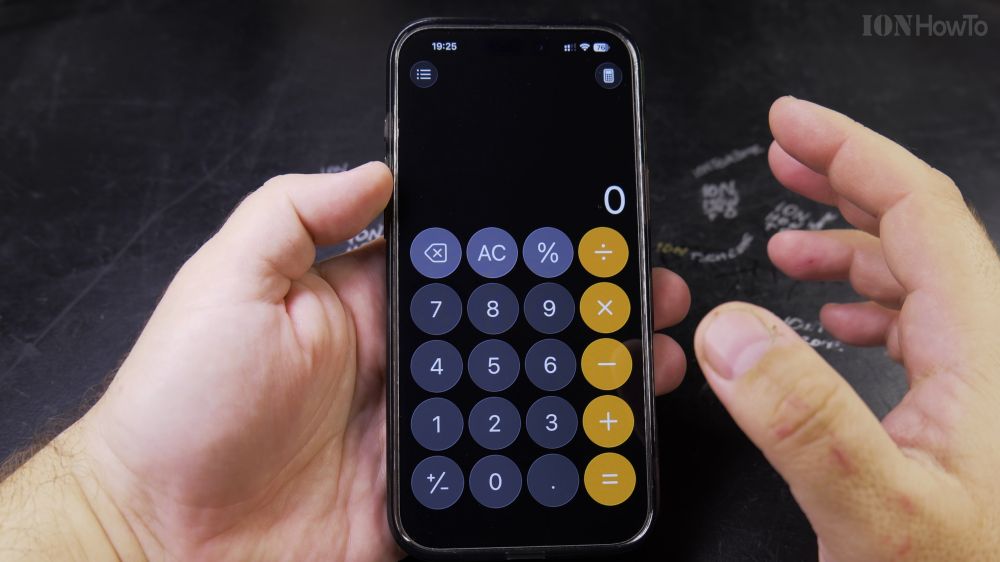
If your phone calculator does not have a percentage button, figuring out store sales or sales tax can feel tricky. I’ll show you an easy multiplication shortcut that works on any basic calculator.
1. Enter Your Starting Number
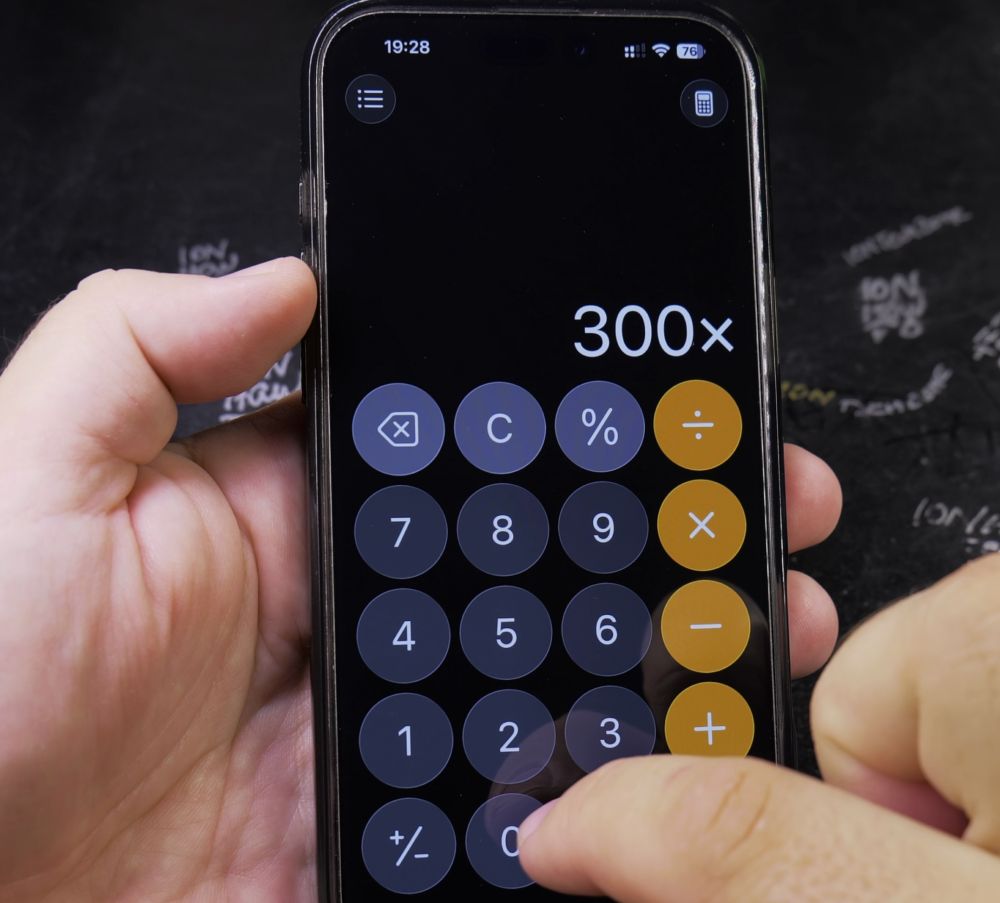
Type the base price or total amount on your calculator keypad (for example, **300**).
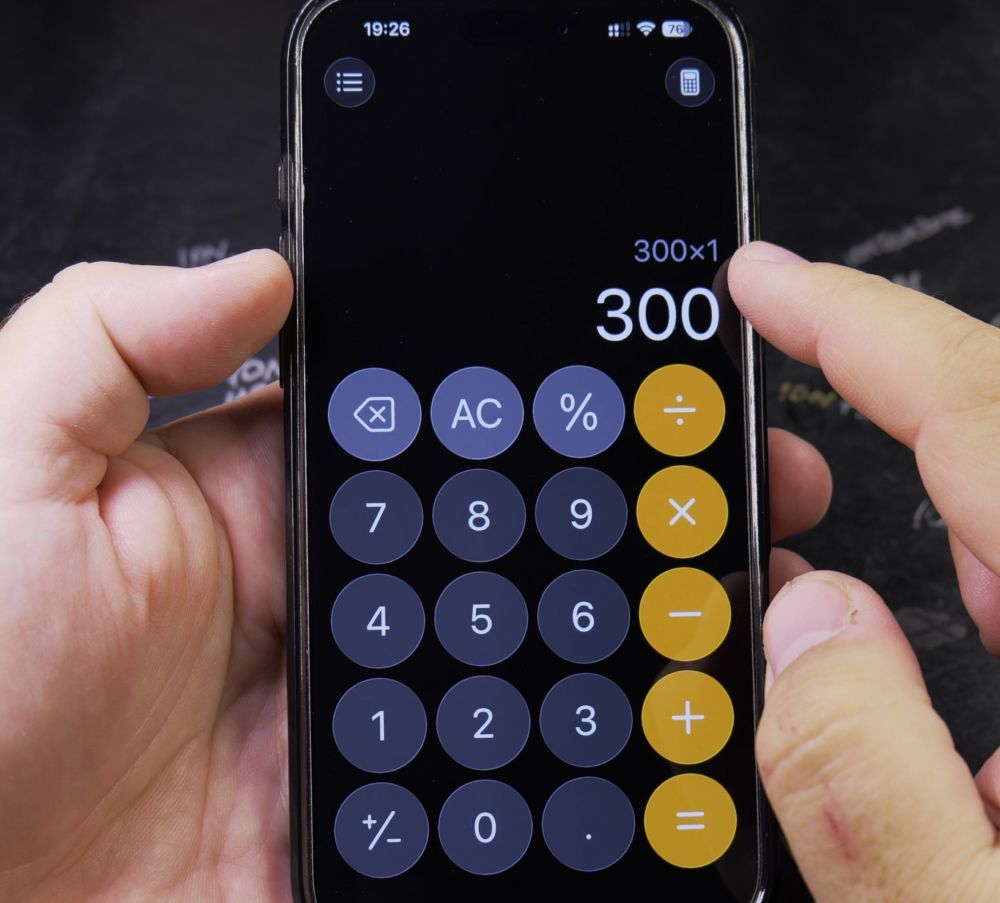
2. Tap the Multiplication Sign
Tap the **x** (multiplication) button.
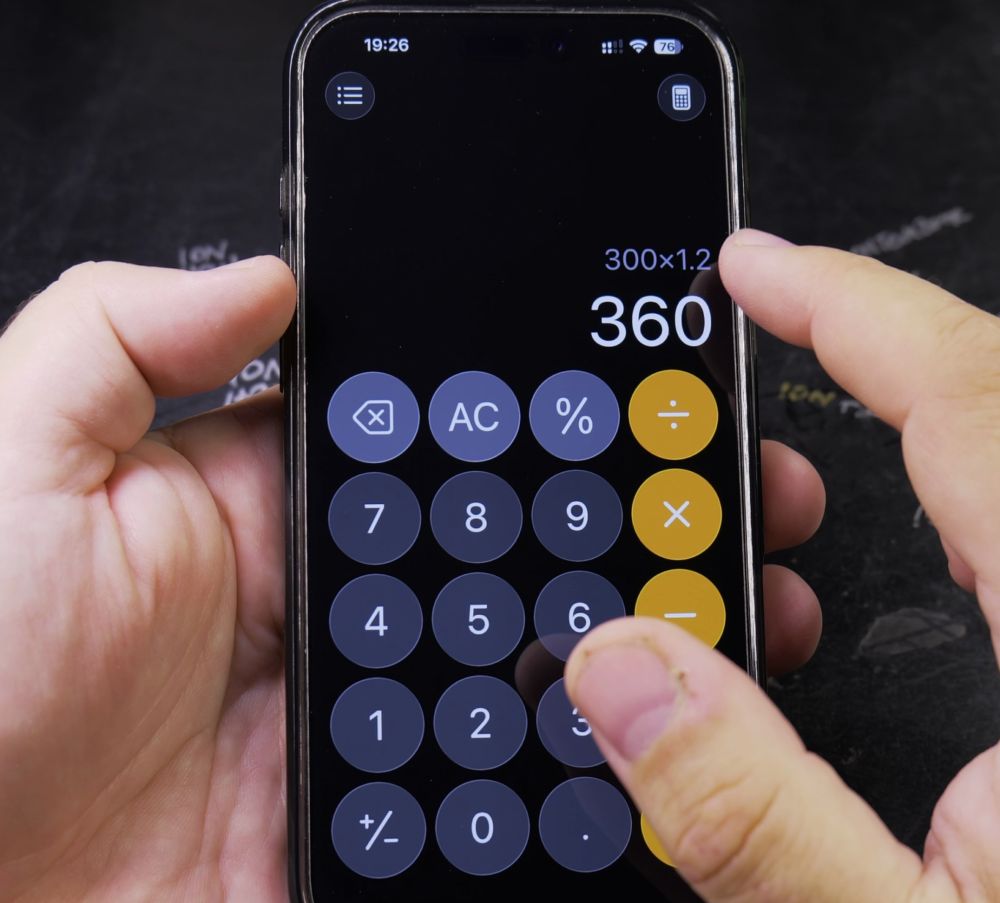
3. Add Percentages Using 1.X
To add a percentage, multiply by **1** plus your percentage as a decimal. For example, to add 20%, multiply by **1.20** and tap **=** to get **360**.
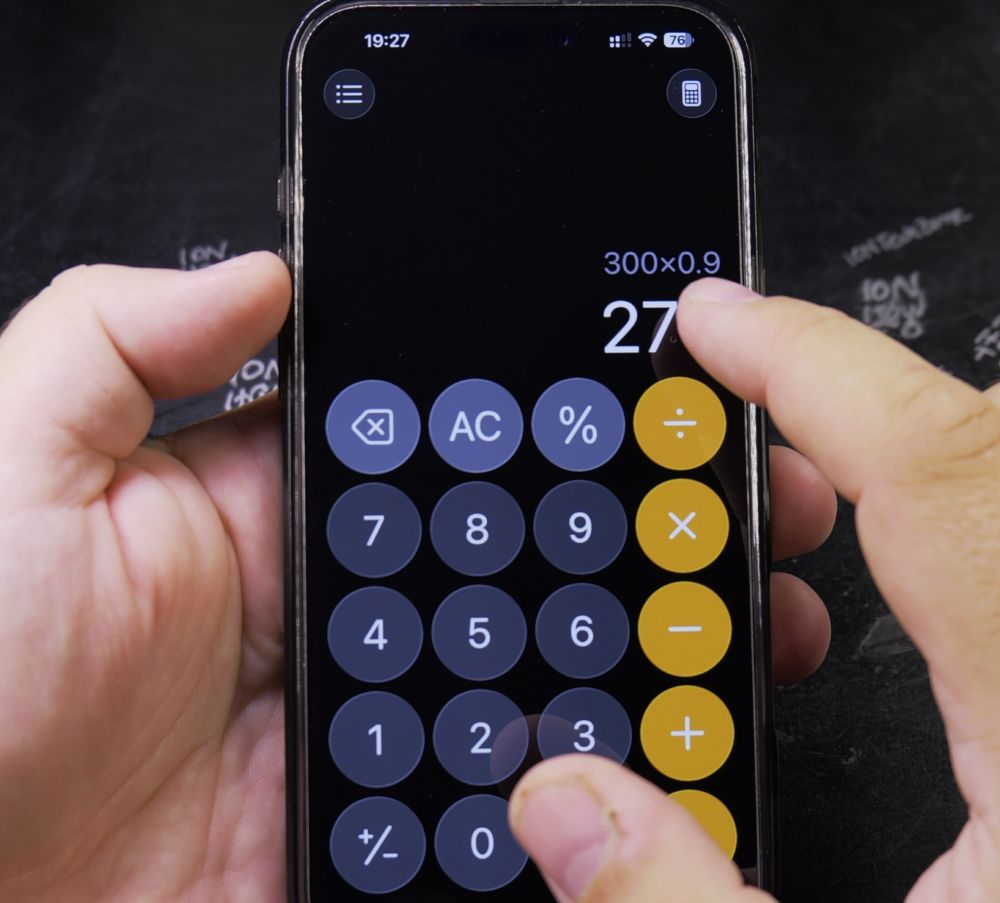
4. Subtract Percentages Using 0.X
To subtract a discount, multiply by **1** minus the percentage. For example, to take 20% off, multiply by **0.80** and tap **=** to get **240**.
5. Use the Same Trick for Other Rates
Multiply by **1.10** to add 10%, multiply by **0.90** to subtract 10%, or multiply by **1.05** to add 5% sales tax.
Helpful Tips
This decimal multiplier trick gives you the final total in a single calculation, eliminating the need to write down intermediate percentage amounts. For more everyday math and tech tips, check out our How-To guides hub.


Leave a Reply