

Learn how to control which apps can use mobile data or Wi-Fi on your Samsung phone. I’ll show you the steps to restrict network access for specific applications to save data and improve privacy.
Amazon links
As an Amazon Associate I earn from qualifying purchases:
- Phone Cases
- Mobile Tripods
- Usb-c charger
- Usb-c cable
- Docking stations
- Wireless car chargers
- Wireless charger stand
- SIM card removal tool
- SIM card holder
Showing you on Samsung S23 Ultra Android 15, OneUI 7.0
Quick Steps and Scenarios Overview
| What You Need to Do | Quick Jump |
|---|---|
| Why Restrict App Network Access? | Jump to Step 1 |
| How to Block Apps from Using Mobile Data | Jump to Step 2 |
| How to Restrict Background Data | Jump to Step 3 |
| How to Use Data Saver Mode | Jump to Step 4 |
| How to Block Wi-Fi Access for Apps | Jump to Step 5 |
| How to Reverse These Changes | Jump to Step 6 |
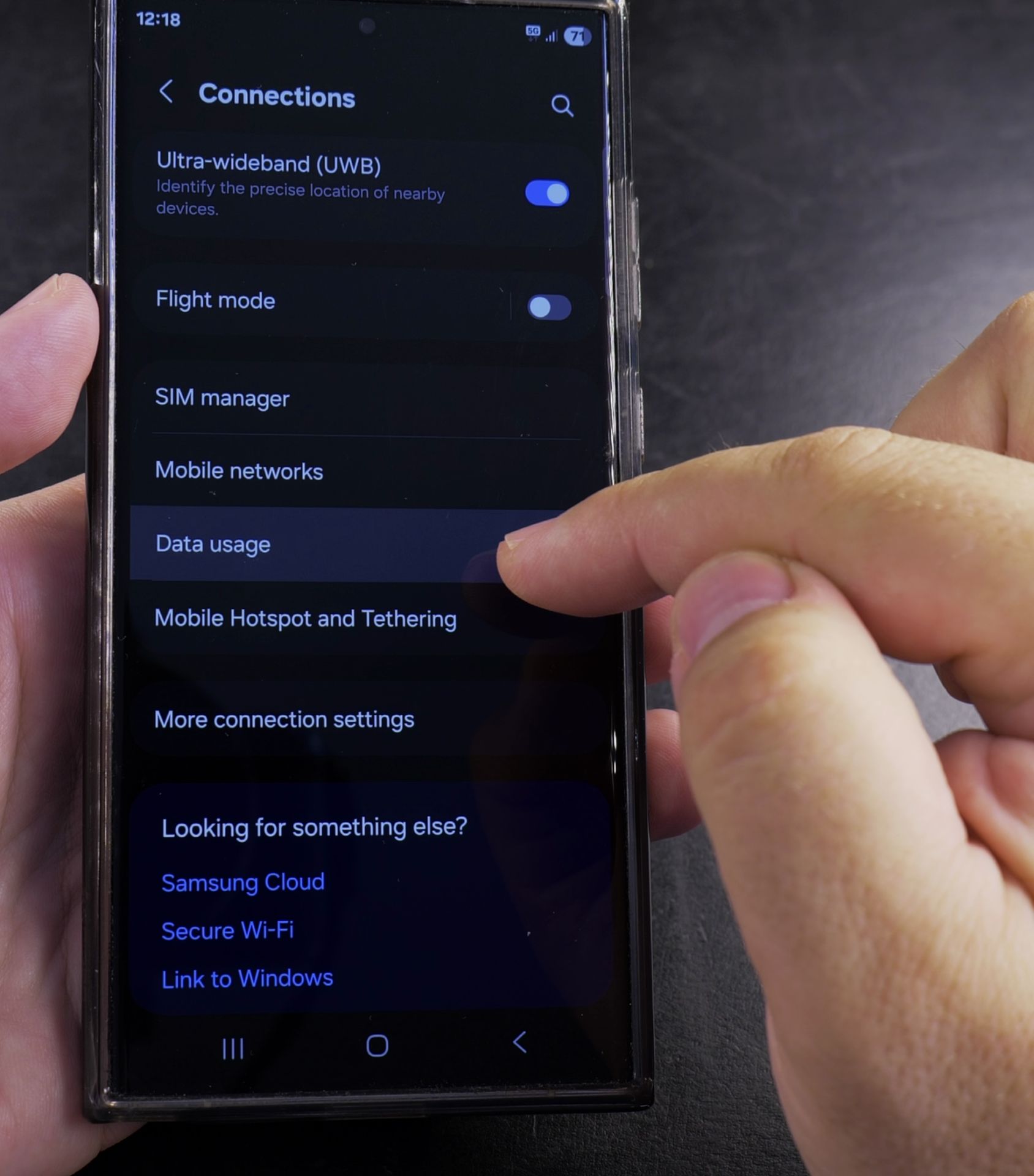
If you want to stop certain apps from using your data connection, I show you how to block them in your Samsung settings. This works for all recent Galaxy models including S series, A series, and Z series running One UI.
Why Restrict App Network Access?
You might want to block apps from using data for different reasons:
- Save mobile data by stopping unnecessary background usage
- Improve battery life by preventing apps from constantly syncing
- Limit distractions by blocking social media or games
- Enhance privacy by stopping apps from sending data in the background
How to Block Apps from Using Mobile Data
Follow these steps to restrict mobile data for specific apps:
- Open Settings on your Samsung phone
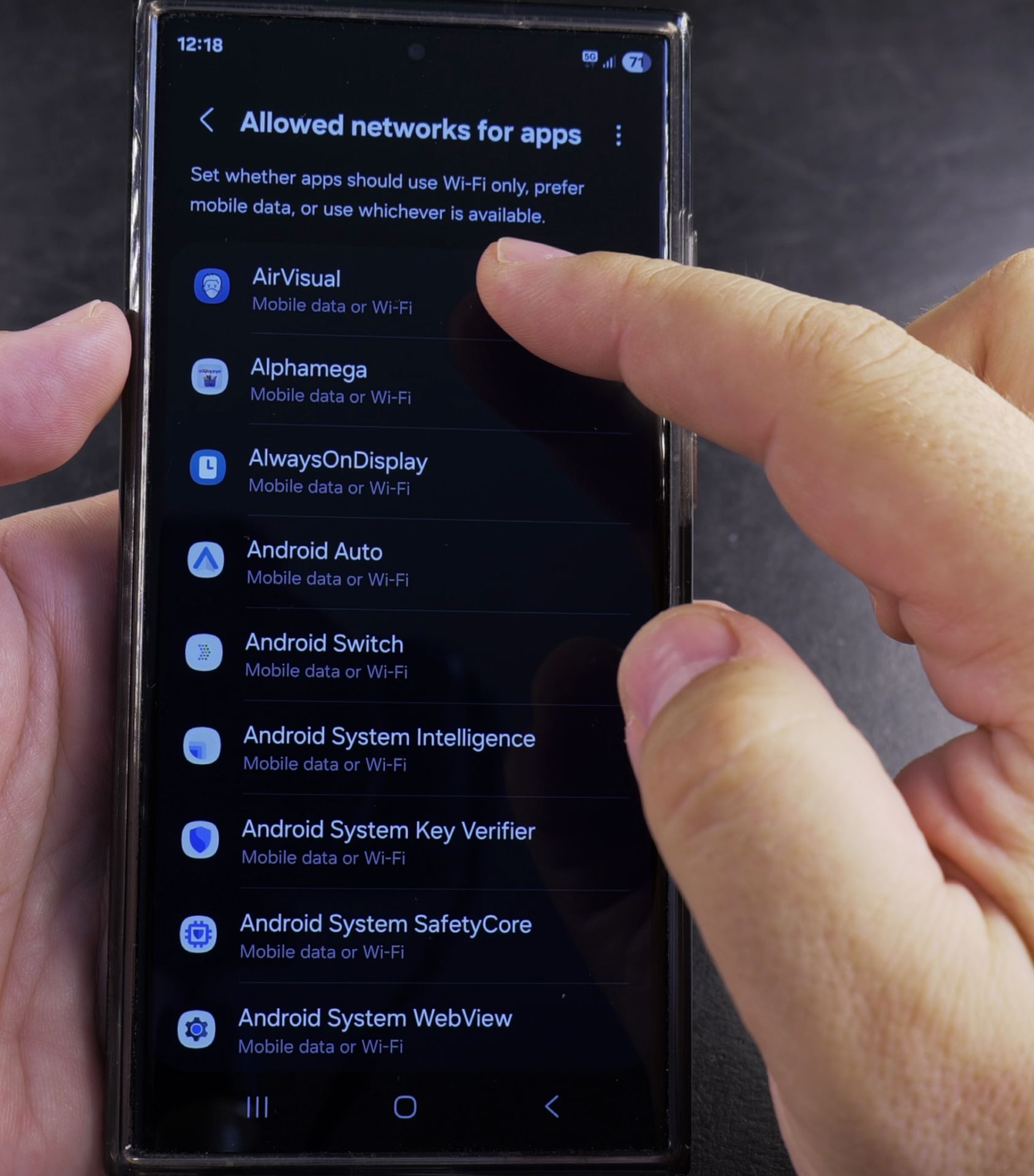
- Go to Connections > Data usage
- Tap Mobile data usage
- Find the app you want to restrict and tap it
- Toggle off Allow mobile data usage
The app will now only work when connected to Wi-Fi.
How to Restrict Background Data
Some apps use data even when you’re not actively using them. Here’s how to stop that:
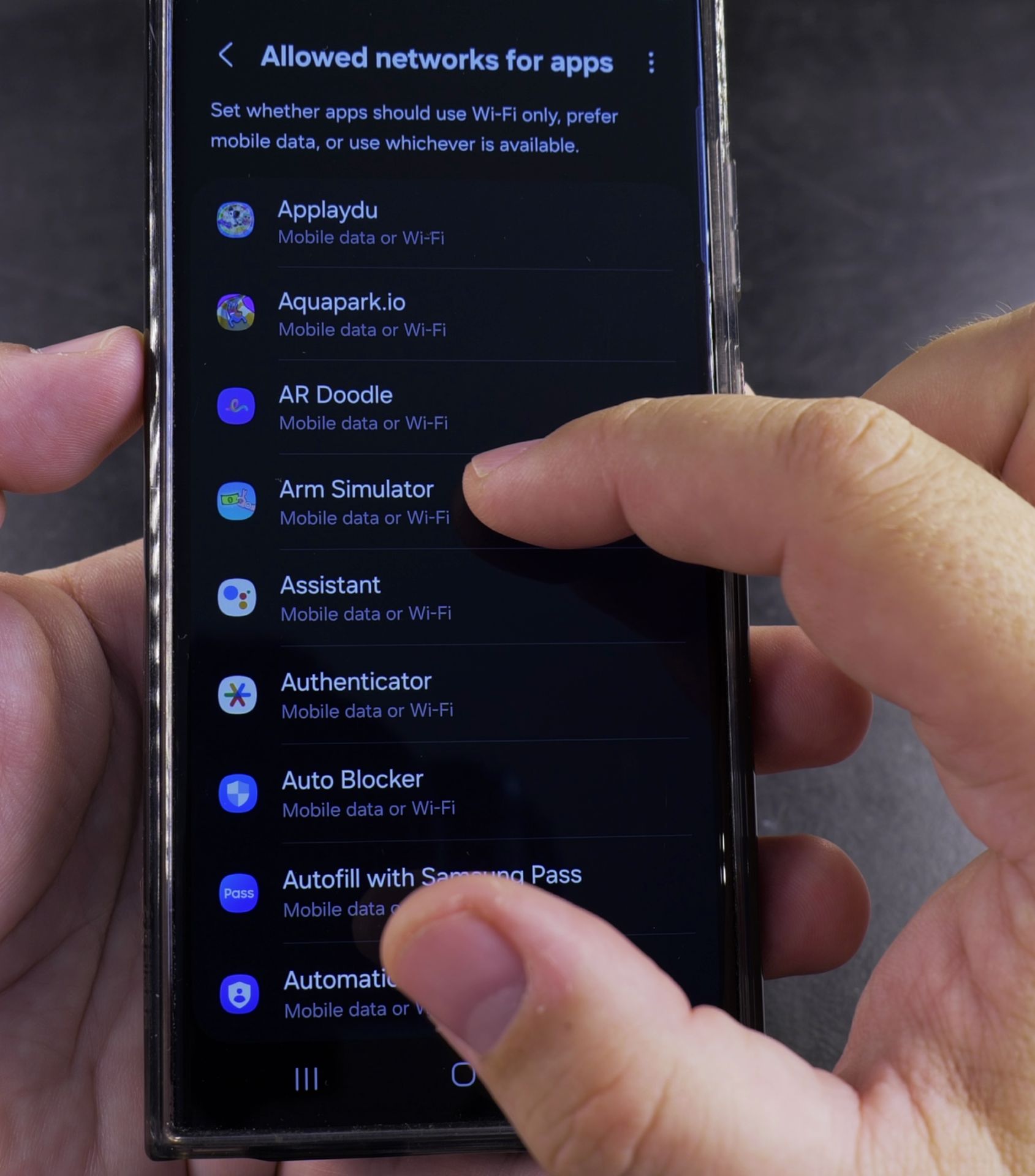
- Go to Settings > Apps
- Select the app you want to restrict
- Tap Mobile data
- Toggle off Allow background data usage
How to Use Data Saver Mode
For a quick way to restrict all background data:
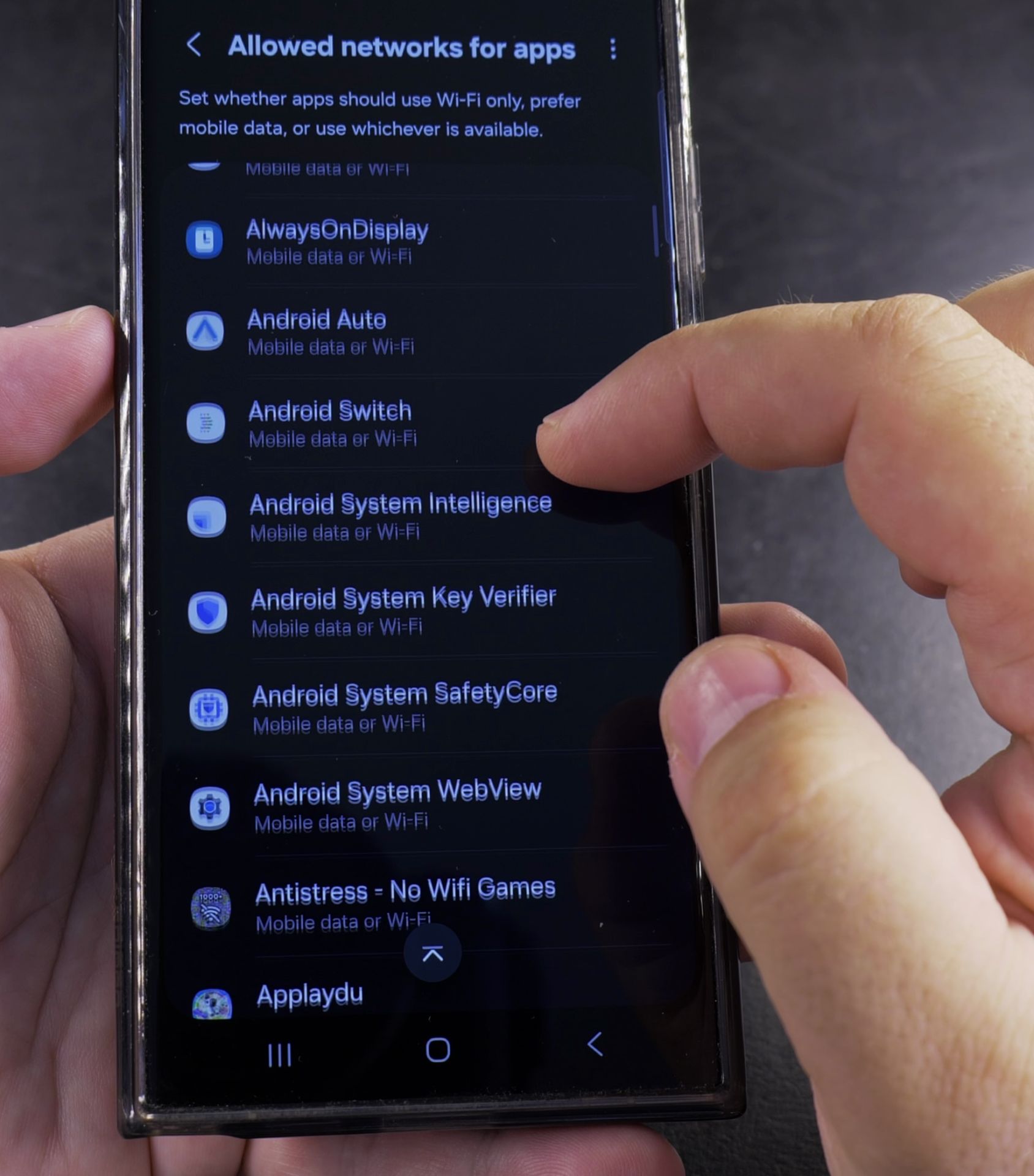
- Open Settings > Connections
- Tap Data usage
- Turn on Data saver
- Tap Allowed apps to choose which apps can use data in the background
How to Block Wi-Fi Access for Apps
If you want to stop apps from using Wi-Fi but allow mobile data:
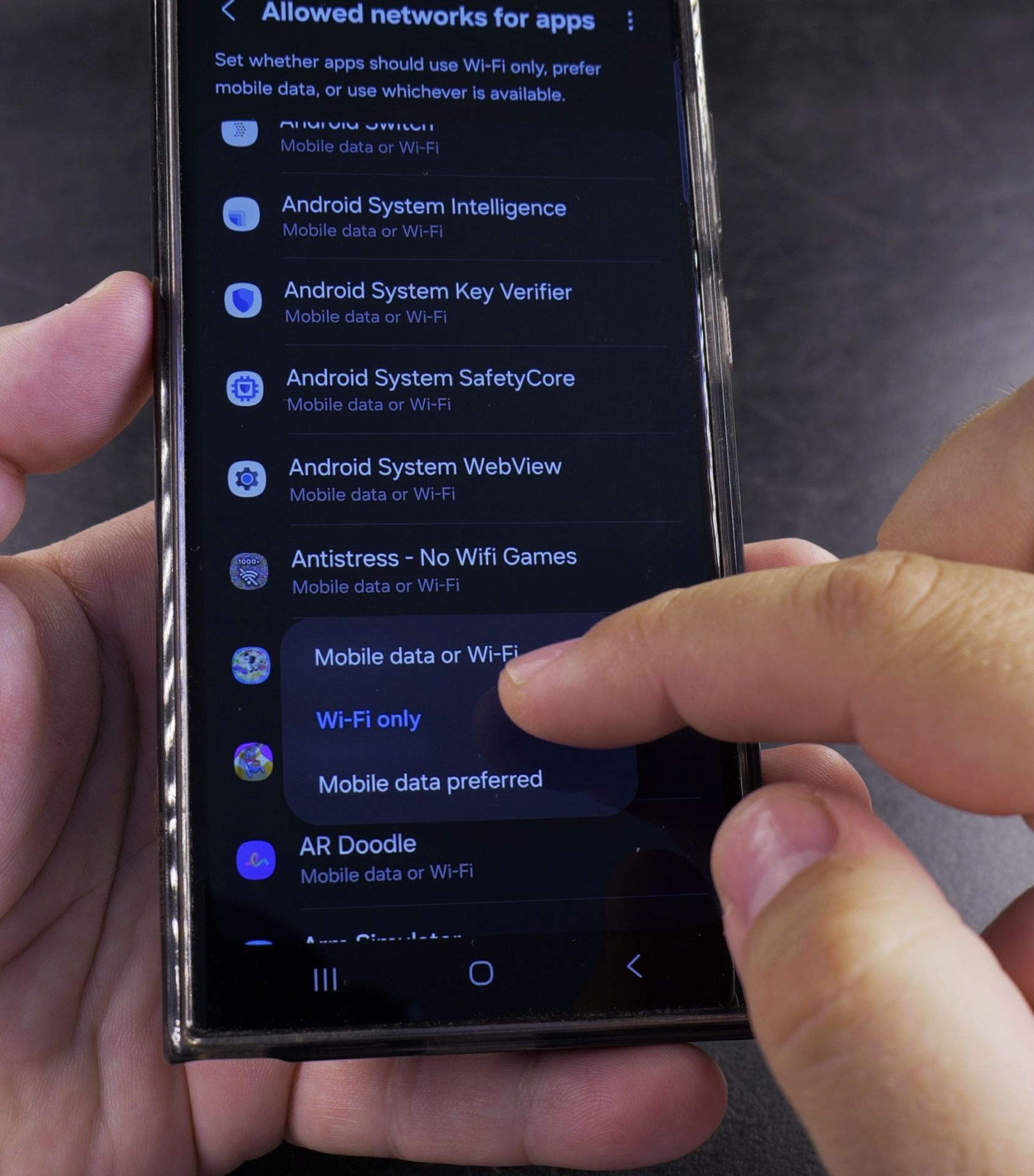
- Install a firewall app from the Play Store
- Alternatively, use Samsung’s built-in settings:
- Go to Settings > Apps
- Select an app and tap Permissions
- Disable Nearby devices permission (limits some Wi-Fi functions)
Troubleshooting Restricted Apps
If an app stops working properly after restricting its data:
- Check if it needs internet access for core functions
- Try allowing background data just for that app
- Restart your phone after changing settings
How to Reverse These Changes
To allow an app to use data again:
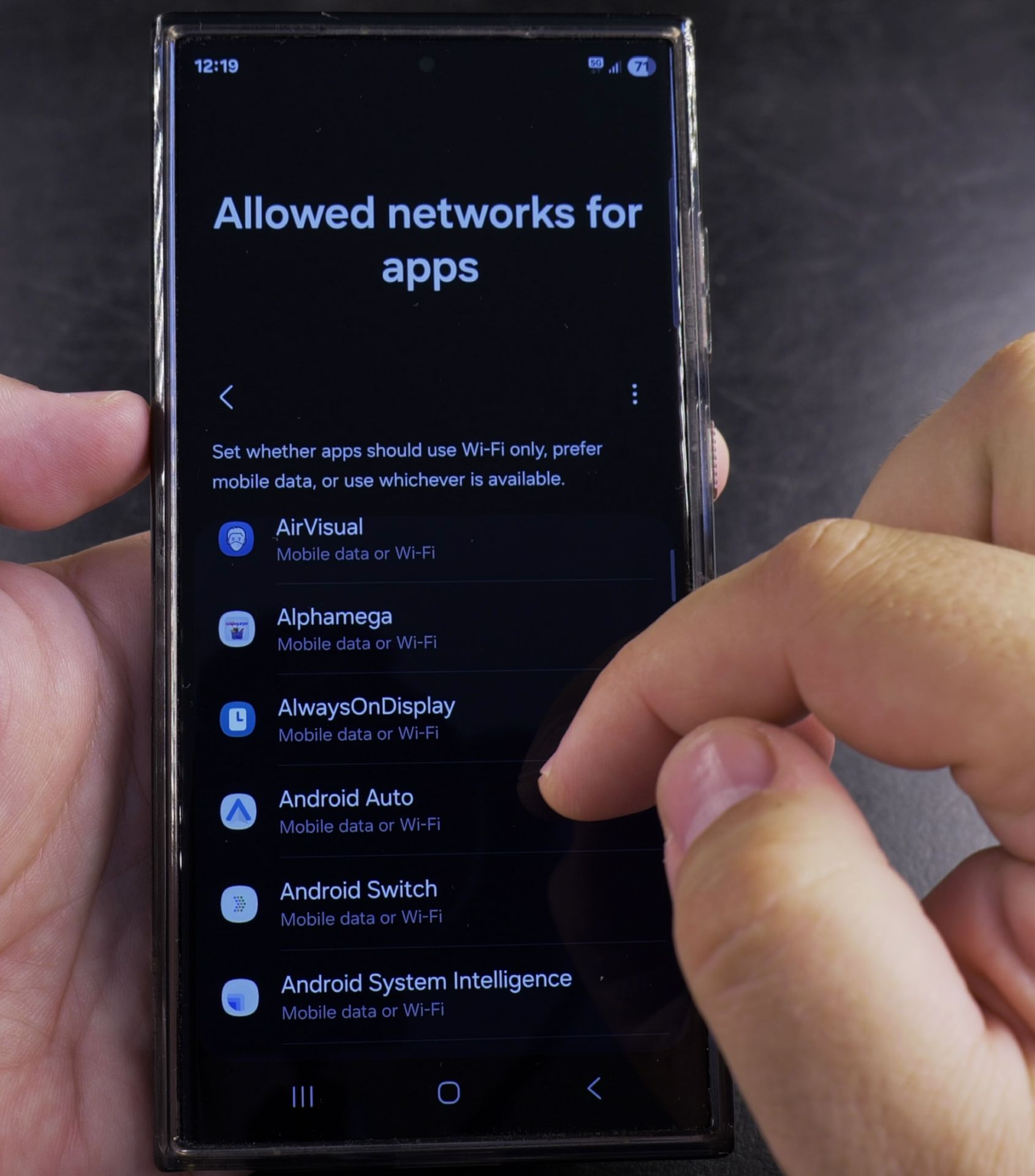
- Go back to the same settings where you restricted it
- Toggle the permissions back on
- The app should regain network access immediately
These controls give you better management over your data usage and privacy. You can customize restrictions for different apps based on your needs.
Helpful Tips
Take your time and check the screen carefully after each tap so you can confirm the setting changed as expected. If an option appears in a slightly different spot on your device, watch the embedded video above for a closer look.
Related Guides
- How to Enable Mobile Data Roaming on Samsung – How to Enable Mobile Data Roaming on Samsung Phones.
- Wi-Fi and 5G Samsung Galaxy fix Wi-Fi Problems – Samsung Galaxy Android Toggle Disable Wi-Fi and Use 5G Mobile Data to Fix Wi-Fi Connected but No Internet Problem.
- Change Wi-Fi Settings from Static IP to DHCP on Android – How to Change Wi-Fi Settings from Static IP to DHCP on Android Devices.
- Samsung Android Guides – Browse more tutorials and practical guides in this section.


Leave a Reply