
If your iPhone is running slow, acting glitchy, or having strange issues, resetting all settings can often fix these problems while keeping your personal data safe.
Amazon links
As an Amazon Associate I earn from qualifying purchases:
- Phone Cases
- Mobile Tripods
- Usb-c charger
- Usb-c cable
- Docking stations
- Wireless car chargers
- Wireless charger stand
- SIM card removal tool
- SIM card holder
Quick Steps and Scenarios Overview
| What You Need to Do | Quick Jump |
|---|---|
| What Resetting All Settings Does | Jump to Step 1 |
| When to Reset All Settings | Jump to Step 2 |
| How to Reset All Settings | Jump to Step 3 |
| Open the Settings app | Jump to Step 1 |
| Go to General | Jump to Step 2 |
| Scroll down and tap Transfer or Reset | Jump to Step 3 |
Demonstrated on iOS 18.3.2 with iPhone 16 Pro Max Titanium Black 256 GB version Global model A3296 – MYWV3ZD/A
What Resetting All Settings Does
This process will:
- Remove all your customized settings
- Clear saved Wi-Fi networks and passwords
- Reset display and sound settings
- Restore default system preferences
What it won’t do:
- Delete your photos, videos, or files
- Remove any apps or app data
- Erase contacts or messages
When to Reset All Settings
Try this if your iPhone has:
- Unexplained battery drain
- Frequent app crashes
- Display or sound issues
- General sluggish performance
This is a great troubleshooting step before considering a full factory reset.
How to Reset All Settings
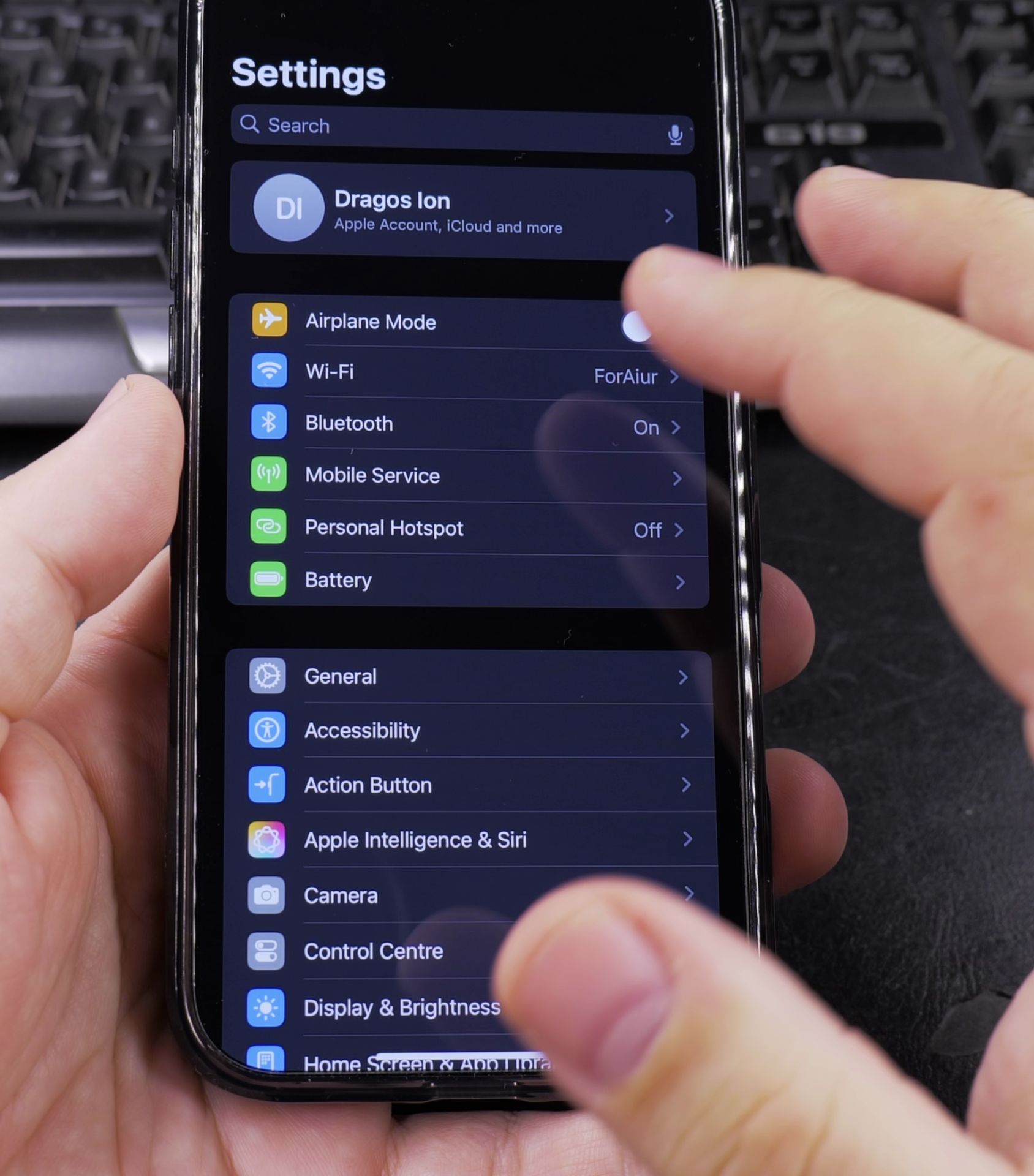
1. Open the Settings app
Open the Settings app.
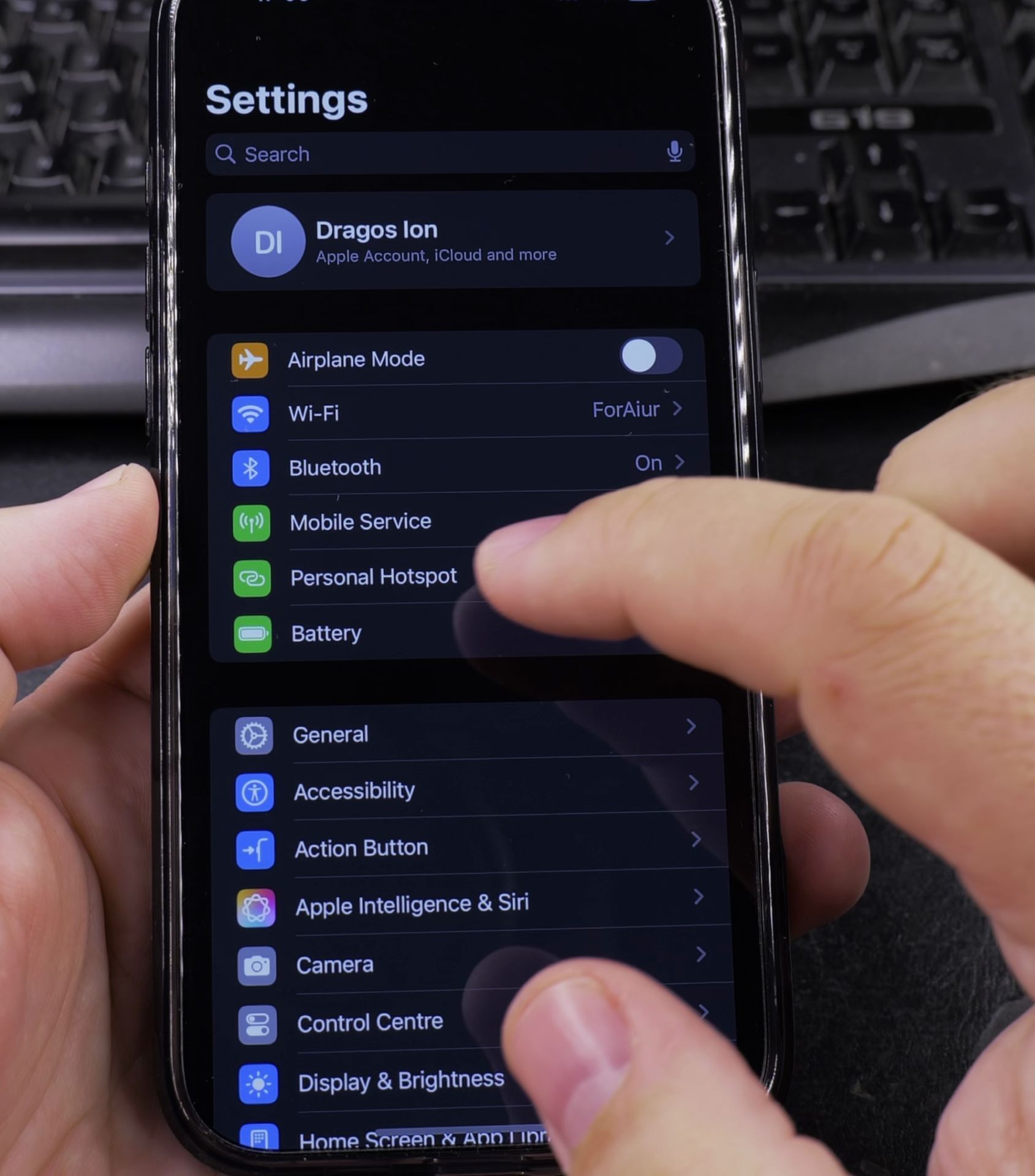
2. Go to General
Go to General.
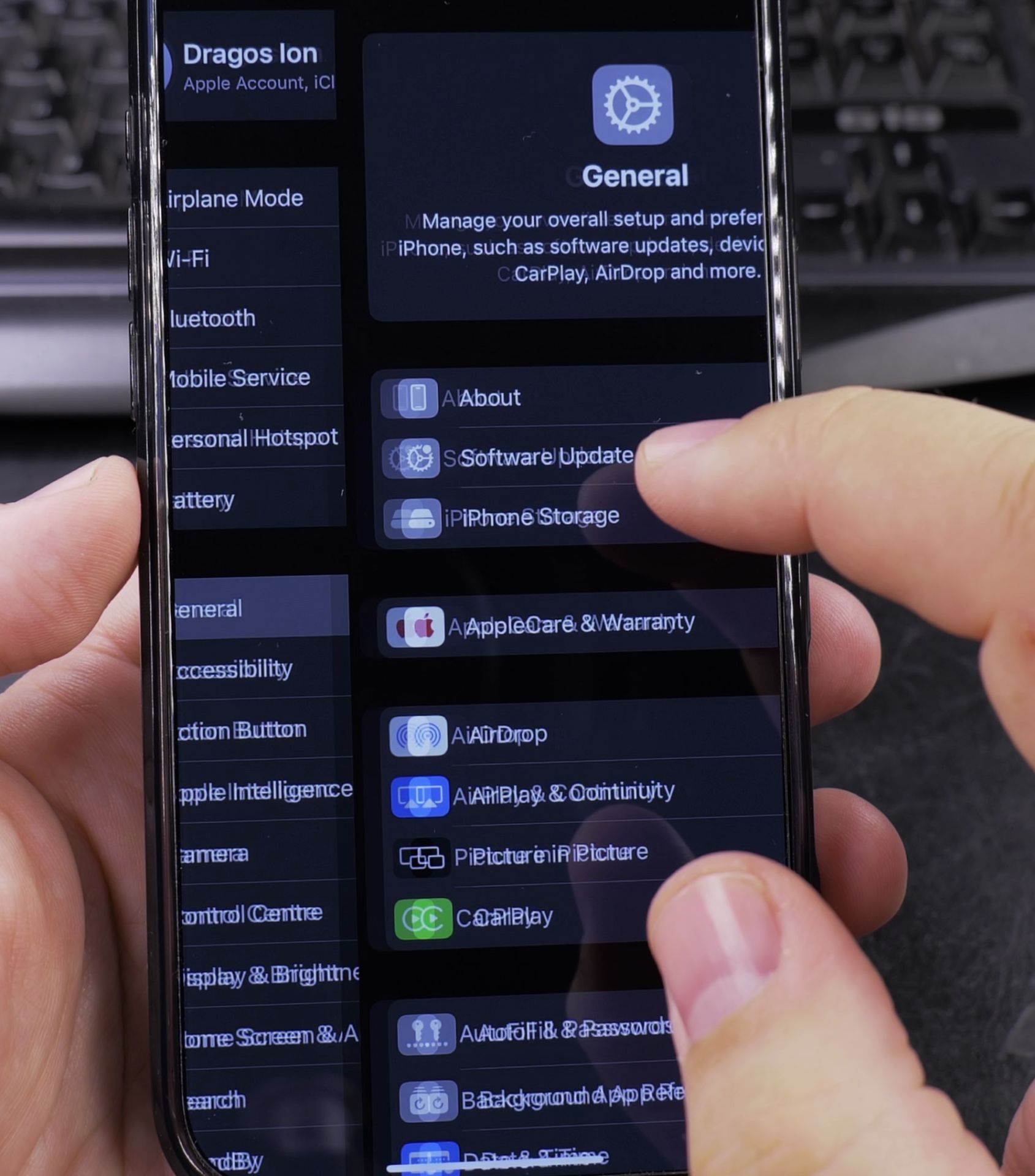
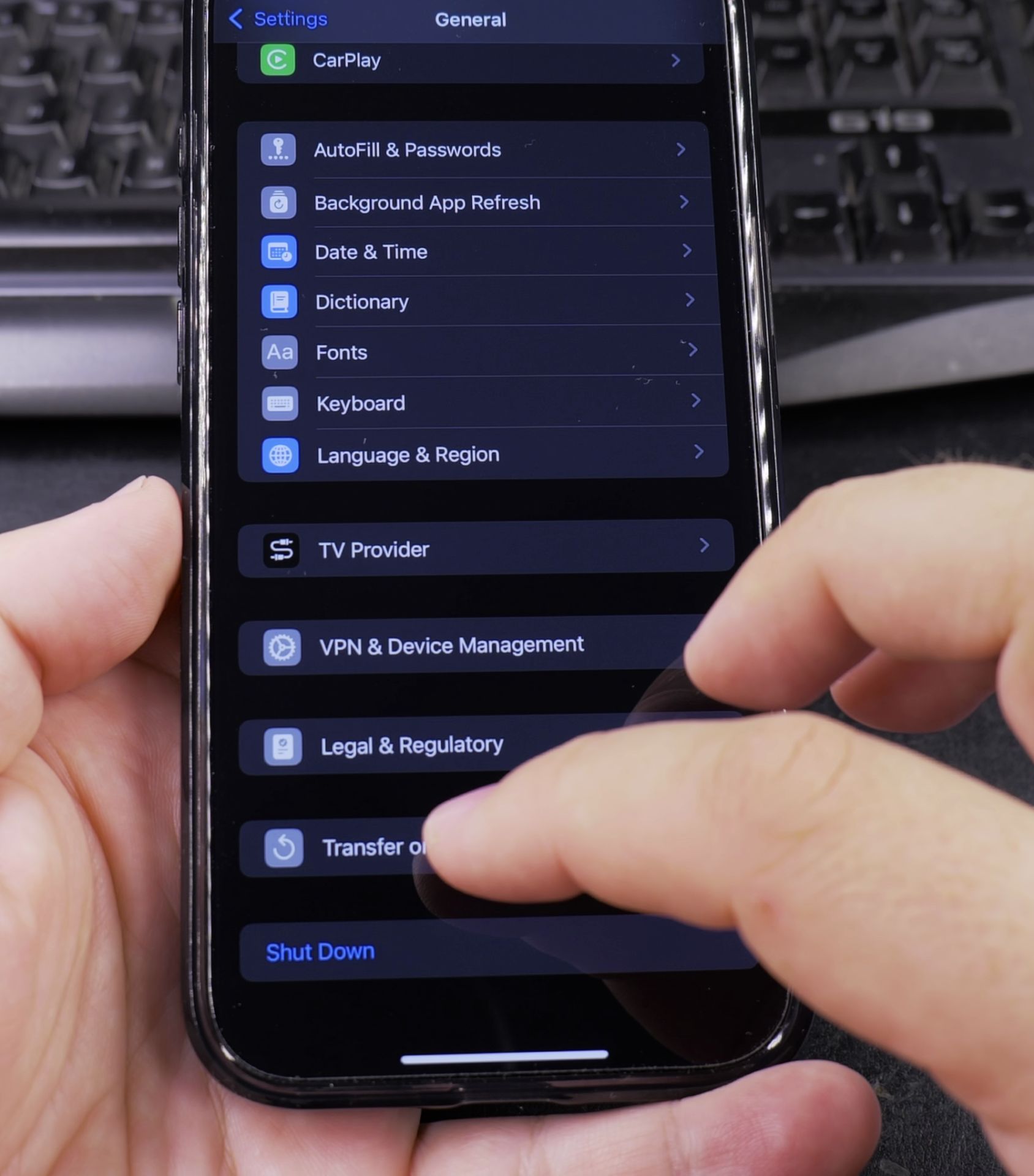
3. Scroll down and tap Transfer or Reset
Scroll down and tap Transfer or Reset iPhone.
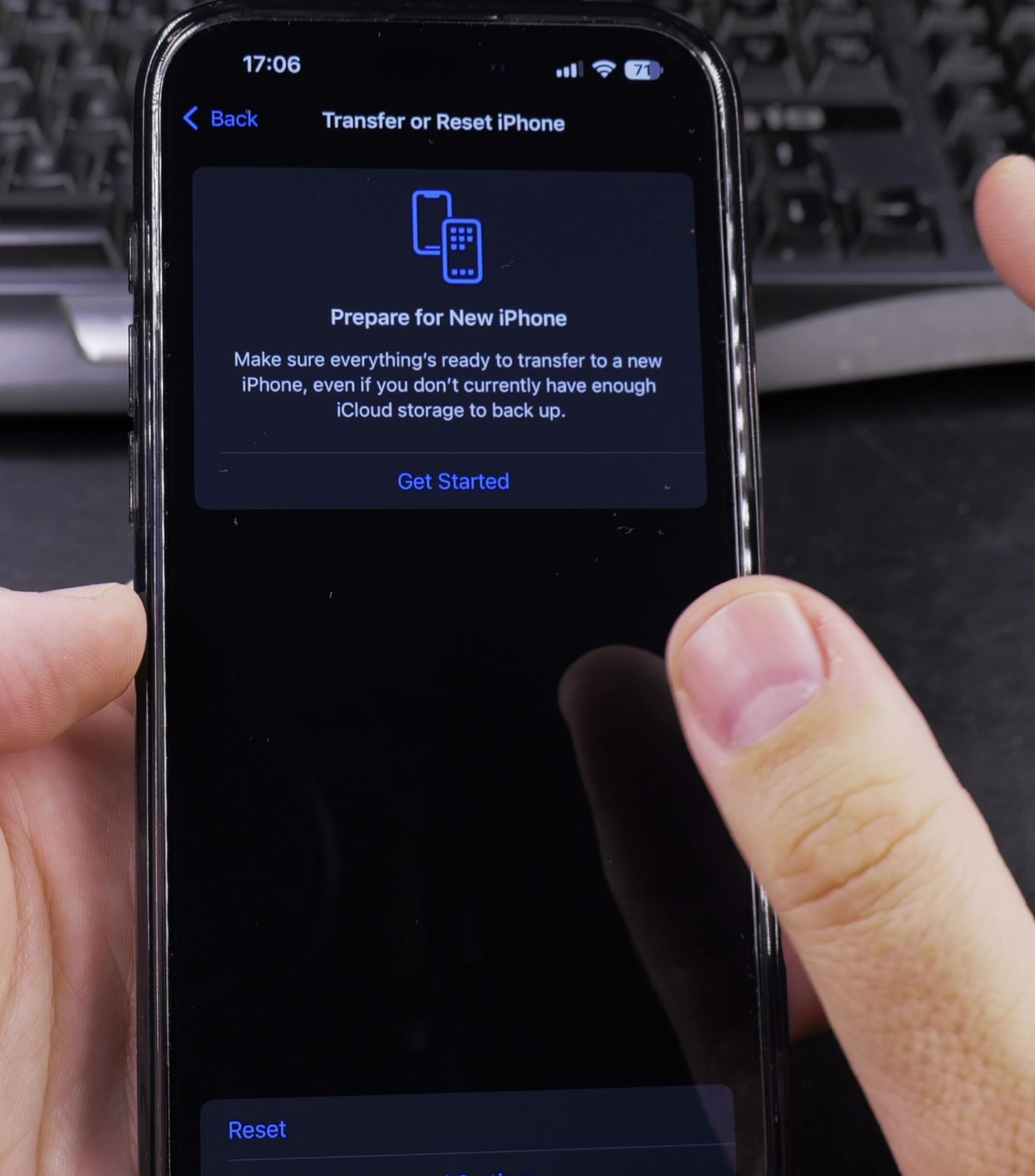
4. Select Reset
Select Reset.
5. Choose Reset All Settings
Choose Reset All Settings.
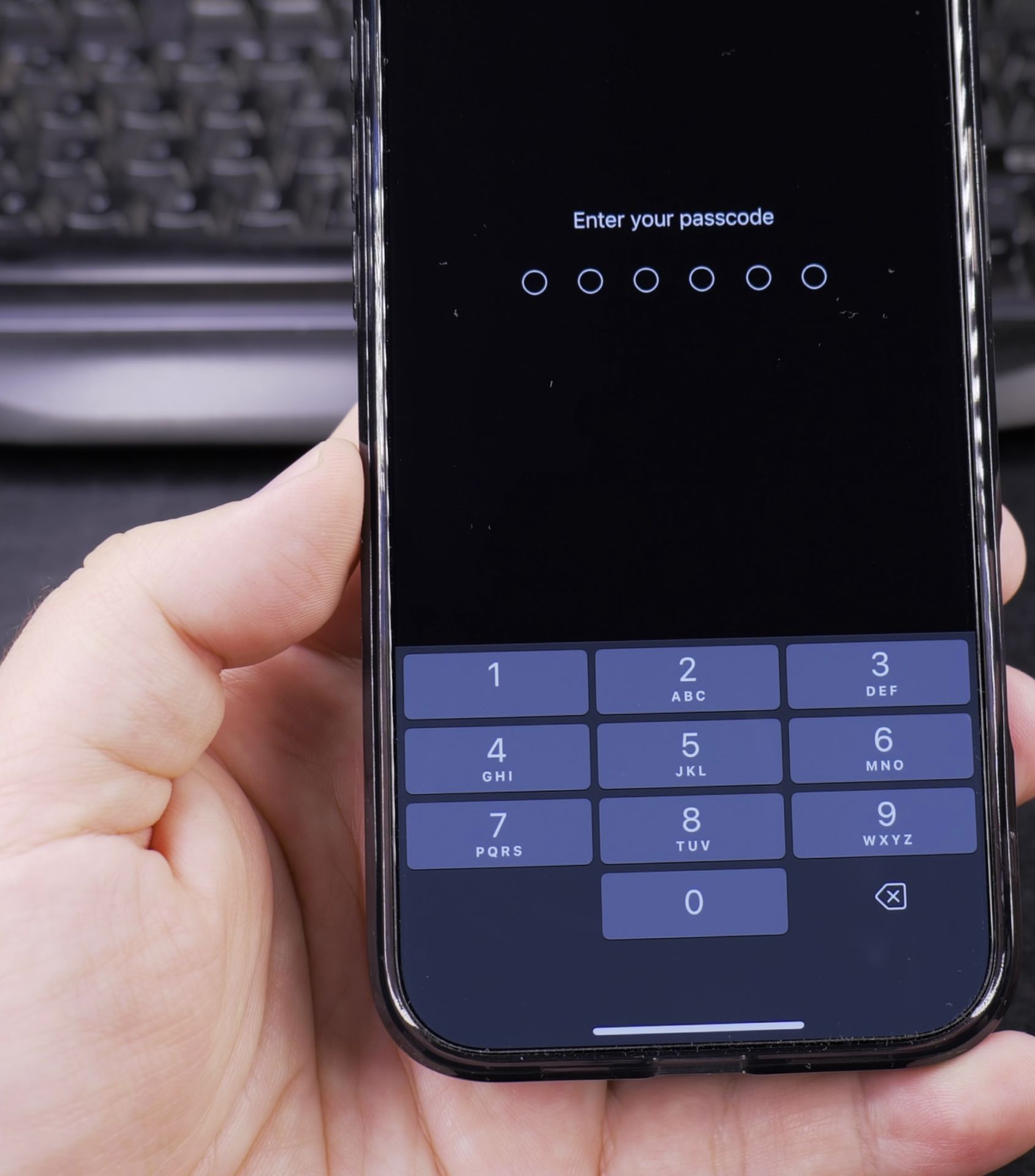
6. Enter your passcode if prompted
Enter your passcode if prompted.
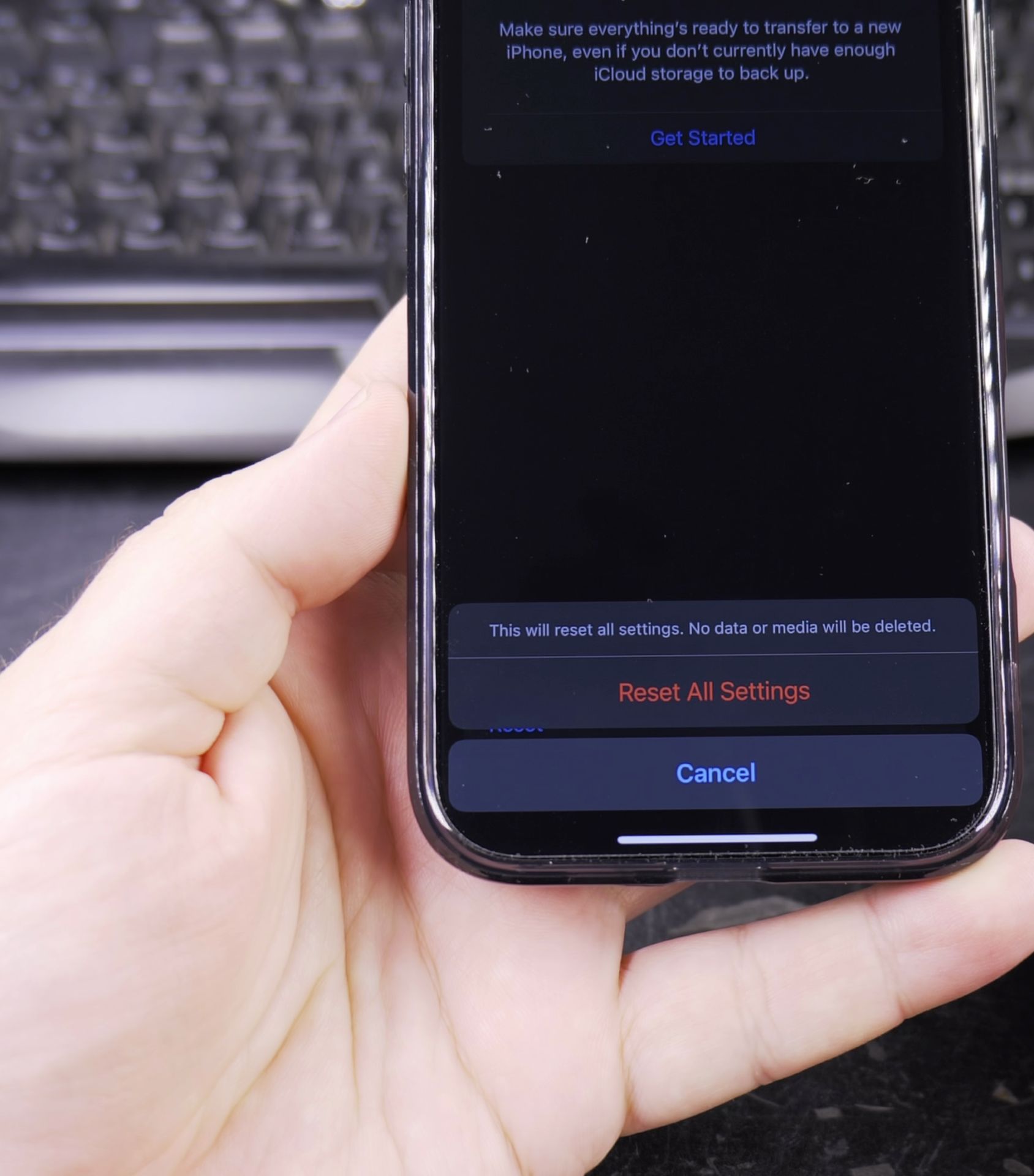
7. Confirm by tapping Reset All Settings
Confirm by tapping Reset All Settings.
What to Do After Resetting
After your iPhone restarts:
- Reconnect to Wi-Fi networks
- Set up Face ID/Touch ID again
- Adjust display and sound preferences
- Reconfigure any special accessibility settings
Important Notes
- Your wallpaper will reset to default
- Keyboard settings and shortcuts will be cleared
- Privacy permissions for apps remain unchanged
- All your data and apps stay intact
Final Thoughts
Resetting all settings is a safe way to troubleshoot iPhone issues without losing your personal files. If problems persist after this reset, you may need to consider a full factory reset or contact Apple Support.
Remember to take screenshots of any custom settings you want to remember before resetting.
Have you tried this method to fix your iPhone? Let me know in the comments if you have any questions!
Helpful Tips
Take your time and check the screen carefully after each tap so you can confirm the setting changed as expected. If an option appears in a slightly different spot on your device, watch the embedded video above for a closer look.
Related Guides
- How to Transfer Data from iPhone to Google Pixel 11 Pro XL Step-by-Step – Moving from an iPhone to a new Android smartphone is much simpler when you use the built-in Transfer to Android feature…
- How to Sign Out and Factory Reset Your iPhone Erase All Data Before Selling – If you’re selling, returning, or giving away your iPhone, you’ll want to wipe all your personal data first.
- iPhone How-To Guides – Browse more tutorials and practical guides in this section.


Leave a Reply