
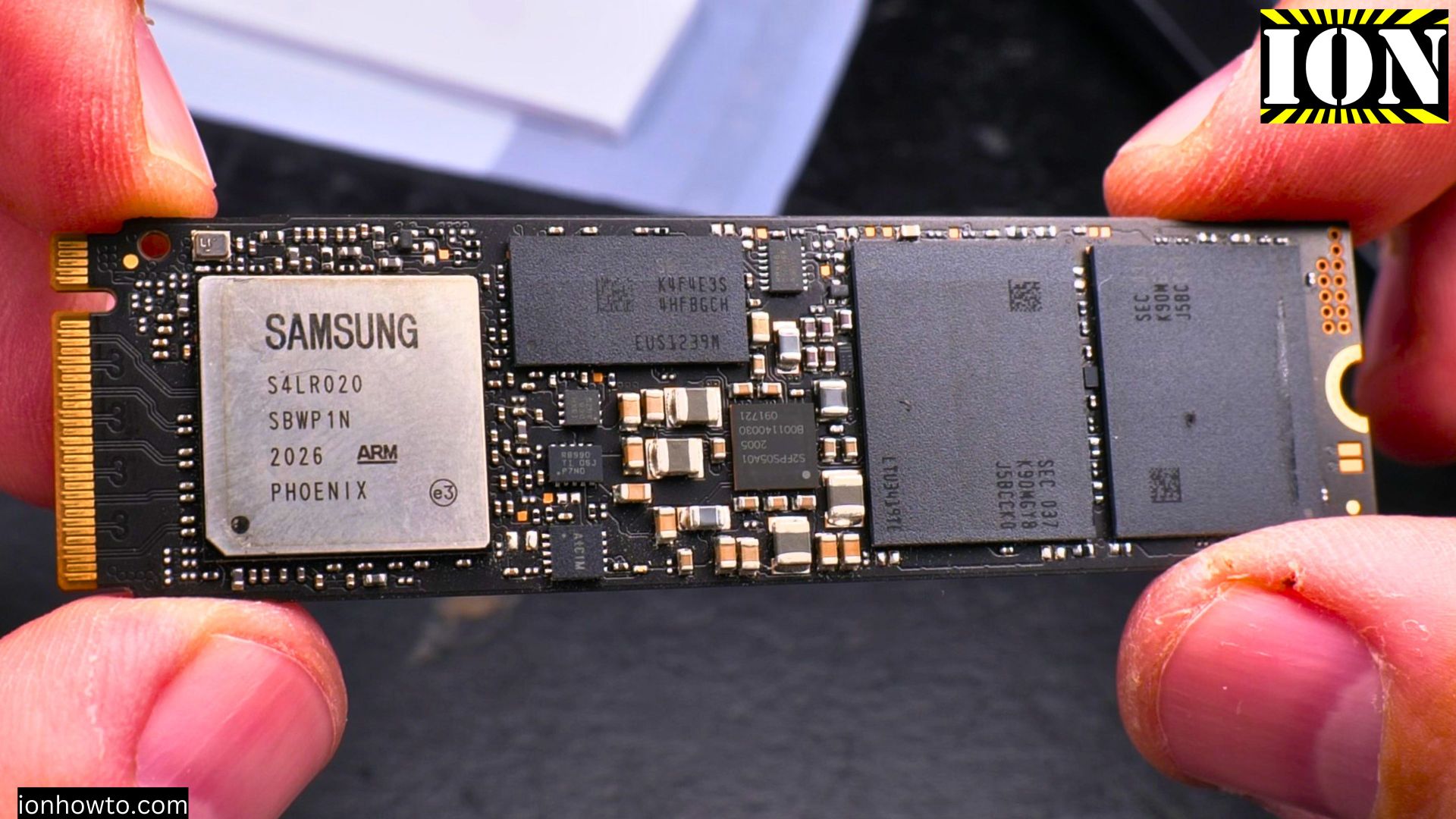
Arctic M2 Pro Cooler Crucial T500 Pro NVMe M.2 SSD Installation
Learn how to install the Crucial T500 Pro NVMe M.2 SSD with an aftermarket Arctic M2 Pro heatsink cooler in an Asus Prime X570-P setup running Windows 11.
Why Choose the Crucial T500 Pro NVMe SSD
The Crucial T500 Pro 1TB Gen 4 NVMe SSD offers excellent performance for most users. While PCIe 4.0 drives like this are slower than newer PCIe 5.0 models, they still provide more than enough speed for everyday tasks, gaming, and content creation.
Key Benefits:
- Better endurance than QLC-based drives
- Consistent performance even during large file transfers
- Includes Acronis True Image for easy system cloning
- Available with or without heatsink
Heatsink vs No Heatsink Performance
From my testing:
- Without heatsink: Temperatures quickly reach 80°C+ during heavy use
- With Arctic M2 Pro heatsink: Stays around 50-60°C during normal use, only reaching 70°C+ during prolonged full-speed transfers
I recommend getting the heatsink version or adding an aftermarket cooler like the Arctic M2 Pro. The small extra cost is worth the temperature reduction and more consistent performance.
Installation Guide
What You’ll Need:
- Crucial T500 Pro NVMe SSD
- Arctic M2 Pro heatsink (or similar aftermarket cooler)
- Screwdriver for your motherboard
Video guide
Step-by-Step Installation:
- Power down your PC and unplug all cables
- Locate the M.2 slot on your Asus Prime X570-P motherboard
- Remove the existing heatsink (if present) by unscrewing it
- Insert the SSD at a 30-degree angle into the M.2 slot
- Secure the SSD with the motherboard screw
- Prepare the heatsink:
- Remove protective film from thermal pads
- For best cooling, consider removing the SSD label (voids warranty)
- Attach the heatsink:
- Align it over the SSD
- Secure with included screws or clips
- Reboot your PC and initialize the drive in Windows Disk Management
Performance Considerations
The T500 Pro maintains good speeds thanks to:
- TLC NAND memory (better than QLC alternatives)
- DRAM cache for consistent performance
- Smart thermal throttling to prevent overheating
While the included Crucial software isn’t great for monitoring, the drive itself performs well. Firmware updates may require more effort than some competing drives.
Final Thoughts
The Crucial T500 Pro with Arctic M2 Pro cooler makes an excellent combination for:
- Gamers who want fast load times
- Content creators working with large files
- Anyone needing reliable storage with good endurance
If you’re choosing between budget NVMe drives, the T500 Pro’s better components and consistent performance make it worth the small price premium.
Have questions about your NVMe installation? Ask in the comments below!


Leave a Reply