
Learn how to quickly close multiple tabs in Chrome on your Android phone or tablet. I’ll show you how to clear all tabs at once or manage them individually for better browsing performance.
Amazon links
As an Amazon Associate I earn from qualifying purchases:
- Phone Cases
- Mobile Tripods
- Usb-c charger
- Usb-c cable
- Docking stations
- Wireless car chargers
- Wireless charger stand
- SIM card removal tool
- SIM card holder
Quick Steps and Scenarios Overview
| What You Need to Do | Quick Jump |
|---|---|
| Why Close Multiple Tabs? | Jump to Step 1 |
| How to Close All Tabs at Once | Jump to Step 2 |
| Open the Chrome app on your Android | Jump to Step 1 |
| Tap the tab counter (the number | Jump to Step 2 |
| Tap the three-dot menu in the top-right | Jump to Step 3 |
| Select Close all tabs from the menu | Jump to Step 4 |
Demonstrated on Sony Xperia 1V running Android 15
Why Close Multiple Tabs?
Having too many tabs open can:
- Slow down your phone’s performance
- Drain battery faster
- Make it harder to find what you need
- Use more mobile data in the background
How to Close All Tabs at Once
1. Open the Chrome app on your Android
Open the Chrome app on your Android device.

2. Tap the tab counter (the number
Tap the tab counter (the number in the square) at the top of the screen.
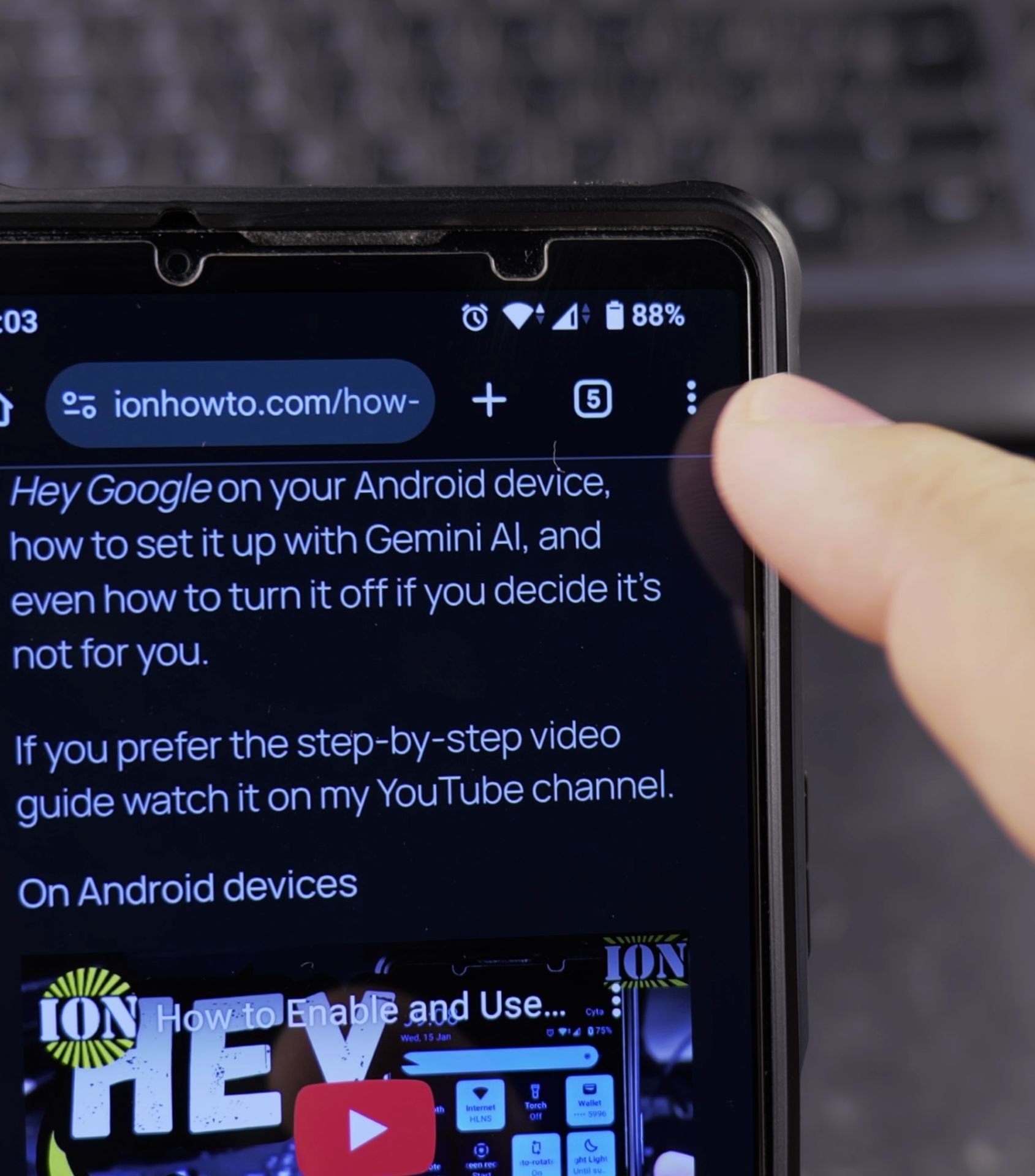
3. Tap the three-dot menu in the top-right
Tap the three-dot menu in the top-right corner.
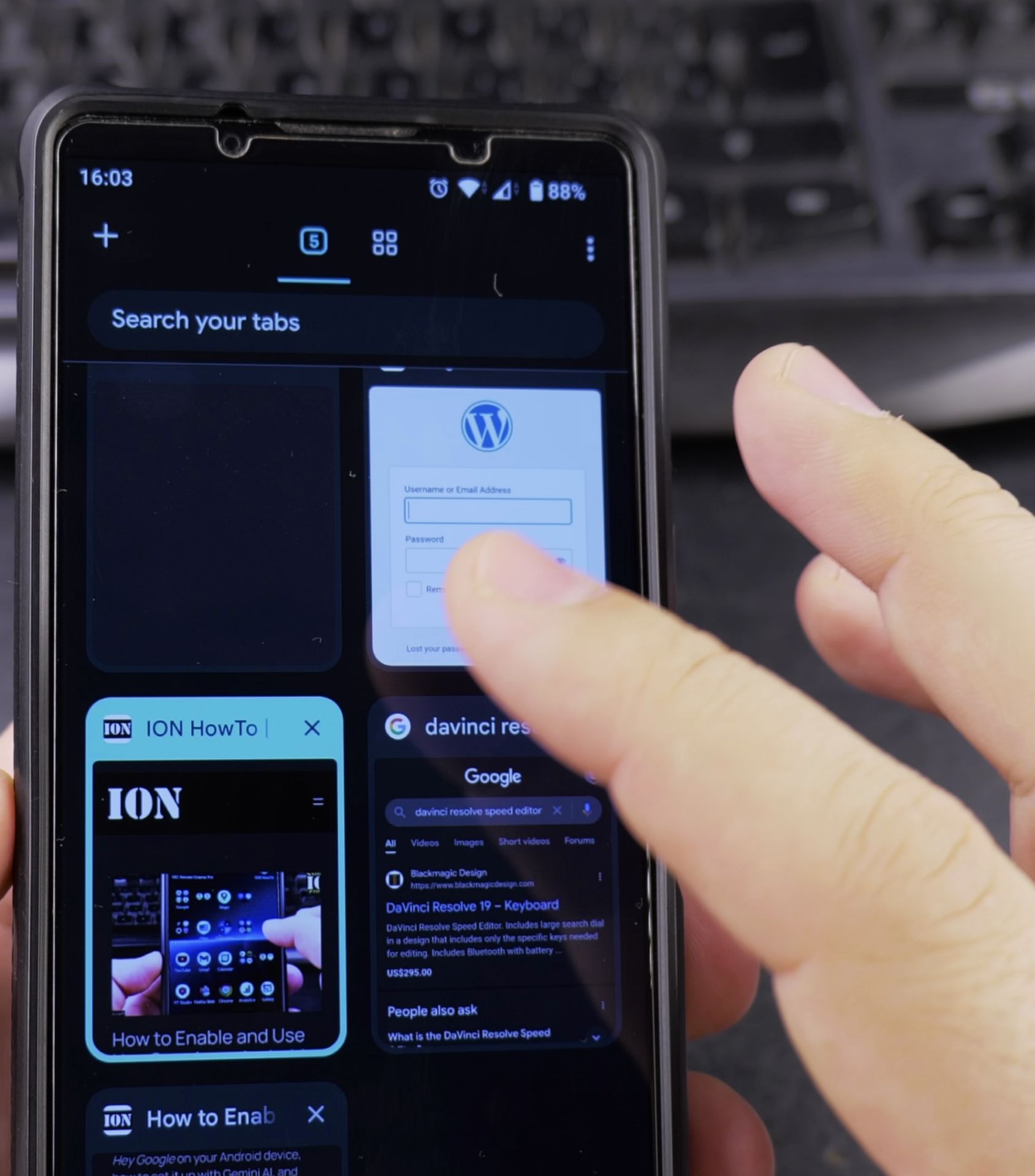
4. Select Close all tabs from the menu
Select Close all tabs from the menu.
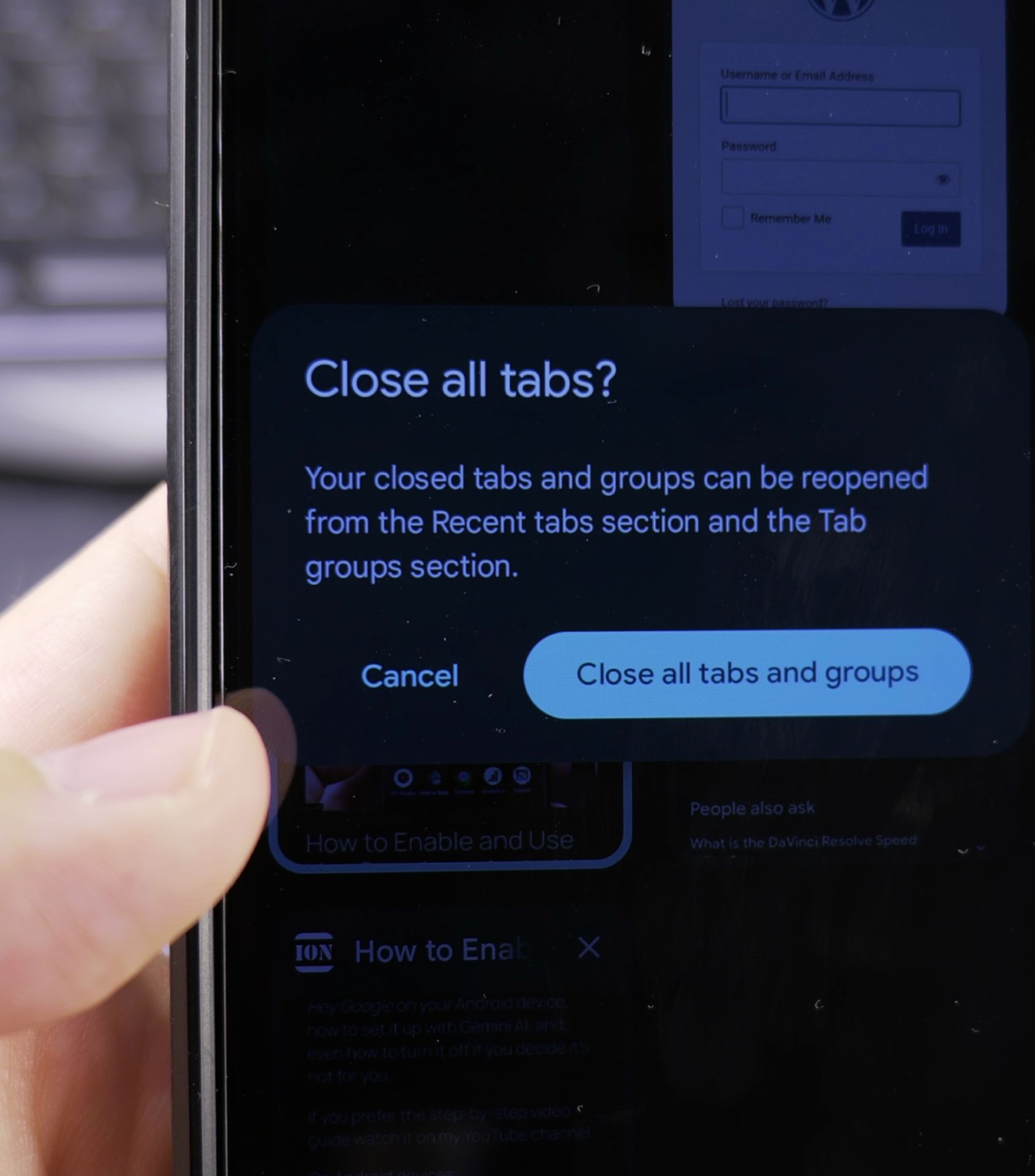
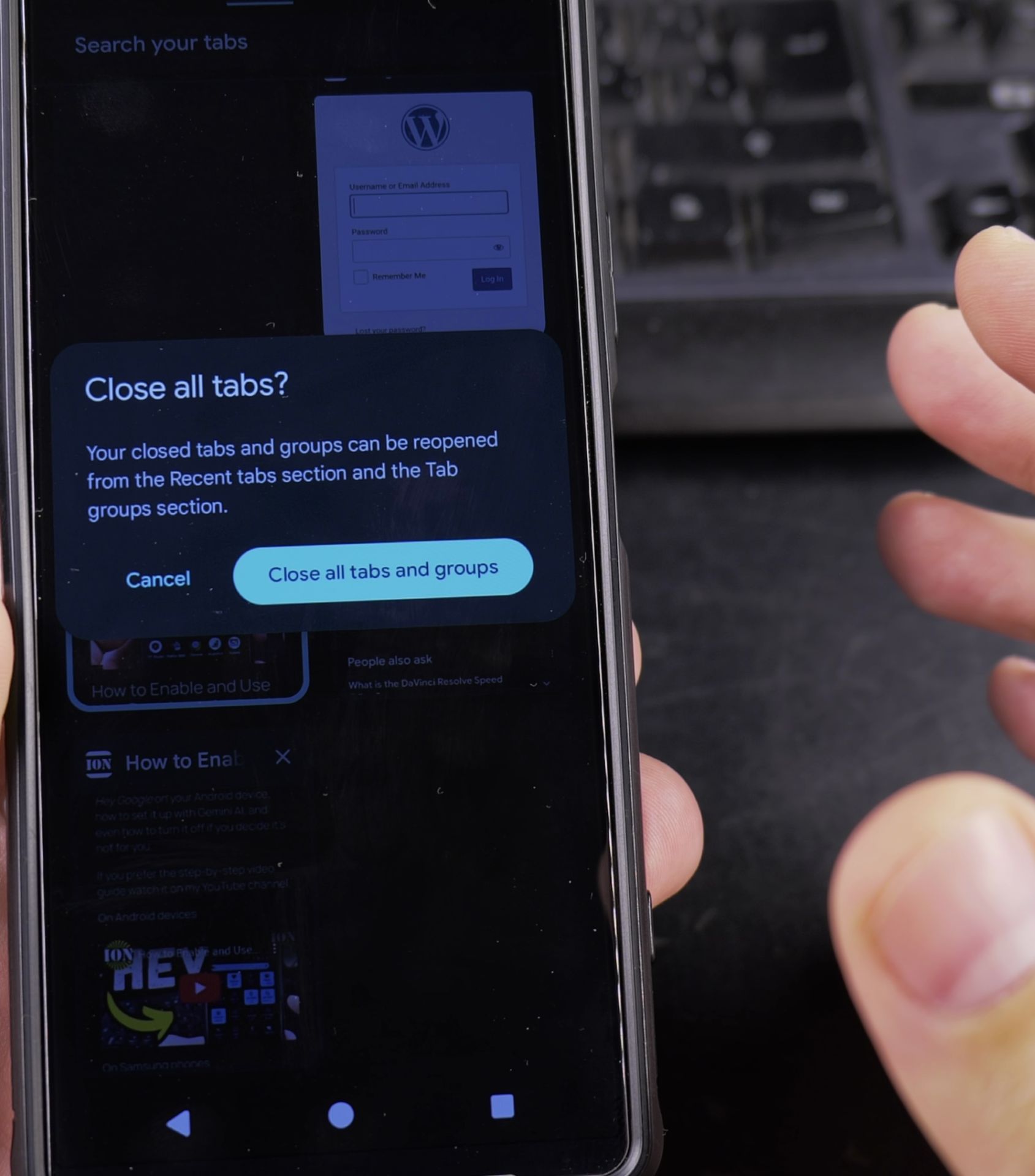
5. Confirm by tapping Close all when prompted
Confirm by tapping Close all when prompted.
How to Close Individual Tabs
6. Open Chrome and tap the tab counter
Open Chrome and tap the tab counter.
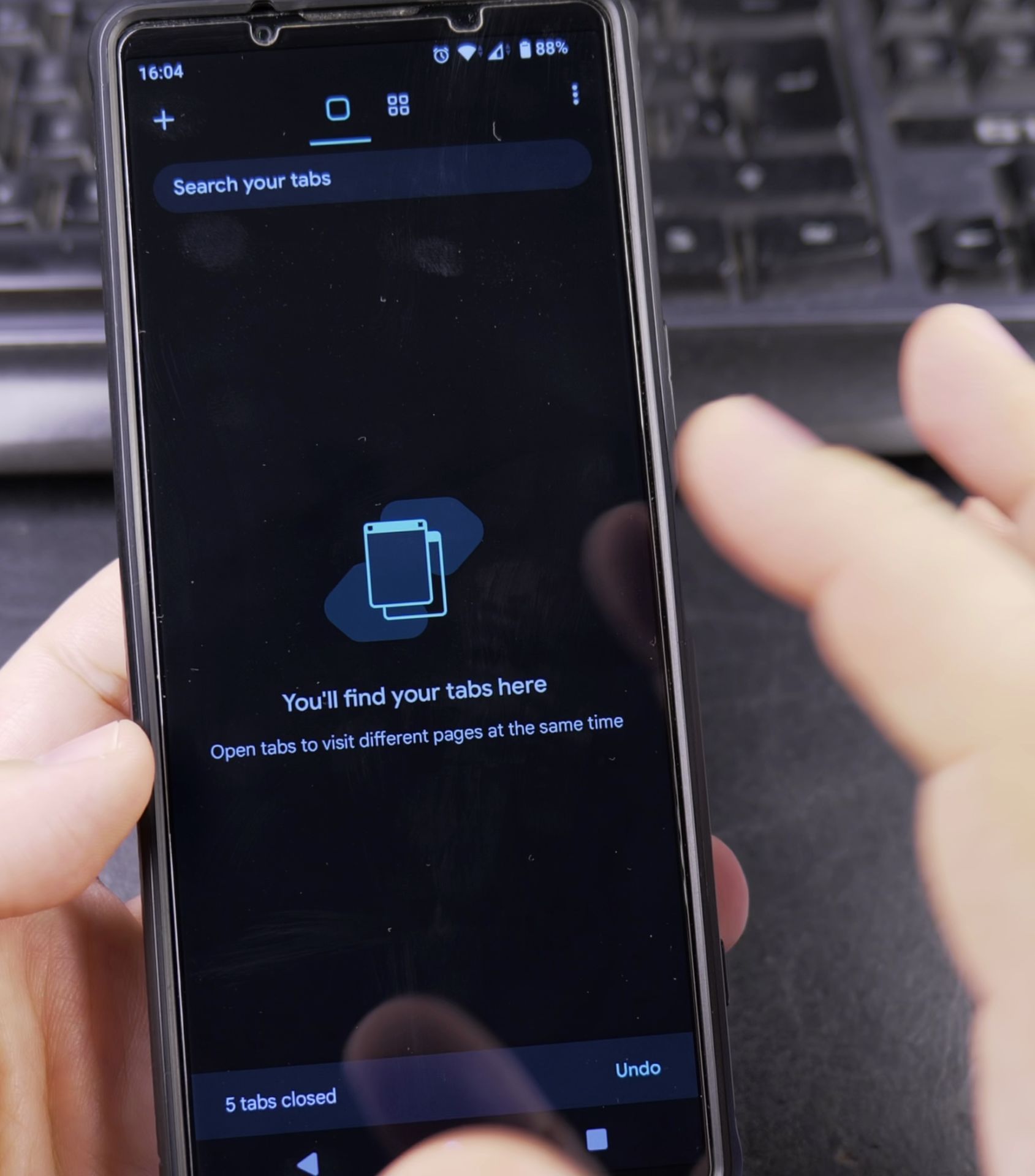
7. Scroll through your open tabs
Scroll through your open tabs.

8. To close a single tab
To close a single tab:.
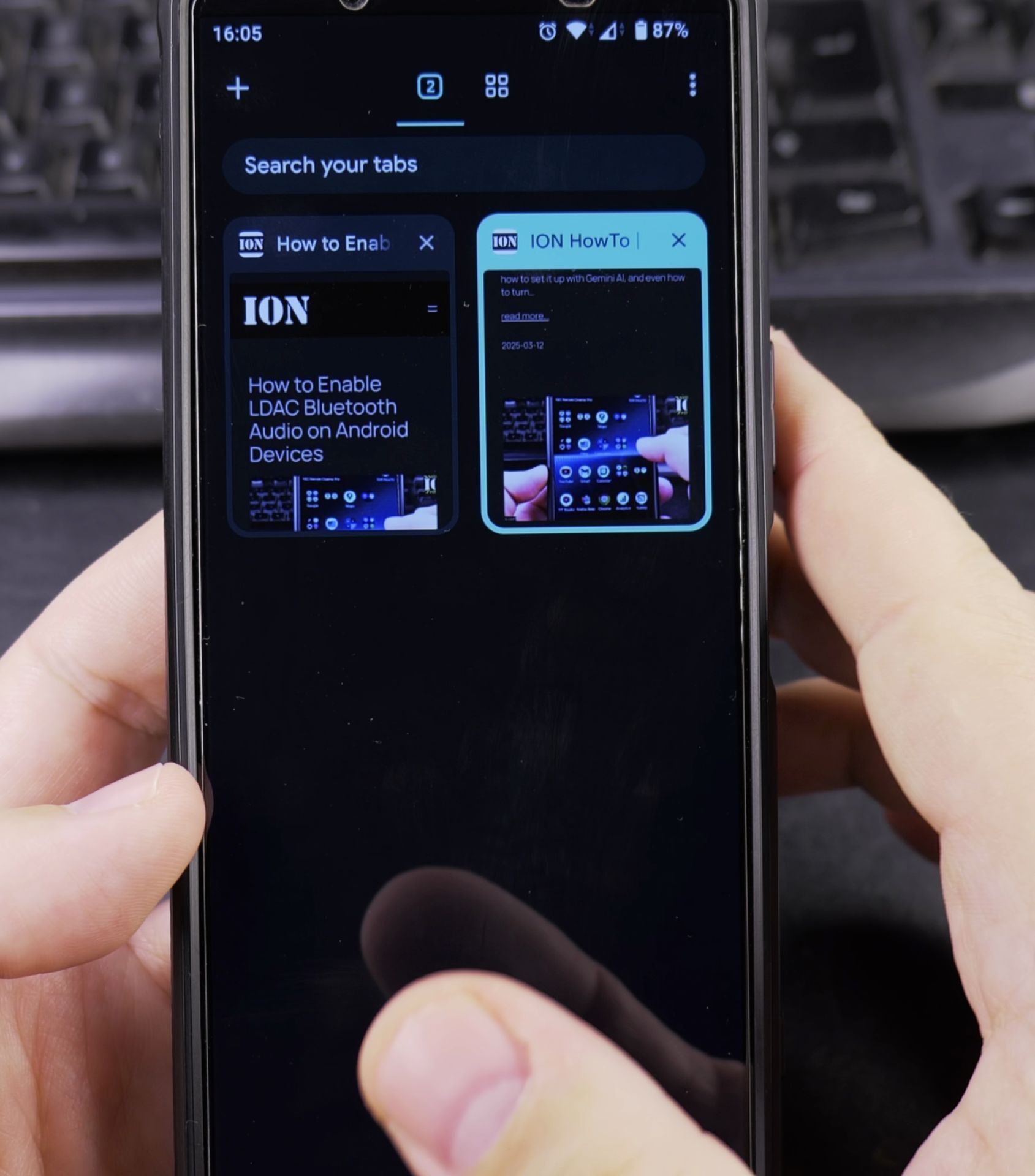
- Tap the X in the top-right corner of the tab preview
- Or swipe the tab left or right to dismiss it
Extra Tab Management Tips
Quickly Switch Between Tabs
- Swipe left or right on the address bar
- Or swipe down on the address bar to see all tabs
Reopen Closed Tabs
- Open the tab view
- Tap the three-dot menu
- Select Recently closed
- Choose the tab you want to reopen
Set Chrome to Close Tabs Automatically
- Go to Chrome Settings
- Tap Privacy and security
- Select Close tabs
- Choose when you want tabs to close automatically
Final Thoughts
Managing your Chrome tabs helps keep your Android device running smoothly. If you want to close all tabs at once or just clean up a few, these simple steps will help you stay organized.
If you have any questions about Chrome on Android, let me know in the comments!
Helpful Tips
Take your time and check the screen carefully after each tap so you can confirm the setting changed as expected. If an option appears in a slightly different spot on your device, watch the embedded video above for a closer look.
Related Guides
- Android Battery Share Function – How to Use Battery Share on Android.
- How to Delete Private Space and Erase All Hidden Apps on Android – If you no longer need Private Space on Android or want to wipe all hidden apps, accounts, and private photos stored inside…
- Move Address Bar in Android Chrome – How to Move the Address Bar Back to Top in Android Chrome.
- Android & Mobile Guides – Browse more tutorials and practical guides in this section.


Leave a Reply